Zavedení
This manual provides comprehensive instructions for the setup, operation, maintenance, and troubleshooting of your Kensington Pro Fit Ergonomic Wireless Keyboard and Mouse (Model K75407US). This ergonomist-approved combo is designed to enhance comfort and productivity with its split and sloped keyboard, adjustable reverse tilt, and built-in wrist rest. The dual wireless connectivity offers flexibility via 2.4 GHz and Bluetooth 4.0 LE, secured with 128-bit AES encryption. Both the keyboard and mouse feature quiet, spill-proof keys for a smooth and non-disruptive user experience.

Nad hlavou view of the Kensington Pro Fit Ergonomic Wireless Keyboard and Mouse, showcasing their ergonomic design and grey color.
Nastavení
Follow these steps to set up your Kensington Pro Fit Ergonomic Wireless Keyboard and Mouse.
1. Instalace baterie
- Vyhledejte přihrádky na baterie na spodní straně klávesnice i myši.
- Insert the required batteries (1 Lithium Ion battery for the mouse, typically AA batteries for the keyboard, though not explicitly stated for the keyboard in provided data, assume standard). Ensure correct polarity.
- Přihrádky na baterie bezpečně uzavřete.
2. Připojení zařízení
The keyboard and mouse support dual wireless connectivity: 2.4 GHz via a USB receiver and Bluetooth 4.0 LE.

Detailní view of the three-mode power-saving switch on the device, allowing selection between 2.4G, Off, and BT (Bluetooth) modes, along with a connect button.
2.1. Bezdrátové připojení 2.4 GHz
- Locate the USB receiver. It is typically stored within the mouse or packaged separately.
- Zapojte USB přijímač do volného USB portu na vašem počítači.
- On both the keyboard and mouse, set the power-saving switch to the '2.4G' position.
- The devices should automatically connect. If not, press the 'CONNECT' button on the underside of the devices (if available) or refer to the troubleshooting section.

The compact USB receiver for 2.4 GHz wireless connectivity, featuring Kensington branding.
2.2. Připojení Bluetooth
- On both the keyboard and mouse, set the power-saving switch to the 'BT' (Bluetooth) position.
- Press and hold the 'CONNECT' button (if available) or a dedicated Bluetooth pairing button on the device until the indicator light begins to flash, indicating pairing mode.
- On your computer (Windows 7 or above, macOS 10.14 or above, Chrome OS), navigate to your Bluetooth settings.
- Hledat new devices and select the Kensington keyboard or mouse from the list.
- Dokončete proces párování podle pokynů na obrazovce.
Návod k obsluze
Funkce klávesnice
- Ergonomický design: The split and sloped keyboard with adjustable reverse tilt is designed to position your hands, wrists, and forearms for improved comfort and neutral alignment.
- Built-in Wrist Rest: The integrated wrist rest provides support, cushions, and cradles the wrists during typing.
- Tiché klávesy: The keys are designed for quiet operation, minimizing typing noise.
- Ochrana proti polití: The keyboard features spill-proof keys for easy cleanup in case of accidental spills.
- Funkční klávesy: Standard F-keys (F1-F12) are available, often with secondary functions accessible via the 'Fn' key.
- Lock Indicators: Dedicated indicator lights for Caps Lock, Numbers Lock, and Scroll Lock provide visual feedback.

A user's hands positioned naturally on the split and sloped ergonomic keyboard, demonstrating comfortable typing posture.

Detailní záběr view of the keyboard's integrated wrist rest, designed to support and cushion the wrists during use.
A close-up of the keyboard keys with water droplets, illustrating their spill-proof design for easy cleanup.
Funkce myši
- Ergonomický design: The mouse is shaped to fit comfortably in your hand, promoting a natural wrist and forearm position.
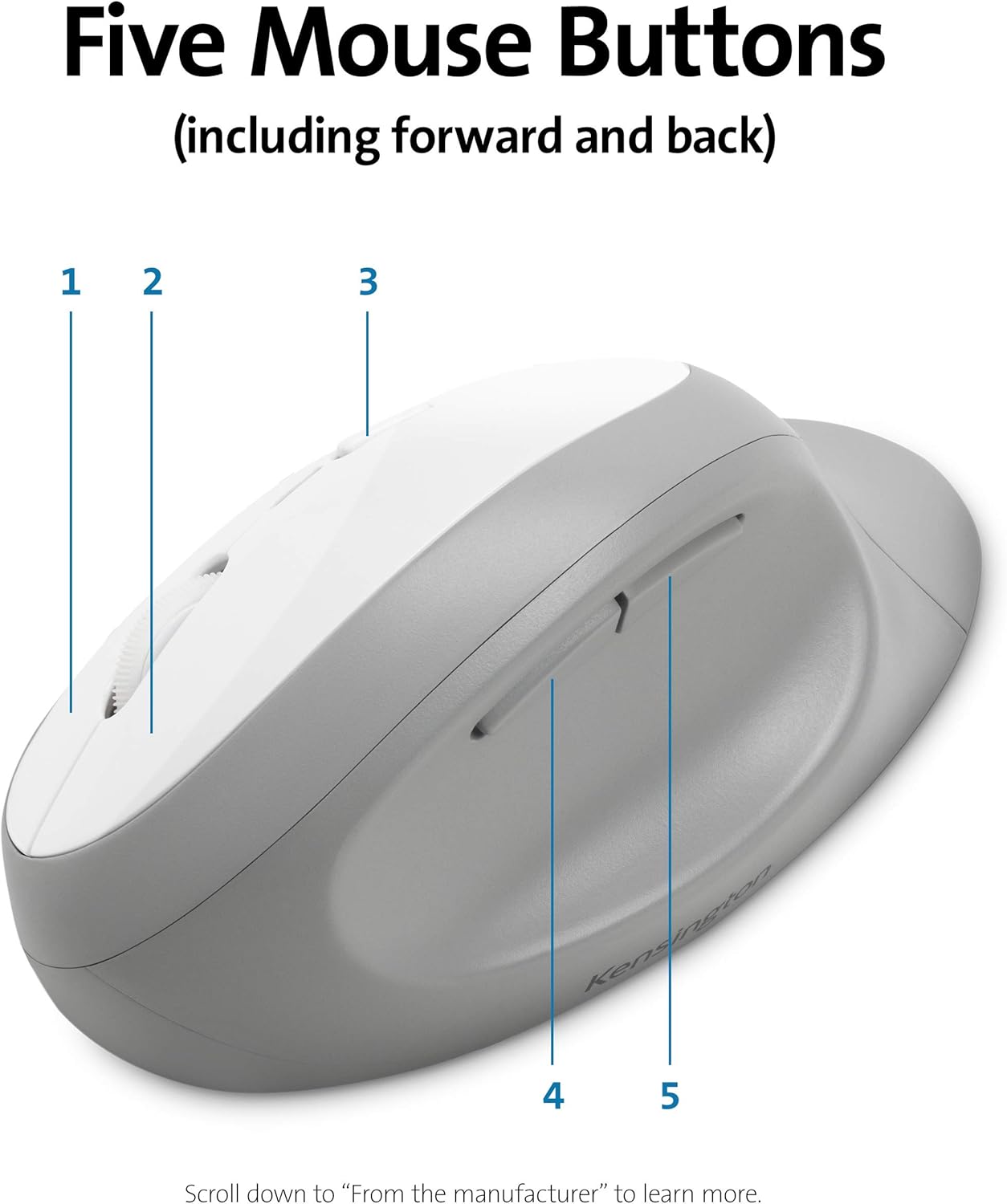
- Five Buttons: The mouse includes five buttons, typically comprising left-click, right-click, scroll wheel click, and two side buttons (forward/back) for enhanced navigation.
- Quiet Clicking: Designed for quiet operation to minimize disruptive noise.

The ergonomic mouse with five distinct buttons labeled 1 through 5, indicating its multi-functionality.
Power-Saving Switch
The three-mode power-saving switch allows you to toggle between 2.4 GHz, Bluetooth, and Off modes to optimize battery life. Set to 'Off' when not in use for extended periods.
Údržba
Čištění
- Pro běžné čištění použijte měkký,amp cloth to wipe down the surfaces of the keyboard and mouse.
- Due to the spill-proof design, minor liquid spills on the keyboard can be wiped away. Ensure the device is powered off before cleaning.
- Nepoužívejte agresivní chemikálie nebo abrazivní čisticí prostředky, protože by mohly poškodit povrchovou úpravu.
Výměna baterie
- When battery life is low, the device's performance may degrade. Replace batteries as needed.
- Refer to the 'Battery Installation' section under Setup for instructions on accessing the battery compartments.
- Použité baterie zlikvidujte v souladu s místními předpisy.
Odstraňování problémů
If you encounter issues with your keyboard or mouse, try the following troubleshooting steps:
Problémy s připojením
- Zkontrolujte napájení: Ensure both devices are powered on and the power-saving switch is set to the correct mode (2.4G or BT).
- Kontrola baterie: Replace batteries if they are low or depleted.
- USB Receiver (2.4 GHz): Ujistěte se, že je USB přijímač bezpečně zapojený do funkčního USB portu. Zkuste jiný USB port.
- Oprava párování zařízení: For 2.4 GHz, try unplugging and re-plugging the USB receiver. For Bluetooth, remove the device from your computer's Bluetooth settings and re-pair it.
- Rušení: Move the devices closer to the receiver/computer. Avoid placing them near other wireless devices or large metal objects that might cause interference.
Keys Not Responding / Double Strokes
- Úroveň baterie: Low battery can affect key responsiveness. Replace batteries.
- Konektivita: Ensure a stable connection (see Connectivity Issues above).
- Restartovat: Turn the keyboard off and then on again. Restart your computer.
- Čisté klíče: Although spill-proof, debris under keys can sometimes affect performance. Gently clean around the affected keys.
Mouse Not Tracking / Scroll Wheel Issues
- Povrch: Ensure the mouse is used on a suitable, non-reflective surface.
- Čistota senzoru: Check the optical sensor on the underside of the mouse for any obstructions or dirt and clean gently.
- Úroveň baterie: Low battery can cause erratic tracking. Replace batteries.
- Rolovací kolečko: If the scroll wheel squeaks or is unresponsive, ensure it is free of debris.
Specifikace
| Značka | Kensington |
| Číslo modelu | K75407US |
| Kompatibilita operačního systému | Chrome OS, macOS 10.14 or above, Windows 7 or above |
| Hmotnost položky | 2.9 unce |
| Rozměry produktu (DxŠxV) | 2.56 x 22.28 x 9.92 palce |
| Barva | Šedá |
| Technologie připojení | Wireless (2.4GHz USB Receiver, Bluetooth 4.0 LE) |
| Zabezpečení | Šifrování 128-bit AES |
| Zdroj napájení | Napájení z baterie |
| Baterie | 1 Lithium Ion battery required (included for mouse) |
| Speciální funkce | Ergonomic, Spill-proof keys, Quiet keys |
Záruka a podpora
Informace o záruce, technickou podporu nebo další pomoc získáte na oficiálních webových stránkách společnosti Kensington. website or contact Kensington customer service. Details regarding product registration and warranty claims can typically be found on their support pages.
Kensington is a trusted leader in desktop and mobile device accessories, with over 40 years of experience.


