1. Úvod
Nero Platinum 365 is a comprehensive multimedia software suite designed for Windows operating systems. It offers a wide range of tools for video editing, data backup, media management, PC optimization, and disc burning. This manual provides instructions for installing, operating, and maintaining the software, along with troubleshooting tips.
The suite is designed with a user-friendly interface and supports 24 languages, making it accessible for both beginners and experienced users.
2. Systémové požadavky
Pro zajištění optimálního výkonu by váš systém měl splňovat následující minimální požadavky:
- Operační systém: Windows 11, Windows 10, Windows 8.1, Windows 8, Windows 7
- Procesor: 2 GHz AMD or Intel processor
- BERAN: 1 GB RAM (2 GB RAM for HD and 4K editing)
- Místo na pevném disku: 5 GB for a typical installation of all components
- Grafická karta: Microsoft DirectX 9.0 compliant graphics card with 3D acceleration, 128 MB video memory (32-bit), optional for some features
- Připojení k internetu: Required for installation, license validation, and online services
3. Nastavení a instalace
Nero Platinum 365 is a downloadable product. Follow these steps to install the software:
- Stáhnout: Získejte instalaci file from the official Nero website or the provided download link.
- Spusťte instalační program: Najděte stažené file (např,
Nero_Platinum_365_Installer.exe) and double-click it to start the installation process. - Postupujte podle pokynů na obrazovce: The installer will guide you through the necessary steps. Accept the license agreement and choose your installation preferences.
- Enter License Key: During installation, you will be prompted to enter your unique license key. This key is essential for activating the software.
- Kompletní instalace: Once the installation is complete, you may be prompted to restart your computer.
After installation, you can launch Nero Platinum 365 from your desktop shortcut or the Start Menu.

Figure 1: Nero Platinum 365 Software Packaging
This image displays the retail packaging for Nero Platinum 365, highlighting its key features such as video editing, backup, media management, and PC tuning, indicating it is a 7-in-1 multimedia suite for 1 PC for 1 year.
4. Ovládání softwaru: Klíčové vlastnosti
Nero Platinum 365 integrates several powerful applications. Here's an overview of its core functionalities:
4.1. Video Editing (Nero Video)
Create professional-looking videos and slideshows with Nero Video. It offers tools for cutting, trimming, adding effects, transitions, and titles. You can import various video formats, edit them on a timeline, and export them in high quality, including 8K resolution.

Figure 2: Nero Video Editing Interface
This image shows the Nero Video application interface, featuring a timeline for video and audio tracks, an effect palette with options like blur and bouncing characters, and a preview window. It illustrates the process of adding text and effects to a video project.
4.2. PC Optimization (Nero TuneItUp)
Nero TuneItUp helps improve your computer's performance by cleaning up junk files, optimizing startup processes, and managing privacy settings. It provides a comprehensive overview of your system's health and offers one-click solutions for common issues.

Figure 3: Nero TuneItUp PRO Dashboard
This image displays the Nero TuneItUp PRO dashboard, showing a 'Smart Check' progress at 79% and various optimization tools such as Trash Cleaner, StartUp Booster, Services Manager, Registry Cleaner, Browser Cleaner, and Privacy Shield. It also indicates CPU load and power-saving options.
4.3. Media Management (Nero MediaHome)
Organize, play, and stream your photos, videos, and music with Nero MediaHome. It features AI support for categorizing pictures by people, areas, and more, creating a clear and searchable photo gallery.

Figure 4: Nero MediaHome Photo Organization
This image illustrates the Nero MediaHome interface, specifically the 'Faces' tab, where photos are automatically categorized by detected faces using artificial intelligence. It shows various identified individuals and a section for unnamed persons, allowing users to manage and organize their photo library efficiently.
4.4. Photo Enhancement (AI Photo Tagger & Image Upscaler)
Beyond basic management, Nero Platinum 365 includes tools like the AI Photo Tagger for automatic categorization and the Image Upscaler for enhancing image resolution without quality loss.

Figure 5: Nero AI Photo Tagger
This image displays the Nero AI Photo Tagger interface, showcasing how artificial intelligence detects and categorizes objects within images. In this example, it has identified multiple images of castles and listed various detected AI tags such as 'Scenes', 'Animal', 'Architecture', and 'Castle', with counts for each category.
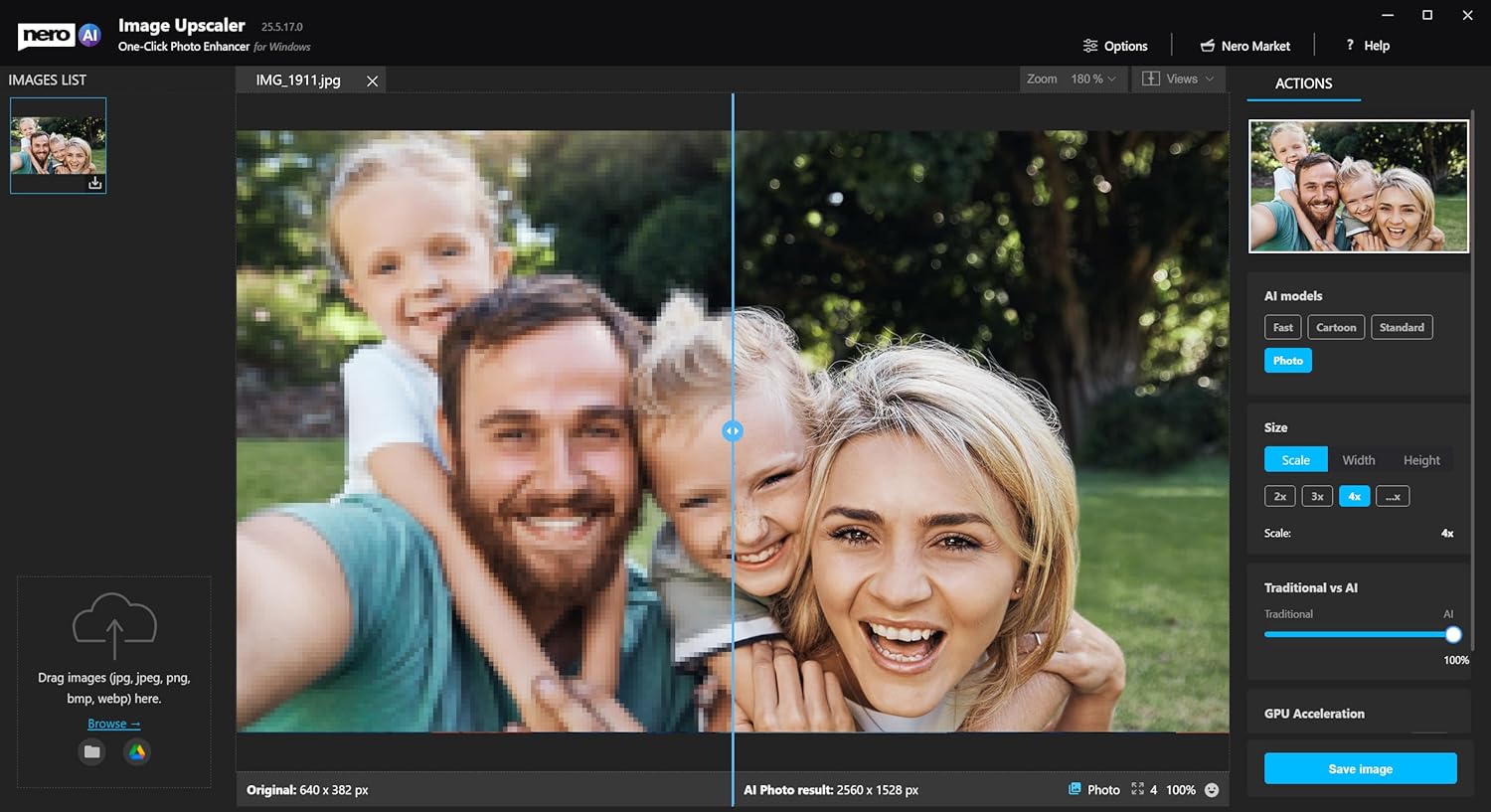
Figure 6: Nero Image Upscaler
This image shows the Nero Image Upscaler interface, demonstrating a side-by-side comparison of an original low-resolution image and its AI-upscaled version. The interface allows users to select AI models, adjust scaling factors (2x, 3x, 4x), and save the enhanced image, illustrating how the software improves image quality and resolution.
4.5. Data Backup (Nero BackItUp)
Regularly back up your important data to local drives, external drives, or network locations using Nero BackItUp. This ensures your files are protected against loss due to hardware failure or accidental deletion.

Figure 7: Nero BackItUp Target Selection
This image displays the Nero BackItUp interface, specifically 'Step 2 of 3 - Select a backup target'. It presents three options for data backup: Local Drive, External Drive, and Network, allowing users to choose their preferred destination for securing their files.
4.6. Media Conversion (Nero Recode)
Rip and convert audio and video files to various formats (e.g., MP3, MP4) for playback on different devices. Nero Recode supports a wide range of codecs and resolutions.
4.7. Disc Burning (Nero Burning ROM)
Burn data, audio, and video to CDs, DVDs, and Blu-ray discs. Nero Burning ROM offers advanced features like SecurDisc technology for reliable and secure disc burning.
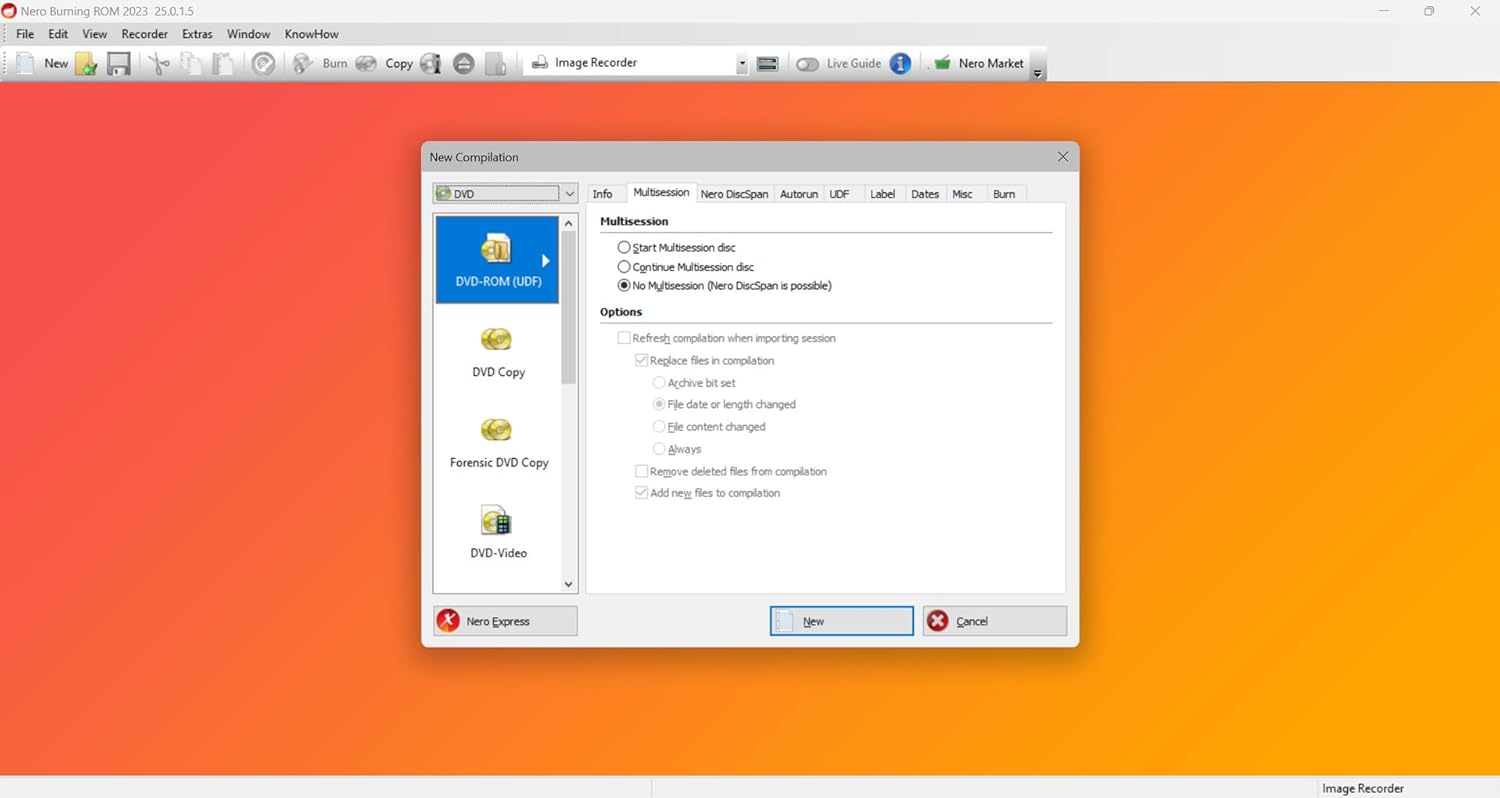
Figure 8: Nero Burning ROM New Compilation
This image shows the Nero Burning ROM interface for creating a new compilation, specifically for a DVD-ROM (UDF). It presents options for multisession discs, refreshing compilation when importing, and archiving files, demonstrating the flexibility in disc creation.
4.8. Screen Recording (Nero Screen Recorder)
Capture your desktop activity, including video and audio, with Nero Screen Recorder. This tool is useful for creating tutorials, gameplay videos, or recording online content.

Figure 9: Nero Screen Recorder PRO
This image displays the Nero Screen Recorder PRO interface overlaid on a laptop screen, showing options for selecting a capture area (e.g., full screen, custom region), and settings for recording. It highlights the tool's functionality for capturing screen activity with precise control over the recording dimensions.
5. Údržba
To ensure the smooth operation of Nero Platinum 365 and your system:
- Udržujte software aktualizovaný: Regularly check for and install updates for Nero Platinum 365 to benefit from new features, bug fixes, and performance improvements.
- Optimalizace systému: Utilize Nero TuneItUp periodically to clean junk files and optimize system settings.
- Záloha dat: Maintain a consistent data backup schedule using Nero BackItUp to prevent data loss.
- Aktualizace ovladačů: Ensure your graphics card and other hardware drivers are up to date for optimal multimedia performance.
6. Řešení problémů
If you encounter issues with Nero Platinum 365, consider the following troubleshooting steps:
- Restartujte aplikaci/počítač: Often, simply restarting the Nero application or your computer can resolve minor glitches.
- Zkontrolujte systémové požadavky: Ověřte, zda váš počítač splňuje minimální systémové požadavky pro software.
- Aktualizovat software: Ensure you are running the latest version of Nero Platinum 365. Updates often include fixes for known issues.
- Zkontrolujte připojení k internetu: For features requiring online access (e.g., license validation, updates, online services), ensure you have a stable internet connection.
- Nahlédněte do dokumentace s nápovědou: Nero Platinum 365 includes extensive built-in help documentation. Access it through the application's Help menu.
- Disable Antivirus Temporarily: In rare cases, antivirus software might interfere with installation or operation. Temporarily disable it during installation or if you suspect it's causing an issue, then re-enable it.
7. Specifikace
| Funkce | Detail |
|---|---|
| Název produktu | Nero Platinum 365 |
| Číslo modelu položky | NER912800F086 |
| Výrobce | Společnost Nero Inc. |
| Rozměry produktu | 5.25 x 1.25 x 7.5 palce |
| Hmotnost položky | 1.6 unce |
| Podpora operačního systému | Windows 11, 10, 8.1, 8, 7 |
| Typ licence | 1-year subscription for 1 PC |
8. Podpora a záruka
For technical assistance, product support, or warranty information, please refer to the official Nero support channels:
- Nero Webmísto: Navštivte oficiální web Nera website for FAQs, knowledge base articles, and contact options.
- Služby zákazníkům: Contact Nero customer service directly for personalized support regarding installation, activation, or software issues.
Details regarding the specific terms of your 1-year license and any associated warranty are typically provided during the purchase process and within the software's license agreement.


