Zavedení
This manual provides essential information for setting up, operating, maintaining, and troubleshooting your Acer Swift 3 SF314-55G-78U1 laptop. Please read this guide thoroughly to ensure proper use and to maximize the performance and lifespan of your device.

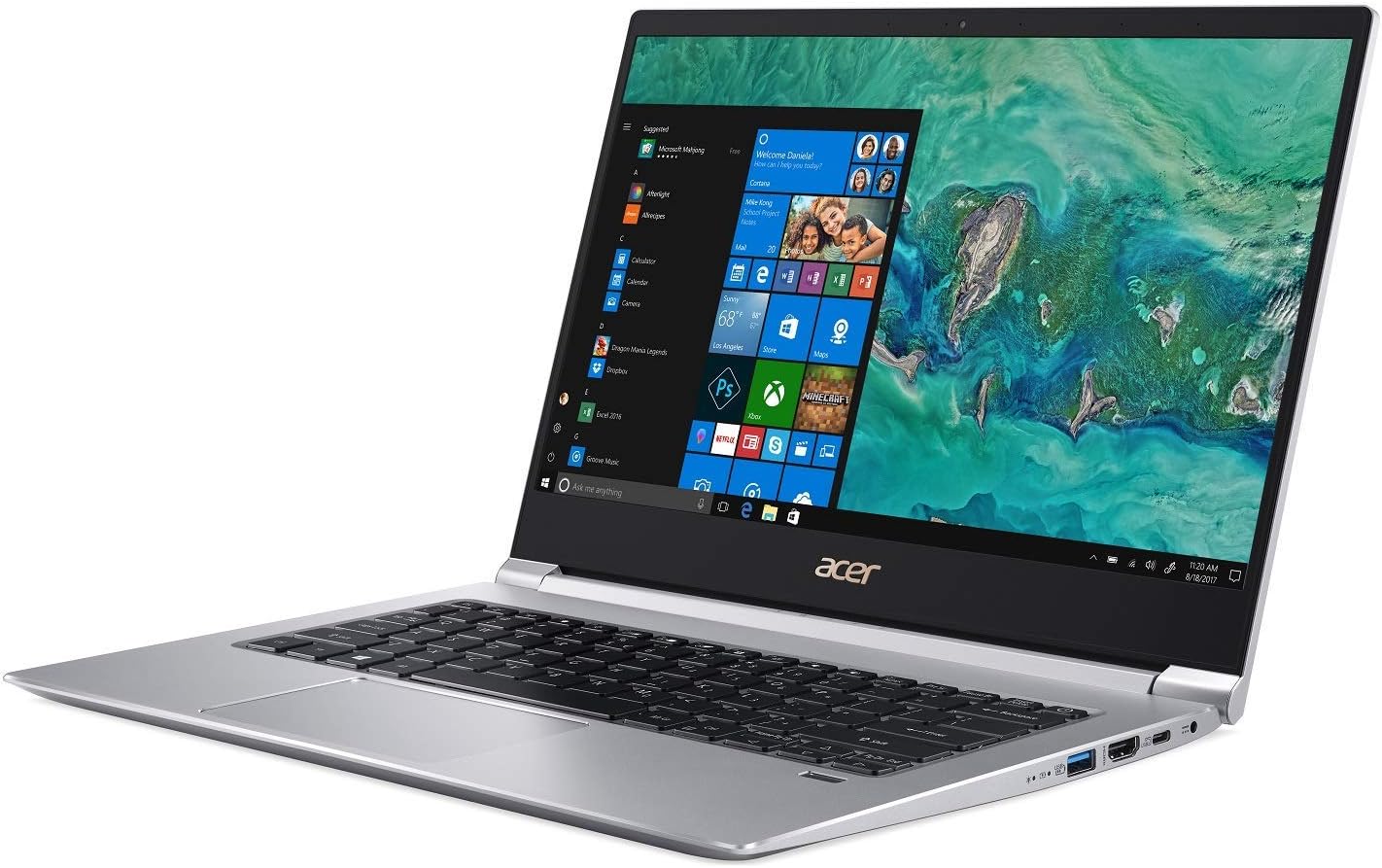
Image: The Acer Swift 3 SF314-55G-78U1 laptop, shown open with the screen displaying the Windows 10 operating system interface. The keyboard and touchpad are visible.
1. Nastavení
1.1 Vybalení a úvodní kontrola
Opatrně vyjměte všechny součásti z obalu. Ujistěte se, že jsou přítomny následující položky:
- Acer Swift 3 SF314-55G-78U1 Laptop
- AC adaptér
- Napájecí kabel
Inspect the laptop for any physical damage. If any components are missing or damaged, contact your retailer or Acer support immediately.
1.2 Připojení k napájení
Before first use, it is recommended to fully charge the laptop battery. Connect the AC adapter to the laptop's power input port and then plug the power cord into a wall outlet.
Obrázek: Boční view of the Acer Swift 3 laptop, highlighting the various input/output ports including USB, HDMI, and the power input.
The battery indicator light will illuminate, typically orange, to show that the laptop is charging. It will change color (e.g., blue or green) or turn off when fully charged.
1.3 Počáteční zapnutí a nastavení systému Windows
Press the power button to turn on the laptop. The first boot will guide you through the Windows 10 Home setup process. Follow the on-screen instructions to:
- Vyberte svůj region a jazyk.
- Přijměte licenční podmínky.
- Vytvořte si uživatelský účet nebo se přihlaste pomocí účtu Microsoft.
- Nastavte nastavení soukromí.
1.4 Připojení k bezdrátové síti (Wi-Fi)
During the Windows setup, you will be prompted to connect to a Wi-Fi network. Select your network from the list and enter the password if required. If you skip this step, you can connect later via the Windows settings:
- Klikněte na ikonu Wi-Fi v systémové liště (pravý dolní roh obrazovky).
- Select your desired network and click "Connect".
- Enter the security key (password) if prompted.
1.5 Setting Up Fingerprint Recognition (Windows Hello)
Your laptop features an Acer Bio-Protection Fingerprint Solution for secure login. To set it up:
- Přejít na Nastavení > Účty > Možnosti přihlášení.
- V části „Otisk prstu ve Windows Hello“ klikněte na Nastavit.
- Follow the on-screen instructions to scan your finger.
2. Ovládání notebooku
2.1 Klávesnice a touchpad
The laptop features a full-size, backlit keyboard for comfortable typing. The touchpad supports multi-touch gestures for navigation and interaction with Windows 10.
- Podsvícená klávesnice: Use the function keys (Fn + F key combination, typically F8 or F9) to adjust the backlight brightness or turn it on/off.
- Gesta touchpadu: Refer to Windows 10 settings for a list of supported gestures (e.g., two-finger scroll, pinch-to-zoom).
2.2 Připojení externích zařízení
Your Acer Swift 3 is equipped with various ports for connecting peripherals:
- USB Type-C (USB 3.1 Gen 2): One port for data transfer up to 10 Gbps, DisplayPort over USB Type-C, and USB charging.
- USB 3.0: Two ports, one supporting power-off charging for devices.
- HDMI: Jeden port pro připojení k externím displejům nebo projektorům.
- Slot pro SD kartu: For reading and writing data from Secure Digital cards.
- Audio jack: Pro připojení sluchátek nebo externích reproduktorů.
2.3 Displej a zvuk
The 14-inch Full HD (1920 x 1080) widescreen LED-backlit IPS display provides clear visuals. The laptop also features Acer True Harmony Technology and Acer Purified.Voice technology with two built-in microphones for enhanced audio and communication.
- Nastavení jasu: Use the function keys (Fn + F key combination, typically F5/F6) to adjust screen brightness.
- Zvukový výstup: Ensure audio drivers are up-to-date for optimal sound quality. Connect headphones to the audio jack for private listening.
3. Údržba
3.1 Čištění notebooku
To maintain the appearance and functionality of your laptop:
- K otření obrazovky a šasi použijte měkký hadřík, který nepouští vlákna.
- Pro odolné skvrny, damphadřík lehce navlhčete vodou nebo čističem obrazovek.
- Vyhněte se agresivním chemikáliím, abrazivům nebo rozpouštědlům.
- Pravidelně čistěte klávesnici a touchpad od prachu a nečistot.
3.2 Péče o baterii
The laptop is equipped with a 4-cell Li-Ion battery. To prolong battery life:
- Vyhněte se extrémním teplotám.
- Do not leave the laptop fully charged or fully discharged for extended periods.
- Pro dlouhodobé skladování nabijte baterii na přibližně 50–60 %.
- Calibrate the battery periodically by fully discharging and recharging it.
3.3 Aktualizace softwaru a ovladačů
Regularly update your operating system and device drivers to ensure optimal performance and security. Outdated drivers can lead to various issues, including audio problems or keyboard malfunctions.
- Aktualizace systému Windows: Přejít na Nastavení > Aktualizace a zabezpečení > Windows Update.
- Aktualizace ovladačů: Navštivte oficiální podporu Aceru website for your specific model (SF314-55G-78U1) to download the latest drivers, especially for audio, graphics (NVIDIA GeForce MX150), and chipset.
4. Řešení problémů
This section addresses common issues you might encounter with your Acer Swift 3 laptop.
4.1 No Power or Laptop Not Turning On
- Ujistěte se, že je síťový adaptér bezpečně připojen k notebooku i k funkční zásuvce.
- Zkontrolujte, zda je zásuvka funkční, zapojením jiného zařízení.
- Pokud je baterie zcela vybitá, může trvat několik minut nabíjení, než se notebook zapne.
4.2 Audio Issues (Crackling, No Sound)
- Update Audio Drivers: This is a common solution. Visit the Acer support webstránky s nejnovějšími ovladači zvuku pro váš model.
- Check volume settings in Windows and for individual applications.
- Ensure headphones or external speakers are properly connected if used.
- Restartujte notebook.
4.3 Klávesnice nebo touchpad nereaguje
- Restartujte notebook.
- Ensure no external devices are interfering (e.g., external keyboard/mouse).
- Check for driver updates for the keyboard and touchpad on the Acer support webmísto.
- If the keyboard freezes after sleep mode, try disabling fast startup in Windows power options.
4.4 Battery Drains Quickly or Incorrectly Reports Charge
- Ensure all background applications are closed when not in use.
- Upravte jas obrazovky na nižší nastavení.
- Check power settings in Windows to optimize battery usage.
- Perform a battery calibration (full discharge then full recharge).
- Update chipset and power management drivers from the Acer support webmísto.
4.5 Fingerprint Reader Not Working Consistently
- Ensure your finger is clean and dry when scanning.
- Try re-registering your fingerprint in Windows Hello settings.
- Check for updated fingerprint sensor drivers on the Acer support webmísto.
5. Specifikace
Below are the key technical specifications for the Acer Swift 3 SF314-55G-78U1 laptop:
| Funkce | Specifikace |
|---|---|
| Název modelu | SF314-55G-78U1 |
| Procesor | 8. generace Intel Core i7-8565U (až 4.6 GHz) |
| Grafika | NVIDIA GeForce MX150 with 2 GB GDDR5 VRAM |
| Zobrazit | 14" Full HD (1920 x 1080) IPS LED-backlit |
| BERAN | 8GB DDR4 Dual Channel Memory |
| Skladování | 256GB PCIe SSD |
| Operační systém | Windows 10 Home |
| Bezdrátové připojení | Intel Wireless-AC 9560 802.11ac Gigabit Wi-Fi, Bluetooth 5.0 |
| Porty | 1x USB Type-C (USB 3.1 Gen 2, DisplayPort, Charging), 2x USB 3.0 (1x power-off charging), 1x HDMI, SD Card Reader, Audio Jack |
| Baterie | 4-cell Li-Ion (3220 mAh), Up to 12 hours battery life |
| Hmotnost | Přibližně 2.98 lb (1.35 kg) |
| Rozměry (DxŠxV) | 12.72 x 8.98 x 0.59 palce |
| Speciální funkce | Backlit Keyboard, Acer Bio-Protection Fingerprint Solution, HD Webcam, Acer True Harmony Technology, Acer Purified.Voice |
6. Záruka a podpora
6.1 Informace o záruce
Your Acer Swift 3 SF314-55G-78U1 laptop comes with a standard manufacturer's warranty. The specific terms and duration of the warranty may vary by region and retailer. Please refer to the warranty card included with your product or visit the official Acer webpodrobné záruční informace.
Uschovejte si doklad o koupi (účtenku nebo fakturu), bude potřebný pro případné reklamace.
6.2 Technická podpora
For technical assistance, driver downloads, or service inquiries, please contact Acer support:
- Podpora Acer Webmísto: Návštěva www.acer.com/support pro nejčastější dotazy, ovladače ke stažení a možnosti kontaktování.
- Kontaktní údaje: Specific phone numbers and email support options are available on the Acer support webstránky pro váš region.
When contacting support, have your laptop's model name (SF314-55G-78U1) and serial number ready. The serial number is typically located on a sticker on the bottom of the laptop.


