1. Úvod
This manual provides detailed instructions for the installation, operation, and maintenance of your GIGABYTE Z390 AORUS PRO motherboard. Designed for 9th and 8th generation Intel Core processors, this ATX motherboard features advanced power delivery, robust thermal solutions, and extensive connectivity options to enhance your computing experience.
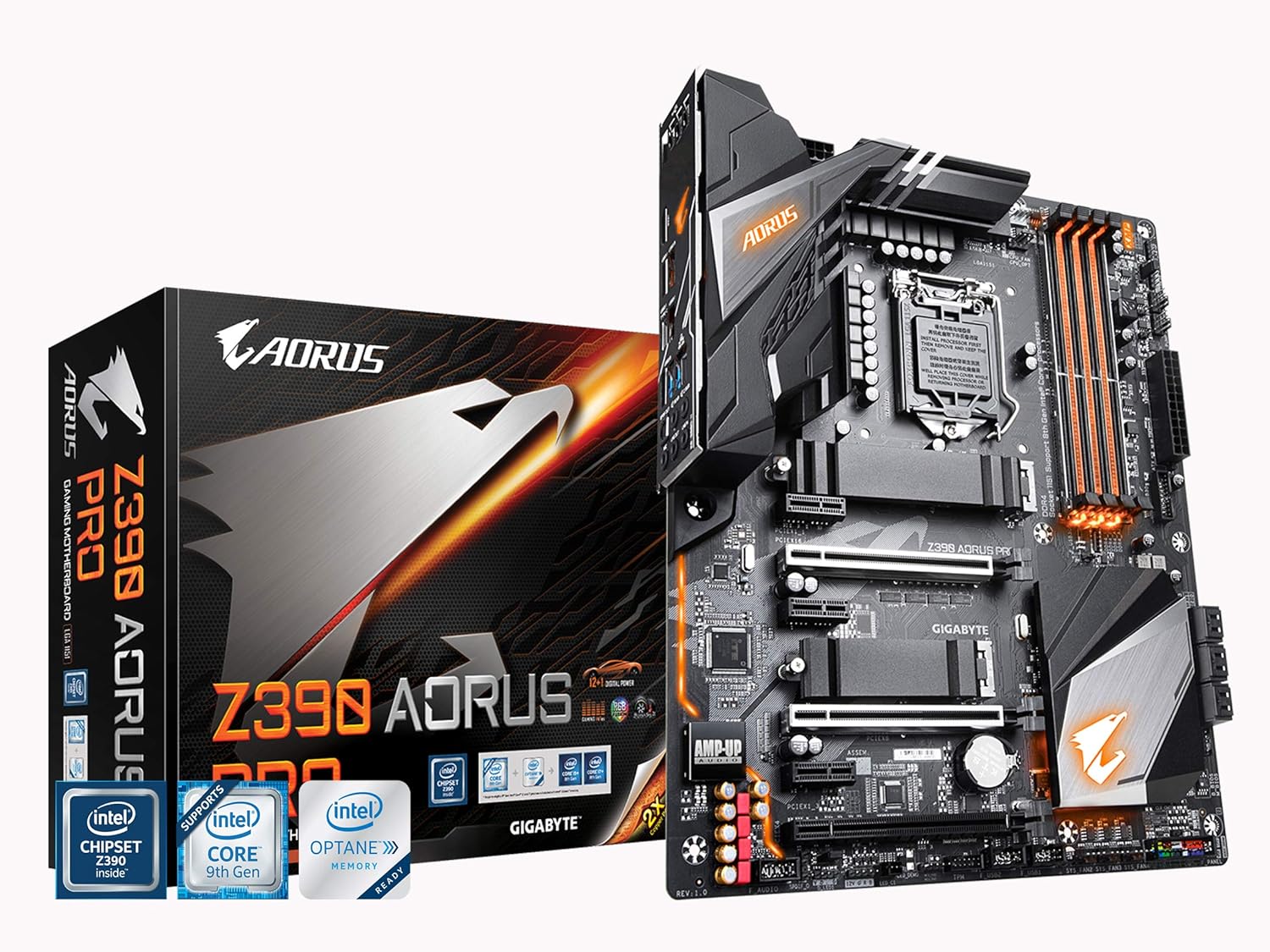
Figure 1: GIGABYTE Z390 AORUS PRO Motherboard and Retail Box. This image displays the motherboard alongside its packaging, highlighting the AORUS branding and key features.
2. Nastavení a instalace
Před zahájením instalace se ujistěte, že je systém vypnutý a odpojený od zdroje napájení. Základní desku držte za okraje, abyste zabránili statickému výboji.
2.1 Základní deskaview

Obrázek 2: Shora dolů view of the GIGABYTE Z390 AORUS PRO Motherboard. This image provides a clear layout of the motherboard components, including the CPU socket, DIMM slots, and PCIe slots.
2.2 Instalace CPU
- Najděte na základní desce patici procesoru LGA1151.
- Otevřete páčku patice procesoru a zvedněte nosnou desku.
- Carefully align your Intel 8th or 9th Gen Core processor with the socket, ensuring the gold triangle on the CPU matches the triangle on the socket.
- Opatrně vložte procesor do patice. Netlačte na něj silou.
- Zavřete nákladovou desku a zajistěte ji pákou.
2.3 Instalace paměti (RAM)
The Z390 AORUS PRO supports Dual Channel Non-ECC Unbuffered DDR4 memory across 4 DIMM slots.
- Otevřete klipy na obou koncích slotu DIMM.
- Align the memory module with the slot, ensuring the notch on the module matches the key on the slot.
- Pevně zatlačte na oba konce paměťového modulu, dokud klipsy nezacvaknou na místo.
- For dual-channel configuration, refer to your motherboard's specific manual for recommended slot pairing.
2.4 Instalace úložného zařízení (M.2 SSD)
This motherboard features dual Ultra-Fast NVMe PCIe Gen3 x4 M.2 slots with dual thermal guards.
- Vyhledejte sloty M.2 na základní desce.
- Remove the M.2 thermal guard and the screw/standoff from the desired M.2 slot.
- Vložte disk M.2 SSD do slotu pod úhlem 30 stupňů.
- Push the SSD down and secure it with the screw/standoff.
- Reattach the M.2 thermal guard for optimal cooling.

Obrázek 3: Úhlové view of the GIGABYTE Z390 AORUS PRO Motherboard. This perspective highlights the M.2 slots and their thermal guards, as well as the VRM heatsinks.
2.5 Připojení periferií a napájení
- Připojte 24pinový konektor napájení ATX a 8pinový konektor napájení CPU ze zdroje k základní desce.
- Install your graphics card(s) into the PCIe x16 slots.
- Connect SATA drives to the SATA ports.
- Connect front panel headers (USB, audio, power/reset buttons, LED indicators) according to the motherboard manual.
- Connect case fans to the Smart Fan 5 headers.

Figure 4: Detailed angled view of the GIGABYTE Z390 AORUS PRO Motherboard. This image provides a closer look at various connectors and headers on the board.
2.6 Zadní I/O panel
The integrated I/O shield simplifies installation and provides a range of connectivity options.

Figure 5: Rear I/O Panel of the GIGABYTE Z390 AORUS PRO Motherboard. This view shows the various ports available for external devices, including USB 3.1 Gen 2 Type-A and Type-C, HDMI, and audio jacks.
3. Návod k obsluze
3.1 Nastavení BIOSu/UEFI
Chcete-li vstoupit do nastavení BIOS/UEFI, stiskněte DEL key during system startup. The BIOS allows configuration of system settings, boot order, and advanced features.
3.2 RGB FUSION
The motherboard features RGB FUSION with Multi-Zone LED Light Show Design, supporting addressable LED and RGB LED strips. Use the GIGABYTE RGB FUSION software (available on the GIGABYTE website) to customize lighting effects and synchronization.
3.3 Inteligentní ventilátor 5
Smart Fan 5 features multiple temperature sensors and hybrid fan headers with FAN STOP functionality. This allows for precise control over system cooling, optimizing fan speeds based on temperature readings to maintain quiet operation or maximum cooling performance. Configure these settings within the BIOS or through the GIGABYTE SIV (System Information Viewer) software.
3.4 Konfigurace zvuku
The ALC1220-VB audio codec enhances 114dB (Rear) / 110dB (Front) SNR in the microphone with WIMA audio capacitors. For optimal audio performance, install the latest audio drivers from the GIGABYTE website. Adjust audio settings through the Realtek Audio Console or Windows Sound settings.
4. Údržba
4.1 Aktualizace systému BIOS
Pravidelně kontrolujte GIGABYTE website for the latest BIOS updates. BIOS updates can improve system stability, add support for new hardware, and fix bugs. Follow the instructions provided by GIGABYTE carefully when updating the BIOS to avoid system damage.
4.2 Aktualizace ovladačů
Ensure all drivers (chipset, audio, LAN, graphics, etc.) are up-to-date for optimal performance and compatibility. Download the latest drivers from the GIGABYTE official webnebo u příslušného výrobce součástky webmísto.
4.3 Čištění
Pravidelně čistěte vnitřek počítače, abyste zabránili hromadění prachu, který může vést k přehřátí. K odstranění prachu z ventilátorů, chladičů a dalších součástí použijte stlačený vzduch. Před čištěním se ujistěte, že je systém vypnutý a odpojený od sítě.
5. Řešení problémů
This section addresses common issues you might encounter with your GIGABYTE Z390 AORUS PRO motherboard.
5.1 System Does Not Power On or Boot
- Ověřte, zda jsou všechny napájecí kabely (24pinový ATX, 8pinový CPU, PCIe pro GPU) bezpečně připojeny.
- Ujistěte se, že je vypínač napájení v poloze ON.
- Zkontrolujte správnou polaritu a bezpečné uchycení připojení na předním panelu (tlačítko napájení, resetovací tlačítko).
- Reseat RAM modules and the CPU.
- If the motherboard has diagnostic LEDs, check their status for error codes related to CPU, RAM, or GPU.
5.2 Žádný výstup na displej
- Ensure your monitor is connected to the graphics card (or motherboard if using integrated graphics) and powered on.
- Znovu vložte grafickou kartu do slotu PCIe.
- Zkuste jiný kabel displeje nebo monitor.
- If using multiple RAM sticks, try booting with only one stick installed.
5.3 Audio Issues (e.g., Whining from Headsets)
- Ensure the correct audio drivers are installed.
- If experiencing noise or interference, especially with rear audio ports, try connecting your headset to the front audio ports of your case. This can sometimes mitigate electrical interference.
- Ověřte nastavení zvukového výstupu ve vašem operačním systému.
6. Specifikace
| Funkce | Detail |
|---|---|
| Značka | GIGABYTE |
| Název modelu | Z390 AORUS PRO |
| Zásuvka CPU | LGA 1151 |
| Kompatibilní procesory | Procesory Intel Core 8. a 9. generace |
| Typ čipové sady | Intel Z390 |
| Technologie paměti RAM | DDR4 (Dual Channel Non-ECC Unbuffered) |
| Počet slotů DIMM | 4 |
| Rychlost paměti | Až 2133 MHz (a vyšší s přetaktováním) |
| M.2 Sloty | Dual Ultra-Fast NVMe PCIe Gen3 x4 with Thermal Guard |
| Audio kodek | Realtek ALC1220-VB (114dB SNR Rear, 110dB SNR Front) |
| LAN | Gigabitová síťová karta Intel s technologií cFosSpeed |
| USB porty | Front USB 3.1 Gen 1 Type-C Header, USB 3.1 Gen 2, USB 3.0, USB 2.0 |
| Bezdrátový typ | 802.11a/b/g/n/ac (if applicable, check specific SKU) |
| Form Factor | ATX (305x244mm) |
| Rozměry (DxŠxV) | 13.18 x 10.62 x 3.14 palce |
| Hmotnost | 3 libry |
7. Záruka a podpora
Informace o záruce naleznete v záruční kartě dodané s vaším produktem nebo navštivte oficiální webové stránky GIGABYTE. website. GIGABYTE provides technical support and resources to assist with product inquiries and issues.
- Oficiální Webmísto: Navštivte GIGABYTE official webmísto for drivers, BIOS updates, and support documentation.
- Technická podpora: Contact GIGABYTE technical support for assistance with product-related issues.
- Registrace výrobku: Zaregistrujte svůj produkt na GIGABYTE webweb pro získávání aktualizací a podpory.


