1. Úvod
This manual provides detailed instructions for setting up, operating, and maintaining your Motorola MT7711 Cable Modem Router. The MT7711 is a high-performance DOCSIS 3.0 cable modem with an integrated AC1900 Wi-Fi router and two telephone ports, designed for use with Xfinity (Comcast) Internet and Voice services. It delivers high-speed internet connectivity and robust Wi-Fi for multiple devices.

Image: Motorola MT7711 Cable Modem Router, front view.
2. Obsah balení
Verify that all items are present in your package. If any items are missing or damaged, please contact Motorola support.
- Motorola MT7711 Cable Modem Router
- Napájecí adaptér
- Ethernetový kabel
- Telephone Cord (RJ-11)
- Rychlý průvodce
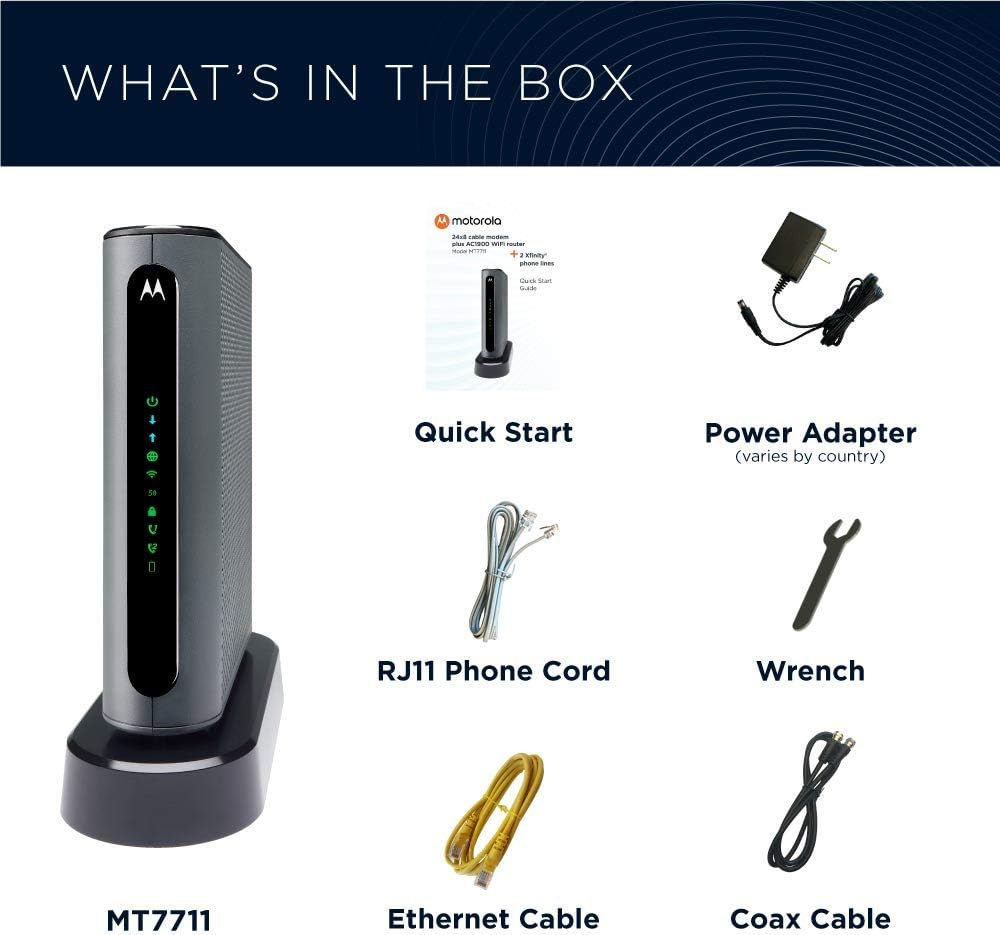
Image: Contents of the MT7711 package, including the modem, power adapter, Ethernet cable, telephone cord, and quick start guide.
3. Konec produktuview
3.1 Porty a tlačítka na zadním panelu
The rear panel of your MT7711 features various ports for connectivity and a reset button.

Obrázek: Podrobný view of the Motorola MT7711's rear panel, showing the power button, phone line ports (TEL1, TEL2), Ethernet LAN ports (LAN1-4), Reset button, WPS button, and Coax connector.
- Vypínač: Zapíná nebo vypíná zařízení.
- Napájecí konektor: Připojuje se k dodanému napájecímu adaptéru.
- TEL1/TEL2 (Phone Line Ports): Connects to analog telephones for Xfinity Voice service.
- LAN1-4 (Gigabit Ethernet Ports): Connects to computers, gaming consoles, smart TVs, or other network devices using an Ethernet cable.
- Resetovací tlačítko: Used to restore factory default settings. Press and hold for 10 seconds with a paperclip.
- Tlačítko WPS: Pro snadné párování Wi-Fi Protected Setup s kompatibilními zařízeními.
- Coax Connector: Connects to the coaxial cable from your cable service provider.
3.2 Indikátory na předním panelu
The front panel LEDs indicate the status of your modem router.
- LED napájení: Indicates power status. Solid green when on.
- LED dioda pro vstup do sítě: Indicates downstream channel status. Solid blue for DOCSIS 3.0 bonded channels, solid green for single DOCSIS 3.0 channel. Blinking indicates scanning for channels.
- LED dioda proti proudu: Indicates upstream channel status. Solid blue for DOCSIS 3.0 bonded channels, solid green for single DOCSIS 3.0 channel. Blinking indicates scanning for channels.
- Online LED: Indicates internet connectivity. Solid green when connected to the internet. Blinking indicates scanning for an IP address.
- Wi-Fi 2.4 GHz LED: Indicates 2.4 GHz Wi-Fi status. Solid green when 2.4 GHz Wi-Fi is active. Blinking indicates data activity.
- Wi-Fi 5 GHz LED: Indicates 5 GHz Wi-Fi status. Solid green when 5 GHz Wi-Fi is active. Blinking indicates data activity.
- TEL1/TEL2 LEDs: Indicate telephone line status. Solid green when phone service is active. Blinking indicates an active call.
4. Pokyny k nastavení
Follow these steps to set up your Motorola MT7711 Cable Modem Router.
4.1 Než začnete
- Ensure you have an active Xfinity (Comcast) cable internet service.
- Disconnect any existing modem or router from the coaxial cable.
- Have your Xfinity account information ready for activation.
4.2 Hardwarové připojení
- Připojení koaxiálního kabelu: Connect one end of the coaxial cable to the Coax connector on the rear of the MT7711 and the other end to a live cable wall outlet. Ensure the connection is finger-tight.
- Připojte napájecí adaptér: Connect the provided power adapter to the Power Jack on the MT7711 and then plug the adapter into an electrical outlet. The Power LED on the front panel should illuminate.
- Wait for Online Status: Allow the modem router to power on and establish a connection. This may take several minutes. The Downstream, Upstream, and Online LEDs on the front panel should eventually turn solid green (or blue for bonded channels).
- (Optional) Connect Ethernet Devices: For a wired connection, connect an Ethernet cable from one of the LAN ports (LAN1-4) on the MT7711 to the Ethernet port on your computer or other network device.
- (Optional) Connect Telephones: If you subscribe to Xfinity Voice service, connect your analog telephones to the TEL1 and/or TEL2 ports using the provided telephone cord.
4.3 Aktivace služby
After connecting the hardware, you need to activate the MT7711 with your internet service provider (Xfinity/Comcast).
- Otevřete a Web prohlížeč: On a computer or device connected to the MT7711 (either via Ethernet or Wi-Fi), open a web prohlížeč.
- Follow Activation Prompts: You should be redirected to the Xfinity activation page. Follow the on-screen instructions to activate your service. You may need your Xfinity account number and phone number.
- Contact Xfinity Support: If you are not redirected or encounter issues, contact Xfinity customer support. Provide them with the MAC address (HFC MAC) and Model Number (MT7711) located on the label on the bottom of your modem router.
- Verify Phone Service (if applicable): If you have Xfinity Voice, ensure the TEL1/TEL2 LEDs are solid green and test your phone service by making a call.
5. Návod k obsluze
5.1 Připojení k Wi-Fi
Your MT7711 broadcasts two Wi-Fi networks: 2.4 GHz and 5 GHz. The default Wi-Fi network name (SSID) and password are printed on the label on the bottom of your modem router.
- Na bezdrátovém zařízení (chytrý telefon, tablet, notebook) otevřete nastavení Wi-Fi.
- Select the Wi-Fi network name (SSID) corresponding to your MT7711.
- Po zobrazení výzvy zadejte heslo k Wi-Fi (bezpečnostní klíč).
- Your device should now be connected to the internet via Wi-Fi.
For optimal performance, devices closer to the modem router and capable of 5 GHz Wi-Fi should connect to the 5 GHz network. Devices further away or older devices may perform better on the 2.4 GHz network.
5.2 Guest Network Access
The MT7711 supports a guest Wi-Fi network, allowing visitors internet access while keeping your main network private. Details on enabling and configuring the guest network can be found in the full user manual or by accessing the modem router's web rozhraní pro správu.
5.3 Using Telephone Service (Xfinity Voice)
If you have Xfinity Voice service, ensure your analog telephones are connected to the TEL1 or TEL2 ports. The MT7711 supports enhanced call features such as caller ID, call forwarding, and conference calling, as provided by Xfinity.
6. Údržba
- Umístění: Place the modem router in an open, central location to maximize Wi-Fi coverage. Avoid placing it near large metal objects, concrete walls, or other electronic devices that may cause interference.
- Větrání: Ensure the modem router has adequate ventilation. Do not cover ventilation openings or place it in an enclosed space.
- Čištění: Zařízení čistěte měkkým, suchým hadříkem. Nepoužívejte tekuté čisticí prostředky ani aerosoly.
- Aktualizace firmwaru: Firmware updates are typically managed automatically by your service provider (Xfinity). Do not attempt to manually update the firmware unless instructed by support.
- Restartování: If you experience connectivity issues, try rebooting the modem router by unplugging the power adapter for 10-15 seconds and then plugging it back in.
7. Řešení problémů
If you encounter issues with your Motorola MT7711, refer to the following common troubleshooting steps.
7.1 Žádné připojení k internetu
- Zkontrolujte LED diody: Ensure the Power, Downstream, Upstream, and Online LEDs are solid green (or blue). If any are blinking or off, check cable connections.
- Připojení kabelů: Ověřte, zda je koaxiální kabel bezpečně připojen k modemu/routeru i k elektrické zásuvce.
- Cyklus napájení: Unplug the power adapter from the modem router for 10-15 seconds, then plug it back in. Wait for all LEDs to stabilize.
- Stav poskytovatele internetových služeb: Check with Xfinity (Comcast) for any service outagve vaší oblasti.
- Aktivace: Confirm that your MT7711 has been successfully activated with Xfinity.
7.2 Problémy s připojením k Wi-Fi
- LED diody Wi-Fi: Ensure the 2.4 GHz and 5 GHz Wi-Fi LEDs are solid green.
- Připojení zařízení: Ověřte, zda je vaše zařízení připojeno ke správné síti Wi-Fi (SSID) a zda používáte správné heslo.
- Síla signálu: Move closer to the modem router to check if signal strength improves.
- Rušení: Avoid placing the modem router near other electronics that may cause interference (e.g., microwaves, cordless phones).
- Restartovat: Power cycle the modem router and your wireless device.
7.3 Telephone Service Not Working
- TEL LEDs: Ensure the TEL1/TEL2 LEDs are solid green.
- Telefonní připojení: Verify the telephone cord is securely connected to the MT7711's phone port and your telephone.
- Xfinity Voice Service: Confirm your Xfinity Voice service is active and provisioned correctly for the MT7711. Contact Xfinity support if issues persist.
7.4 Obnovení továrního nastavení
If other troubleshooting steps fail, you may need to reset the modem router to its factory default settings.
- With the modem router powered on, use a paperclip or similar pointed object to press and hold the Resetovat button on the rear panel for approximately 10 seconds.
- Release the button. The modem router will reboot.
- After the reboot, you will need to re-activate the device with Xfinity and reconfigure any custom Wi-Fi settings.
8. Specifikace
| Funkce | Popis |
|---|---|
| Název modelu | Motorola MT7711 |
| Standard DOCSIS | DOCSIS 3.0 (24x8 channels) |
| Wi-Fi standard | AC1900 Dual-Band (2.4 GHz & 5 GHz) Wi-Fi 5 |
| Ethernetové porty | 4 x Gigabit Ethernet (LAN) |
| Telefonní porty | 2 x RJ-11 (for Xfinity Voice) |
| Bezdrátové funkce | AnyBeam Beamforming, Wireless Power Boost, Guest Network |
| Rozměry (V x Š x H) | 8.25 x 2.25 x 9 palce |
| Hmotnost | 3.78 libry |
| Kompatibilní poskytovatel internetových služeb | Xfinity (Comcast) Internet Service |
9. Záruka a podpora
For warranty information, please refer to the warranty card included in your product packaging or visit the official Motorola webmísto.
Technická podpora: If you require assistance with setup, operation, or troubleshooting, technical support is available via phone, chat, or email. Please refer to the Quick Start Guide or the Motorola webstránky pro kontaktní údaje.
When contacting support, please have your product model number (MT7711) and serial number ready.