Zavedení
This manual provides instructions for the setup, operation, and maintenance of your ENHANCE Infiltrate Membrane Gaming Keyboard. This keyboard is designed for gaming, featuring quiet hybrid mechanical switches, customizable RGB lighting, and a spill-resistant design.

Obrázek: Úhlový view of the ENHANCE Infiltrate Membrane Gaming Keyboard, showcasing its full layout and active RGB backlighting.
Nastavení
- Rozbalení: Opatrně vyjměte klávesnici z obalu. Ujistěte se, že jsou přítomny všechny součásti.
- Spojení: Connect the keyboard's USB cable to an available USB port on your computer.
- Instalace ovladače: The keyboard is plug-and-play and typically does not require additional drivers. Your operating system should automatically detect and install the necessary drivers.
- Umístění: Position the keyboard comfortably on your desk. The integrated kickstands at the rear can be used to adjust the typing angle.
Návod k obsluze
Světelné efekty
The Infiltrate keyboard features customizable RGB backlighting with 7 static colors and 9 dynamic lighting effects. The transparent letters and symbols on each key ensure clear visibility in low-light conditions.
- Změna světelných efektů: Stiskněte tlačítko FN klíč + 1 přes 9 keys to cycle through the 9 dynamic lighting effects.
- Changing Static Colors: Stiskněte tlačítko FN klíč + ~ (tilde) key to cycle through the 7 static color options.
- Nastavení jasu: Stiskněte tlačítko FN klíč + Page Up or Page Down keys to increase or decrease the backlight brightness.
- Sound Response Mode: One of the dynamic effects is a Sound Response mode, where the keyboard's lighting pulses and changes color in response to audio input (music, in-game sounds).

Image: Close-up of the keyboard illustrating the FN key combinations for toggling LED effects, colors, and brightness.

Image: The keyboard positioned with external speakers, visually representing the sound response lighting feature where lights react to audio.
Multimedia and Gaming Features
- Multimediální klávesy: The keyboard includes 12 quick-access multimedia keys (F1-F12 functions when combined with FN key) for controlling audio, video, and other system functions.
- Anti-Ghosting and 19-Key Rollover: Designed for precise input, the keyboard supports 19-key rollover and anti-ghosting, ensuring that multiple simultaneous key presses are registered accurately during intense gaming sessions.
- Hybrid Mechanical Switches: The keyboard utilizes hybrid mechanical switches, providing a tactile keystroke experience similar to mechanical keyboards but with reduced noise, suitable for environments where quiet operation is preferred.

Image: A graphic overlay on the keyboard highlighting its advanced features, including multiple color modes, lighting effects, anti-ghosting, and 19-key rollover.

Obrázek: Zvětšený view of a keycap removed, revealing the hybrid mechanical switch mechanism underneath, designed for tactile yet quiet keystrokes.
Údržba
Spill and Dust Resistance
The ENHANCE Infiltrate keyboard features a special raised switch design and rear drainage ports, providing water and dust resistance. This design helps protect the internal components from accidental spills and dust accumulation.
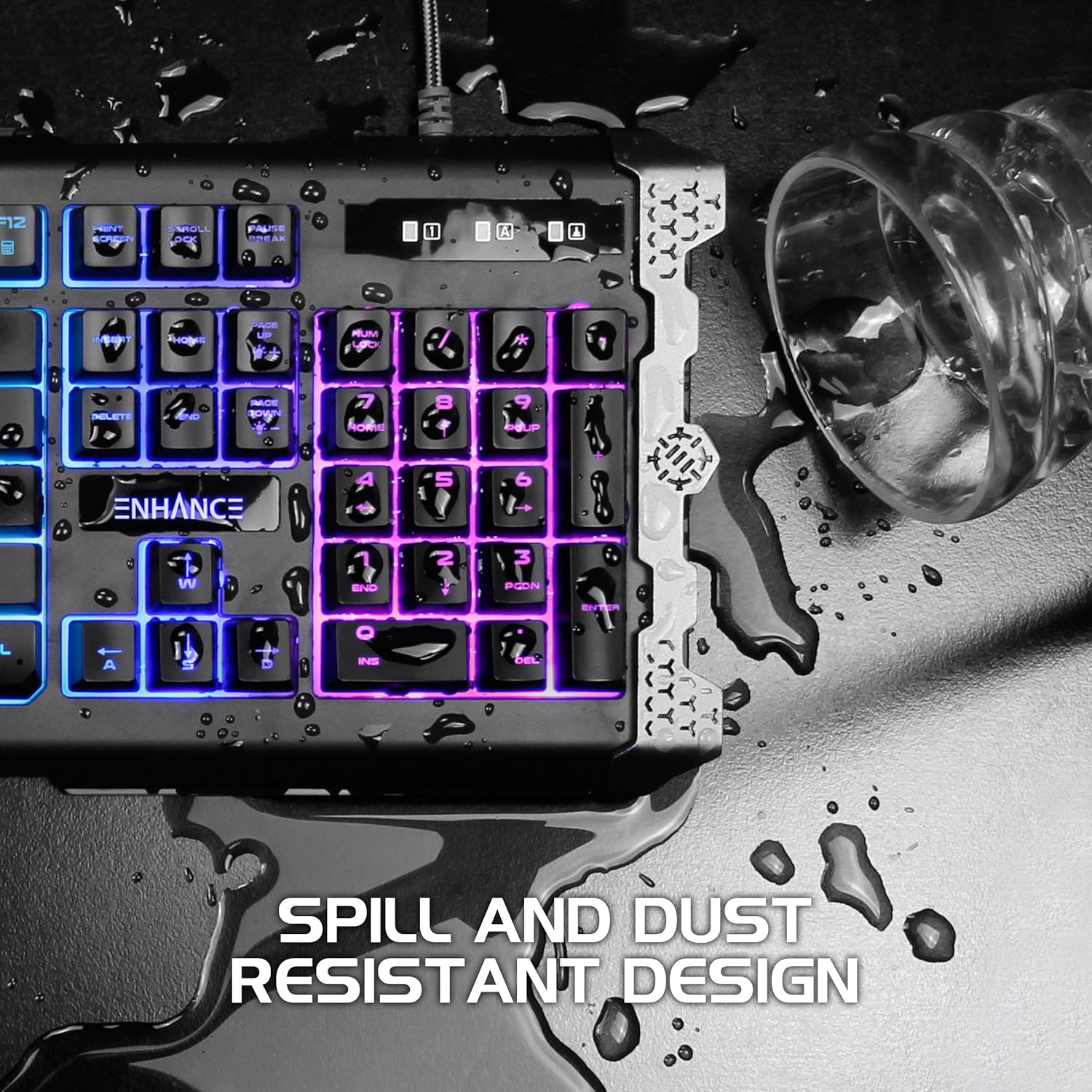
Image: The keyboard with water droplets on its surface, illustrating its spill-resistant design and drainage capabilities.
Pokyny pro čištění
- Generální úklid: Povrch klávesnice pravidelně otírejte měkkým, suchým hadříkem.
- Odstranění prachu: K odstranění prachu a nečistot z prostoru mezi klávesami použijte stlačený vzduch.
- Čištění rozlitých látek: In case of a liquid spill, immediately disconnect the keyboard from your computer. Gently wipe away the liquid with a clean cloth. Allow the keyboard to air dry completely before reconnecting. Do not use harsh chemicals or abrasive materials.
Odstraňování problémů
- Klávesnice nereaguje:
- Ujistěte se, že je kabel USB bezpečně připojen k klávesnici i k počítači.
- Zkuste připojit klávesnici k jinému USB portu.
- Restartujte počítač.
- Otestujte klávesnici na jiném počítači, abyste zjistili, zda je problém s klávesnicí nebo s portem/ovladači počítače.
- Backlighting Not Working or Inconsistent:
- Ensure the backlight brightness is not set to the lowest level (use FN + Page Up).
- Cycle through different lighting effects and colors (FN + 1-9, FN + ~) to see if the issue persists across all modes.
- If specific keys or sections of the lighting are consistently out, this may indicate a hardware issue.
- Klíče se neregistrují:
- Zkontrolujte, zda se pod klávesou nenacházejí nějaké fyzické překážky.
- Clean the keyboard as per the maintenance instructions.
- If only specific keys are affected, it might be a hardware malfunction.
Specifikace
| Funkce | Detail |
|---|---|
| Značka | ZVÝŠIT |
| Číslo modelu | ENINKNL100BKUS |
| Hardwarová platforma | PC |
| Technologie připojení | USB |
| Popis klávesnice | Hraní |
| Speciální funkce | Důkaz proti rozlití |
| Podsvícení klávesnice | RGB (7 colors, 9 dynamic effects) |
| Převrácení klíče | 19-Key Rollover |
| Anti-Ghosting | Ano |
| Typ přepínače | Hybrid Mechanical Membrane |
| Materiál | Metal Accents |
| Hmotnost položky | 1.84 libry |
| Rozměry produktu (DxŠxV) | 18.75 x 6.75 x 2 palce |
Záruka
The ENHANCE Infiltrate Membrane Gaming Keyboard comes with a 3letá záruka výrobceTato záruka se vztahuje na vady materiálu a zpracování při běžném používání. Uschovejte si prosím doklad o koupi pro případ uplatnění záruky.
For detailed warranty terms and conditions, please refer to the official ENHANCE webwebu nebo kontaktujte zákaznickou podporu.
Podpora
If you encounter any issues not covered in this manual or require further assistance, please contact ENHANCE customer support.
- Online zdroje: Visit the official ENHANCE webweb s nejčastějšími dotazy, aktualizovanými manuály a články podpory.
- Kontaktní údaje: Refer to the product packaging or the ENHANCE website for the most current customer service contact details (phone, email, or support portal).
Další informace
Tento produkt je od značky malé firmy. Vaší podpory si vážíme.


