Zavedení
The Smartab 7 HD tablet packs massive fun and entertainment into a device small enough to fit in your back pocket. With a quad-core processor and Google Android 7.1 Nougat operating system, this tablet is equipped to handle almost anything. The HD display is perfect for streaming video content or reading magazines and books, and it uses the front and rear HD cameras for video chatting or taking and sharing your best selfies. Take your mobile computing to the next level with the Smartab 7.0 HD tablet.
1. Nastavení
1.1 Vybalení a počáteční platba
Carefully remove all components from the packaging. Before first use, ensure the tablet is fully charged. Connect the provided USB cable to the tablet's charging port and the other end to a compatible USB power adapter. A full charge may take several hours.

Obrázek 1.1: Zadní view of the SmarTab 7 tablet, highlighting the sleek design and camera placement.
1.2 Zapnutí a počáteční nastavení
Press and hold the power button located on the side of the tablet until the screen illuminates. Follow the on-screen prompts to complete the initial setup process. This includes selecting your language, connecting to a Wi-Fi network, and setting up your Google account.
- Výběr jazyka: Vyberte si ze seznamu preferovaný jazyk.
- Wi-Fi připojení: Select your Wi-Fi network from the available list and enter the password. A stable internet connection is required for updates and Google account setup.
- Účet Google: Sign in with an existing Google account or create a new one. This is essential for accessing the Google Play Store and other Google services.
2. Ovládání tabletu
2.1 Navigating the Android 7.1 Nougat Interface
The SmarTab 7 runs on Android 7.1 Nougat, offering a user-friendly interface. Swipe left or right on the home screen to access different panels. Swipe down from the top of the screen to reveal the notification shade and quick settings panel.
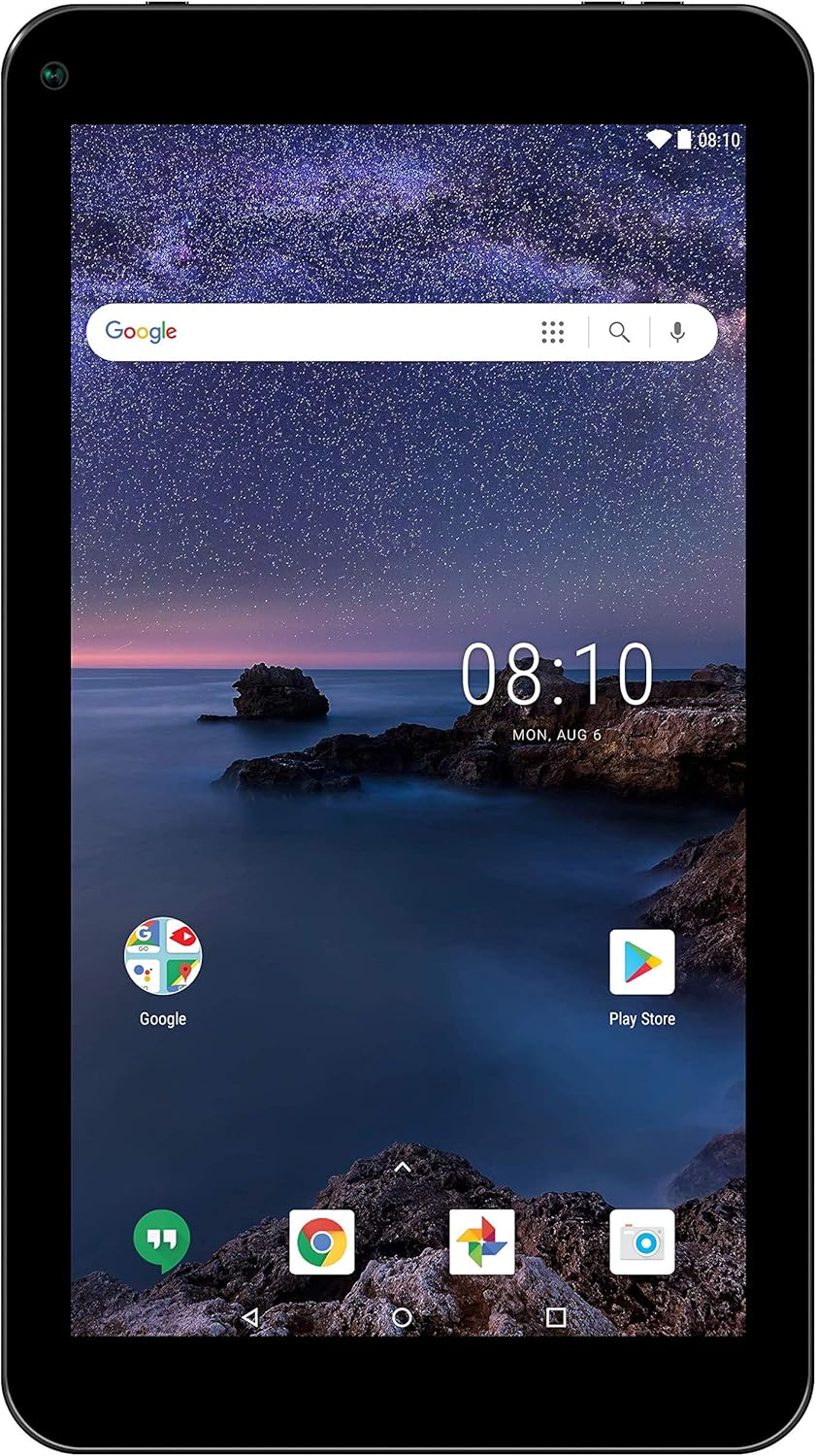
Figure 2.1: SmarTab 7 home screen, showing the Google search bar and various application shortcuts.
2.2 Applications and Google Play Store
Access the Google Play Store icon on your home screen or app drawer to download and install new applications, games, movies, and books. Ensure you are connected to Wi-Fi for optimal download speeds.
2.3 Používání kamer
The tablet features both front and rear HD cameras. Open the Camera application to capture photos and videos. The front camera is ideal for video calls and selfies, while the rear camera is suitable for general photography.

Figure 2.2: User interacting with the SmarTab 7 tablet, demonstrating its portability and ease of use.
2.4 Konektivita
- Wi-Fi: Připojte se k bezdrátovým sítím pro přístup k internetu. Přejděte na Nastavení > Wi-Fi spravovat připojení.
- USB: Use the USB port to connect to a computer for file transfer or to other compatible accessories.
3. Údržba
3.1 Čištění tabletu
To clean the screen, use a soft, lint-free cloth specifically designed for electronics. For the body, a slightly damp cloth can be used, but ensure no moisture enters ports. Avoid abrasive cleaners or solvents.
3.2 Péče o baterii
To prolong battery life, avoid extreme temperatures. It is recommended to keep the battery charge between 20% and 80% for optimal longevity. Avoid completely draining the battery frequently.
3.3 Aktualizace softwaru
Pravidelně kontrolujte aktualizace systému, abyste se ujistili, že váš tablet má nejnovější funkce a bezpečnostní záplaty. Přejděte na Nastavení > O tabletu > Aktualizace systému.
3.4 Správa úložiště
Pravidelně znovuview vaše nainstalované aplikace a files to free up storage space. You can uninstall unused apps or transfer large files to cloud storage or an external device. Go to Nastavení > Úložiště na view používání.
4. Řešení problémů
This section addresses common issues you might encounter with your SmarTab 7 tablet.
| Problém | Řešení |
|---|---|
| Tablet se nezapne. | Ensure the battery is charged. Connect the tablet to its charger and wait a few minutes before attempting to power on again. If it still doesn't turn on, try holding the power button for 10-15 seconds. |
| Problémy s připojením k Wi-Fi. | Zkontrolujte, zda je v nastavení povolena Wi-Fi. Restartujte Wi-Fi router. Zapomeňte na síť a znovu se připojte. Ujistěte se, že jste v dosahu signálu Wi-Fi. |
| Applications are crashing or freezing. | Close and reopen the application. Clear the app's cache (Nastavení > Aplikace > [Název aplikace] > Úložiště > Vymazat mezipaměť). Pokud problém přetrvává, odinstalujte a znovu nainstalujte aplikaci. |
| Pomalý výkon. | Close unused applications. Clear cache for frequently used apps. Free up storage space. Restart the tablet periodically. |
4.1 Obnovení továrního nastavení (poslední možnost)
If severe issues persist, a factory reset can resolve many software-related problems. Varování: This will erase all data on your tablet. Back up important files before proceeding. Go to Nastavení > Zálohování a reset > Obnovení továrních dat.
5. Specifikace
Detailed technical specifications for the SmarTab 7 tablet (Model: ST7150T).
| Funkce | Detail |
|---|---|
| Značka | Smartab |
| Název modelu | SmarTab 7 |
| Číslo modelu | ST7150T |
| Operační systém | Android 7.1 Nougat |
| Velikost displeje | 7 palce |
| Rozlišení displeje | 1024 x 600 pixels (Max: 1280 x 800 pixels) |
| Značka procesoru | Qualcomm |
| Počet procesorů | 4 (Quad-Core) |
| Velikost RAM | 16 GB |
| Hard Disk Size (Storage) | 16 GB |
| Grafický koprocesor | Quad Core (Integrated) |
| Typ připojení | Wi-Fi (802.11n) |
| Zadní WebRozlišení vačky | 720 XNUMX pixelů |
| Typ baterie | Lithium Ion (Integrated) |
| Rozměry produktu | 19.05 x 11.43 x 1.27 cm; 272.16 g (7.5 x 4.5 x 0.5 palce; 0.6 liber) |
Note: The RAM size listed as 16GB in some specifications may refer to internal storage capacity. Typical RAM for this type of tablet is 1-2GB. Please refer to the product packaging for exact RAM specifications.
6. Záruka a podpora
6.1 Záruka na produkt
Tento produkt je dodáván se standardní zárukou výrobce. Konkrétní podmínky a dobu trvání záruky naleznete v záruční kartě, která je součástí balení produktu. Uschovejte si doklad o koupi pro případné reklamace.
6.2 Zákaznická podpora
For technical assistance, troubleshooting beyond this manual, or warranty inquiries, please contact Smartab customer support. Visit the official Smartab webstránky s kontaktními informacemi, častými dotazy a dalšími zdroji.
Note: Extended protection plans may be available from third-party providers, offering additional coverage beyond the manufacturer's warranty.


