Zavedení
Thank you for choosing the KROM Kernel TKL Mechanical Gaming Keyboard. This compact, tenkeyless (TKL) keyboard is designed for gaming enthusiasts, offering a responsive mechanical experience with customizable RGB backlighting and a Spanish layout. This manual provides detailed instructions for setup, operation, maintenance, and troubleshooting to ensure optimal performance and longevity of your device.
Konec produktuview
Klíčové vlastnosti
- Mechanické spínače: Durable and responsive mechanical key switches for precise input.
- Tenkeyless (TKL) Design: Compact form factor without a numeric keypad, ideal for saving desk space and improving mouse movement.
- RGB podsvícení: Customizable LED backlighting with various effects and colors.
- Funkce makra: Assign macro functions to any key for personalized commands.
- Multimediální klávesy: Dedicated or function-layer multimedia controls for convenience.
- Anti-Ghosting: Ensures all key presses are registered accurately, even during intense gaming sessions.
- Odolná konstrukce: Vyrobeno z kvalitních materiálů pro dlouhotrvající výkon.
- Španělské rozložení: Designed with a QWERTY Spanish key layout.
Obsah balení
- KROM Kernel TKL Mechanical Gaming Keyboard
- USB kabel (přiložen)
- Uživatelská příručka (tento dokument)
- (Note: Additional accessories may vary by region or specific product bundle.)
Obrázek 1.1: KROM Kernel TKL Mechanical Gaming Keyboard packaging, showing the front and back of the box with product features and design.

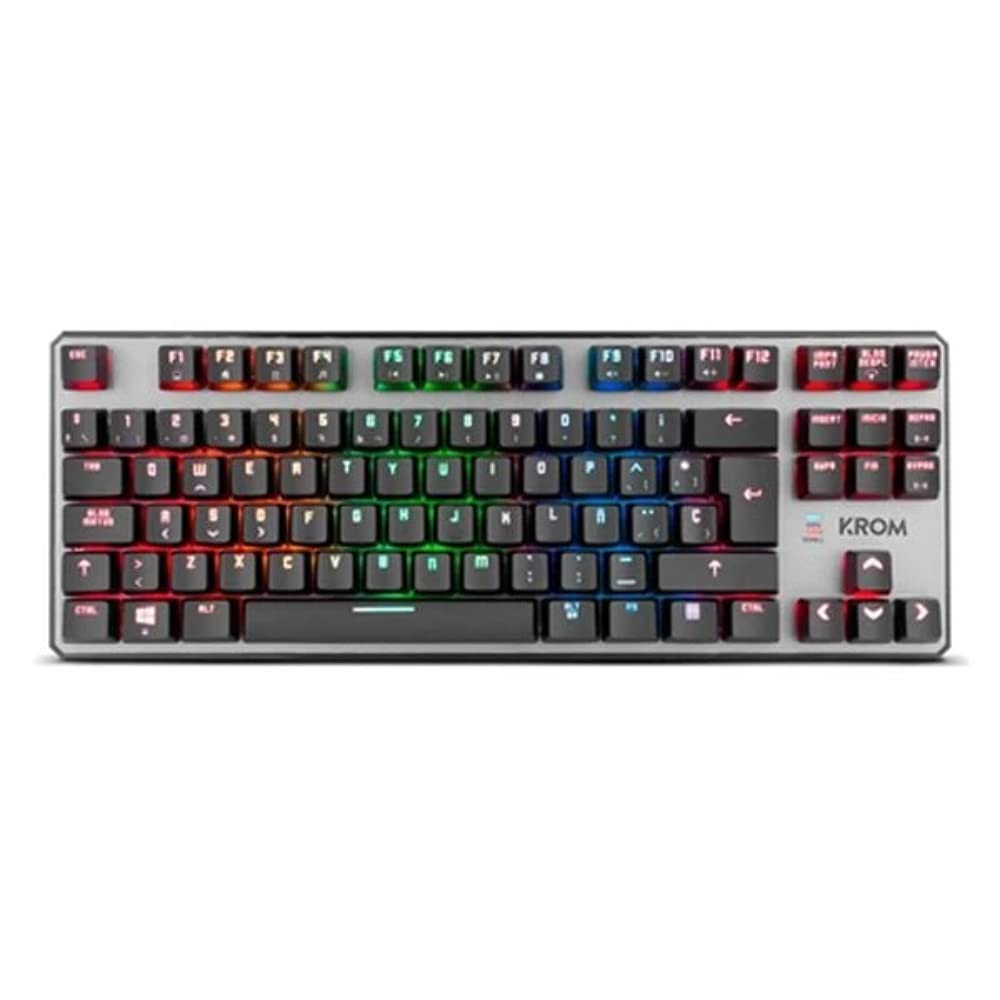
Obrázek 1.2: Shora dolů view of the KROM Kernel TKL keyboard, showcasing its compact design and vibrant RGB backlighting across all keys.
Nastavení
- Rozbalte klávesnici: Carefully remove the KROM Kernel TKL keyboard from its packaging.
- Připojení k počítači: Locate the USB cable attached to the keyboard. Plug the USB connector into an available USB port on your computer (PC or laptop).
- Instalace ovladače: The keyboard is plug-and-play. Your operating system (Windows 7/8/8.1/10) should automatically detect and install the necessary drivers. This process may take a few moments.
- Ověřte funkčnost: Once drivers are installed, test the keyboard by typing in a text editor or browser to ensure all keys are responsive.
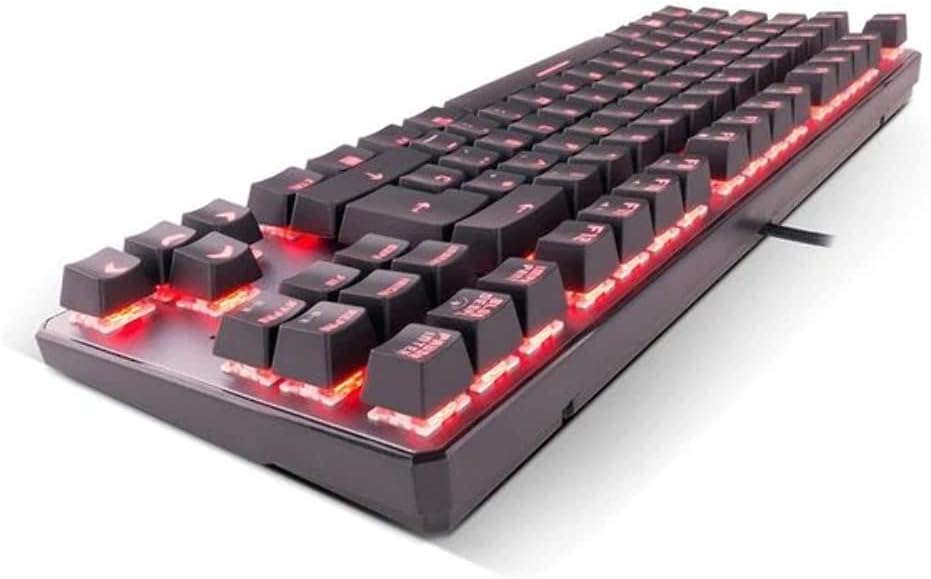
Obrázek 2.1: Strana view of the KROM Kernel TKL keyboard, highlighting the red backlighting visible beneath the keycaps and the compact profile.
Návod k obsluze
Ovládání podsvícení RGB
The KROM Kernel TKL keyboard features dynamic RGB backlighting. Use the following key combinations to adjust lighting effects:
- Fn + [klávesa]: Specific function keys (often F1-F12 or dedicated keys) are used in combination with the Function (Fn) key to cycle through lighting modes, adjust brightness, change speed, or select colors. Refer to the keyboard's keycap legends for specific symbols indicating lighting controls.
- Nastavení jasu: Typically Fn + Up/Down arrow keys or dedicated brightness keys.
- Rychlost efektu: Often Fn + Left/Right arrow keys to increase or decrease the speed of dynamic lighting effects.
- Přepínání režimů: Cycle through various pre-set RGB lighting modes (e.g., wave, ripple, breathing, static color) using a dedicated Fn combination.

Obrázek 3.1: The KROM Kernel TKL keyboard displaying its full RGB spectrum backlighting, enhancing the visual appeal during use.
Macro Function Assignment
The keyboard supports on-the-fly macro recording or software-based macro assignment. For on-the-fly recording:
- Zahájit nahrávání: Press a specific Macro Record key (often labeled "MR" or a Fn combination).
- Select Target Key: Press the key you wish to assign the macro to.
- Pořadí záznamu: Zadejte posloupnost kláves, kterou chcete zaznamenat jako makro.
- Ukončit nahrávání: Press the Macro Record key again to save the macro.
Note: Detailed macro programming instructions may require specific software or refer to the full digital manual available on the KROM webmísto.
Multimédia a klávesové zkratky
Access multimedia functions and system shortcuts using the Fn key in combination with the F-keys (F1-F12) or other designated keys. Common functions include:
- Ovládání hlasitosti: Fn + Fx (e.g., F1-F3 for Mute, Volume Down, Volume Up).
- Přehrávání médií: Fn + Fx (e.g., F5-F8 for Play/Pause, Stop, Previous Track, Next Track).
- Zkratky aplikací: Fn + Fx (e.g., F9-F12 for Email, Web Browser, My Computer, Calculator).

Obrázek 3.2: Detailní záběr view of the KROM Kernel TKL keyboard's keycaps, clearly showing the Spanish QWERTY layout and secondary functions.
Údržba
Správná údržba zajistí dlouhou životnost a výkon vaší klávesnice.
- Čištění:
- Před čištěním odpojte klávesnici od počítače.
- K odstranění prachu a nečistot z prostoru mezi klávesami použijte nádobku se stlačeným vzduchem.
- Otřete klávesy a povrch klávesnice měkkým, lehce suchým hadříkem.amp, hadřík, který nepouští vlákna. Zabraňte nadměrné vlhkosti.
- Nepoužívejte agresivní chemikálie, abrazivní čisticí prostředky ani rozpouštědla.
- Skladování: Klávesnici skladujte na suchém a chladném místě mimo dosah přímého slunečního záření a extrémních teplot.
- Zacházení: Avoid dropping the keyboard or exposing it to liquids. Do not attempt to disassemble the keyboard as this may void the warranty.

Obrázek 4.1: Vedlejší profesionálfile view of the KROM Kernel TKL keyboard, illustrating its ergonomic tilt and compact design.

Obrázek 4.2: A close-up image showing a mechanical switch on the KROM Kernel TKL keyboard, highlighting its design and potential for easy replacement (CIY Technology).

Obrázek 4.3: The CIY Technology logo, indicating that the keyboard features hot-swappable mechanical switches for easy customization or replacement.
Odstraňování problémů
If you encounter issues with your KROM Kernel TKL keyboard, refer to the following common solutions:
- Klávesnice nereaguje:
- Ujistěte se, že je kabel USB bezpečně zapojený do klávesnice i do počítače.
- Zkuste zapojit klávesnici do jiného USB portu na počítači.
- Restartujte počítač.
- Otestujte klávesnici na jiném počítači, abyste zjistili, zda je problém s klávesnicí nebo s vaším systémem.
- Podsvícení nefunguje nebo je nesprávné:
- Check if the backlighting is turned off. Use the Fn key combinations to cycle through lighting modes and adjust brightness.
- Ensure no software conflicts are interfering with the lighting controls.
- Klávesy se neregistrují nebo se píší dvakrát:
- Očistěte postižené klávesy stlačeným vzduchem, abyste odstranili veškeré nečistoty.
- If the keyboard uses hot-swappable switches (like the "CIY Technology" mentioned in an image), try gently removing and re-inserting the switch for the problematic key.
- Ujistěte se, že ovladače operačního systému jsou aktuální.
- Makro funkce nefungují:
- Review the macro programming steps to ensure correct recording.
- Check if any software is overriding the keyboard's native macro functions.
Specifikace
| Funkce | Detail |
|---|---|
| Číslo modelu | NXKROMKRNLTKL |
| Typ klávesnice | Mechanické |
| Rozložení | Spanish QWERTY (TKL) |
| Podsvícení | RGB LED |
| Spojení | Wired USB (Gold-plated) |
| Délka kabelu | 180 cm (Braided) |
| Aktivační síla | 60 +/- 10 g |
| Míra hlasování | 1000 Hz |
| Vnitřní paměť | 64 KB (for macros/profiles) |
| Aktuální spotřeba | 100-260 mA |
| svtage | 5.0 +/- 0.25 V |
| Rozměry (D x Š x V) | 361 x 133.5 x 22.5 mm |
| Hmotnost | 950 +/- 30 g |
| Kompatibilita | Windows 7/8/8.1/10 |
| Speciální funkce | Macro function assignment, Multimedia keys, Shortcut keys |
Záruka a podpora
KROM products are designed for reliability and performance. This product comes with a standard manufacturer's warranty. For specific warranty terms and conditions, please refer to the warranty card included with your product or visit the official KROM webmísto.
For technical support, driver downloads, or further assistance, please visit the KROM official support page or contact their customer service. Contact information can typically be found on the KROM webmísto nebo obal produktu.
KROM Official Webmísto: www.kromgaming.com (Poznámka: Toto je zástupný symbol URL, please verify the actual KROM support webmísto.)


