1. Úvod
This manual provides essential information for setting up, operating, maintaining, and troubleshooting your Dell Precision 7520 Mobile Workstation. Please read this guide thoroughly to ensure optimal performance and longevity of your device.
The Dell Precision 7520 is a high-performance mobile workstation designed for demanding professional applications, featuring an Intel i7-7820HQ processor, 16GB DDR4 RAM, and a 512GB NVMe SSD.
2. Nastavení
2.1 Vybalení a úvodní kontrola
Opatrně vyjměte všechny součásti z obalu. Zkontrolujte, zda jsou součástí balení následující položky:
- Mobilní pracovní stanice Dell Precision 7520
- AC adaptér
- Uživatelská příručka (tento dokument)
Inspect the workstation for any physical damage. If any damage is found, contact Dell support immediately.
2.2 Připojení napájení
- Connect the AC adapter cable to the power connector on the workstation.
- Zapojte napájecí kabel do uzemněné elektrické zásuvky.
- Baterie se začne automaticky nabíjet.
2.3 Počáteční spuštění a nastavení operačního systému
Press the power button to turn on the workstation. The system will guide you through the initial setup of Windows 10 Pro. Follow the on-screen instructions to configure your language, region, network settings, and user account.
2.4 Připojení periferních zařízení
Connect external devices such as a mouse, keyboard, external monitor, or USB drives to the available ports on your workstation. The Dell Precision 7520 features multiple USB 3.0 ports and a DisplayPort 1.4 for external displays.

Obrázek 2.4.1: Přední levý view of the Dell Precision 7520 Mobile Workstation with the screen open, showing the keyboard and various ports on the left side.
3. Obsluha pracovní stanice
3.1 Zapnutí/vypnutí
- Zapnutí: Stiskněte tlačítko napájení, které se nachází v pravém horním rohu klávesnice.
- Vypnout: V systému Windows klikněte na tlačítko Start a poté vyberte Napájení > Vypnout.
- Režim spánku: Zavřete víko nebo vyberte Napájení > Spánek v nabídce Start.
3.2 Klávesnice a touchpad
The workstation includes a full-sized keyboard and a precision touchpad. The touchpad supports multi-touch gestures for navigation and control within Windows 10 Pro.
3.3 Funkce displeje
Your Dell Precision 7520 features a 15.6-inch display with a resolution of 1920 x 1080 pixels. This display supports high-definition content and provides ample screen real estate for professional tasks.

Obrázek 3.3.1: Přední strana view of the Dell Precision 7520 Mobile Workstation with the screen open, showcasindisplej a klávesnici.
3.4 Konektivita
- USB porty: Utilize the four USB 3.0 ports for connecting external devices.
- Výstup displeje: The DisplayPort 1.4 supports high-resolution external monitors, including 8K resolution and HDR.
- Bezdrátový: Integrated Bluetooth allows for wireless peripheral connections.
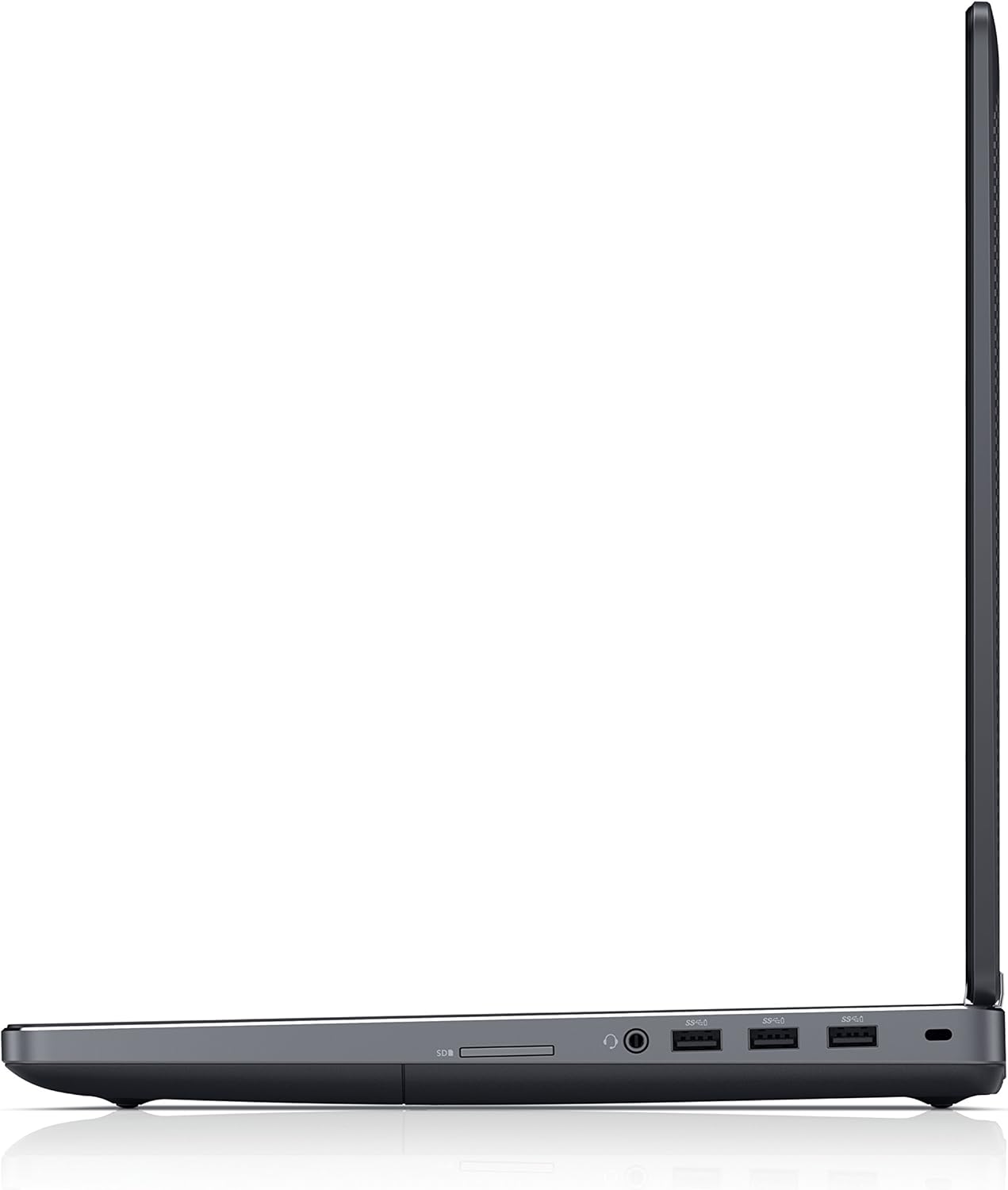
Obrázek 3.4.1: Levá strana view of the Dell Precision 7520 Mobile Workstation, highlighting the various ports and slots.
4. Údržba
4.1 Pokyny pro čištění
- Obrazovka: Lehce používejte měkký hadřík, který nepouští vlákna dampvodou nebo neabrazivním čističem obrazovek. Nestříkejte tekutinu přímo na obrazovku.
- Klávesnice a šasi: K otření povrchů použijte měkký hadřík. Prach z prostor mezi klávesami lze odstranit stlačeným vzduchem.
- Porty: Pro zajištění správného připojení se ujistěte, že porty nejsou prachové a bez nečistot.
4.2 Péče o baterii
The workstation is powered by a Lithium Ion battery. To maximize battery life:
- Vyhněte se extrémním teplotám.
- Nevybíjejte baterii často úplně.
- Store the workstation with a partial charge (around 50%) if not used for extended periods.
4.3 Aktualizace softwaru
Regularly update your Windows 10 Pro operating system and Dell drivers to ensure optimal performance, security, and compatibility. Check for updates through Windows Update and Dell's official support webmísto.
4.4 Správa úložiště
The 512GB NVMe SSD provides fast storage. Regularly manage your files and applications to prevent the drive from becoming full, which can impact performance. Consider using cloud storage for large files.
5. Řešení problémů
This section addresses common issues you might encounter with your Dell Precision 7520 Mobile Workstation.
5.1 Problémy s napájením
- Pracovní stanice se nezapne: Ensure the AC adapter is securely connected to both the workstation and a working power outlet. Check the power indicator light on the adapter.
- Baterie se nenabíjí: Verify the AC adapter connection. If the issue persists, the battery or adapter may require service.
5.2 Problémy se zobrazením
- Žádný obraz na obrazovce: Ensure the workstation is powered on. If an external monitor is connected, try disconnecting it. Adjust display brightness using keyboard function keys.
- Externí monitor nebyl detekován: Verify the cable connection to the DisplayPort. Ensure the external monitor is powered on and set to the correct input source.
5.3 Problémy s výkonem
- Pomalý výkon: Close unnecessary applications. Check for background processes consuming high CPU or RAM. Ensure Windows and drivers are up to date.
- Přehřívání: Ensure ventilation vents are clear and not obstructed. Operate the workstation on a hard, flat surface.
For more complex issues or if troubleshooting steps do not resolve the problem, refer to the Dell support website or contact Dell technical support.
6. Specifikace
Detailed technical specifications for the Dell Precision 7520 Mobile Workstation (Model PRM7520WYDRD).
| Funkce | Specifikace |
|---|---|
| Číslo modelu | PRM7520WYDRD |
| Procesor | Intel Core i7-7820HQ (2.9 GHz) |
| BERAN | 16 GB DDR4 (2400 MHz) |
| Skladování | 512 GB NVMe SSD |
| Grafický koprocesor | NVIDIA Quadro (Dedicated, 8GB RAM) |
| Velikost displeje | 15.6 palce |
| Maximální rozlišení obrazovky | 1920 x 1080 pixelů |
| Operační systém | Windows 10 Pro |
| Porty USB 3.0 | 4 |
| Bezdrátový typ | Bluetooth |
| Hmotnost položky | 6.1 libry |
| Rozměry produktu | 14.8 x 10.3 x 1.09 palce |
| Baterie | Je vyžadována 1 lithium-iontová baterie |
| Typ optické mechaniky | DVD-RW |
7. Záruka a podpora
7.1 Informace o záruce
Your Dell Precision 7520 Mobile Workstation is covered by Dell's standard limited warranty. For specific warranty terms and conditions, please refer to the warranty documentation included with your purchase or visit the official Dell support webUschovejte si doklad o koupi pro případ reklamace.
7.2 Technická podpora
For technical assistance, driver downloads, or service requests, please visit the official Dell Support website. You will need your service tag or express service code, typically found on a label on your workstation, to access personalized support resources.
Podpora společnosti Dell Webmísto: www.dell.com/support


