Zavedení
This manual provides essential information for setting up, operating, maintaining, and troubleshooting your Microsoft Surface Book 2 15-inch device. The Surface Book 2 is a versatile device designed to function as a robust laptop, a portable tablet, and a creative studio, offering powerful performance and a high-resolution PixelSense display.
Co je v krabici
- Surface Book 2 - 15" PixelSense™ Display
- 95W Power Supply with USB-A (5W) charging port
- Rychlý průvodce
- Safety and Warranty documents
Konec produktuview
Klíčové vlastnosti
- 8th generation Intel Quad Core i7 Processor
- 512 GB of storage and 16 GB RAM
- Up to 17 hours of video playback battery life
- Enhanced Graphics performance with NVIDIA GeForce GTX 1060 discrete GPU with 6GB GDDR5 Graphics Memory
- Vibrant 15" PixelSense touchscreen display
- Four versatile modes of use (Laptop, Tablet, View, Studio)
- Integrated USB-C port
Identifikace součásti

Figure 1: Microsoft Surface Book 2 in its standard laptop configuration, showcasing the keyboard and display.
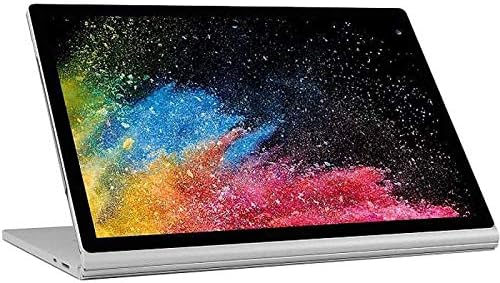
Figure 2: The display unit detached from the keyboard base, functioning as a standalone tablet.

Obrázek 3: Boční profíkfile of the Surface Book 2, illustrating the device's thickness and port locations.
Nastavení
- Rozbalte zařízení: Carefully remove the Surface Book 2 and all accessories from the packaging.
- Připojte napájení: Plug the 95W Power Supply into a wall outlet and connect the magnetic charging connector to the charging port on your Surface Book 2. Allow the device to charge fully before initial use.
- Zapnutí: Press and hold the power button located on the side of the display unit until the Microsoft logo appears.
- Počáteční nastavení: Postupujte podle pokynů na obrazovce a dokončete nastavení systému Windows 10 Pro, včetně výběru jazyka, síťového připojení a vytvoření uživatelského účtu.
Návod k obsluze
Zapnutí/vypnutí
- Zapnutí: Press the power button on the display unit.
- Vypnout: Select the Start button, then Power > Shut down.
- Restartovat: Select the Start button, then Power > Restart.
- Spát: Briefly press the power button. Press it again to wake the device.
Detaching and Attaching the Display (Tablet Mode)
The Surface Book 2 allows you to detach the display to use it as a tablet. To ensure proper detachment, always use the dedicated detach key on the keyboard.
- Odpojení: Press and hold the detach key (usually F12 or a dedicated key with an upward arrow icon) on the keyboard. Wait for the 'Ready to Detach' notification to appear on the screen. Once notified, gently pull the display upwards from the keyboard base.
- Připojení: Align the display with the keyboard base and gently push it down until it clicks into place. The device will confirm that the display is attached.
Použití dotykové obrazovky
The PixelSense display supports multi-touch gestures. You can interact with the screen using your fingers for navigation, zooming, and scrolling. For precise input and creative tasks, the Surface Pen (sold separately) can be used.
podsvícení klávesnice
To adjust the keyboard backlight, press the F7 key (often marked with a sun icon). Repeatedly pressing this key will cycle through different brightness levels or turn the backlight off.
Nastavení hlasitosti
Volume controls are located on the side of the display unit. Press the volume up or volume down buttons to adjust the audio output. Alternatively, you can use the volume controls in the Windows taskbar.
Údržba
- Čištění obrazovky: Použijte měkký hadřík, který nepouští vlákna dampened with water or an approved screen cleaner. Avoid harsh chemicals.
- Čištění těla: Wipe the device's exterior with a soft, damp cloth. Do not allow moisture to enter openings.
- Péče o baterie: To prolong battery life, avoid extreme temperatures and allow the battery to discharge partially before recharging. Regular full discharge cycles are not necessary for modern lithium-ion batteries.
- Aktualizace softwaru: Regularly check for and install Windows updates to ensure optimal performance, security, and compatibility.
- Skladování: Přístroj skladujte na chladném a suchém místě mimo dosah přímého slunečního záření a extrémních teplot.
Odstraňování problémů
Zařízení se nezapíná
- Ensure the device is fully charged. Connect the power adapter and wait a few minutes before attempting to power on.
- Perform a force restart by holding the power button for 10-15 seconds, then release and press it again briefly.
Display Issues (Flickering, No Image)
- Ensure the display is securely attached to the keyboard base. Detach and reattach if necessary.
- Update your display drivers through Windows Update or the Microsoft support webmísto.
Baterie se nenabíjí
- Verify that the power adapter is correctly connected to both the device and the power outlet.
- Zkontrolujte napájecí adaptér, zda nevykazuje viditelné poškození.
- Ujistěte se, že nabíjecí port na zařízení je čistý a bez nečistot.
Keyboard or Touchpad Not Responding
- Ensure the display is properly attached to the keyboard base.
- Restartujte zařízení.
- Check for any pending Windows updates that might include driver fixes.
Specifikace
| Funkce | Detail |
|---|---|
| Název modelu | Microsoft Surface Book |
| Číslo modelu položky | FUX-00001 |
| Velikost obrazovky | 15 palce |
| Rozlišení obrazovky | 2560 x 1600 pixelů |
| Maximální rozlišení obrazovky | 3260x2160 pixelů |
| Procesor | 1.9 GHz Core_i7_860 (8th Gen Intel Quad Core i7) |
| BERAN | 16 GB LPDDR3 |
| Rychlost paměti | 1866 MHz |
| Pevný disk | 512 GB SSD |
| Grafický koprocesor | NVIDIA GeForce GTX 1060 |
| Velikost paměti RAM grafické karty | 6 GB |
| Operační systém | Windows 10 Pro |
| Bezdrátový typ | 802.11abg |
| Porty USB 2.0 | 1 |
| Porty USB 3.0 | 2 |
| Průměrná životnost baterie | 13.5 hodin (až 17 hodin přehrávání videa) |
| Hmotnost položky | 4.2 libry |
| Rozměry produktu | 13.5 x 9.87 x 0.9 palce |
| Barva | Stříbro |
| Zadní WebRozlišení vačky | 8 MP |
Záruka a podpora
Your Microsoft Surface Book 2 comes with a limited hardware warranty. Please refer to the 'Safety and Warranty documents' included in your product packaging for detailed information regarding warranty coverage, terms, and conditions.
For technical assistance, driver downloads, or additional support resources, please visit the official Microsoft Support website. You can also find FAQs and community forums there to help resolve common issues.
Note: The provided video content was not embedded as it was not identified as official seller-created content. For official product videos and tutorials, please refer to the Microsoft Support webmísto.