1. Úvod
This manual provides essential information for the safe and efficient use of your Brother DCP-L8410CDW Color Laser Multifunction Printer. This 3-in-1 device is designed for professional environments, offering printing, copying, and scanning functionalities. It features an intuitive touchscreen, Wi-Fi, and Ethernet connectivity, making it suitable for various work settings.
Mezi klíčové vlastnosti patří:
- Print, copy, and scan capabilities
- High-quality color laser printing (up to 2400 dpi)
- Automatický oboustranný tisk
- Flexible paper handling with a maximum capacity of 300 sheets
- Integrated Wi-Fi and Gigabit Ethernet for versatile connectivity

Obrázek 1.1: Přední strana view of the Brother DCP-L8410CDW printer.
2. Nastavení
Follow these steps to set up your Brother DCP-L8410CDW printer:
- Rozbalení: Carefully remove the printer from its packaging. Ensure all protective tapes and packing materials are removed from the exterior and interior of the device.
- Instalace tonerových kazet: Open the front cover and install the toner cartridges into their respective slots. Refer to the labels for correct color placement.
- Vložte papír: Open the paper tray and adjust the paper guides to fit your paper size (e.g., A4). Load paper into the tray and close it securely.
- Připojte napájení: Připojte napájecí kabel k tiskárně a poté do uzemněné elektrické zásuvky.
- Připojení k síti/počítači:
- Bezdrátové připojení (Wi-Fi): On the printer's touchscreen, navigate to Network settings and follow the prompts to connect to your Wi-Fi network.
- Kabelové (Ethernet): Připojte ethernetový kabel z portu LAN tiskárny k síťovému routeru nebo přepínači.
- USB: Connect a USB 2.0 cable from the printer to your computer.
- Nainstalujte ovladače: Vložte instalační CD (pokud je součástí dodávky) do počítače nebo si stáhněte nejnovější ovladače a software z oficiální podpory Brother. webwebu. Dokončete instalaci podle pokynů na obrazovce.

Obrázek 2.1: Boční strana view of the Brother DCP-L8410CDW, showing the paper tray.
3. Návod k obsluze
The Brother DCP-L8410CDW features an intuitive touchscreen for easy operation.
3.1. Tisk
- Ujistěte se, že je tiskárna zapnutá a připojená k síti nebo počítači.
- Otevřete dokument nebo obrázek, který chcete vytisknout, v počítači nebo mobilním zařízení.
- Select the 'Print' option from your application.
- Choose the Brother DCP-L8410CDW from the list of available printers.
- Adjust print settings (e.g., number of copies, color/mono, duplex) as needed.
- Klikněte na tlačítko „Tisk“.
3.2. Kopírování
- Vložte dokument lícem dolů na sklo skeneru nebo lícem nahoru do automatického podavače dokumentů (ADF).
- On the printer's touchscreen, select the 'Copy' function.
- Adjust settings such as number of copies, color/mono, and enlargement/reduction.
- Stisknutím tlačítka „Start“ spusťte kopírování.
3.3. Snímání
- Place your document face down on the scanner glass or face up in the ADF.
- On the printer's touchscreen, select the 'Scan' function.
- Choose your desired scan destination (e.g., Scan to PC, Scan to USB, Scan to Email).
- Upravte nastavení skenování (např. rozlišení, file type) if necessary.
- Stisknutím tlačítka „Start“ spusťte skenování.

Image 3.1: The intuitive touchscreen control panel of the DCP-L8410CDW.

Image 3.2: Using the Automatic Document Feeder for scanning or copying, and the USB port for direct printing/scanning.
4. Údržba
Pravidelná údržba zajišťuje optimální výkon a prodlužuje životnost vaší tiskárny.
4.1. Výměna tonerových kazet
- When a 'Low Toner' or 'Replace Toner' message appears on the display, order new genuine Brother toner cartridges.
- Otevřete přední kryt tiskárny.
- Vyjměte starou tonerovou kazetu a sestavu fotoválce.
- Separate the toner cartridge from the drum unit.
- Unpack the new toner cartridge and install it into the drum unit until it clicks into place.
- Insert the new toner and drum unit assembly back into the printer.
- Zavřete přední kryt.
4.2. Čištění tiskárny
- Vnější: Vnější povrch tiskárny otřete měkkým hadříkem, který nepouští vlákna. Nepoužívejte abrazivní čisticí prostředky.
- Sklo skeneru: Sklo skeneru očistěte měkkým, suchým hadříkem. Na odolné skvrny použijte malé množství čističe skla naneseného na hadřík (ne přímo na sklo).
- Korónový drát: Periodically clean the corona wire inside the drum unit to prevent print quality issues. Refer to the printer's internal instructions or the full user guide for detailed steps.
5. Řešení problémů
Tato část se zabývá běžnými problémy, se kterými se můžete s tiskárnou setkat.
5.1. Zaseknutí papíru
If a 'Paper Jam' message appears:
- Vypněte tiskárnu a odpojte napájecí kabel.
- Open the rear cover or other access points as indicated on the display or in the full user guide.
- Carefully pull out any jammed paper in the direction of the paper path. Avoid tearing the paper.
- Check all paper trays and internal areas for small pieces of torn paper.
- Zavřete všechny kryty, zapojte napájecí kabel a zapněte tiskárnu.
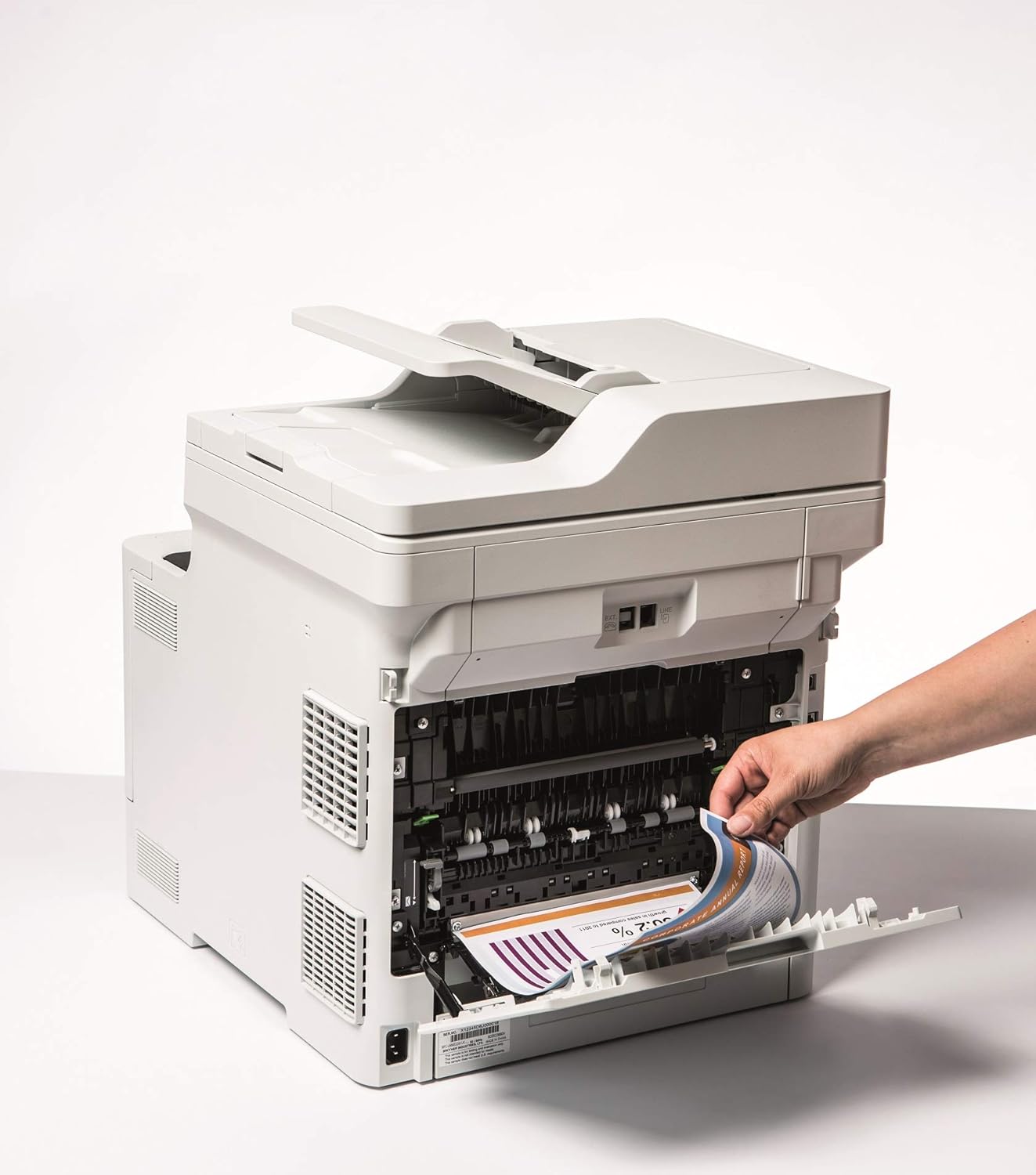
Image 5.1: Clearing a paper jam from the rear of the printer.
5.2. Problémy s kvalitou tisku
- Vybledlé výtisky: Toner cartridge may be low. Replace if necessary.
- Pruhy nebo skvrny: Clean the corona wire or check for foreign objects on the drum unit.
- Nesprávné barvy: Ensure genuine Brother toner cartridges are used and perform a color calibration from the printer's menu.
5.3. Problémy s připojením
- Wi-Fi Disconnected: Check network settings on the printer and ensure your router is functioning correctly. Restart both devices if needed.
- Cannot Print from PC: Verify that the printer drivers are correctly installed and updated. Check cable connections for wired setups.
6. Specifikace
| Funkce | Specifikace |
|---|---|
| Název modelu | DCP-L8410CDW |
| Rozměry produktu (DxŠxV) | 43.5P x 53.9Š x 52.6V cm |
| Maximální velikost média | A4 |
| Maximální kapacita listů | 300 listů |
| Maximální rychlost kopírování (černobíle) | 31 stran za minutu |
| Maximální rozlišení barevného tisku | 61 dpcm |
| Maximální rozlišení černobílého tisku | 2400 dpi |
| Oboustranný tisk | Ano |
| Technologie připojení | Ethernet, USB 2.0, Wireless LAN (Wi-Fi) |
| Technologie tisku | Laser |
| Tiskový výstup | Barva |
| Maximální rychlost tisku (barevně) | 31 stran za minutu |
| Hmotnost položky | 27.6 kg |
| Spotřeba energie | 500 wattů |
| Typ skeneru | Valník |
7. Informace o záruce
This Brother DCP-L8410CDW printer comes with a Omezená záruka. For detailed information regarding the terms, conditions, and duration of your warranty, please refer to the warranty card included with your product or visit the official Brother webUschovejte si doklad o koupi pro případ reklamace.
8. Zákaznická podpora
For further assistance, including driver downloads, FAQs, and contact information for technical support, please visit the official Brother support webmísto:
You can also find additional resources and troubleshooting guides specific to your model on the support page.