Zavedení
This manual provides essential information for the installation, operation, maintenance, and troubleshooting of your NVIDIA 699-51030-0501-101 graphics card. This component is designed for desktop computer systems to enhance graphics processing capabilities. Please read this manual thoroughly before proceeding with installation or use.
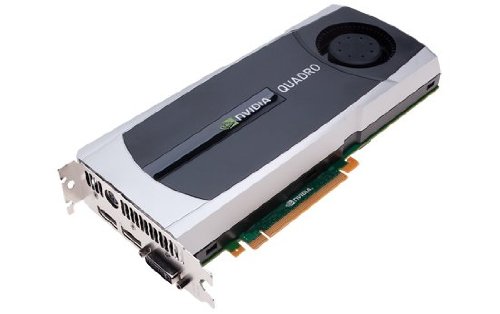
Image: NVIDIA 699-51030-0501-101 Graphics Card. This image displays the graphics card from an angled perspective, showing the cooling fan, heatsink, and the PCIe connector.
Bezpečnostní pokyny
Dodržujte následující bezpečnostní opatření, abyste předešli poškození produktu nebo zranění:
- Před instalací nebo demontáží jakýchkoli součástí vždy odpojte napájení počítače.
- Noste antistatický náramek nebo se často dotýkejte uzemněného kovového předmětu, abyste vybili statickou elektřinu.
- Grafickou kartu držte za hrany, abyste se nedotkli citlivých součástí.
- Zajistěte dostatečné větrání uvnitř skříně počítače, abyste zabránili přehřátí.
- Chraňte výrobek před vlhkostí a extrémními teplotami.
Nastavení
1. Kontroly před instalací
- Ověřte, zda má váš napájecí zdroj (PSU) dostatečný výkon.tage and appropriate connectors for the graphics card.
- Ensure your motherboard has an available PCI Express (PCIe) x16 slot.
- Confirm your computer case has adequate space for the graphics card dimensions.
- Připravte si potřebné nástroje: křížový šroubovák, antistatický náramek (doporučeno).
2. Instalace hardwaru
- Vypnutí a odpojení: Úplně vypněte počítač a odpojte napájecí kabel ze zásuvky.
- Otevřený případ: Pro přístup k základní desce sejměte boční panel skříně počítače.
- Vyhledejte slot PCIe: Identify an available PCI Express x16 slot on your motherboard. This is typically the longest slot.
- Odstraňte kryt slotu: Remove the metal slot cover(s) from the back of your computer case corresponding to the PCIe slot you will use.
- Vložte grafickou kartu: Carefully align the graphics card with the PCIe slot. Press down firmly and evenly on both ends of the card until it is fully seated in the slot. You should hear a click from the retention clip.
- Bezpečná karta: Secure the graphics card to the computer case using the screw(s) removed from the slot cover(s).
- Připojení napájení (pokud je k dispozici): If your graphics card requires additional power, connect the appropriate PCIe power cables from your PSU to the graphics card. This model (NVIDIA 699-51030-0501-101) may not require external power, but always check the card itself for connectors.
- Zavřít případ: Vyměňte boční panel skříně počítače.
- Znovu připojte periferie: Reconnect your monitor cable to one of the display outputs on the new graphics card. Reconnect all other peripherals and the power cord.
3. Instalace ovladače
- Zapnutí: Zapněte počítač.
- Stáhnout ovladače: Přejděte na oficiální stránky NVIDIA webweb (www.nvidia.com/drivers) and download the latest drivers compatible with your NVIDIA 699-51030-0501-101 graphics card and operating system.
- Nainstalujte ovladače: Spusťte stažený instalační program ovladače a postupujte podle pokynů na obrazovce. V případě potřeby doporučujeme provést čistou instalaci.
- Restartovat: Po dokončení instalace ovladače restartujte počítač.
Provozní
Once installed and drivers are updated, your NVIDIA 699-51030-0501-101 graphics card will automatically handle graphics processing for your system. You can verify its operation through your operating system's device manager or NVIDIA Control Panel.
- Ovládací panel NVIDIA: Access the NVIDIA Control Panel (usually via right-click on desktop or through Windows Control Panel) to adjust display settings, 3D settings, and monitor various aspects of your graphics card.
- Aktualizace ovladačů: Pravidelně kontrolujte NVIDIA website for driver updates to ensure optimal performance and compatibility with new software and games.
Údržba
Správná údržba zajistí dlouhou životnost a optimální výkon vaší grafické karty.
- Odstranění prachu: Periodically (e.g., every 6-12 months), power off and unplug your computer. Open the case and use compressed air to gently clear dust from the graphics card's heatsink and fan. Hold the fan blades to prevent over-spinning during cleaning.
- Podmínky prostředí: Operate your computer in a clean, dry, and well-ventilated environment. Avoid extreme temperatures and humidity.
Odstraňování problémů
Pokud narazíte na problémy, postupujte podle následujících běžných kroků pro řešení potíží:
- Žádný výstup na displej:
- Ujistěte se, že je kabel monitoru bezpečně připojen ke grafické kartě a monitoru.
- Ověřte, zda je monitor nastaven na správný vstupní zdroj.
- Check if the graphics card is fully seated in its PCIe slot.
- If applicable, ensure all PCIe power connectors are securely attached.
- Pokud je to možné, vyzkoušejte s jiným monitorem nebo kabelem.
- Problémy s ovladači:
- Reinstall the latest drivers from the NVIDIA webmísto.
- Try rolling back to a previous driver version if issues started after an update.
- Use Display Driver Uninstaller (DDU) in Safe Mode to completely remove old drivers before installing new ones.
- Problémy s výkonem (nízké FPS, zasekávání):
- Ujistěte se, že ovladače jsou aktuální.
- Check for overheating using monitoring software (e.g., MSI Afterburner, HWMonitor). Clean dust if necessary.
- Verify that your system meets the minimum requirements for the applications or games you are running.
- Zkontrolujte napájecí zdroj (PSU)tage; an insufficient PSU can cause performance issues.
- System Instability (Crashes, Blue Screens):
- Check for driver conflicts or corruption.
- Monitor temperatures to rule out overheating.
- Ensure the graphics card is properly seated and secured.
- Spusťte diagnostické nástroje paměti a zkontrolujte problémy s pamětí RAM.
Technické specifikace
Key specifications for the NVIDIA 699-51030-0501-101 graphics card:
| Číslo modelu | NVIDIA 699-51030-0501-101 |
| Značka | NVIDIA |
| Grafický koprocesor | NVIDIA 699-51030 |
| Výrobce grafických procesorů | NVIDIA |
| Kompatibilní zařízení | Desktop |
| ASIN | B01NBI92VC |
| Datum první dostupnosti | 8. prosince 2016 |
Záruka a podpora
This NVIDIA graphics card is covered by the manufacturer's standard warranty. For specific warranty terms, duration, and to register your product, please refer to the official NVIDIA website or contact NVIDIA customer support directly.
For technical assistance, driver downloads, and further support resources, visit the official NVIDIA support portal:
- Podpora NVIDIA: www.nvidia.com/support


