1. Konec produktuview
The Excelvan E58 is a compact 58mm thermal receipt printer designed for various point-of-sale (POS) applications. It offers versatile connectivity options including USB and Bluetooth, making it compatible with a range of operating systems such as Android, iOS, Windows, and Linux. This printer is capable of printing at speeds up to 130mm/s and supports ESC/POS commands.

Figure 1: Excelvan E58 Thermal Receipt Printer.
2. Obsah balení
Ověřte prosím, zda jsou ve vašem balení obsaženy všechny níže uvedené položky:
- Excelvan E58 Thermal Receipt Printer
- Napájecí adaptér (zástrčka EU)
- USB kabel (110 cm)
- Disk CD s ovladači
- Paper Roll (58mm)
- Uživatelská příručka

Figure 2: Included accessories and printer unit.
3. Nastavení
3.1 Připojení napájení
- Ensure the printer is switched off.
- Připojte napájecí adaptér ke vstupnímu portu napájení tiskárny.
- Zapojte napájecí adaptér do vhodné elektrické zásuvky.

Figure 3: Rear ports of the printer, including the power input.
3.2 Vkládání papíru
- Press the 'OPEN' button or lever on the side of the printer to open the paper cover.
- Insert the 58mm thermal paper roll into the compartment, ensuring the printing side faces upwards and the paper feeds smoothly from the bottom of the roll.
- Vytáhněte malý kus papíru za řezačku.
- Pevně zavřete kryt papíru, dokud nezacvakne na místo.
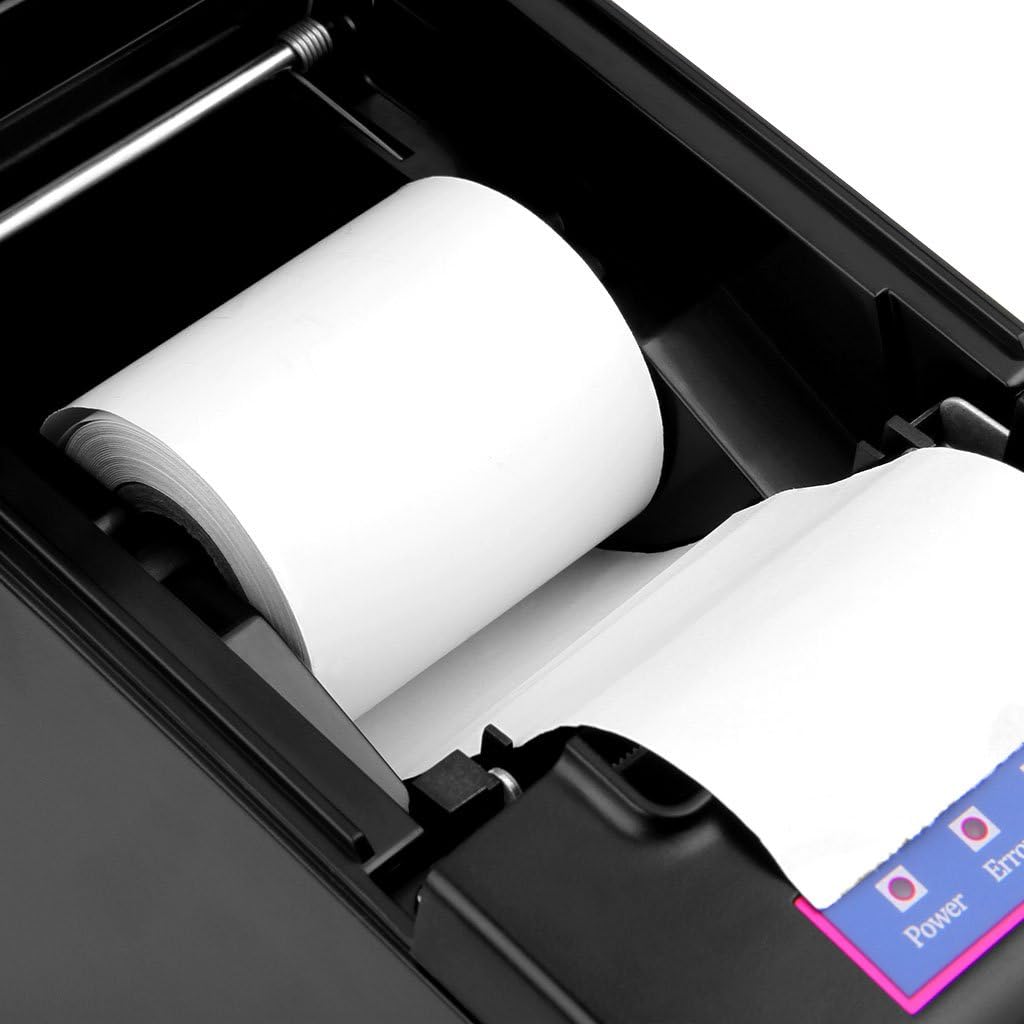
Figure 4: Paper roll loaded inside the printer compartment.
4. Návod k obsluze
4.1 Zapnutí/vypnutí
- To power on, press the 'ON/OFF' switch located on the front of the printer. The power indicator light will illuminate.
- To power off, press the 'ON/OFF' switch again. The power indicator light will turn off.
4.2 Připojení USB
- Připojte jeden konec kabelu USB k portu USB tiskárny a druhý konec k počítači.
- Install the printer driver from the provided CD or download the latest driver from the official Excelvan support webmísto.
- Dokončete instalaci ovladače podle pokynů na obrazovce.
- Once the driver is installed, the printer should be recognized by your operating system (Windows, Linux).
4.3 Připojení Bluetooth
- Ensure the printer is powered on and within range of your device (Android, iOS, Windows).
- On your device, navigate to the Bluetooth settings and enable Bluetooth.
- Hledat available devices. The printer should appear as "E58" or a similar identifier.
- Vyberte tiskárnu, kterou chcete spárovat. Pokud se zobrazí výzva k zadání PIN kódu, zadejte „0000“ nebo „1234“.
- Once paired, you can select the printer from your application's print settings.
Note: While the printer supports iOS, some users have reported compatibility challenges. Ensure your printing application supports external Bluetooth thermal printers and refer to the application's documentation for specific setup instructions.
4.4 Připojení pokladní zásuvky
The printer includes a cash drawer port (RJ11/RJ12). Connect your compatible cash drawer to this port. The cash drawer will typically open automatically upon a print command from your POS software.

Figure 5: Cash drawer port for integration with POS systems.
5. Údržba
5.1 Čištění tiskové hlavy
- Vypněte tiskárnu a odpojte napájecí kabel.
- Otevřete papírový kryt.
- Použijte vatový tampon lehceampened with isopropyl alcohol to gently wipe the thermal print head.
- Před zavřením krytu a zapnutím tiskárny nechte tiskovou hlavu zcela vyschnout.
5.2 Výměna role papíru
Follow the steps outlined in Section 3.2 "Loading Paper" to replace an empty paper roll with a new 58mm thermal paper roll.
6. Řešení problémů
| Problém | Možná příčina | Řešení |
|---|---|---|
| Tiskárna se nezapne. | No power supply; Power switch off. | Check power cable connection; Ensure power switch is in 'ON' position. |
| Žádný tisk. | Paper loaded incorrectly; No paper; Driver not installed; Incorrect port selected. | Reload paper correctly; Insert new paper roll; Install printer driver; Select correct USB or Bluetooth port. |
| Připojení Bluetooth se nezdařilo. | Printer not in pairing mode; Incorrect PIN; Device compatibility. | Ensure printer is discoverable; Use PIN "0000" or "1234"; Verify application support for Bluetooth printing, especially for iOS. |
| Kvalita tisku je špatná. | Dirty print head; Low quality thermal paper. | Clean the print head (refer to Section 5.1); Use high-quality thermal paper. |
| Printer emits an unwanted beep sound. | Error condition (e.g., paper cover open, out of paper); Default setting. | Resolve the error (close cover, load paper). Consult the driver software or advanced settings for options to disable error beeps if available. |
7. Specifikace
| Funkce | Specifikace |
|---|---|
| Způsob tisku | Tisk termální linkou |
| Šířka tisku | 48 mm |
| Rezoluce | 384 dots/line (384 dpi) |
| Rychlost tisku | 130 mm/s |
| Rozhraní | USB, Bluetooth |
| Typ papíru | Tepelný papír |
| Šířka papíru | 57.5 ± 0.5 mm |
| Průměr role papíru | Max φ 83 mm |
| Příkazy | Kompatibilní s ESC/POS |
| Operační systémy | Android, iOS, Windows (2000/2003/XP/7/8/8.1/10), Linux |
| Výstup pokladní zásuvky | DC 12V/1A |
| Vstup napájecího adaptéru | AC 110V/220V, 50/60Hz |
| Výstup napájecího adaptéru | DC 12V/2A |
| Rozměry (D x Š x V) | 17 x 11.5 x 12 cm |
| Hmotnost | 1.39 kg |
| Životnost tiskové hlavy | 100 km |
| Život frézy | 1,000,000 XNUMX XNUMX řezů |

Obrázek 6: Rozměry tiskárny.
8. Záruka a podpora
8.1 Omezená záruka
The Excelvan E58 printer comes with a limited warranty. Please refer to the warranty card included in your package or contact your retailer for specific terms and conditions regarding warranty coverage and duration.
8.2 Zákaznická podpora
For technical assistance, troubleshooting, or inquiries regarding your Excelvan E58 printer, please contact your point of purchase or visit the official Excelvan support webstránky s dalšími zdroji.


