1. Úvod
This manual provides essential information for the proper setup, operation, and maintenance of your ASUS X540LA-SI30205P 15.6-inch laptop. Please read this guide thoroughly to ensure optimal performance and longevity of your device. Keep this manual for future reference.
2. Obsah balení
Upon unpacking your ASUS X540LA-SI30205P laptop, please verify that all items are present and in good condition. The standard package should include:
- ASUS X540LA-SI30205P 15.6-inch Laptop
- Napájecí adaptér a napájecí kabel
- Uživatelská dokumentace (Stručná úvodní příručka, Záruční list)
3. Konec produktuview
Familiarize yourself with the various components and ports of your ASUS X540LA-SI30205P laptop.
3.1 Přední View

Obrázek 3.1: Přední strana view of the laptop with the screen open, showing the keyboard, touchpad, and display.
3.2 Porty na levé straně
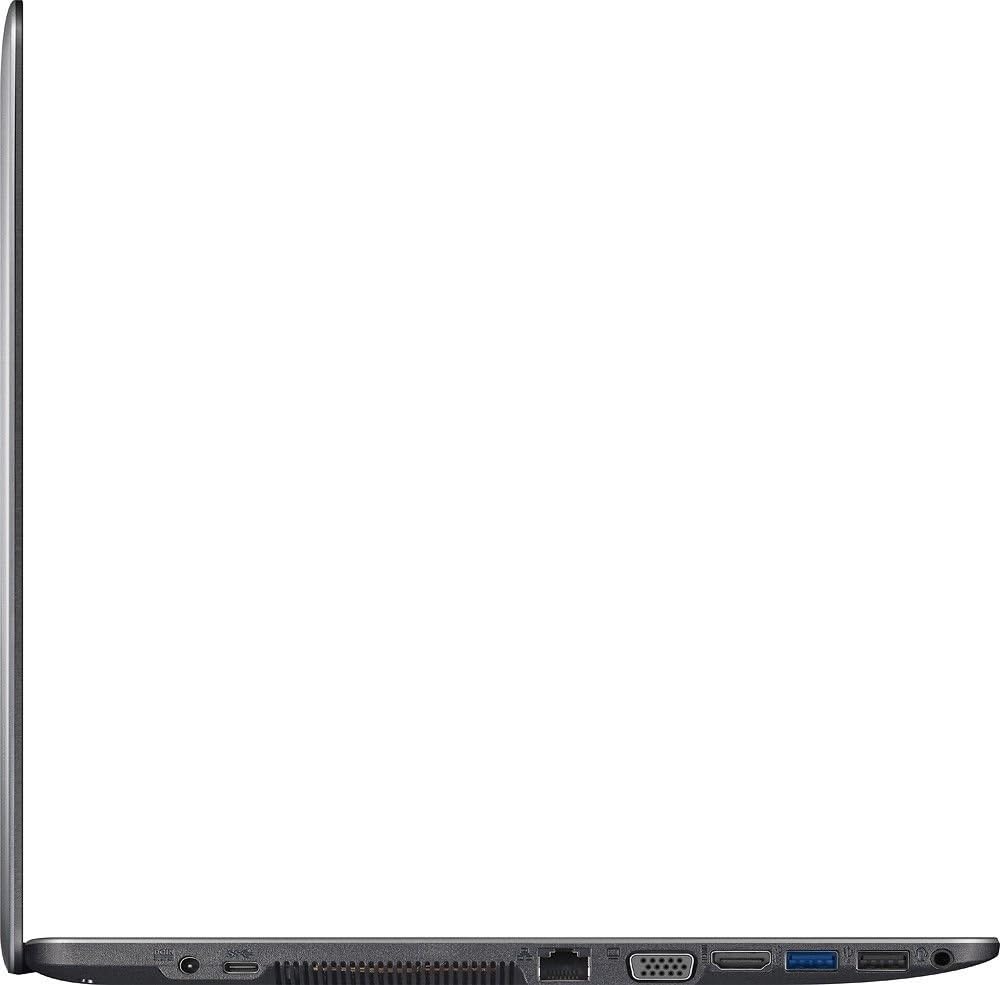
Figure 3.2: The left side of the laptop features the power input, Ethernet (LAN) port, VGA output, HDMI output, and USB ports (USB 3.0 and USB 2.0).
3.3 Right Side Ports and Optical Drive

Figure 3.3: The right side of the laptop includes additional USB ports (USB 2.0), a headphone/microphone combo jack, and the SuperMulti DVD/CD burner.
3.4 Klávesnice a touchpad

Figure 3.4: The chiclet-style keyboard includes a numeric keypad. The multi-touch touchpad is located below the keyboard.
4. Začínáme (Nastavení)
Follow these steps to set up your laptop for the first time.
4.1 Připojení napájecího adaptéru
- Connect the AC power adapter to the power input port on the left side of your laptop.
- Plug the power cord into the AC power adapter.
- Zapojte druhý konec napájecího kabelu do uzemněné elektrické zásuvky.
Před prvním použitím se doporučuje baterii plně nabít.
4.2 Initial Power On and Windows 10 Setup
- Otevřete víko notebooku a stiskněte tlačítko napájení, které se obvykle nachází nad klávesnicí.
- The laptop will boot up and guide you through the Windows 10 initial setup process. Follow the on-screen instructions to configure language, region, network settings, and create a user account.
- Během instalace se ujistěte, že máte aktivní připojení k internetu, abyste si mohli stáhnout potřebné aktualizace.
5. Ovládání notebooku
This section covers basic operations and features of your ASUS X540LA-SI30205P.
5.1 Používání klávesnice a touchpadu
- Klávesnice: The laptop features a full-size chiclet keyboard with a dedicated numeric keypad. Function keys (F1-F12) often have secondary functions (e.g., volume control, screen brightness) accessible by pressing the Fn key in combination with the desired function key.
- Touchpad: The multi-touch touchpad supports various gestures for navigation, such as scrolling, zooming, and switching applications. Refer to Windows 10 settings for customizing touchpad gestures.
5.2 Using the SuperMulti DVD/CD Burner
To open the optical drive tray, press the eject button located on the drive itself. Insert a disc (DVD or CD) with the label side facing up and gently push the tray back into the laptop until it clicks into place. Windows 10 will typically detect the disc automatically.
5.3 Připojení externích zařízení
- Zařízení USB: Connect USB devices (e.g., external hard drives, mice, keyboards) to the available USB 3.0 (blue port) or USB 2.0 ports.
- Externí displeje: Use the HDMI port for digital video and audio output, or the VGA port for analog video output to connect to an external monitor or projector.
- Síť: Pro kabelové připojení k internetu připojte ethernetový kabel k portu LAN.
- Zvuk: Use the headphone output/microphone input combo jack for external headphones or a headset.
5.4 Bezdrátové připojení
Your laptop supports Wi-Fi (802.11bgn) and Bluetooth. To connect to a Wi-Fi network, click the Wi-Fi icon in the Windows taskbar, select your desired network, and enter the password if required. Bluetooth devices can be paired via the Bluetooth settings in Windows.
6. Péče a údržba
Proper care ensures the longevity and optimal performance of your laptop.
6.1 Čištění notebooku
- Použijte měkký hadřík, který nepouští vlákna dampened with water or a specialized screen cleaner to clean the display. Avoid harsh chemicals.
- Na klávesnici a šasi použijte měkký hadřík. Prach mezi klávesami a větracími otvory může pomoci odstranit pomocí stlačeného vzduchu.
- Před čištěním se ujistěte, že je notebook vypnutý a odpojený od sítě.
6.2 Péče o baterii
- Nevystavujte baterii extrémním teplotám.
- For optimal battery life, avoid constantly discharging the battery to 0% or keeping it at 100% for extended periods.
- If storing the laptop for a long time, charge the battery to about 50% and store it in a cool, dry place.
6.3 Aktualizace softwaru
Regularly update your Windows operating system and drivers to ensure security, stability, and performance. Windows Update can be accessed via the Settings menu.
7. Řešení problémů
Tato část se zabývá běžnými problémy, se kterými se můžete setkat při používání notebooku.
7.1 Problémy s napájením a bootováním
- Notebook se nezapne: Ensure the power adapter is securely connected to both the laptop and a working electrical outlet. Check if the power indicator light is on. Try a different outlet.
- Notebook se zapne, ale displej se nezobrazí: Connect an external monitor to the HDMI or VGA port to check if the issue is with the laptop's internal display. Restart the laptop.
7.2 Problémy se zobrazením
- Screen goes black intermittently: This can sometimes be caused by magnetic interference near the laptop's lid sensor. Ensure no magnetic objects (like certain bracelets or accessories) are resting on the palm rest area. Update graphics drivers.
- Poor display quality: Adjust screen resolution and brightness settings in Windows. Ensure graphics drivers are up to date.
7.3 Problémy s výkonem
- Pomalý výkon: Close unnecessary applications. Check Task Manager for high CPU or RAM usage. Ensure sufficient free space on the hard drive. Run a disk cleanup.
- Přehřívání: Ensure ventilation vents are clear of obstructions. Use the laptop on a hard, flat surface. Consider cleaning internal components if comfortable, or seek professional service.
7.4 Optical Drive Issues
- Disc not reading: Ensure the disc is clean and free of scratches. Try a different disc. Check Device Manager in Windows to ensure the optical drive is recognized and drivers are installed correctly.
8. Technické specifikace
| Funkce | Specifikace |
|---|---|
| Model | X540LA-SI30205P |
| Zobrazit | 15.6-inch HD (1366 x 768) LED |
| Procesor | Intel Core i3-5020U (5. generace, 2.2 GHz) |
| BERAN | 4GB DDR3L 1600 MHz (Expandable to 8GB) |
| Skladování | 1TB 5400 RPM HDD |
| Operační systém | Windows 10 Home, 64bitový |
| Optická mechanika | SuperMulti DVD/CD Burner |
| Grafika | UMA Graphics with Shared Memory |
| Bezdrátový | Wi-Fi 802.11bgn, Bluetooth |
| Porty | 1x USB 3.0, 2x USB 2.0, HDMI, VGA, LAN (10/100), Headphone/Mic Combo, SD Card Reader |
| Webvačka | Integrovaný Webvačka |
| Zvuk | Built-in Stereo Speakers with SonicMaster |
| Baterie | 3článková lithium-iontová baterie |
| Rozměry (DxŠxV) | 15 x 9.92 x 1 palce |
| Hmotnost | 4.41 liber |
| Barva | Stříbro |
9. Informace o záruce a podpoře
Your ASUS X540LA-SI30205P laptop comes with a limited warranty. Please refer to the warranty card included in your package for specific terms and conditions, including coverage period and service procedures. For technical support, driver downloads, or further assistance, please visit the official ASUS support webmísto:
When contacting support, please have your laptop's model number (X540LA-SI30205P) and serial number readily available.


