1. Úvod
This manual provides instructions for setting up, operating, maintaining, and troubleshooting your NETGEAR Nighthawk X4 AC2200 WiFi Mesh Range Extender (Model EX7300). This device is designed to extend your existing WiFi coverage, creating a seamless WiFi system throughout your home or office.
The EX7300 supports AC2200 dual-band wireless speeds up to 2200Mbps, ideal for HD streaming and online gaming. It features Mesh Smart Roaming and One WiFi Name, allowing your devices to automatically connect to the strongest WiFi signal as you move around your home, without needing to manually switch networks. The extender is compatible with any standard WiFi router, gateway, or ISP-provided gateway.
2. Obsah balení
Ověřte, zda váš balíček obsahuje následující položky:
- AC2200 Nighthawk X4 Range Extender (EX7300)
- Průvodce rychlým startem
If any items are missing or damaged, please contact NETGEAR support.
3. Fyzikální vlastnosti
Familiarize yourself with the buttons and indicators on your EX7300 extender.
Přední View s LED diodami

This image shows the front of the NETGEAR EX7300 WiFi Mesh Range Extender, highlighting its LED indicators for power, router link, and client link. These LEDs provide visual feedback on the device's status and connection quality.
- LED napájení: Indikuje stav napájení.
- LED propojení routeru: Shows connection strength to the router (Green: Best, Amber: Good, Red: Poor).
- Client Link LED: Shows connection strength to client devices.
- WPS LED: Označuje stav připojení WPS.
Strana View s tlačítky
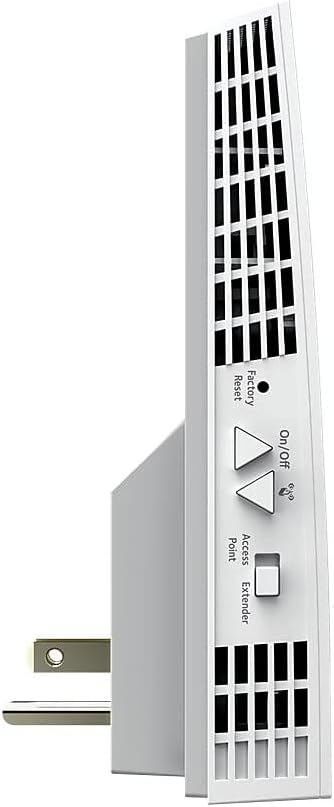
This image displays the side of the NETGEAR EX7300, featuring the Factory Reset button, On/Off switch, and a toggle for Access Point/Extender mode. These controls are essential for managing the device's functions.
- Tlačítko pro obnovení továrního nastavení: Resets the extender to factory default settings.
- Vypínač: Zapne nebo vypne zařízení.
- Mode Switch (Access Point/Extender): Volí provozní režim.
Dno View s ethernetovým portem

This image shows the bottom of the NETGEAR EX7300, highlighting the Gigabit Ethernet port. This port allows for a wired connection to devices like gaming consoles or smart TVs, providing maximum speed and stability.
- Gigabitový ethernetový port: Pro kabelové připojení k zařízením.
Zadní View s označením produktu

This image displays the rear of the NETGEAR EX7300, showing the product information label. This label contains important details such as the model number, serial number, and regulatory compliance information.
- Štítek produktu: Contains model, serial number, and other regulatory information.
4. Nastavení
The NETGEAR EX7300 can be set up using either the WPS (Wi-Fi Protected Setup) method or the NETGEAR Installation Assistant. For a seamless installation, it is recommended to complete the basic setup in the same room as your current router.
4.1. Metoda nastavení WPS
- Zapojte Extender: Plug the EX7300 extender into an electrical outlet in the same room as your WiFi router.
- Stiskněte WPS na extenderu: Press the WPS button on the side of the extender. The WPS LED on the extender will start blinking.
- Stiskněte WPS na routeru: Within two minutes, press the WPS button on your WiFi router. Refer to your router's manual if you cannot locate the WPS button.
- Ověřit připojení: The WPS LED on the extender will light up solid green when a good connection is established between your WiFi router and the extender.
- Extend 5GHz Band (Optional): If your WiFi router supports the 5GHz band and you wish to extend it, repeat the WPS process.
- Přemístění prodlužovače: Unplug the extender and move it to a new location. Choose a spot that is about halfway between your router and the area where you experience a poor WiFi signal. The chosen location must be within range of your existing WiFi router network.
- Check Router Link LED: Plug the extender into an electrical outlet in the new location. Wait for the Power LED to light green. Use the Router Link LED to help you choose an optimal location.
- Green or Amber: Indicates a good connection to the router.
- Červený: The extender is too far from the router. Move it closer to the router and try again.
- Připojit zařízení: Connect your client devices (laptops, smartphones, etc.) to the new extended WiFi network. The extender uses your existing WiFi name with "_EXT" appended (e.g., "YourWiFiName_EXT"). Use the same WiFi password as your router.
- Verify Client Link LED: Once your devices are connected and placed in the desired area, check the Client Link LED on the extender. If it is solid amber or green, your WiFi network has been properly extended.
4.2. NETGEAR Installation Assistant Setup
If your router does not support WPS, or if you prefer a browser-based setup, follow these steps:
- Zapojte Extender: Plug the EX7300 extender into an electrical outlet in the same room as your WiFi router.
- Připojení k WiFi extenderu: On your computer or mobile device, connect to the extender's default WiFi network (e.g., "NETGEAR_EXT"). No password is required initially.
- Spustit prohlížeč: Otevřete a web prohlížeč a přejděte na www.mywifiext.net.
- Postupujte podle pokynů na obrazovce: The NETGEAR Installation Assistant will guide you through the setup process, including selecting your existing WiFi network(s) and entering your WiFi password(s).
- Relocate and Verify: After initial setup, follow the relocation and LED verification steps as described in the WPS setup method (Step 6 onwards).
4.3. Videonávod k nastavení
How to Setup NETGEAR Wall Plug WiFi Range Extenders
This video provides a visual guide on how to set up NETGEAR Wall Plug WiFi Range Extenders, including the EX7300 model. It demonstrates the WPS setup process and general placement recommendations for optimal performance.
5. Operating Your Extender
Once set up, your EX7300 extender operates to provide extended WiFi coverage. Here are key operational aspects:
- One WiFi Name (Mesh Smart Roaming): The EX7300 supports Mesh Smart Roaming, which means it uses the same WiFi network name (SSID) as your main router. This allows your devices to automatically connect to the strongest WiFi signal as you move around your home, without needing to manually switch networks.
- Dvoupásmové připojení: The extender operates on both 2.4GHz and 5GHz WiFi bands, providing flexibility and optimal performance for various devices. The 5GHz band offers higher speeds for demanding tasks like streaming and gaming, while the 2.4GHz band provides broader coverage.
- Gigabitový ethernetový port: Use the Gigabit Ethernet port on the bottom of the extender to connect wired devices such as smart TVs, gaming consoles, or desktop computers for a stable and high-speed internet connection.
- Režim přístupového bodu: The EX7300 can also function as an Access Point. If you have an Ethernet cable running to an area with no WiFi, you can connect the extender to the Ethernet cable and switch it to Access Point mode to create a new WiFi hotspot.
5.1. FastLane Technology
The EX7300 features NETGEAR's patented FastLane™ Technology, which uses both WiFi bands to create a super-fast connection. This is particularly beneficial for high-bandwidth applications like HD streaming and online gaming, ensuring minimal lag and buffering.
FastLane Technology | Ensuring Faster Downloads with your WiFi Range Extender
This video explains NETGEAR's FastLane Technology and how it enhances download speeds and overall performance when using a WiFi Range Extender like the EX7300.
NETGEAR Nighthawk X4 AC2200 WiFi Range Extender (EX7300) Overview
Toto video poskytuje stručný přehledview of the NETGEAR Nighthawk X4 AC2200 WiFi Range Extender (EX7300), showcasinjeho vlastnosti a výhody.
6. Údržba
To ensure optimal performance and longevity of your NETGEAR EX7300 extender, follow these maintenance guidelines:
- Aktualizace firmwaru: Regularly check for and install firmware updates. Firmware updates often include performance improvements, bug fixes, and security enhancements. You can check for updates via the NETGEAR Installation Assistant or the NETGEAR Nighthawk app.
- Čištění: Keep the extender clean and free from dust. Use a soft, dry cloth to wipe the exterior. Do not use liquid cleaners or aerosols. Ensure ventilation slots are not blocked.
- Optimální umístění: Periodically check the Router Link LED to ensure the extender is still in an optimal location. Environmental changes (e.g., new furniture, appliances) can affect WiFi signal strength.
- Cyklus napájení: If you experience intermittent connectivity issues, try power cycling the extender by unplugging it from the outlet, waiting 10-15 seconds, and then plugging it back in.
- Obnovení továrního nastavení: In case of persistent issues or if you wish to reconfigure the extender from scratch, perform a factory reset using the Factory Reset button on the side of the device. Note that this will erase all custom settings.
7. Řešení problémů
This section addresses common issues you might encounter with your EX7300 extender.
7.1. Žádné připojení k internetu
- Check Router Link LED: If the Router Link LED is red, the extender is too far from your router. Relocate the extender closer to your router.
- Ověření připojení routeru: Ensure your main WiFi router has an active internet connection.
- Re-run Setup: If the issue persists, try re-running the setup process using either WPS or the Installation Assistant.
7.2. Poor WiFi Signal or Slow Speeds
- Optimální umístění: Ensure the extender is placed optimally, as indicated by a green or amber Router Link LED. Avoid placing it near large metal objects, concrete walls, or other electronic devices that might cause interference.
- Check Client Link LED: If the Client Link LED is red, your client device is too far from the extender. Move your device closer to the extender.
- Rušení: Other wireless devices (cordless phones, microwaves, Bluetooth devices) can interfere with WiFi signals. Try changing the WiFi channel on your router or extender.
- Aktualizace firmware: Ensure your extender's firmware is up to date.
7.3. Cannot Access mywifiext.net
- Přímé připojení: Ensure your device is connected to the extender's WiFi network (e.g., "NETGEAR_EXT") or directly via an Ethernet cable during setup.
- Vymazat mezipaměť prohlížeče: Zkuste si vyčistit web mezipaměť a soubory cookie prohlížeče nebo použijte jiný prohlížeč.
- Alternative IP Address: If www.mywifiext.net doesn't work, try accessing the extender's IP address directly. You can find this in your router's connected devices list.
8. Specifikace
| Funkce | Detail |
|---|---|
| Model | EX7300 |
| Bezdrátová technologie | 802.11ac Dual-Band |
| Rychlost přenosu dat | Až 2200 Mb/s (AC2200) |
| Krytí | Až 2300 XNUMX čtverečních stop. |
| Připojená zařízení | Až 40 XNUMX zařízení |
| Ethernetové porty | 1 x Gigabit Ethernet Port |
| Speciální funkce | Mesh Smart Roaming, One WiFi Name, FastLane™ Technology |
| Rozměry (DxŠxV) | 6.3 x 3.2 x 1.7 palce |
| Hmotnost | 1.05 libry |
| svtage | 100-240 voltů |
9. Záruka a podpora
NETGEAR products are designed for reliability and performance. For detailed warranty information, please refer to the warranty card included with your product or visit the official NETGEAR webmísto.
For technical support, product registration, and access to user forums, visit the NETGEAR support page:
You may also find helpful resources and FAQs on the NETGEAR webmísto.


