1. Úvod
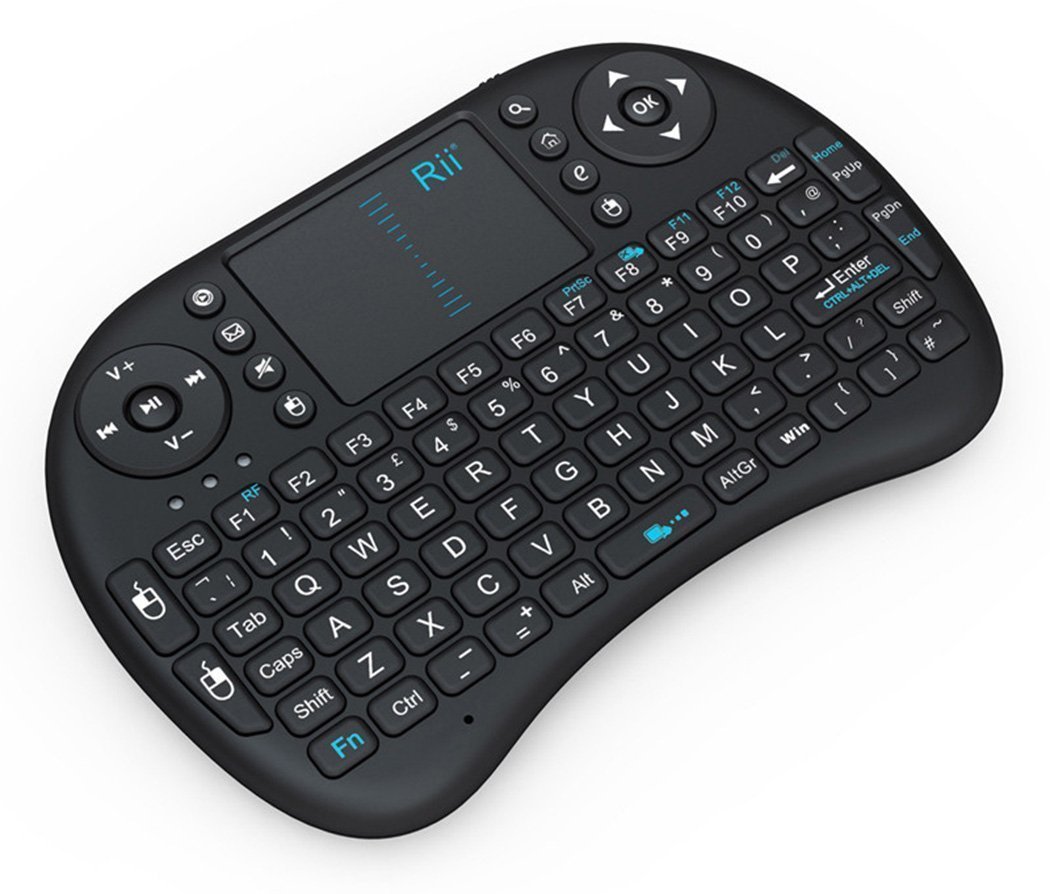
This manual provides detailed instructions for the Rii i8 2.4GHz Wireless Touchpad Keyboard Mouse, model RT-MWK-08. This compact and versatile device integrates a full QWERTY keyboard with a multi-touch touchpad, offering convenient control for various systems including PCs, smart TVs, Android TV boxes, and gaming consoles. Please read this manual thoroughly before use to ensure proper operation and to maximize your experience with the product.
2. Obsah balení
Po vybalení se prosím ujistěte, že jsou v balení všechny následující položky:
- 1x Rii i8 Wireless Keyboard
- 1x USB Wireless Receiver
- 1x USB Charging Data Cable
- 1x Uživatelská příručka
3. Nastavení
3.1. Nabíjení zařízení
The Rii i8 keyboard comes with a built-in lithium-ion battery. Before initial use, it is recommended to fully charge the device. Connect the provided USB charging cable to the keyboard's charging port and the other end to a standard USB power source (e.g., computer USB port, USB wall adapter). The charging indicator light will illuminate during charging and turn off when fully charged.
3.2. Připojení bezdrátového USB přijímače
- Locate the USB wireless receiver, typically stored in a compartment on the back of the keyboard.
- Insert the USB receiver into an available USB port on your target device (PC, Smart TV, Android TV Box, etc.).
- Turn on the Rii i8 keyboard using the power switch (usually located on the side or back).
- The device should automatically connect. No additional drivers are typically required for most operating systems.
The image displays the back of the Rii i8 wireless keyboard, highlighting the slot for the USB receiver and the included USB charging cable. The receiver is a small USB dongle that plugs into your device for wireless connectivity.
4. Návod k obsluze
4.1. Funkce klávesnice
The Rii i8 features a standard QWERTY keyboard layout. All standard alphanumeric keys and symbols function as they would on a full-sized keyboard.
4.2. Funkce touchpadu
The integrated touchpad supports multi-touch gestures for navigation:
- Klepnutí jedním prstem: Funguje jako kliknutí levým tlačítkem myši.
- Klepnutí dvěma prsty: Functions as a right mouse click.
- Posouvání: Slide one finger up or down the right edge of the touchpad to scroll vertically, similar to a mouse scroll wheel.

This diagram shows how to use the touchpad for vertical scrolling by sliding a finger up or down. It also highlights dedicated buttons for volume control (V+, V-), previous/next song, play/pause, and quick access to music player, email, search, and browser functions.
4.3. Special Function (Fn) Keys
The keyboard includes a 'Fn' key which, when pressed in combination with other keys, activates additional functions. Refer to the diagram below for common Fn key combinations:

This image details the functionality of various Fn key combinations. For example, Fn + F1 adjusts mouse sensitivity, Fn + Enter is a Task Manager shortcut, Fn + F8 toggles the touchpad on/off, and Fn + Win activates the Start/Menu bar. It also shows shortcuts for adjusting mouse sensitivity, print screen, maximizing pages, opening development tools, and navigating text.

A user is shown holding the Rii i8 wireless keyboard, illustrating its compact size and ergonomic design for comfortable two-hand operation. The keyboard is being used in front of a television displaying a smart TV interface, indicating its suitability for media center control.
5. Kompatibilita
The Rii i8 wireless keyboard is compatible with a wide range of operating systems and devices that support a standard USB interface:
- Windows 2000 / XP / 7 / 8 / CE
- Windows Vista
- Linux (Debian 3.1, Red Hat - Fedora, Ubuntu 8.10-8.10 * 9.0)
- OS Android (se standardním rozhraním USB)
- PC, Mac, HTPC, Smart TV, Android TV Box, Projector, Tablet (with USB port), Notebook

This diagram illustrates the broad compatibility of the Rii i8 wireless keyboard, showing it can connect to and control a variety of devices including Home Theater PCs (HTPC), Android TV Boxes, projectors, tablets with USB ports, Smart TVs, and notebooks.
6. Údržba
6.1. Čištění
K čištění klávesnice použijte měkký, suchý hadřík. V případě odolných nečistot použijte lehceamp Lze použít hadřík s jemným mýdlem a ujistit se, že do zařízení nevnikne žádná tekutina. Nepoužívejte abrazivní čisticí prostředky ani rozpouštědla.
6.2. Péče o baterie
The built-in lithium-ion battery is not user-replaceable. To prolong battery life, avoid fully discharging the battery frequently. Charge the device when the low battery indicator appears. Store the device in a cool, dry place when not in use for extended periods.
7. Řešení problémů
- No Response from Keyboard:
- Ujistěte se, že je klávesnice zapnutá.
- Check if the USB receiver is securely plugged into the device.
- Ověřte, zda je baterie klávesnice nabitá.
- Zkuste zapojit USB přijímač do jiného USB portu.
- Ujistěte se, že v blízkosti není žádné silné bezdrátové rušení.
- Touchpad Not Working Correctly:
- Ensure the touchpad is not disabled (check Fn+F8 combination).
- Očistěte povrch touchpadu.
- If sensitivity is an issue, adjust it using Fn+F1.
- Low battery can affect touchpad performance; recharge the device.
- Klávesy nereagují:
- Nabijte klávesnici.
- Znovu připojte USB přijímač.
- Test on another device to rule out host system issues.
- Krátký provozní dosah:
- Ensure there are no obstructions between the keyboard and the USB receiver.
- Avoid using the device near other 2.4GHz wireless devices that may cause interference.
8. Specifikace
| Funkce | Detail |
|---|---|
| Provozní rozsah | Up to 15 meters (MAX), without signal disturbance and no direction limit |
| Frekvenční rozsah | 2.403 GHz - 2.480 GHz |
| Operační svtage | 3.3V |
| Charge Voltage | 4.4V ~ 5.25V |
| Modulace | GFSK |
| Kanál | 78 kanály |
| TX Power | Less than +5dBm |
| Přenosová rychlost | 1M bit/sec |
| Frekvenční tolerance | +/-30 str./min |
| Spotřeba energie | 55mA (on), 1mA (sleep) |
| Typ baterie | Vestavěná lithium-iontová baterie |
| Velikost položky | 15 x 10 x 2 cm (5.91 cm D x 3.94 cm Š x 0.79 cm V) |
| Hmotnost položky | 107 g (0.016 uncí) |
| Hardwarová platforma | PC; Mac; UNI; Linux |
| Materiál | Plast |
| Barva | Černý |
9. Záruka a podpora
For warranty information or technical support, please refer to the documentation included with your purchase or contact the retailer/manufacturer directly. Keep your proof of purchase for warranty claims.


