Konec produktuview
The Verbatim 99140 Dual USB Flash Drive is designed for convenient data transfer between USB On-The-Go (OTG) compatible mobile devices (smartphones, tablets) and computers (PC or Mac). It features both a standard USB-A connector and a Micro-USB connector, allowing for versatile connectivity without the need for cables or Wi-Fi.
This device enables you to:
- Easily transfer or offload files from your USB OTG compatible smartphone or tablet.
- Move content between your mobile device and your PC or Mac.
- Access stored content directly from the flash drive using your smartphone or tablet, conserving your device's internal memory.
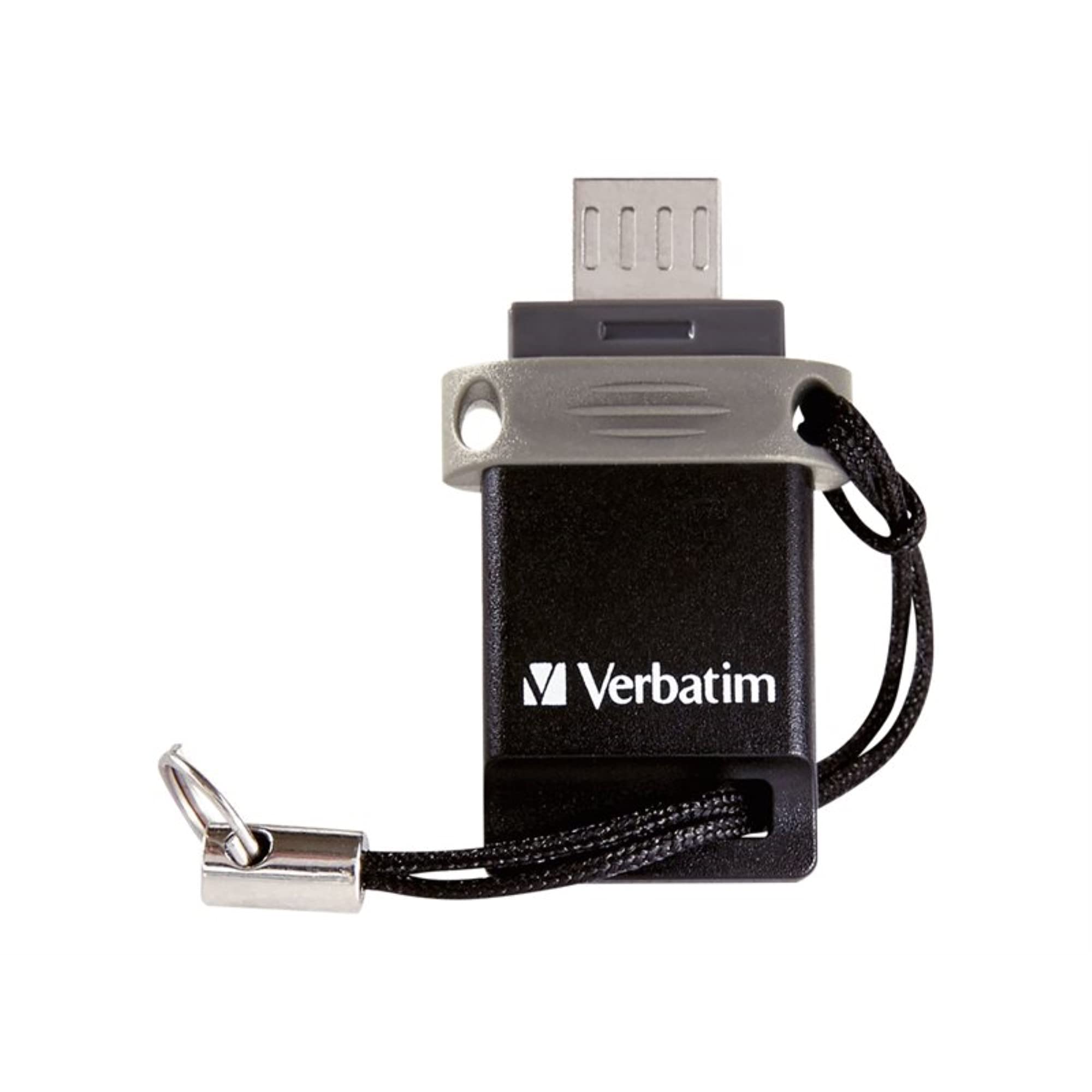
Image: The Verbatim 99140 Dual USB Flash Drive, showcasing its compact design and dual connectors.
Nastavení a připojení
Before using the Verbatim Dual USB Flash Drive, ensure your mobile device supports USB On-The-Go (OTG) functionality. Most modern Android smartphones and tablets support OTG, but it is advisable to check your device's specifications.
Connecting to a Mobile Device (OTG)
- Locate the Micro-USB port on your smartphone or tablet.
- Carefully insert the Micro-USB connector of the flash drive into your device's Micro-USB port. Ensure it is inserted correctly to avoid damage.
- Your device should automatically detect the flash drive. A notification may appear, or you may need to navigate to your device's file manager application to access the drive.
Connecting to a Computer (PC/Mac)
- Vyhledejte v počítači volný port USB-A.
- Insert the standard USB-A connector of the flash drive into the computer's USB-A port.
- The computer should detect the drive as a removable storage device. It will appear in 'My Computer' (Windows) or on the desktop/Finder (Mac).

Image: The flash drive showing both the standard USB-A and Micro-USB connectors.
Návod k obsluze
Přenos Files
Once the flash drive is connected and recognized by your device or computer, you can transfer files using standard drag-and-drop operations or copy/paste functions.
- Z mobilního zařízení: Otevřete na svém zařízení file manager. Navigate to the files you wish to transfer. Select them and choose to 'Copy' or 'Move' them to the flash drive's directory.
- Z počítače: Open 'My Computer' (Windows) or Finder (Mac). Locate the files on your computer. Drag and drop them into the flash drive's folder, or right-click and choose 'Send To' (Windows) / 'Copy' then 'Paste' (Mac/Windows).
Accessing Content Directly
Můžete přehrávat média files (photos, videos, music) or open documents stored on the flash drive directly from your OTG-compatible mobile device without transferring them to the device's internal storage. Use your device's file manager or a compatible media player application to browse and open files on the connected flash drive.

Image: A close-up of the Verbatim Dual USB Flash Drive, highlighting its compact form factor.
Údržba
To ensure the longevity and optimal performance of your Verbatim Dual USB Flash Drive, follow these maintenance guidelines:
- Fyzikální péče: Avoid dropping the drive or subjecting it to strong impacts. Keep it away from liquids, dust, and extreme temperatures.
- Ochrana konektoru: The Micro-USB connector, especially, can be delicate. Handle it with care during insertion and removal to prevent bending or damage.
- Bezpečné odstranění: Always safely eject the flash drive from your computer before physically removing it. On Windows, use the 'Safely Remove Hardware' icon in the system tray. On Mac, drag the drive icon to the Trash or use the Eject button in Finder. For mobile devices, ensure no file transfers are active before unplugging.
- Skladování: When not in use, store the flash drive in a clean, dry place, ideally with the protective cap on the Micro-USB connector.
Odstraňování problémů
If you encounter issues with your Verbatim Dual USB Flash Drive, consider the following troubleshooting steps:
- Disk nebyl rozpoznán:
- Zkontrolujte kompatibilitu: Ensure your mobile device is USB OTG compatible.
- Re-insert: Disconnect and re-connect the drive firmly to the port.
- Try Different Port/Device: Test the drive on a different USB port on your computer or another OTG-compatible mobile device to rule out a port issue.
- Restartovat zařízení: Sometimes, restarting your computer or mobile device can resolve detection issues.
- Pomalé přenosové rychlosti:
- USB 2.0 Standard: This drive operates on USB 2.0, which has slower speeds compared to USB 3.0 or higher. Expect transfer rates typical for USB 2.0 devices.
- File Velikost: Přenos mnoha malých filemůže být pomalejší než přenos jednoho velkého file stejné celkové velikosti.
- Micro-USB Port Damage: Handle the Micro-USB connector with extreme care. Repeated forceful or incorrect insertion can damage the port on the flash drive or your mobile device. If the port is physically damaged, the drive may no longer function with mobile devices.
- Poškození dat: Always safely eject the drive. Unplugging it during a transfer or without proper ejection can lead to data corruption. If data appears corrupted, you may need to reformat the drive (Varování: Tím se smažou všechna data).
Specifikace
| Značka | Doslovně |
| Název modelu | Store 'n' Go Dual |
| Číslo modelu | 99140 |
| Kapacita úložiště | 64 GB |
| Rozhraní | USB 2.0 (USB-A and Micro-USB) |
| Barva | Černá, Stříbrná |
| Rozměry | 3.4 x 1.8 x 0.81 cm |
| Hmotnost | 9.07 g |
| Hardwarová platforma | Mac, PC |
| Speciální funkce | Lehký |
| Výrobce | VERBATIM CORPORATION |
| UPC | 023942991403 |
Záruka a podpora
For detailed warranty information, please refer to the documentation included with your product or visit the official Verbatim webZáruční podmínky se mohou lišit v závislosti na regionu.
For technical support, product registration, or to find answers to frequently asked questions, please visit the official Verbatim support page: