1. Úvod
This manual provides essential instructions for the safe and effective operation of your Brookstone Wireless Mobile Projector MP130. Please read this manual thoroughly before using the device and retain it for future reference. Proper use and maintenance will ensure optimal performance and longevity of your projector.
2. Konec produktuview
2.1 Obsah balení
Ověřte, zda jsou v balení obsaženy všechny níže uvedené položky:
- Brookstone Wireless Mobile Projector MP130
- HDMI kabel
- Napájecí adaptér
- Mini stativ
- Dálkové ovládání
- Uživatelská příručka (tento dokument)

Image 2.1: Package contents including the projector, HDMI cable, power adapter, tripod, remote control, and user manual.
2.2 Součásti projektoru
Přední View

Obrázek 2.2: Přední strana view of the projector, showing the projection lens and ventilation grille.
The front of the projector features the main projection lens and a ventilation grille for heat dissipation.
Nahoru View and Touch Panel

Obrázek 2.3: Nahoře view of the projector, highlighting the integrated touch panel.

Image 2.4: Close-up of the touch panel, indicating control functions.
The top surface of the projector integrates a touch panel for navigation and control. Key functions include:
- Hlasitost + / Hlasitost -: Upravuje úroveň zvukového výstupu.
- Menu: Přístup k nabídce nastavení projektoru.
- Domov: Vrátí se do hlavního rozhraní.
- Zadní: Navigates to the previous screen or option.
- Touch Panel Area: Used for navigation and selection (light touch to confirm).
Strana View a porty

Obrázek 2.5: Boční strana view projektoru s podrobným popisem portů pro připojení.
The side of the projector houses various ports for connectivity:
- Příkon: Připojuje se k napájecímu adaptéru pro nabíjení a provoz.
- HDMI: High-Definition Multimedia Interface for connecting to external video sources.
- 3.5mm audio výstup: Pro připojení externích reproduktorů nebo sluchátek.
- Port USB 2.0: Pro připojení paměťových zařízení USB.
- Port USB 3.0: For connecting USB storage devices, offering faster data transfer.
3. Nastavení
3.1 Nabíjení projektoru
- Connect the provided power adapter to the Power Input port on the projector.
- Zapojte napájecí adaptér do standardní elektrické zásuvky.
- The charging indicator will illuminate. A full charge typically takes several hours. The projector can be used while charging.
The projector is equipped with a rechargeable 3800mAh battery, providing portable operation.
3.2 Zapnutí/vypnutí
- Zapnutí: Press and hold the power button located on the projector until the indicator light illuminates and the projector starts.
- Vypnutí: Press and hold the power button until the projector shuts down.
3.3 Nastavení zaostření
To achieve a clear image, adjust the focus wheel located near the projection lens. Rotate the wheel until the projected image appears sharp and clear on the screen or surface.
3.4 Umístění projektoru
The projector can project an image up to 80 inches diagonally. The size of the projected image is determined by the distance between the projector and the projection surface. To adjust the screen size, physically move the projector closer or further away from the surface.
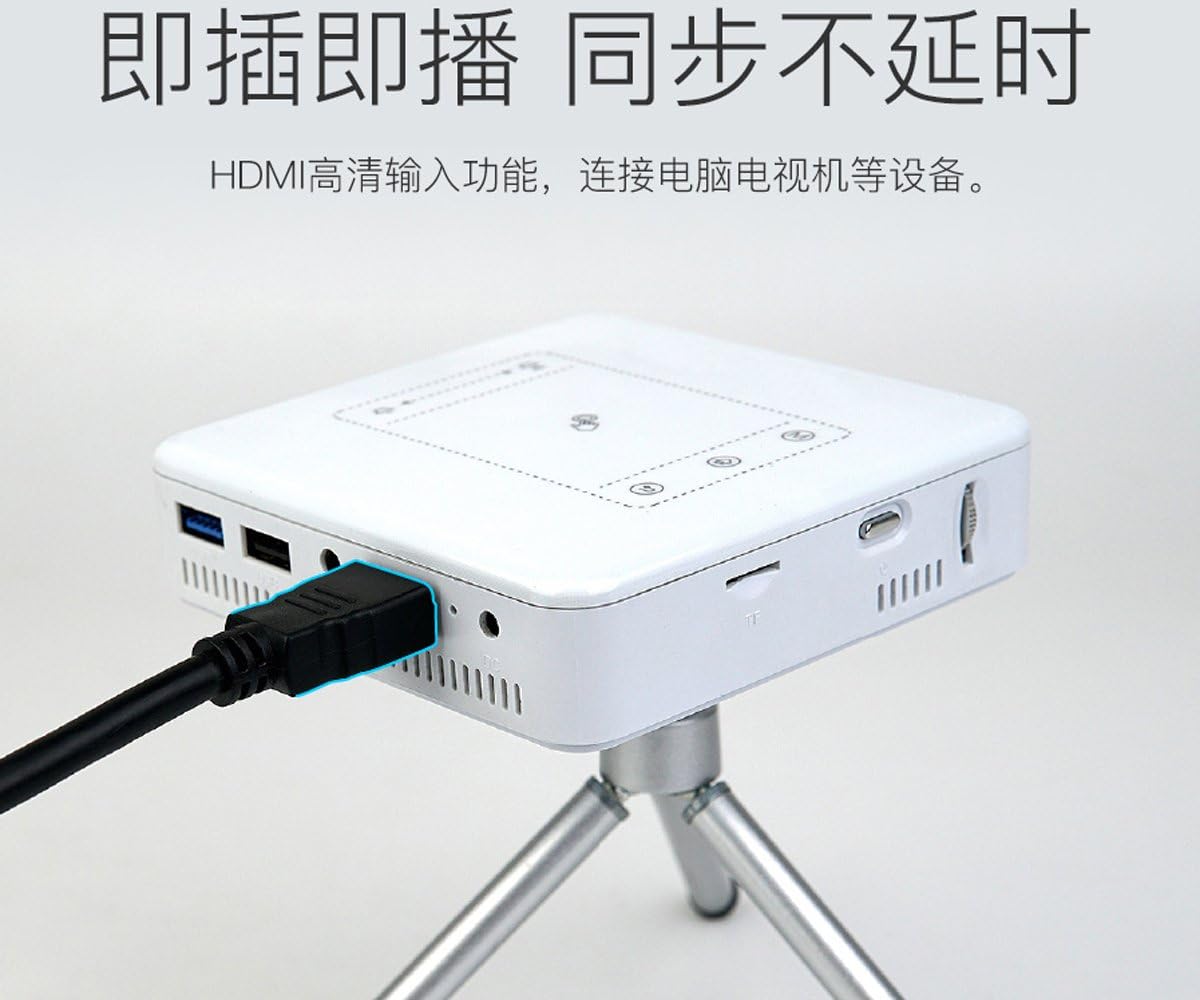
Image 3.1: Projector positioned on a tripod, ready for use.
Use the included mini tripod for stable positioning on flat surfaces. Ensure the projector is placed on a stable, level surface to prevent accidental falls.
4. Návod k obsluze
4.1 Bezdrátové připojení
The projector supports wireless connection to compatible smartphones and tablets.
Connecting to Smartphones/Tablets
- Ensure your smartphone or tablet's Wi-Fi is enabled.
- On the projector, navigate to the wireless connection settings.
- Select the appropriate mirroring or casting option (e.g., Miracast for Android, AirPlay for iOS).
- For Apple devices, an application may be required to facilitate the connection. Refer to the projector's on-screen instructions for specific app recommendations.
- Select the projector's network name from your device's Wi-Fi or screen mirroring options.
Poznámka: Wireless connectivity to laptops is generally not supported by this model. For laptop connections, use an HDMI cable.
4.2 Drátové připojení
Připojení HDMI
Use the HDMI port to connect to devices such as laptops, gaming consoles, or media players.
- Připojte jeden konec kabelu HDMI k portu HDMI na projektoru.
- Connect the other end of the HDMI cable to the HDMI output port on your source device.
- On the projector, select HDMI as the input source.
Image 4.1: Projector connected to a source device using an HDMI cable.
Přehrávání médií USB
The USB 2.0 and USB 3.0 ports allow you to play media directly from USB storage devices.
- Insert a USB flash drive into either the USB 2.0 or USB 3.0 port.
- Navigate to the media player application on the projector's interface.
- Vyberte požadované médium file (videos, photos, documents) to play.

Image 4.2: Projector displaying content, indicating support for H.265 video decoding for high-definition playback.
4.3 Audio výstup
The projector features dual built-in speakers for audio playback. For enhanced audio, you can connect external speakers or headphones.
- Vestavěné reproduktory: Audio will play automatically through the projector's internal speakers. Adjust volume using the touch panel or remote control.
- Externí zvuk: Connect headphones or external speakers to the 3.5mm Audio Output jack.
Poznámka: The projector does not directly connect to Bluetooth speakers. If you wish to use Bluetooth speakers, connect your source device (e.g., smartphone) directly to the Bluetooth speaker.
4.4 Navigace v rozhraní
You can navigate the projector's interface using either the integrated touch panel on the top of the device or the included remote control. The touch panel allows for intuitive gesture-based control, while the remote offers traditional button navigation.
5. Údržba
5.1 Čištění
- Čočka: Use a soft, lint-free cloth specifically designed for optical lenses. Do not use abrasive cleaners or cloths that may scratch the lens.
- Projector Body: Otřete vnější povrch měkkým, suchým hadříkem. V případě odolných skvrn použijte lehceamp Lze použít hadřík a poté suchý hadřík. Nepoužívejte agresivní chemikálie nebo rozpouštědla.
- Ventilační mřížky: Periodically check and gently clean the ventilation grilles to ensure proper airflow and prevent overheating. Use a soft brush or compressed air.
5.2 Skladování
Pokud projektor delší dobu nepoužíváte, skladujte jej na chladném a suchém místě mimo dosah přímého slunečního záření a extrémních teplot. Doporučuje se používat originální obal nebo ochranné pouzdro, aby se zabránilo hromadění prachu a fyzickému poškození.
6. Řešení problémů
Pokud se s projektorem setkáte s problémy, podívejte se na následující běžné problémy a jejich řešení:
| Problém | Možná příčina | Řešení |
|---|---|---|
| Žádný promítaný obraz | Projector not powered on; incorrect input source; loose cable connection. | Ensure projector is powered on. Select the correct input source (e.g., HDMI, Wireless). Check all cable connections. |
| Obraz je rozmazaný | Není nastavené zaostření; projektor je příliš blízko/daleko od promítací plochy. | Adjust the focus wheel until the image is clear. Reposition the projector to optimize image size and clarity. |
| Žádný zvuk | Volume too low; external speakers not connected properly; audio source issue. | Increase volume using the touch panel or remote. Ensure external speakers/headphones are securely connected to the 3.5mm jack. Check audio settings on your source device. |
| Wireless connection fails or disconnects | Interference; incorrect pairing; app issues (iOS). | Ensure no strong interference sources are nearby. Re-attempt the pairing process. For iOS, ensure the required app is installed and updated. Restart both the projector and the source device. |
| Image has unusual colors (e.g., all yellow) | Porucha hardwaru. | This may indicate a hardware issue. Please contact customer support for assistance. |
7. Specifikace
7.1 Technické údaje
| Funkce | Specifikace |
|---|---|
| Číslo modelu | MP130 |
| Rozměry produktu | 5 x 5.1 x 3.4 palce |
| Hmotnost položky | 1.2 libry |
| Jas | 100 Lumens (LED lamp) |
| Nativní rozlišení displeje | 854 x 480 pixelů |
| Maximální rozlišení displeje | 1920 x 1080 pixels (supported) |
| Baterie | Dobíjecí 3800mAh |
| Technologie připojení | Wireless (Smartphone & Tablet), HDMI, USB 2.0, USB 3.0, 3.5mm Audio Out |
| Reproduktory | Dual built-in speakers |
| Speciální funkce | Speakers, Focus Control |
8. Záruka a podpora
8.1 Informace o záruce
This Brookstone Wireless Mobile Projector MP130 is covered by the manufacturer's limited warranty. Please refer to the warranty card included in your product packaging or visit the official Brookstone webpodrobné záruční podmínky naleznete na webu.
8.2 Zákaznická podpora
For technical assistance, troubleshooting beyond this manual, or warranty claims, please contact Brookstone customer support. Contact information can typically be found on the official Brookstone webwebu nebo na obalu vašeho produktu.


