1. Úvod
The Tenda AC1900 Dual Band Wireless Wi-Fi Gigabit Router (AC15) is designed to provide high-speed wireless connectivity for your home or office network. Featuring the 11ac Wi-Fi standard, it offers combined data transfer speeds of up to 1.9Gbps across both 2.4GHz and 5GHz frequencies. This router is equipped with a 1GHz dual-core CPU and DDR3 memory for stable and responsive performance, making it suitable for bandwidth-intensive applications like streaming and online gaming. Its Gigabit Ethernet ports and USB 3.0 port further enhance connectivity options.
2. Obsah balení
Prosím, ověřte, zda jsou v balení přítomny všechny položky:
- Tenda AC1900 Smart Dual-band Gigabit Wifi Router AC15
- Odnímatelný stojan
- Ethernetový kabel
- Napájecí adaptér
- Průvodce rychlou instalací
3. Konec produktuview
The Tenda AC15 router features a sleek design with three high-performance external antennas to ensure broad Wi-Fi coverage. Below are images illustrating the router's appearance and key connection points.

Obrázek 3.1: Přední view of the Tenda AC15 router, showcasing its textured top surface and three external antennas.

Obrázek 3.2: Zadní view of the Tenda AC15 router, highlighting the power button, power input, USB 3.0 port, WAN port (labeled Internet), and three LAN ports (labeled 1, 2, 3).
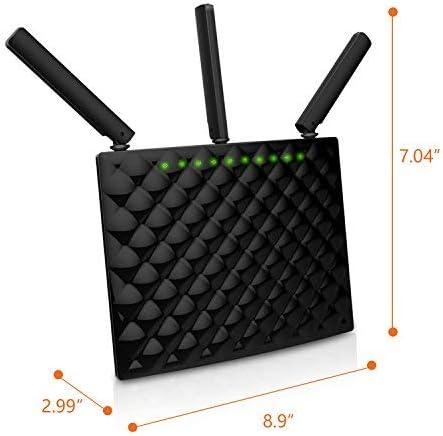
Obrázek 3.3: Dimensions of the Tenda AC15 router: approximately 7.07 inches (length) x 3.02 inches (width) x 8.9 inches (height).
4. Pokyny k nastavení
Follow these steps to set up your Tenda AC15 router and establish an internet connection.
4.1 video: An official Tenda Technology video demonstrating the unboxing and setup process for the Tenda AC15 router. This video provides a visual guide to the steps outlined below.
- Připojení základny: Attach the removable stand to the bottom of the router. It is designed to snap securely into place.
- Připojte napájení: Plug the power adapter into the router's power input port and then into a wall outlet. Ensure the power button on the back of the router is in the 'On' position.
- Připojení k modemu: Use the provided Ethernet cable to connect your modem's LAN port to the Internet (WAN) port on the back of the AC15 router.
- Connect to Router's Wi-Fi: On your computer or mobile device, search for available Wi-Fi networks. Connect to the network named "Tenda_XXXXXX" (where XXXXXX are the last six characters of the router's MAC address, found on the label). The default Wi-Fi password is also printed on this label.
- Přístup Web Rozhraní: Otevřete a web prohlížeč a přejděte do http://tendawifi.com or http://192.168.0.1.
- Spusťte Průvodce nastavením: Follow the on-screen instructions of the quick setup wizard. You will be prompted to set a new Wi-Fi name (SSID) and password, and an administrator password for the router's settings.
- Reconnect to New Wi-Fi: After completing the wizard, your router will restart. Reconnect your devices to the new Wi-Fi network name and password you just created.
5. Návod k obsluze
Once your router is set up, you can manage its settings and connect various devices.
5.1 Připojení zařízení
- Bezdrátová zařízení: Hledat your Wi-Fi network on your device (smartphone, tablet, laptop) and enter the password you configured during setup.
- Drátová zařízení: Connect devices such as desktop computers, gaming consoles, or smart TVs to the router's LAN ports (labeled 1, 2, 3) using Ethernet cables.
5.2 Managing Router Settings
To access and modify router settings, open a web prohlížeč a přejděte na http://tendawifi.com. Log in using the administrator password you set. From here, you can:
- Change Wi-Fi names (SSIDs) and passwords for both 2.4GHz and 5GHz bands.
- Vytvořte hostující síť pro návštěvníky.
- Monitorujte připojená zařízení.
- Configure advanced network settings.
6. Pokročilé funkce
The Tenda AC15 router offers several advanced features to enhance your networking experience.
6.1 USB 3.0 for Personal Secure Cloud and Printer Sharing
The integrated USB 3.0 port allows for faster access to stored media and enables printer sharing across your network. Connect a USB storage device or a compatible printer to the USB 3.0 port on the router.

Obrázek 6.1: Diagram illustrating the use of the USB 3.0 port for connecting a printer or external storage for network sharing.
6.2 Smart Wi-Fi Schedule
Utilize the Smart Wi-Fi Schedule feature to automatically turn Wi-Fi on or off at specific times. This can help reduce power consumption and manage network access.

Obrázek 6.2: Visual representation of the Smart Wi-Fi Schedule, showing the ability to set Wi-Fi on/off times for day and night.
6.3 Beamforming+ Technology
Beamforming+ technology enhances Wi-Fi range and stability by directing Wi-Fi signals directly to your connected devices. This reduces interference and provides a stronger connection, especially in larger homes.

Obrázek 6.3: Diagram illustrating how Beamforming+ technology focuses Wi-Fi signals towards connected devices like laptops, tablets, and smartphones.
6.4 Whole-Home Wi-Fi Coverage
With high-power amplifiers and three external antennas, the AC15 is designed to provide extensive Wi-Fi coverage throughout your home, minimizing dead zones.

Obrázek 6.4: Nad hlavou view diagram showing the Tenda AC15 router providing Wi-Fi coverage across multiple rooms in a house.
6.5 Dual-Core Processor and DDR3 Memory
The router is powered by a Broadcom dual-core processor with DDR3 memory, ensuring responsive performance and efficient handling of multiple connected clients simultaneously.

Obrázek 6.5: Vnitřní view of the Tenda AC15 router, highlighting the Broadcom dual-core processor and DDR3 memory for superior performance.
6.6 Doplňkové funkce
The AC15 supports various other functions accessible through its web interface, including Tenda Cloud, VPN, FTP, IPTV, DDNS, DLNA, and Printer sharing.

Obrázek 6.6: Icons representing additional functions supported by the Tenda AC15 router, such as Tenda Cloud, VPN, FTP, IPTV, DDNS, DLNA, and Printer sharing.
6.7 video: An official Tenda Technology video highlighting the Gigabit performance and extreme speed capabilities of the Tenda AC15 router, showcasing its advanced features.
7. Údržba
To ensure optimal performance and longevity of your Tenda AC15 router, consider the following maintenance tips:
- Aktualizace firmwaru: Pravidelně kontrolujte Tendu webweb pro aktualizace firmwaru. Aktualizace firmwaru může zlepšit výkon, přidat nové funkce a zvýšit zabezpečení.
- Umístění: Umístěte router do centrálního umístění, mimo dosah překážek a dalších elektronických zařízení, která by mohla způsobovat rušení. Zajistěte dobré větrání, abyste zabránili přehřátí.
- Čištění: Udržujte router čistý a bez prachu. K otírání vnějšího povrchu používejte měkký, suchý hadřík. Nepoužívejte tekuté čisticí prostředky.
- Restartování: Periodically restart your router (power cycle) to refresh its connection and clear any temporary issues. This can be done by unplugging the power adapter for 10-15 seconds and then plugging it back in.
8. Řešení problémů
If you encounter issues with your Tenda AC15 router, try the following troubleshooting steps:
- Žádný přístup k internetu:
- Zkontrolujte všechna kabelová připojení mezi modemem a routerem a mezi routerem a vašimi zařízeními.
- Restart your modem and router by unplugging them for 30 seconds and then plugging them back in.
- Ověřte, zda váš poskytovatel internetových služeb (ISP) nemá problém stage.
- Přístup k routeru web rozhraní (http://tendawifi.com) and check the WAN status.
- Pomalá rychlost Wi-Fi:
- Ensure the router is placed optimally, away from interference sources.
- Check if too many devices are connected and actively using bandwidth.
- Try connecting to the 5GHz Wi-Fi band for faster speeds, if your device supports it.
- Proveďte aktualizaci firmwaru, pokud je k dispozici.
- Nelze přistupovat k nastavení routeru:
- Ujistěte se, že je vaše zařízení připojeno k Wi-Fi routeru nebo pomocí ethernetového kabelu.
- Ověřte, zda zadáváte správnou adresu (http://tendawifi.com or http://192.168.0.1).
- Vymažte mezipaměť a soubory cookie prohlížeče nebo zkuste jiný prohlížeč.
- If you forgot the administrator password, you may need to perform a factory reset (refer to the Quick Install Guide for instructions).
9. Specifikace
Key technical specifications for the Tenda AC15 router:
| Funkce | Detail |
|---|---|
| Značka | Tenda |
| Název modelu | AC15 |
| Bezdrátový typ | 802.11ac |
| Třída frekvenčního pásma | Dvoupásmové (2.4 GHz a 5 GHz) |
| Přenosová rychlost | Up to 1900Mbps (1.3Gbps on 5GHz, 600Mbps on 2.4GHz) |
| Procesor | Broadcom Dual-core CPU |
| BERAN | 1.26 KB (Note: This value seems unusually low and might be a data entry error in the source. Please refer to official Tenda documentation for accurate RAM specifications.) |
| Ethernetové porty | 1x WAN (Internet), 3x LAN Gigabit Ethernet ports |
| USB porty | 1x USB 3.0 port |
| Antény | 3x externí vysoce výkonné antény |
| Operační systém | Linux |
| Rozměry (DxŠxV) | 7.07 x 3.02 x 8.9 palce |
| Hmotnost položky | 1.32 libry |
| Speciální funkce | WPS |
10. Záruka a podpora
Informace o záruce, technickou podporu a další zdroje naleznete na oficiálních stránkách společnosti Tenda. website or contact Tenda customer service. Details regarding warranty periods and support channels are typically provided in the Quick Install Guide included with your product or on the manufacturer's webmísto.
Online zdroje:
- Official Tenda Webmísto: https://www.tendacn.com/
- Tenda Store on Amazon: Tenda Store


