1. Úvod
This manual provides essential information for setting up, operating, maintaining, and troubleshooting your Dell Latitude E5550 laptop. Please read this manual thoroughly to ensure proper use and to maximize the lifespan of your device. Keep this document for future reference.
2. Bezpečnostní informace
- Always use the original Dell power adapter provided with your laptop. Using incompatible adapters may damage the device or pose a fire hazard.
- Nevystavujte notebook extrémním teplotám, přímému slunečnímu záření nebo vysoké vlhkosti.
- Do not open the laptop casing. Servicing should only be performed by authorized Dell technicians.
- Chraňte notebook před tekutinami, abyste předešli úrazu elektrickým proudem nebo poškození.
- Ensure proper ventilation by not blocking the air vents on the laptop.
- Baterie a elektronické součástky zlikvidujte v souladu s místními předpisy.
3. Obsah balení
Ověřte, zda jsou v balení přítomny všechny položky:
- Laptop Dell Latitude E5550
- 65W A/C Adapter (3-pin)
- Napájecí kabel
- Dokumentace (Stručný průvodce, Bezpečnostní informace)
4. Konec produktuview
Familiarize yourself with the components and ports of your Dell Latitude E5550 laptop.
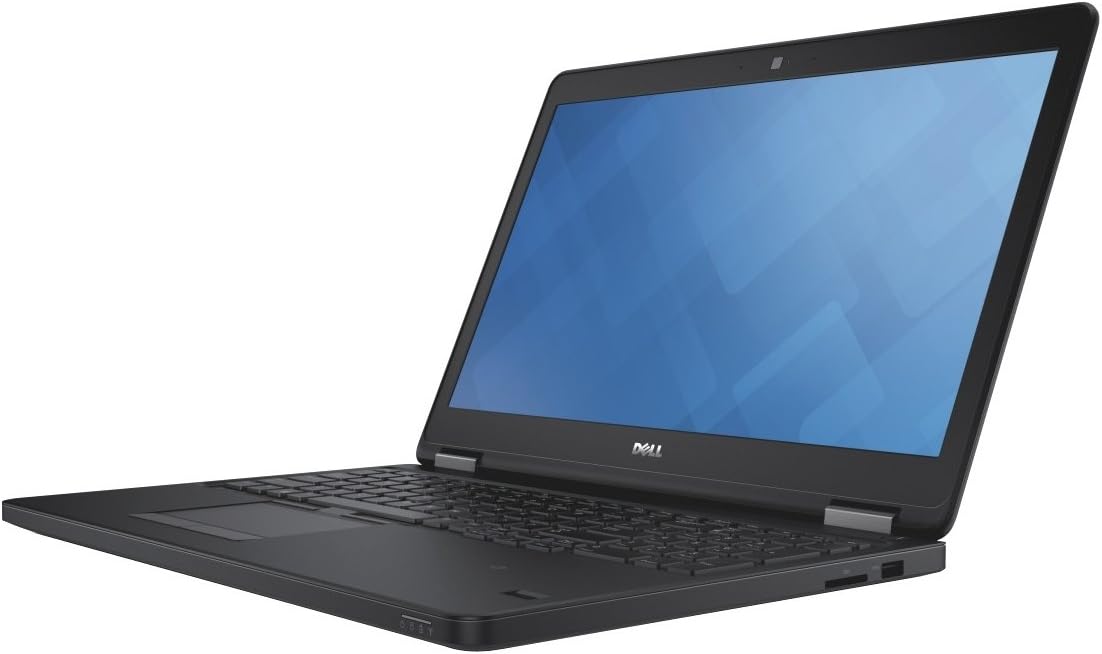
Obrázek 4.1: Úhlové view of the Dell Latitude E5550 laptop with the screen open, showcasing the keyboard, touchpad, and display. The laptop is black with a silver hinge mechanism.
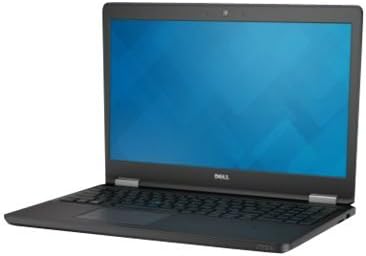
Obrázek 4.2: Strana view of the Dell Latitude E5550 laptop, illustrating the thickness and potential port locations on one side.

Obrázek 4.3: Přední view of the Dell Latitude E5550 laptop with the screen open, showing the full display and keyboard layout.
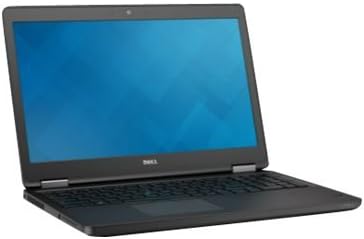
Obrázek 4.4: Další strana view of the Dell Latitude E5550 laptop, highlighting additional ports or features on the opposite side.

Obrázek 4.5: Shora dolů view of the Dell Latitude E5550 laptop's keyboard and touchpad, showing the full layout including the pointing stick.
4.1. External Ports and Connectors
- USB porty: 3.0 Three ports, one with Power Share capability for charging devices when the laptop is off.
- Port HDMI: Pro připojení k externím displejům nebo projektorům.
- VGA port: Pro připojení ke starším externím displejům nebo projektorům.
- Network Connector (RJ-45): Pro kabelové ethernetové připojení.
- SD 4.0 Memory Card Reader: Pro čtení SD karet.
- Universal Jack: Pro audio vstup/výstup.
- Slot pro SIM kartu: Optional, for mobile broadband connectivity.
- Optional E-docking Connector: For connecting to a docking station.
- Slot zámku: For securing the laptop with a compatible security cable.
- Optional Smartcard Reader: Pro zvýšenou bezpečnost.
- Optional Fingerprint Reader: Pro biometrické ověřování.
5. Nastavení
5.1. Připojení napájecího adaptéru
- Connect the power cord to the 65W A/C adapter.
- Plug the A/C adapter into the power connector on your Dell Latitude E5550 laptop.
- Zapojte napájecí kabel do uzemněné elektrické zásuvky.
- Baterie se začne automaticky nabíjet.
5.2. Počáteční spuštění a nastavení operačního systému
- Otevřete víko notebooku a stiskněte tlačítko napájení, které se obvykle nachází v pravém horním rohu klávesnice.
- Follow the on-screen instructions to complete the initial setup of Windows 7 Professional. This includes setting up user accounts, language preferences, and network connections.
- Během instalace se doporučuje připojit k internetu, abyste si mohli stáhnout důležité aktualizace.
6. Ovládání notebooku
6.1. Zapnutí/vypnutí a režim spánku
- Zapnutí: Stiskněte tlačítko napájení.
- Vypnout: Click the Start button, then select "Shut down".
- Režim spánku: Zavřete víko notebooku nebo v nabídce Start vyberte možnost „Spánek“.
6.2. Používání klávesnice a touchpadu
- The laptop features an internal dual-pointing keyboard and a touchpad for navigation.
- Adjust touchpad sensitivity and disable while typing settings through the Windows Control Panel under "Dell Touchpad" settings.
6.3. Connecting to a Wireless Network
- Klikněte na ikonu sítě v systémové liště (v pravém dolním rohu obrazovky).
- Vyberte ze seznamu požadovanou síť Wi-Fi.
- Pokud se zobrazí výzva, zadejte bezpečnostní klíč sítě (heslo).
- Klikněte na „Připojit“.
7. Údržba
7.1. Čištění notebooku
- Použijte měkký hadřík, který nepouští vlákna dampvodou nebo specializovaným čističem obrazovek.
- Pro klávesnici a casing, use a soft cloth. Avoid harsh chemicals.
- K odstranění prachu z větracích otvorů a štěrbin klávesnice použijte stlačený vzduch.
7.2. Péče o baterie
- Vyhněte se častému úplnému vybíjení baterie.
- Pokud notebook delší dobu nepoužíváte, skladujte jej na chladném a suchém místě.
- The Dell Latitude E5550 features a 3-cell Lithium Polymer battery with Express Charge.
7.3. Aktualizace softwaru
- Regularly check for Windows updates through the Control Panel.
- Navštivte oficiální podporu Dell website for driver and BIOS updates specific to your Latitude E5550 model. Enter your service tag for personalized updates.
8. Řešení problémů
This section addresses common issues you might encounter with your Dell Latitude E5550.
8.1. Problémy s napájením
- Notebook se nezapne: Ensure the power adapter is securely connected to both the laptop and a working electrical outlet. Check the power indicator light on the adapter.
- Baterie se nenabíjí: Verify the power adapter connection. If the issue persists, contact Dell support.
8.2. Problémy se zobrazením
- Žádný obraz na obrazovce: Připojte externí monitor k portu HDMI nebo VGA a zkontrolujte, zda je problém s interním displejem notebooku. Restartujte notebook.
- Blikající nebo zkreslený obraz: Update your graphics drivers from the Dell support webmísto.
8.3. Problémy s připojením
- Nelze se připojit k Wi-Fi: Ensure Wi-Fi is enabled. Check if other devices can connect to the same network. Restart your router and laptop.
- USB zařízení nebyla rozpoznána: Try connecting the device to a different USB port. Ensure necessary drivers are installed.
For more complex issues, refer to the Dell support website or contact Dell technical support.
9. Specifikace
| Funkce | Detail |
|---|---|
| Název modelu | Dell Latitude E5550 (NJ12M) |
| Zobrazit | 15.6-inch HD (1366x768) Wide View Anti-Glare WLED-backlit |
| Procesor | 5th Gen Intel Core i5-5300U (2.3GHz, 3M cache) |
| BERAN | 4GB (1x4GB) 1600MHz DDR3L Memory |
| Pevný disk | 500GB 2.5-inch Serial ATA (7,200 Rpm) Hard Drive |
| Grafika | Grafická karta Intel HD Graphics 5500 |
| Operační systém | Windows 7 Professional English 64bit (Includes Windows 8.1 Pro license) |
| Bezdrátové připojení | Intel Dual Band Wireless-AC 7265 802.11AC Wi-Fi + BT 4.0 LE (2X2) |
| Porty | 3x USB 3.0 (one with Power Share), HDMI, VGA, RJ-45, SD 4.0 Card Reader, Universal Jack, Optional E-docking connector, SIM card slot |
| Bezpečnostní funkce | Lock slot, Optional Smartcard Reader, Optional Fingerprint Reader |
| Webvačka | HD video Webcam / Dual Array Microphone with Waves Noise Cancelling Software |
| Baterie | 38 Wh (3 Cell) Lithium Polymer with Express Charge |
| Rozměry (DxŠxV) | 19.3 x 13 x 3.2 palce |
| Hmotnost | 7.65 libry |
10. Záruka a podpora
Your Dell Latitude E5550 laptop typically comes with a standard warranty. Specific warranty terms, including the 3-year ProSupport for Software mentioned in some configurations, are provided at the time of purchase.
For technical assistance, warranty claims, or to download the latest drivers and documentation, please visit the official Dell Support website and enter your product's service tag.
Podpora společnosti Dell Webmísto: www.dell.com/support


