1. Úvod
The Hikvision DS-7316HQHI-SH is a 16-channel Tribrid Digital Video Recorder (DVR) designed for advanced surveillance systems. This DVR supports Turbo HD, analog, and 1080P IP cameras, offering versatile compatibility for various security setups. It features H.264 video compression for efficient storage and supports auto-detection of camera types. This manual provides essential information for the proper installation, operation, and maintenance of your DVR system.
2. Bezpečnostní pokyny
Please read these safety instructions carefully before operating the device to prevent injury or damage.
- Zajistěte napájení objtage je stabilní a splňuje požadavky zařízení.
- Do not place the device in direct sunlight, near heat sources, or in environments with high humidity or dust.
- Avoid placing heavy objects on top of the DVR.
- Používejte pouze příslušenství a napájecí adaptéry schválené společností Hikvision.
- Před prováděním jakékoli údržby nebo instalace odpojte napájení.
- Zařízení řádně uzemněte, abyste zabránili úrazu elektrickým proudem.
3. Obsah balení
Verify that all items are present in the package. If any items are missing or damaged, contact your supplier.
- Hikvision DS-7316HQHI-SH DVR Unit
- Napájecí adaptér
- USB myš
- Kabely SATA (pro připojení pevného disku)
- Screws (for HDD installation)
- Rychlý průvodce
4. Konec produktuview
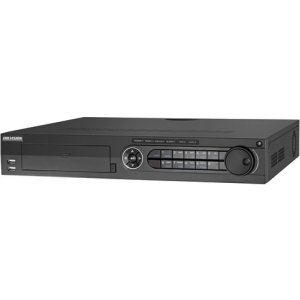
4.1 Přední panel

The front panel of the DVR provides access to essential controls and indicators. It typically includes:
- USB porty: For connecting a mouse, USB flash drive, or external storage.
- Indikátory stavu: LEDs for power, HDD activity, and network status.
- Ovládací tlačítka: Navigation and selection buttons for menu operation.
- IR přijímač: For remote control (if applicable).
4.2 Připojení zadního panelu
The rear panel houses all the necessary ports for connecting cameras, monitors, network, and power. Key connections include:
- Video vstup: BNC connectors for 16 Turbo HD/Analog cameras.
- Video výstup: Porty HDMI a VGA pro připojení monitoru.
- Audio vstup/výstup: RCA connectors for audio devices.
- LAN port: RJ45 Ethernet port for network connection.
- USB porty: Další USB porty pro periferie.
- Alarm I/O: Terminal blocks for alarm input and output devices.
- Příkon: Napájecí konektor DC 12V.
5. Nastavení
5.1 Instalace hardwaru
- Instalace pevného disku (HDD):
- Odšroubujte a sejměte horní kryt DVR.
- Připojte datový kabel SATA a napájecí kabel k pevnému disku.
- Align the HDD with the screw holes at the bottom of the DVR chassis and secure it with the provided screws.
- Nasaďte horní kryt a upevněte jej šrouby.
- Připojení fotoaparátu: Connect your Turbo HD, analog, or IP cameras to the corresponding video input ports on the rear panel using BNC connectors. For IP cameras, ensure they are connected to the same network as the DVR.
- Připojení monitoru: Connect a monitor to the HDMI or VGA output port on the rear panel.
- Připojení myši: Connect the USB mouse to a USB port on the front or rear panel.
- Internetové připojení: Connect an Ethernet cable from your router/switch to the LAN port on the DVR.
- Připojení napájení: Připojte napájecí adaptér k napájecímu vstupu DVR a poté jej zapojte do elektrické zásuvky.
5.2 Počáteční zapnutí a konfigurace
After connecting all hardware, power on the DVR. The system will boot up, and you will be prompted to set up basic configurations.
- Create Admin Password: Follow the on-screen prompts to create a strong administrator password.
- Activate HDD: The newly installed HDD will need to be initialized or formatted by the DVR. Navigate to Menu > HDD > HDD Management pro formátování disku.
- Nastavení sítě: Configure network parameters (IP address, subnet mask, gateway, DNS) to enable remote access and IP camera integration. You can use DHCP or static IP.
- Datum a čas: Nastavte správné datum, čas a časové pásmo.
- Detekce fotoaparátu: The DVR will automatically detect connected Turbo HD and analog cameras. For IP cameras, you may need to add them manually via Menu > Camera > IP Camera.
6. Návod k obsluze
6.1 Navigace v uživatelském rozhraní
Use the connected USB mouse to navigate the DVR's graphical user interface (GUI). Right-click to access the main menu, and left-click to select options.
- Žít View: Displays real-time video feeds from all connected cameras.
- Hlavní menu: Provides access to all system settings, recording, playback, and advanced features.
- Přehrávání: Umožňuje reviewzaznamenané footage.
- Záloha: For exporting recorded video to a USB device.
6.2 Konfigurace nahrávání
Konfigurace nastavení nahrávání:
- Přejít na Main Menu > Record > Parameters.
- Select the desired camera and configure settings such as resolution, frame rate, and bit rate.
- Přejděte na Hlavní nabídka > Nahrávání > Plán to set up continuous, motion-detection, or alarm-triggered recording schedules for each camera.
6.3 Přehrávání
To play back recorded footage:
- Z živého vysílání view, klikněte pravým tlačítkem myši a vyberte Přehrávání, Nebo jít do Hlavní nabídka > Přehrávání.
- Vyberte kameru(y) a rozsah data/času, který(é) chcete pořídit.view.
- Use the timeline and control buttons (play, pause, fast forward, rewind) to navigate through the footage.
6.4 Vzdálený přístup
Pro vzdálený přístup k DVR:
- Ensure the DVR is connected to the internet and network settings are correctly configured.
- Download and install the Hik-Connect app on your mobile device or the iVMS-4200 client software on your computer.
- Register an account and add your DVR using its serial number or QR code.
- Follow the app/software instructions to view live feeds, play back recordings, and manage settings remotely.
7. Údržba
7.1 Správa pevných disků
Regularly check the status of your hard drive to ensure optimal recording performance. Go to Main Menu > HDD > HDD Management na view disk status, remaining capacity, and perform formatting if necessary. It is recommended to format the HDD periodically (e.g., every 6-12 months) to maintain performance, after backing up any critical data.
7.2 aktualizací firmwaru
Keep your DVR's firmware updated to benefit from new features, security enhancements, and bug fixes. Download the latest firmware from the official Hikvision website. Update the firmware via USB or network through Main Menu > Maintenance > Upgrade.
7.3 Čištění
Periodically clean the exterior of the DVR with a soft, dry cloth. Ensure ventilation openings are free from dust to prevent overheating. Do not use liquid cleaners or aerosols directly on the device.
8. Řešení problémů
| Problém | Možná příčina | Řešení |
|---|---|---|
| Žádný video výstup na monitoru | Loose HDMI/VGA cable; Incorrect monitor input; DVR not powered on. | Check cable connections; Select correct input on monitor; Verify DVR power. |
| Žádný obraz z kamery | Camera not powered; Loose BNC cable; Incorrect camera type selected; IP camera not configured. | Check camera power and connections; Verify camera type in DVR settings; Add/configure IP camera. |
| Žádný záznam | HDD not initialized/formatted; Recording schedule not set; HDD full. | Inicializace/formátování pevného disku; Konfigurace plánu nahrávání; Kontrola kapacity pevného disku. |
| Nelze vzdáleně přistupovat k DVR | Network cable disconnected; Incorrect network settings; Router firewall blocking ports. | Check network cable; Verify DVR network settings (IP, DNS); Configure port forwarding on router or enable UPnP. |
9. Specifikace
| Funkce | Detail |
|---|---|
| Číslo modelu | DS-7316HQHI-SH-2TB |
| Video vstupy | 16 Channels (Turbo HD/Analog) + 2 IP Cameras (1080P) |
| Komprese videa | H.264 |
| Video výstup | hdmi, vga |
| Audio vstup/výstup | Ano |
| Alarm I/O | Ano |
| Síťové rozhraní | 1 ethernetové rozhraní RJ45 10M/100M/1000M |
| Rozhraní USB | 2 x USB 2.0 (front), 1 x USB 3.0 (rear) |
| Pevný disk | 2TB pre-installed (supports up to 2 SATA HDDs) |
| Napájení | 12V DC |
| Rozměry produktu | 390 x 445 x 70 inches (Note: This dimension appears unusually large and may be a unit conversion error in the source data. Please refer to official product documentation for accurate dimensions.) |
| Hmotnost položky | 1 libry |
10. Záruka a podpora
Hikvision products typically come with a limited warranty. For detailed warranty information, please refer to the warranty card included with your product or visit the official Hikvision website. For technical support, product registration, or service inquiries, please contact Hikvision customer support or your authorized dealer.
Oficiální Webmísto: www.hikvision.com