Zavedení
This manual provides essential information for the operation and maintenance of your Visual Land Prestige ELITE 7Q-KC tablet. Please read this manual thoroughly before using your device to ensure proper functionality and longevity.
The Prestige ELITE 7Q-KC is a 7-inch Quad Core Android tablet designed for portable use, offering smooth performance for streaming, web browsing, and various applications. It features a 7-inch screen with 5-point capacitive multi-touch and 8GB of internal storage.
Nastavení
1. Vybalení a první kontrola
Opatrně vyjměte všechny součásti z obalu. Zkontrolujte, zda jsou všechny níže uvedené položky přítomny a nepoškozené:
- Prestige ELITE 7Q-KC Tablet
- Pouzdro na klávesnici
- Napájecí adaptér
- USB kabel
- Uživatelská příručka (tento dokument)
2. Nabíjení tabletu
Before first use, fully charge the tablet. Connect the power adapter to the tablet's charging port and plug it into a power outlet. The charging indicator will illuminate. A full charge typically takes approximately 3-4 hours.
3. Attaching the Keyboard Case
Align the tablet with the designated slot in the keyboard case. Gently press the tablet into place until it is securely seated. The keyboard connects via a USB port on the tablet.
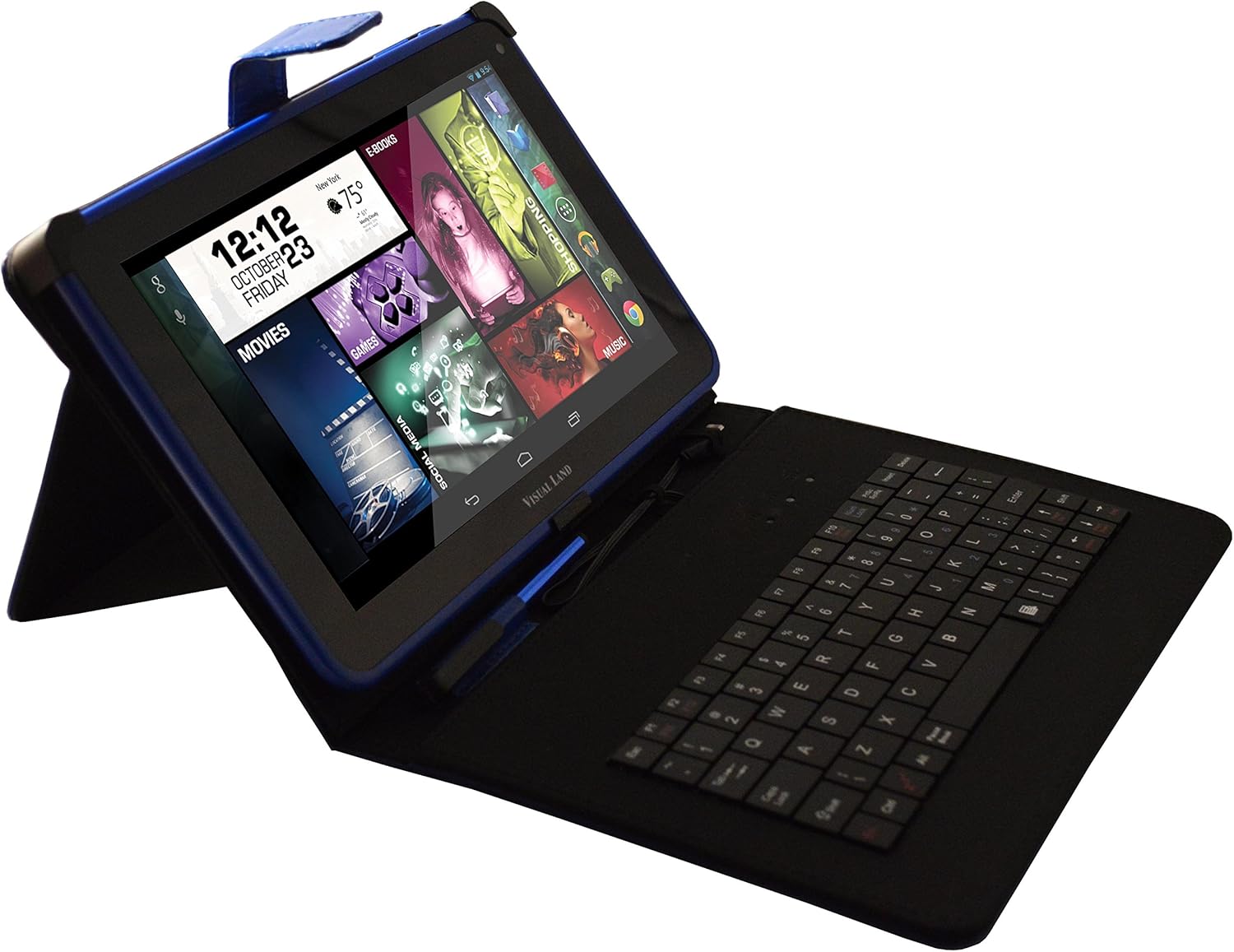
Image: Prestige ELITE 7Q-KC tablet inserted into its matching blue keyboard case, viewed from an angle, showing the tablet screen and the physical keyboard.
4. Zapnutí a počáteční konfigurace
Press and hold the power button located on the side of the tablet until the screen illuminates. Follow the on-screen prompts to complete the initial setup, including language selection, Wi-Fi connection, and Google account setup.
Návod k obsluze
1. Základní navigace
The tablet operates on Android 4.4 KitKat. Use touch gestures for navigation:
- Klepněte na: Vyberte položku nebo otevřete aplikaci.
- Výpad: Procházení obrazovek nebo seznamů.
- Přiblížení roztažením/roztažením prstů: Přiblížení nebo oddálení obrázků nebo web stránky.
- Dlouhý stisk: Přístup k kontextovým nabídkám nebo přesun ikon.
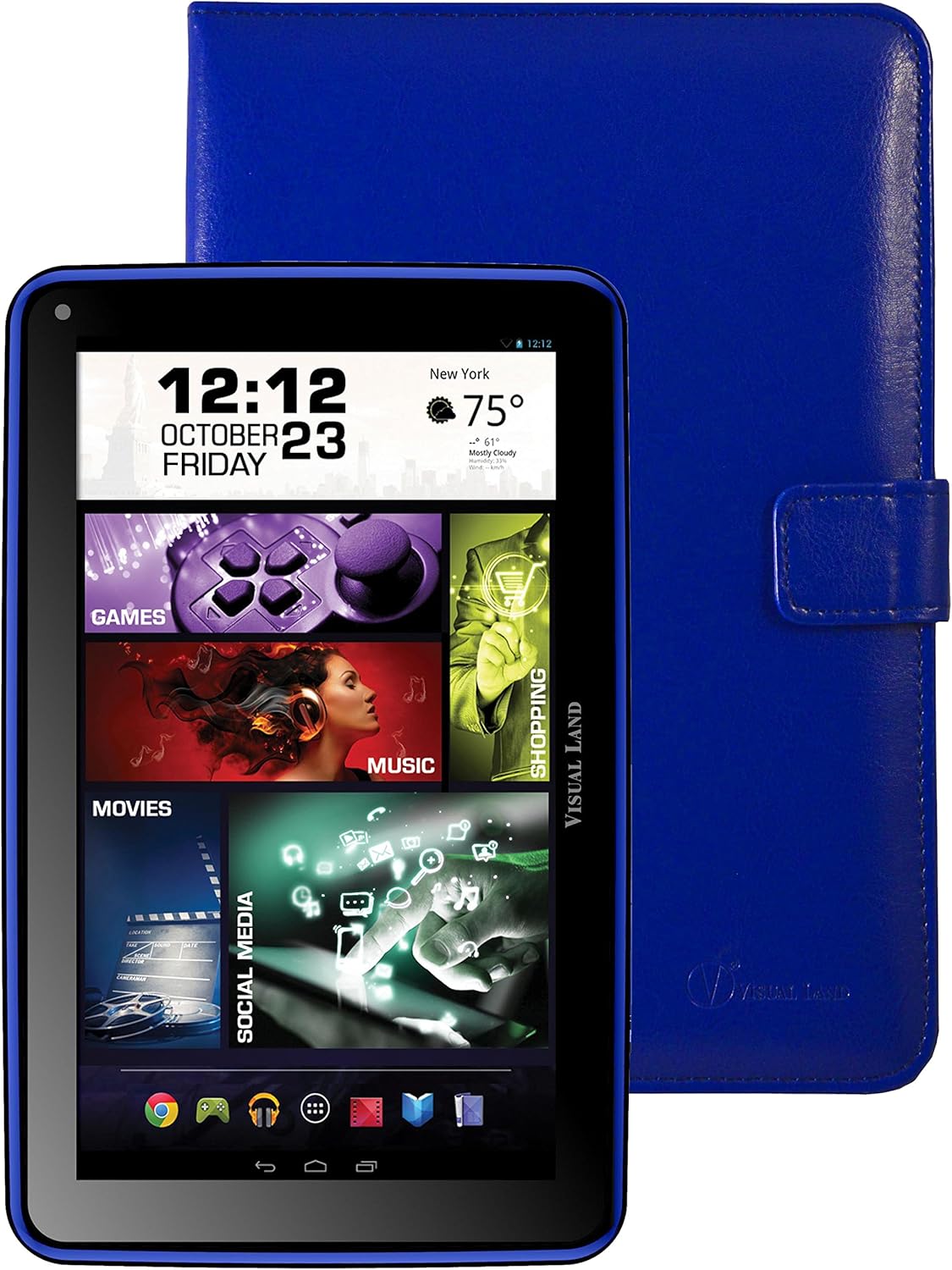
Obrázek: Přední strana view of the Prestige ELITE 7Q-KC tablet displaying the Android home screen with various app icons and widgets, including a clock, weather, and media shortcuts.
2. Připojení k Wi-Fi
- Přejít na Nastavení.
- Vybrat Wi-Fi.
- Přepnout Wi-Fi On.
- Vyberte požadovanou síť ze seznamu a v případě potřeby zadejte heslo.
3. Using the Keyboard Case
Once connected, the keyboard case functions as a standard external keyboard. Ensure the tablet is properly seated and the USB connection is firm. The keyboard allows for faster typing and navigation within applications.
4. Accessing Google Play Store
The tablet comes with Google Play pre-installed. Tap the Obchod Play icon to browse and download applications, games, movies, music, and books. A Google account is required for full access.
Údržba
1. Čištění tabletu
K čištění obrazovky a těla tabletu použijte měkký hadřík, který nepouští vlákna. V případě odolných šmouh je lehceampOtřete hadřík vodou nebo čističem obrazovek speciálně určeným pro elektroniku. Nepoužívejte agresivní chemikálie ani abrazivní materiály.
2. Péče o baterie
- Nevystavujte tablet extrémním teplotám.
- Nedovolte, aby se baterie často úplně vybila.
- Charge the tablet regularly to maintain battery health.
3. Aktualizace softwaru
Pravidelně kontrolujte aktualizace systému, abyste zajistili optimální výkon a zabezpečení. Přejděte na Nastavení > O tabletu > Aktualizace systému.
Odstraňování problémů
| Problém | Možná příčina | Řešení |
|---|---|---|
| Tablet se nezapne. | Slabá baterie; havárie systému. | Nabíjejte tablet alespoň 30 minut. Pokud stále nereaguje, stiskněte a podržte tlačítko napájení po dobu 10–15 sekund, abyste vynutili restart. |
| Problémy s připojením k Wi-Fi. | Nesprávné heslo; mimo dosah; problém s routerem. | Verify Wi-Fi password. Move closer to the router. Restart the router and the tablet. |
| Dotykový displej nereaguje. | Dočasná softwarová závada; rušení ochranného krytu obrazovky. | Restart the tablet. Ensure the screen is clean. If using a screen protector, ensure it is properly applied or temporarily remove it to test. |
| Nefunkční klávesnice. | Loose connection; tablet not recognizing. | Ensure the tablet is securely connected to the keyboard case via the USB port. Restart the tablet. |
If problems persist, refer to the support section or contact customer service.
Specifikace
| Funkce | Detail |
|---|---|
| Číslo modelu | ME-7Q-KC-8GB-BLU |
| Operační systém | Android 4.4 KitKat |
| Procesor | 1.2 GHz Quad Core (Allwinner chipset) |
| BERAN | 1 GB DDR3 |
| Interní úložiště | 8 GB |
| Velikost obrazovky | 7 palce |
| Rozlišení obrazovky | 1024x600 pixelů |
| Bezdrátové připojení | 802.11bgn Wi-Fi |
| USB porty | 1 2.0 (USB XNUMX) |
| Životnost baterie | Approximately 8 Hours (average use) |
| Rozměry (DxŠxV) | 7.5 x 0.4 x 4.7 palce |
| Hmotnost položky | 10.6 unce |
| Barva | Modrý |

Obrázek: Zadní view of the Prestige ELITE 7Q-KC tablet, showing the blue textured back panel and port labels for USB, MicroSD, DC, and Mic, along with the "Prestige ELITE 7Q" branding.
Záruka a podpora
For warranty information and technical support, please refer to the documentation included with your purchase or visit the official Visual Land webUschovejte si doklad o koupi pro případ reklamace.
Visual Land Official Store: Visual Land Store on Amazon


