Zavedení
This manual provides essential information for the proper setup, operation, and maintenance of your Hitachi Touro Desk Dx3 2TB External Hard Drive. Please read these instructions carefully before using the device to ensure optimal performance and longevity.
Obsah balení
Ověřte, zda jsou v balení přítomny všechny položky:
- Hitachi Touro Desk Dx3 2TB External Hard Drive
- USB 3.0 datový kabel
- AC Power Adapter (EURO plug)
- Stručný průvodce (pokud je součástí dodávky)
Konec produktuview
The Hitachi Touro Desk Dx3 is a 2TB external desktop hard drive designed for reliable data storage and backup. It features a stylish, stackable design and SuperSpeed USB 3.0 connectivity for fast data transfers, while also being backwards compatible with USB 2.0.

Obrázek 1: Přední view of the Hitachi Touro Desk Dx3. This image displays the sleek, black, vertically ribbed casing of the external hard drive. A small, rectangular indicator light is visible towards the bottom center of the front panel, signifying power or activity status.
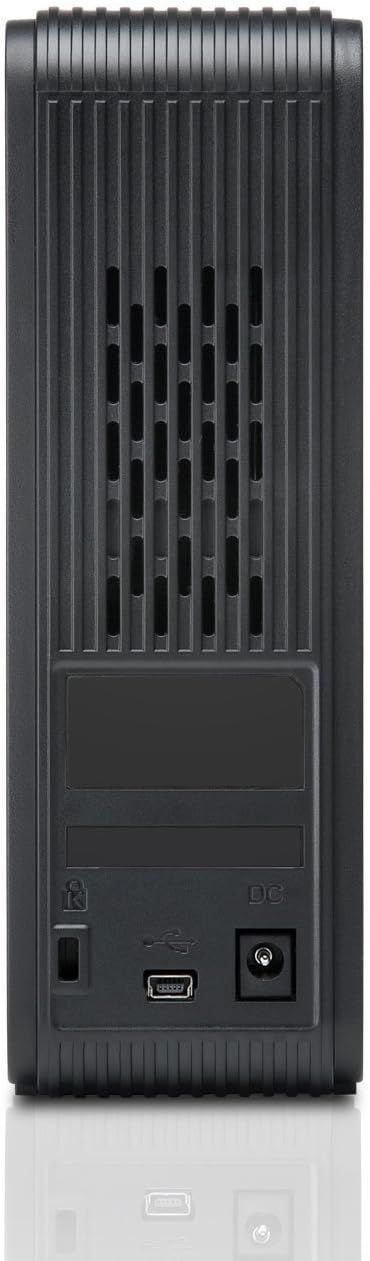
Obrázek 2: Zadní view of the Hitachi Touro Desk Dx3. This image shows the rear panel of the hard drive, which includes the DC power input port on the right, the USB 3.0 data port in the center, and a security lock slot on the left. Ventilation grilles are visible across the top portion of the back panel.
Nastavení
Follow these steps to set up your external hard drive:
- Připojte napájecí adaptér: Plug the AC power adapter into the DC power input port on the back of the Touro Desk Dx3. Then, plug the other end of the power adapter into a wall outlet. The drive will power on automatically.
- Připojte kabel USB: Connect one end of the supplied USB 3.0 data cable to the USB port on the back of the Touro Desk Dx3. Connect the other end of the USB cable to an available USB port on your computer. For optimal performance, use a USB 3.0 port.
- Rozpoznávání operačního systému: Your computer's operating system (Windows or macOS) should automatically detect and install the necessary drivers for the hard drive. The drive will appear as a new storage device in 'My Computer' (Windows) or 'Finder' (macOS).
- Initial Formatting (Optional): The drive comes pre-formatted. If you wish to reformat the drive or partition it, refer to your operating system's disk management tools. Note: Reformatting will erase all data on the drive.
Provozní
Once connected, your Touro Desk Dx3 is ready for use.
- Přenos dat: Drag and drop files or folders to and from the Touro Desk Dx3 icon on your desktop or in your file explorer. The USB 3.0 interface allows for rapid data transfer speeds.
- Záloha: Use your operating system's built-in backup utilities or third-party software to create backups of your important files on the external drive.
- Bezpečné odstranění: Always safely eject the hard drive before disconnecting it from your computer. In Windows, right-click the drive icon in the system tray and select 'Eject'. In macOS, drag the drive icon to the Trash or click the Eject button next to the drive in Finder. This prevents data corruption.
Údržba
Správná údržba zajistí dlouhou životnost vašeho zařízení.
- Čištění: K čištění vnější strany disku používejte měkký, suchý hadřík, který nepouští vlákna. Nepoužívejte tekuté čisticí prostředky ani aerosoly.
- Podmínky prostředí: Store and operate the drive in a cool, dry environment, away from direct sunlight, extreme temperatures, and high humidity. Avoid placing the drive near strong magnetic fields.
- Fyzická manipulace: Handle the drive with care. Avoid dropping it or subjecting it to strong impacts, as this can damage the internal components.
Odstraňování problémů
Pokud narazíte na problémy, podívejte se na následující běžná řešení:
- Disk nebyl rozpoznán:
- Ujistěte se, že je napájecí adaptér bezpečně připojen k disku i k funkční zásuvce.
- Verify the USB cable is firmly connected to both the drive and your computer. Try a different USB port or cable.
- Restartujte počítač.
- Check Disk Management (Windows) or Disk Utility (macOS) to see if the drive is detected but not assigned a drive letter or mounted.
- Pomalé přenosové rychlosti:
- Ensure you are connected to a USB 3.0 port on your computer for SuperSpeed performance. USB 2.0 ports will operate at slower speeds.
- Vyhněte se přenosu velkého množství malých files simultaneously; large files transfer more efficiently.
- Close other applications that might be using system resources or the USB bus.
- Drive Light Not On:
- Check the power adapter connection to the drive and the wall outlet.
- Zkuste jinou zásuvku.
Specifikace
| Digitální kapacita úložiště | 2 TB |
| Rozhraní pevného disku | USB 3.0 |
| Technologie připojení | USB |
| Značka | Hitachi |
| Pevný disk Form Factor | 3.5 palce |
| Kompatibilní zařízení | Stolní počítače |
| Typ instalace | Stolní deska |
| Barva | Černý |
Informace o záruce
This product is covered by a limited warranty. For detailed information regarding warranty terms, conditions, and duration, please refer to the warranty card included in your product packaging or visit the official Hitachi support webUschovejte si doklad o koupi pro případ reklamace.
Zákaznická podpora
For further assistance, technical support, or to inquire about service, please visit the official Hitachi support webnebo kontaktujte jejich oddělení zákaznických služeb. Kontaktní informace obvykle naleznete na webových stránkách výrobce webwebu nebo v dokumentaci k produktu.


