1. Úvod
The SteelSeries Sensei Laser Gaming Mouse is designed for precision and customization, catering to both casual and competitive gamers. It features an advanced laser sensor, an ambidextrous design, and extensive customization options through its dedicated software. This manual provides detailed instructions for setup, operation, maintenance, and troubleshooting to ensure optimal performance of your device.

Obrázek 1: Shora dolů view of the SteelSeries Sensei Laser Gaming Mouse, showcasing its sleek grey finish and central scroll wheel.
2. Obsah balení
Prosím, ověřte, zda jsou v balení přítomny všechny položky:
- SteelSeries Sensei Laser Gaming Mouse
- Stručný průvodce (pokud je součástí dodávky)

Image 2: Retail packaging for the SteelSeries Sensei Laser Gaming Mouse, displaying the product name and brand logo.
3. Nastavení
3.1 Hardwarové připojení
- Unpack the SteelSeries Sensei Laser Gaming Mouse from its packaging.
- Connect the USB cable of the mouse to an available USB port on your computer. The mouse is plug-and-play compatible, and your operating system should automatically detect and install the necessary basic drivers.
3.2 Instalace softwaru (SteelSeries Engine)
For full customization and advanced features, it is recommended to install the SteelSeries Engine software:
- Navštivte oficiální stránky SteelSeries webweb (steelseries.com/engine) to download the latest version of the SteelSeries Engine software.
- Při instalaci softwaru postupujte podle pokynů na obrazovce.
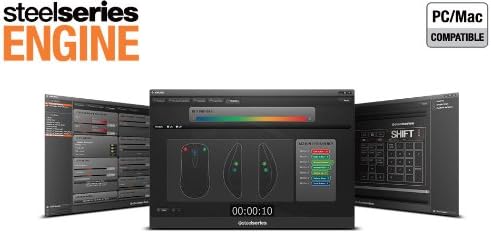
- Once installed, launch the SteelSeries Engine to configure your mouse settings, including CPI, button assignments, macros, and lighting effects.
Obrázek 3: Spodní část view of the SteelSeries Sensei Laser Gaming Mouse, showing the laser sensor and product information label.
4. Ovládání myši
4.1 Ambidextrous Design
The Sensei mouse features an ambidextrous shape, making it comfortable for both left-handed and right-handed users. The side buttons are mirrored on both sides to accommodate different grip styles and preferences.
4.2 programovatelná tlačítka
The mouse is equipped with 7 programmable buttons. These buttons can be customized using the SteelSeries Engine software to perform various functions, including:
- Standard mouse clicks (left, right, middle)
- Keyboard key assignments
- Complex macros
- CPI switching

Obrázek 4: Boční strana view of the SteelSeries Sensei Laser Gaming Mouse, highlighting the two programmable side buttons.
4.3 CPI Adjustment
The Sensei mouse allows for on-the-fly CPI (Counts Per Inch) adjustment. The dedicated CPI indicator button, typically located behind the scroll wheel, allows you to cycle between two user-defined CPI settings. These settings can be configured within the SteelSeries Engine software to match your preferred sensitivity levels for different tasks or games.
4.4 Osvětlení
The mouse features three-zone illumination: the scroll wheel, the CPI indicator, and the SteelSeries logo. The color and lighting effects (e.g., steady, pulse) for these zones can be customized through the SteelSeries Engine software.
5. SteelSeries Engine Software
The SteelSeries Engine is a powerful software suite that unlocks the full potential of your Sensei mouse. Key functionalities include:
- Mapování tlačítek: Assign any function, keyboard key, or macro to any of the 7 programmable buttons.
- CPI Settings: Fine-tune and save multiple CPI profilepro různé aplikace nebo hry.
- Editor maker: Create and manage complex macros for in-game actions or productivity tasks.
- Míra hlasování: Upravte frekvenci dotazování myši pro optimální odezvu.
- Ovládání osvětlení: Customize LED colors and effects for the scroll wheel, CPI indicator, and logo.
- Profile Řízení: Vytvořte a uložte více profesionálůfiles, allowing you to switch between different configurations quickly.
- Aktualizace firmwaru: Keep your mouse's firmware up-to-date for improved performance and new features.

Image 5: Screenshot of the SteelSeries Engine software interface, showing options for button mapping, CPI adjustment, and lighting customization.
6. Údržba
To ensure the longevity and optimal performance of your SteelSeries Sensei mouse, follow these maintenance guidelines:
- Čištění: K otření povrchu myši použijte měkký, suchý hadřík. V případě odolných nečistot použijte lehceamp Lze použít hadřík, ale dbejte na to, aby se do myši nedostala vlhkost. Nepoužívejte agresivní chemikálie ani abrazivní čisticí prostředky.
- Péče o senzor: Keep the laser sensor on the bottom of the mouse clean and free from dust or debris. Use a cotton swab or compressed air if necessary.
- Správa kabelů: Abyste předešli poškození, vyhněte se ostrým ohybům nebo nadměrnému tahání za kabel USB.
7. Řešení problémů
If you encounter issues with your SteelSeries Sensei mouse, refer to the following common solutions:
- Myš nereaguje:
- Ujistěte se, že je kabel USB pevně připojen k počítači.
- Zkuste připojit myš k jinému USB portu.
- Restartujte počítač.
- Inconsistent Tracking:
- Clean the laser sensor on the bottom of the mouse.
- Ujistěte se, že myš používáte na vhodném povrchu (např. podložce pod myš).
- Check for dust or debris on your mouse pad.
- Tlačítka nefungují:
- Verify button assignments in the SteelSeries Engine software.
- Ensure the software is running correctly and profilejsou načteny.
- Problémy se softwarem:
- Update the SteelSeries Engine software to the latest version.
- Znovu nainstalujte software SteelSeries Engine.
- Check for any available firmware updates for your mouse within the software.
8. Specifikace
| Funkce | Detail |
|---|---|
| Značka | SteelSeries |
| Číslo modelu | 62150 |
| Technologie detekce pohybu | Laser |
| Technologie připojení | USB |
| Barva | Šedá |
| Hardwarová platforma | PC |
| Kompatibilita operačního systému | All Major PC Operating Systems |
| Hmotnost položky | 14.6 unce |
| Rozměry produktu (DxŠxV) | 7.9 x 6.8 x 2.3 palce |
| Programovatelná tlačítka | 7 |
| Illumination Zones | 3 (Scroll Wheel, CPI Indicator, Logo) |
9. Záruka a podpora
The SteelSeries Sensei Laser Gaming Mouse is covered by a manufacturer's warranty. For detailed information regarding warranty terms, conditions, and duration, please refer to the warranty card included with your product or visit the official SteelSeries website. For technical support, driver downloads, and frequently asked questions, please visit the SteelSeries support page.
Oficiální produkt SteelSeries Webmísto: steelseries.com
Podpora SteelSeries: support.steelseries.com


