1. Úvod
This manual provides detailed instructions for the setup, operation, and maintenance of your Targus AKB32ES Wireless Keyboard. This device is designed to enhance your typing experience with compatible devices, such as iPads and smartphones, through Bluetooth connectivity. Please read this manual thoroughly before using the product.
2. Obsah balení
- Targus AKB32ES Wireless Keyboard (Spanish QWERTY Layout)
- Uživatelská příručka (tento dokument)
Poznámka: Batteries are not included and must be purchased separately. The iPad or other compatible device shown in product images is not included.
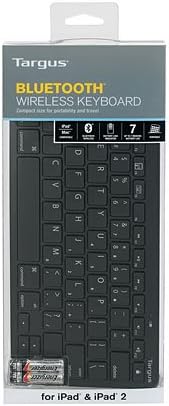
Image: The Targus AKB32ES Wireless Keyboard shown in its retail packaging. The packaging displays the Targus brand and indicates Bluetooth connectivity.
3. Nastavení
3.1 Instalace baterie
The Targus AKB32ES keyboard requires Alkaline batteries for operation. Follow these steps to install them:
- Locate the battery compartment cover on the underside of the keyboard.
- Jemně posuňte nebo zvedněte kryt a otevřete přihrádku.
- Insert the required Alkaline batteries, ensuring correct polarity (+/-) as indicated inside the compartment.
- Nasaďte kryt přihrádky na baterie zpět, dokud bezpečně nezacvakne.
3.2 Párování Bluetooth
To connect your keyboard to an iPad or other compatible device via Bluetooth:
- Ensure the keyboard has fresh batteries and is powered on. Look for a power switch or indicator light.
- Activate the Bluetooth pairing mode on the keyboard. This usually involves pressing a dedicated Bluetooth button or a combination of keys (refer to specific keyboard markings if available). An indicator light on the keyboard may flash to show it is in pairing mode.
- On your iPad or compatible device, navigate to Nastavení > Bluetooth.
- Ujistěte se, že je Bluetooth zapnutý On.
- Your device will scan for available Bluetooth devices. Locate "Targus AKB32ES" or a similar name in the list of devices.
- Tap on the keyboard's name to initiate the pairing process.
- If prompted, enter the displayed pairing code on your Targus keyboard and press Vstupte.
- Once successfully paired, the keyboard's indicator light may change or turn off, and your device will show the keyboard as "Connected."

Image: The Targus AKB32ES Wireless Keyboard positioned next to an iPad, which is held upright in a separate stand. This illustrates a typical setup for use.
4. Ovládání klávesnice
4.1 Základy psaní
The Targus AKB32ES features a standard Spanish QWERTY layout. Simply open any text input application on your paired device and begin typing. The input will appear on your screen.
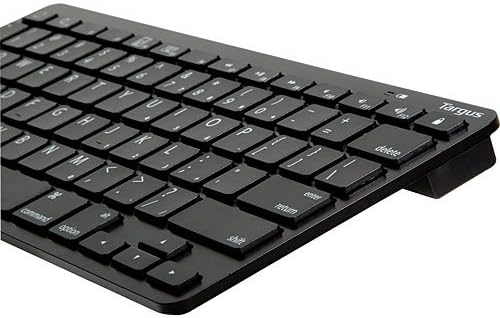
Obrázek: Detailní záběr view of the Targus AKB32ES keyboard, highlighting the Spanish QWERTY key layout, including special characters and function keys.
4.2 Special Function Keys
The keyboard includes dedicated function keys for enhanced control over your device. These keys may vary slightly in functionality depending on your operating system (e.g., iOS, Android). Common functions include:
- Home/Lock Screen: A key often depicted with a house icon or lock symbol, used to return to the home screen or lock/unlock the device.
- Ovládání hlasitosti: Keys for increasing, dekretasing, or muting audio volume.
- Přehrávání médií: Keys for play/pause, skip track, or previous track.
- Ovládání jasu: Keys to adjust screen brightness.
Refer to the keycap legends for specific icons and their corresponding functions.
5. Údržba
5.1 Čištění
To maintain the keyboard's appearance and functionality:
- Ensure the keyboard is powered off before cleaning.
- Použijte měkký hadřík, který nepouští vlákna dampvodou nebo jemným, neabrazivním čisticím roztokem.
- Wipe the keycaps and surface gently. Avoid excessive moisture.
- Nestříkejte čisticí prostředky přímo na klávesnici.
- Na nečistoty mezi klávesami použijte stlačený vzduch.
5.2 Výměna baterie
When the keyboard's performance degrades or the indicator light signals low battery, replace the batteries following the steps in Section 3.1. Always use new Alkaline batteries of the specified type.
6. Řešení problémů
If you encounter issues with your Targus AKB32ES keyboard, try the following solutions:
- Keyboard not powering on: Zkontrolujte, zda jsou baterie správně vloženy a zda jsou dostatečně nabité. V případě potřeby baterie vyměňte.
- Unable to pair via Bluetooth:
- Ujistěte se, že je klávesnice v režimu párování (kontrolka bliká).
- Ověřte, zda je na vašem zařízení povoleno Bluetooth.
- Přesuňte klávesnici blíže k zařízení.
- Forget the device from your device's Bluetooth settings and attempt to re-pair.
- Restart both the keyboard (by turning off and on) and your device.
- Klávesy nereagují:
- Zkontrolujte stav baterie.
- Ensure the keyboard is still connected via Bluetooth.
- Try re-pairing the keyboard.
- Očistěte veškeré nečistoty z okolí postižených kláves.
- Unexpected characters or layout issues: Ensure your device's language and keyboard settings are configured for a Spanish QWERTY layout.
7. Specifikace
| Značka | Targus |
| Číslo modelu | AKB32ES |
| Technologie připojení | Bluetooth |
| Rozložení klávesnice | Spanish (QWERTY) |
| Barva | Černý |
| Kompatibilní zařízení | iPad, Smartphone (Bluetooth-enabled devices) |
| Typ baterie | Alkalické (není součástí dodávky) |
| Rozměry produktu | Přibližně 34.2 x 13.2 x 3.4 cm |
| Hmotnost produktu | Přibližně 381 g |
| Speciální funkce | Ergonomický design |

Obrázek: Úhlové view of the Targus AKB32ES Wireless Keyboard, showcasinjeho kompaktní a ergonomický design.
8. Záruka a podpora
For information regarding warranty coverage, technical support, or to access additional resources, please visit the official Targus website. You can typically find contact information and support sections on their main page.
Oficiální Targus Webmísto: www.targus.com


