Zavedení
Thank you for choosing the A4Tech V-Track N-500F-1 Glossy Grey USB Mouse. This manual provides essential information for setting up, operating, and maintaining your new mouse. The contoured design ensures maximum comfort and support during extended use, and the sturdy scroll wheel with a rubberized surface prevents slippage for precise control.
Nastavení
Follow these steps to set up your A4Tech V-Track N-500F-1 mouse:
- Připojte myš: Vyhledejte na počítači volný port USB. Pevně zasuňte konektor USB myši do portu USB.
- Instalace ovladače: Your operating system (Windows XP, Windows 7, Linux, etc.) should automatically detect and install the necessary drivers for the mouse. No additional software installation is typically required for basic functionality.
- Ověřte funkčnost: Once connected, move the mouse to check if the cursor responds on your screen. Test the left and right click buttons, and the scroll wheel.
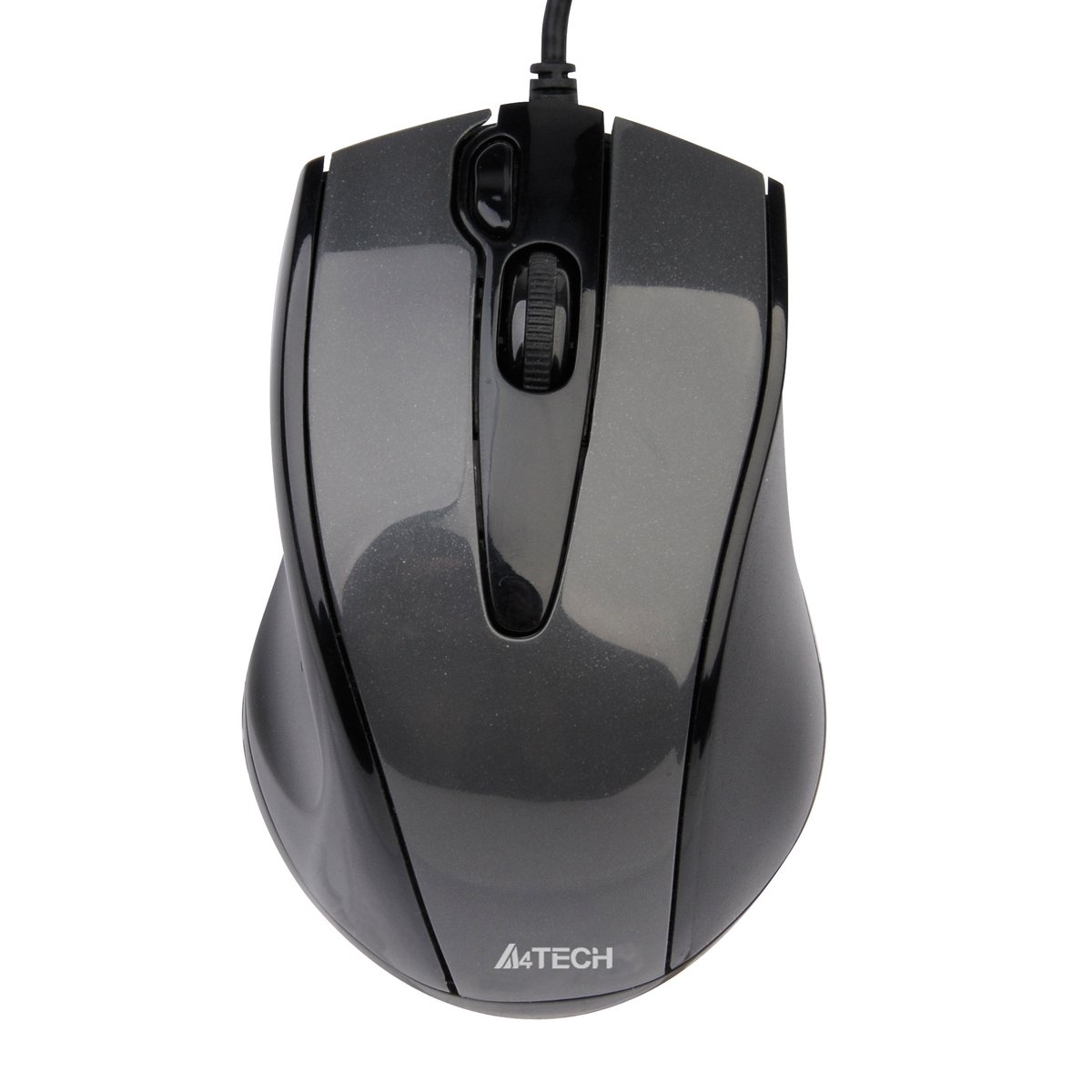
This image displays the A4Tech V-Track N-500F-1 mouse from a top-down perspective. It features a glossy grey finish, a central scroll wheel, and standard left and right click buttons. A USB cable extends from the front of the mouse.
Ovládání myši
The A4Tech V-Track N-500F-1 mouse is designed for intuitive use with standard computer functions.
- Levé kliknutí: Levé tlačítko slouží k výběru položek, otevírání filea aktivace odkazů.
- Klikněte pravým tlačítkem myši: Use the right button to access context menus, offering additional options for selected items.
- Rolovací kolečko: Otáčením kolečka nahoru nebo dolů můžete procházet dokumenty a web pages. The scroll wheel can also be pressed down for a middle-click function, often used for opening links in new tabs or auto-scrolling.
- Další tlačítko: This mouse features an additional button, typically located near the scroll wheel or on the side. This button can often be customized through your operating system's mouse settings or A4Tech's proprietary software (if available) to perform various functions, such as screen capture, quick access to applications, or specific commands. Refer to your computer's settings for customization options.
Údržba a péče
Abyste zajistili dlouhou životnost a optimální výkon myši, dodržujte tyto pokyny pro údržbu:
- Čištění: K otření povrchu myši použijte měkký, suchý hadřík. V případě odolné nečistoty lehceampOmyjte hadřík vodou nebo jemným neabrazivním čisticím prostředkem. Nepoužívejte agresivní chemikálie nebo abrazivní materiály.
- Čištění senzoru: Občas se kolem optického senzoru na spodní straně myši může nahromadit prach nebo nečistoty. K jemnému čištění oblasti senzoru použijte vatový tampon nebo stlačený vzduch.
- Vyhněte se tekutinám: Neponořujte myš do vody ani ji nevystavujte nadměrné vlhkosti.
- Skladování: Pokud myš nepoužíváte, skladujte ji v čistém a suchém prostředí mimo dosah extrémních teplot.
Odstraňování problémů
If you encounter issues with your A4Tech V-Track N-500F-1 mouse, refer to the table below for common problems and solutions:
| Problém | Možná příčina | Řešení |
|---|---|---|
| Kurzor myši se nepohybuje. | Loose USB connection, faulty USB port, dirty sensor. | Ensure USB cable is securely plugged in. Try a different USB port. Clean the optical sensor. Restart your computer. |
| Buttons or scroll wheel are unresponsive. | Software conflict, debris under buttons. | Restart your computer. Check for any conflicting software. Gently clean around the buttons. |
| Pohyb kurzoru je nepravidelný nebo trhaný. | Znečištěný senzor, nevhodný povrch podložky pod myš. | Clean the optical sensor. Use a clean, uniform mouse pad or surface. |
| Mouse is not detected by the computer. | Driver issue, hardware malfunction. | Try connecting to another computer to rule out mouse malfunction. Check Device Manager for driver status. |
Technické specifikace
Below are the technical specifications for the A4Tech V-Track N-500F-1 mouse:
| Funkce | Detail |
|---|---|
| Značka | A4tech |
| Model | N-500F |
| Technologie připojení | USB |
| Hardwarové rozhraní | USB 2.0 |
| Počet tlačítek | 4 |
| Orientace rukou | Právo |
| Barva | Šedá |
| Kompatibilní OS | Linux, Windows XP, Windows 7 |
| Rozměry produktu | 23.01 x 5.99 x 8.99 cm |
| Hmotnost položky | 158.76 g |
| Typ zdroje napájení | Elektrický kabel |
Záruka a podpora
A4Tech products are manufactured to high-quality standards. For information regarding warranty coverage, technical support, or service, please refer to the warranty card included with your product or visit the official A4Tech webUschovejte si účtenku jako doklad o koupi pro případ reklamace.


