1. Úvod a konecview
The Avision AV 320D2+ is a high-performance A3 document scanner designed for efficient and reliable document digitization. Featuring a 600 dpi optical resolution and USB connectivity, it is capable of handling a wide range of document sizes up to A3, making it suitable for various professional environments. This manual provides essential information for setting up, operating, maintaining, and troubleshooting your scanner.
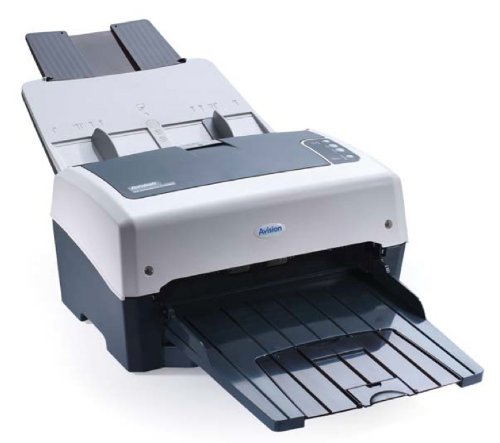
Figure 1: Avision AV 320D2+ A3 Document Scanner. This image displays the Avision AV 320D2+ A3 Document Scanner from a front-right perspective. The scanner is light grey and dark grey, featuring an automatic document feeder (ADF) at the top with paper guides visible, and an extended output tray at the front. The Avision logo is visible on the front panel.
2. Nastavení
2.1 Vybalení
- Opatrně vyjměte skener a veškeré příslušenství z obalu.
- Ověřte, zda jsou přítomny všechny součásti uvedené v dodacím listu.
- Remove all protective tapes and packing materials from the scanner, including any inside the document feeder and output tray.
2.2 Připojení skeneru
- Umístěte skener na stabilní, rovný povrch poblíž počítače.
- Připojte napájecí adaptér k napájecímu vstupu skeneru a poté jej zapojte do elektrické zásuvky.
- Connect one end of the supplied USB cable to the USB port on the scanner and the other end to an available USB port on your computer.
- Power on the scanner using the power button, typically located on the side or rear panel.
2.3 Instalace softwaru
Before using the scanner, you must install the necessary drivers and scanning software. Refer to the included software CD or visit the official Avision website for the latest drivers and utilities.
- Insert the software installation CD into your computer's CD/DVD drive, or download the software package from the Avision support webmísto.
- Follow the on-screen instructions to install the scanner drivers and bundled scanning applications. It is recommended to install all provided software for full functionality.
- Pokud se po dokončení instalace zobrazí výzva, restartujte počítač.
3. Obsluha skeneru
3.1 Načítání dokumentů
- Automatický podavač dokumentů (ADF): Open the ADF input tray. Adjust the paper guides to fit the width of your documents. Place the documents face-down with the top edge first into the ADF. The standard sheet capacity is 50 sheets.
- Ensure documents are free of staples, paper clips, or any foreign objects that could damage the scanner.
- For mixed-size documents, ensure they are aligned properly to prevent skewing.
3.2 Základní postupy skenování
- Vložte dokumenty do automatického podavače dokumentů (ADF) podle výše uvedeného postupu.
- Open your preferred scanning application (e.g., Avision Button Manager, TWAIN/ISIS compatible software).
- Select the Avision AV 320D2+ as your scanner.
- Choose your desired scanning settings (e.g., color mode, resolution, destination folder).
- Initiate the scan from the software interface. The scanner will automatically feed and scan the documents.
- Review naskenované obrázky a uložte je na požadované místo.
3.3 Nastavení skenování
The scanner supports various settings to optimize scan quality and file velikost:
- Rezoluce: Adjustable up to 600 dpi. Higher resolution provides better image quality but results in larger file velikosti.
- Barevný režim: Options typically include Color, Grayscale, and Black & White (Binary).
- Duplexní skenování: The AV 320D2+ supports duplex (two-sided) scanning, allowing you to capture both sides of a document in a single pass.
- Výstupní formát: Common output formats include PDF, JPEG, TIFF, and searchable PDF.
4. Údržba
4.1 Čištění skeneru
Pravidelné čištění zajišťuje optimální výkon a prodlužuje životnost skeneru.
- Vnější: Vnější povrchy otřete měkkým, damp, hadřík, který nepouští vlákna. Nepoužívejte abrazivní čisticí prostředky ani rozpouštědla.
- Skleněné povrchy: Použijte měkký hadřík dampened with a non-abrasive glass cleaner to clean the scanner's glass surfaces (if applicable).
- válečky: Periodically clean the feed rollers with a lint-free cloth lightly dampened with isopropyl alcohol to remove paper dust and residue.
- Před čištěním vždy skener vypněte a odpojte ze zásuvky.
5. Řešení problémů
This section addresses common issues you might encounter with your Avision AV 320D2+ scanner.
| Problém | Možná příčina | Řešení |
|---|---|---|
| Scanner not detected by computer | Loose USB cable, power off, driver issue | Check USB connection, ensure scanner is powered on, reinstall drivers. |
| Uvíznutí papíru | Misaligned documents, worn rollers, foreign objects | Remove jammed paper carefully, align documents properly, clean rollers. |
| Poor scan quality (streaks, blurry images) | Dirty glass, incorrect settings, worn rollers | Clean scanner glass and rollers, adjust resolution/color settings. |
| Documents not feeding | Incorrectly loaded, worn feed rollers | Ensure documents are loaded correctly, clean or replace feed rollers if worn. |
6. Specifikace
Key technical specifications for the Avision AV 320D2+ scanner:
- Typ produktu: Skener dokumentů
- Formát papíru: A3
- Rezoluce: 600 dpi (optické)
- Konektivita: USB
- Barva: Černá/Bílá
- Hmotnost: Přibližně 26.46 libry (12 kg)
- Spotřeba energie: 38.4 wattů
- Standard Sheet Capacity (ADF): 50 listů
- Technologie optického senzoru: CMOS
- Název modelu: AV320D2+
- Číslo modelu položky: FT-0807H
7. Záruka a podpora
7.1 Záruka výrobce
The Avision AV 320D2+ scanner typically comes with a 2letá záruka výrobce. This warranty covers defects in materials and workmanship under normal use. Please retain your proof of purchase for warranty claims. For specific terms and conditions, refer to the warranty card included with your product or visit the official Avision webmísto.
7.2 Technická podpora
For technical assistance, driver updates, or further troubleshooting not covered in this manual, please contact Avision customer support. Support contact information can usually be found on the Avision official webwebu nebo v dokumentaci dodané se skenerem.
Note: Availability of spare parts and software updates may vary. Please check the manufacturer's official channels for the most current information.


