1. Úvod
Thank you for choosing the TECKNET 2.4G Wireless Mini QWERTY Keyboard X315. This ultra-thin, compact keyboard is designed for efficiency and comfort, featuring 2.4 GHz wireless technology for a stable connection and 12 multimedia shortcut keys for enhanced productivity. Its low-profile scissor-switch keys offer a quiet and responsive typing experience. This manual provides essential information for setting up, operating, maintaining, and troubleshooting your new keyboard.
Obrázek: Přední strana view of the TECKNET 2.4G Wireless Mini QWERTY Keyboard X315 in silver.
2. Co je v krabici
- 1 x TECKNET 2.4G Wireless Mini QWERTY Keyboard
- 1x Nano USB přijímač
- 1 x Uživatelská příručka
3. Průvodce nastavením
3.1 Instalace baterie
- Locate the battery compartment cover on the back of the keyboard.
- Posunutím otevřete kryt.
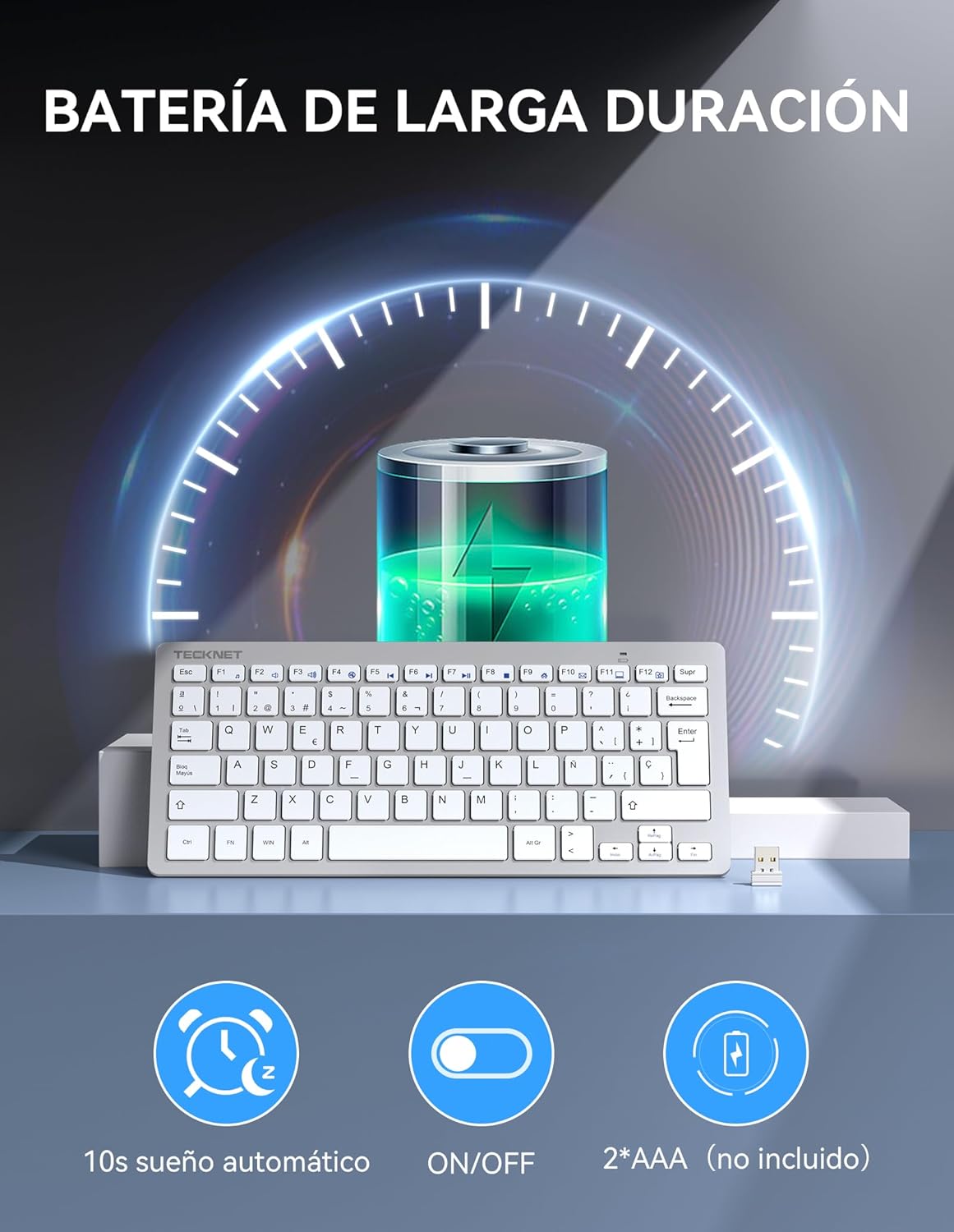
- Vložte dvě baterie AAA (nejsou součástí balení) do přihrádky a dbejte na správnou polaritu (+/-).
- Bezpečně zavřete kryt bateriového prostoru.

Image: Diagram showing battery installation (2*AAA) and power-saving features like auto-sleep and ON/OFF switch.
3.2 Připojení přijímače
- Remove the Nano USB receiver from its storage slot on the back of the keyboard.
- Plug the Nano USB receiver into an available USB port on your computer, laptop, or compatible device.
- The system will automatically detect and install the necessary drivers. This may take a few moments.

Image: Illustration of the 2.4G wireless connection, showing the Nano USB receiver plugged into a laptop and the keyboard operating wirelessly within a 10-meter range.
3.3 Zapnutí/vypnutí
Locate the ON/OFF switch on the back of the keyboard. Slide it to the 'ON' position to power on the keyboard. Slide it to the 'OFF' position when not in use to conserve battery life.
4. Návod k obsluze
4.1 Obecné použití
Once connected, your keyboard is ready for use. The 2.4 GHz wireless technology provides a stable and reliable connection up to 10 meters (33 feet) without interference.
4.2 Multimediální klávesové zkratky
The keyboard features 12 multimedia shortcut keys. To activate these functions, press and hold the FN key, then press the corresponding F-key (F1-F12).
| Kombinace kláves | Funkce |
|---|---|
| FN + F1 | Hudební přehrávač |
| FN + F2 | Snížit hlasitost |
| FN + F3 | Zvýšení hlasitosti |
| FN + F4 | Ztlumit |
| FN + F5 | Předchozí stopa |
| FN + F6 | Další stopa |
| FN + F7 | Přehrát/Pozastavit |
| FN + F8 | Zastávka |
| FN + F9 | Internetový prohlížeč |
| FN + F10 | |
| FN + F11 | Můj počítač |
| FN + F12 | Oblíbené |
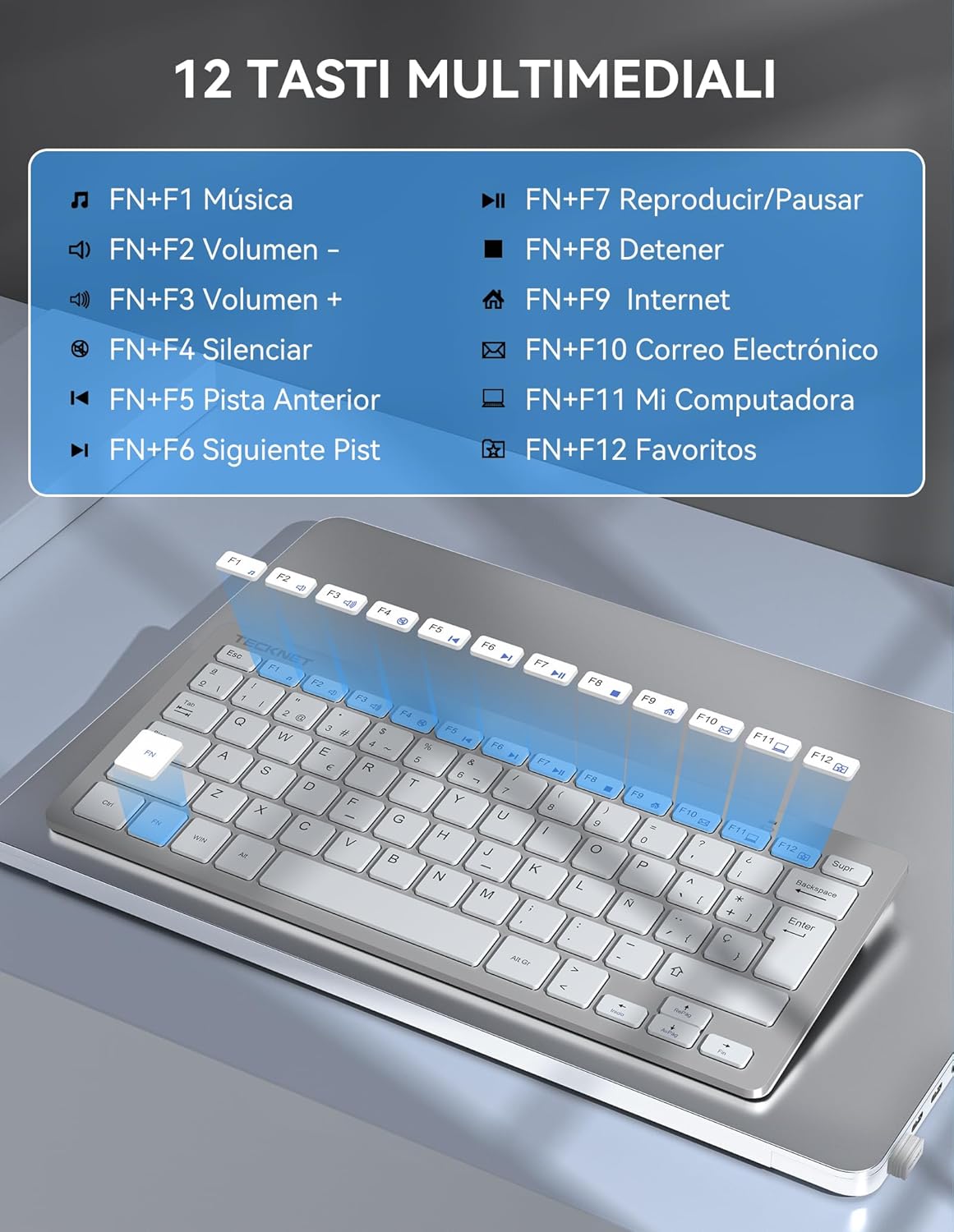
Image: Visual representation of the keyboard highlighting the FN key and multimedia functions (F1-F12).
4.3 Režim úspory energie
The keyboard features an automatic sleep function. If inactive for a period, it will enter sleep mode to conserve battery. Press any key to wake it up.
5. Údržba
5.1 Čištění
K čištění klávesnice použijte měkký, suchý hadřík. V případě odolných nečistot lehceampOtřete hadřík vodou nebo jemným čisticím roztokem. Nepoužívejte agresivní chemikálie ani abrazivní materiály.
5.2 Výměna baterie
When the keyboard's performance degrades or it stops responding, replace the AAA batteries as described in Section 3.1.
5.3 Storing the Nano Receiver
When transporting or storing the keyboard, you can safely store the Nano USB receiver in its dedicated slot on the back of the keyboard to prevent loss.

Image: The keyboard shown inside a laptop sleeve, illustrating its slim profile (2cm thickness) and compact dimensions (29.2cm x 12.4cm) for portability.
6. Řešení problémů
6.1 Klávesnice nereaguje
- Ensure the keyboard is powered ON using the switch on the back.
- Zkontrolujte, zda jsou baterie správně vloženy a zda jsou dostatečně nabité. V případě potřeby je vyměňte.
- Verify that the Nano USB receiver is securely plugged into a working USB port on your device. Try a different USB port.
- Move the keyboard closer to the receiver to rule out range issues (maximum 10 meters).
- Restartujte počítač nebo zařízení.
6.2 Lag or Intermittent Connection
- Ensure there are no large metal objects or other wireless devices (like Wi-Fi routers, cordless phones) operating too close to the keyboard or receiver, as these can cause interference.
- Try plugging the receiver into a different USB port, preferably one that is not next to other USB devices.
7. Specifikace
| Funkce | Detail |
|---|---|
| Značka | TECNET |
| Číslo modelu | X315 |
| Barva | Stříbro |
| Technologie připojení | 2.4 GHz bezdrátový |
| Bezdrátové Dosah | Až 10 metrů (33 stop) |
| Zdroj napájení | 2 x AAA baterie (nejsou součástí balení) |
| Rozložení klávesnice | QWERTY |
| Typ klíče | Scissor-switch, Low-profile |
| Multimediální klávesy | 12 (FN + F1–F12) |
| Rozměry (D x Š x V) | 29.2 x 12.4 x 2 cm (11.5 x 4.9 x 0.8 palce) |
| Hmotnost | 296 gramů (0.65 lb) |
| Kompatibilita | Windows 11/10/8/7/XP/Vista, PC, Laptops, Desktops, Android Smart TVs |
| Speciální funkce | Automatic Sleep Mode, Nano Receiver Storage, Quiet Typing |
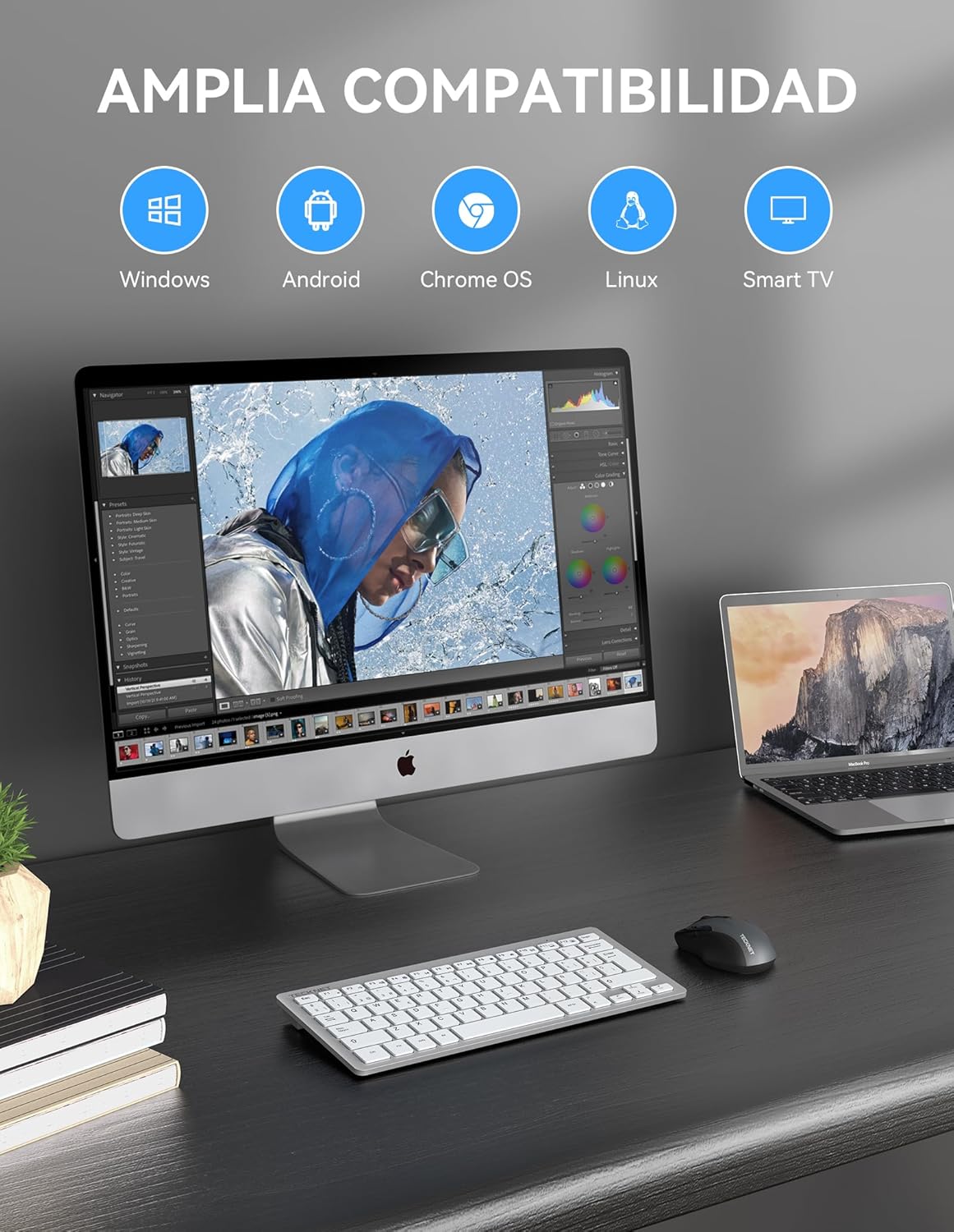
Image: The keyboard displayed with a desktop computer and a laptop, illustrating its wide compatibility with various operating systems and devices.
8. Záruka a podpora
8.1 Informace o záruce
TECKNET provides a 3-year warranty for registered users only. Please refer to the TECKNET official website or your purchase documentation for details on how to register your product and claim warranty services.
8.2 Zákaznická podpora
If you encounter any issues or have questions regarding your TECKNET keyboard that are not covered in this manual, please contact TECKNET customer support. Contact information can typically be found on the TECKNET official webwebu nebo na obalu vašeho produktu.


