1. Konec produktuview
The Dell UltraSharp U2410 Monitor is a 24-inch widescreen LCD display designed for high performance. It features PremierColor technology, delivering vibrant, consistent, and true-to-life colors, minimizing the need for extensive calibration. This monitor is suitable for graphics-intensive applications, offering detailed visuals and responsive performance.

Obrázek 1.1: Přední strana view of the Dell UltraSharp U2410 Monitor.
2. Pokyny k nastavení
2.1 Vybalení monitoru
Opatrně vyjměte všechny součásti z obalu. Ujistěte se, že jsou všechny díly přítomny:
- Dell UltraSharp U2410 Monitor
- Stojan na monitor
- Napájecí kabel
- Video Cables (DVI, DisplayPort, HDMI, USB Upstream)
- Dokumentace
2.2 Sestavení stojanu
Attach the monitor panel to the stand base. Ensure it clicks securely into place. The stand allows for height, tilt, swivel, and pivot adjustments.
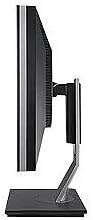
Obrázek 2.1: Strana view of the monitor showing stand assembly.
2.3 Propojovací kabely
Connect the necessary cables to the rear of the monitor and your computer. The U2410 supports multiple input types:
- Napájecí kabel: Connect to the monitor's power input and a wall outlet.
- Video kabel: Vyberte jednu z následujících možností:
- HDMI: Pro digitální video a audio ve vysokém rozlišení.
- DVI: For digital video.
- DisplayPort: For high-resolution digital video and audio.
- VGA: For analog video (if applicable, check specific model for VGA).
- Kabel USB pro odchozí přenos: Connect this cable from your computer to the monitor's upstream USB port to enable the monitor's built-in USB hub.
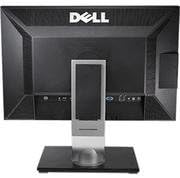
Obrázek 2.2: Zadní view monitoru zobrazujícího různé vstupní porty.
2.4 Počáteční zapnutí
After connecting all cables, press the power button on the monitor. The monitor should display the Dell logo and then your computer's desktop. If no image appears, ensure all cables are securely connected and the correct input source is selected.
3. Obsluha monitoru
3.1 Zapnutí/vypnutí
Stisknutím tlačítka napájení na předním panelu monitoru jej zapnete nebo vypnete.
3.2 Nabídka na obrazovce (OSD)
The OSD menu allows you to adjust various display settings. Use the control buttons on the front bezel to navigate the menu.
- Vstupní zdroj: Select between HDMI, DVI, DisplayPort, or VGA inputs.
- Jas/kontrast: Upravte úroveň jasu a kontrastu displeje.
- Nastavení barev: Access PremierColor settings, including preset modes (e.g., Adobe RGB, sRGB) and custom color adjustments.
- Picture-in-Picture (PIP)/Picture-by-Picture (PBP): If supported, configure multiple input sources to display simultaneously.
3.3 Funkce USB rozbočovače
The monitor includes a built-in USB hub with multiple downstream ports. Connect the USB upstream cable from your computer to the monitor to enable these ports for connecting peripherals like keyboards, mice, or USB drives.
4. Údržba
4.1 Čištění monitoru
To clean the monitor screen and bezel:
- Vypněte monitor a odpojte napájecí kabel.
- Use a soft, clean, lint-free cloth lightly dampvodou nebo neabrazivním čističem obrazovek.
- Jemně otírejte obrazovku. Netlačte příliš silně.
- Nestříkejte čisticí prostředek přímo na obrazovku.
Pozor: Do not use benzene, thinner, ammonia-based cleaners, or abrasive cleaners, as these can damage the monitor's surface.
5. Řešení problémů
5.1 Žádný obraz na obrazovce
- Ujistěte se, že je napájecí kabel bezpečně připojen k monitoru i k elektrické zásuvce.
- Verify the video cable (HDMI, DVI, DisplayPort) is firmly connected to both the monitor and your computer.
- Stiskněte tlačítko napájení na monitoru, abyste se ujistili, že je zapnutý.
- Pro výběr správného vstupního zdroje použijte nabídku OSD.
- Test the monitor with another computer or a different video cable if possible.
5.2 Incorrect Colors or Display Issues
- Access the OSD menu and reset color settings to factory defaults.
- Ensure the correct color profile is selected in your computer's display settings.
- For Mac users, ensure you are using a Dual Link DVI connector and an appropriate Mini DisplayPort to DVI adapter for optimal color output, as some DisplayPort cables may result in YPbPr signals instead of RGB.
- Consider performing a hardware calibration if precise color accuracy is critical.
5.3 Nefunkční USB porty
- Confirm the USB upstream cable is connected from your computer to the monitor.
- Ujistěte se, že ovladače USB vašeho počítače jsou aktuální.
- Try connecting the USB upstream cable to a different USB port on your computer.
5.4 Monitor Not Entering Power Saving Mode (Mac Specific)
- When using a DVI connection with certain Mac models (e.g., late 2011 MacBook Pros with Thunderbolt/MDP), the monitor may not automatically enter power-saving mode.
- To force power-saving mode, manually put your Mac to sleep (Apple menu > Sleep).
- This issue is often related to specific Mac firmware and not the monitor itself.
6. Specifikace
| Model | Dell UltraSharp U2410 |
| Velikost obrazovky | 24 palce |
| Typ panelu | IPS |
| Rezoluce | 1920 1200 x (WUXGA) |
| Poměr stran | 16:10 |
| Konektivita | HDMI, DVI, DisplayPort, VGA, 4x USB 3.0 (downstream), 1x USB (upstream) |
| Podpora barev | PremierColor Technology (Adobe RGB, sRGB) |
| Rozměry (DxŠxV) | 25.4 x 18.2 x 9.3 palce |
| Hmotnost | 9.55 libry |
| Výrobce | Dell Marketing USA, LP |
7. Záruka a podpora
7.1 Informace o záruce
This Dell UltraSharp U2410 monitor typically comes with a 3-year Dell warranty. Please refer to your purchase documentation for specific terms and conditions. For warranty claims or service, contact Dell directly.
7.2 Technická podpora
For technical assistance, driver downloads, or further support, please visit the official Dell support website or contact Dell customer service. Have your monitor's service tag nebo expresní servisní kód připravený při kontaktování podpory.
Podpora společnosti Dell Webmísto: www.dell.com/support


