1. Úvod
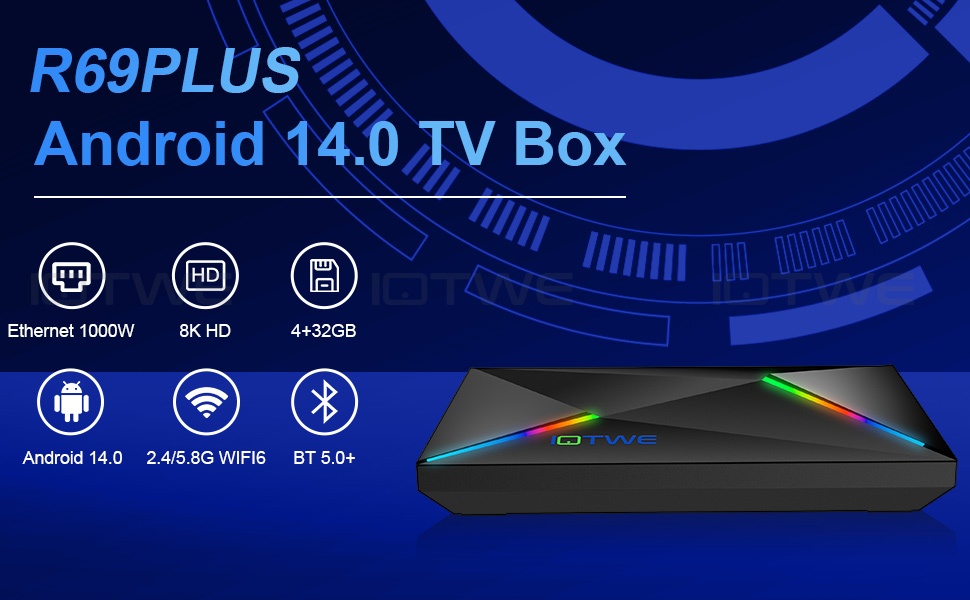
Welcome to the user manual for your xgody R69PLUS / T95PRO Android TV Box. This device is designed to transform your television into a smart entertainment hub, offering access to a wide range of streaming services, games, and applications. Featuring the Android 13.0 operating system, a powerful H618 quad-core processor, and support for up to 8K UHD resolution, your TV box delivers a fast, smooth, and immersive media experience. Please read this manual carefully to ensure proper setup and optimal performance of your device.

2. Obsah balení
Zaškrtněte prosím políčko u následujících položek:
- 1x xgody R69PLUS / T95PRO Android TV Box
- 1x napájecí adaptér
- 1x HDMI kabel
- 1x Remote Control (batteries not included)
- 1x Uživatelská příručka
3. Specifikace
| Funkce | Popis |
|---|---|
| Operační systém | Android 13.0 |
| CPU | Čtyřjádrový procesor H618 Cortex-A53 |
| GPU | Mali G57-MC1 |
| BERAN | 4 GB DDR4 |
| Interní úložiště (ROM) | 32GB / 64GB / 128GB eMMC (expandable via Micro SD card) |
| Maximální výstupní rozlišení | 8K při 60 Hz |
| Standardy HDR | HDR10 |
| Dekódování videa | H.265/HEVC (reduces buffering, saves 50% bandwidth compared to H.264) |
| Wi-Fi | Dual-band 2.4 GHz / 5 GHz WiFi 6 (802.11.ac technology) |
| Bluetooth | Bluetooth 5.0+ |
| Ethernet | 10/100M |
| Video výstup | HDMI kompatibilní 2.0 |
| USB porty | USB 3.0 (high-speed data transfer), USB 2.0 |
| Ostatní rozhraní | Optical, DC/5V Power Input, SD Card Slot, Reset Button |
| Zdroj napájení | AC (with inbox adaptor) / DC |
| Hmotnost | 0.4 kg |
| Rozměry (cca) | 138 mm x 98 mm x 13 mm |
| Podporované internetové služby | Prime video, Google TV, Hulu, YouTube, Other |

4. Průvodce nastavením
Follow these steps to set up your xgody Android TV Box:
- Připojení k televizi: Connect one end of the provided HDMI cable to the HDMI port on your TV Box and the other end to an available HDMI input on your television.
- Připojte napájení: Plug the power adapter into the DC/5V port on the TV Box, then plug the adapter into a wall outlet.
- Internetové připojení:
- Wi-Fi: Once the device powers on, navigate to the 'Settings' menu, select 'Network', and choose your Wi-Fi network. Enter the password if prompted.
- Ethernet: Pro kabelové připojení připojte ethernetový kabel z routeru k ethernetovému portu na televizním přijímači. Zařízení by mělo kabelové připojení automaticky detekovat.
- Počáteční nastavení: Follow the on-screen instructions to complete the initial setup, including language selection, time zone, and Google account login.

5. Návod k obsluze
Your xgody Android TV Box provides a versatile entertainment experience. Here’s how to get started:
5.1 Dálkové ovládání
Use the included remote control to navigate the interface. The remote typically includes:
- Vypínač: Zapíná/vypíná zařízení nebo jej přepíná do pohotovostního režimu.
- Navigační tlačítka (klávesy se šipkami): Move through menus and selections.
- Tlačítko OK: Potvrzuje výběr.
- Tlačítko Domů: Návrat na hlavní domovskou obrazovku.
- Tlačítko Zpět: Vrátí se na předchozí obrazovku.
- Tlačítka hlasitosti: Upravte hlasitost zvuku.
- Tlačítko aplikace: Accesses installed applications.
- Dedicated Streaming Service Buttons: Quick access to popular apps like YouTube, Netflix, Prime Video, Google Play.
5.2 Přehrávání a streamování médií
The TV box supports various media formats and streaming services:
- Přehrávání videa: Enjoy 6K HD videos with H.265/HEVC decoding for a sharper resolution and efficient bandwidth usage. The device also supports 3D content for an immersive visual experience (requires compatible 3D TV).
- Streamovací aplikace: Access pre-installed apps like Prime Video, Google TV, Hulu, and YouTube. You can download more applications from the Google Play Store.
- USB/SD Card Media: Play media directly from USB drives or SD cards connected to the device.

5.3 Konektivita
- Wi-Fi 6: Benefit from faster speeds, lower latency, and a more secure network with dual-band 2.4 GHz / 5 GHz WiFi 6.
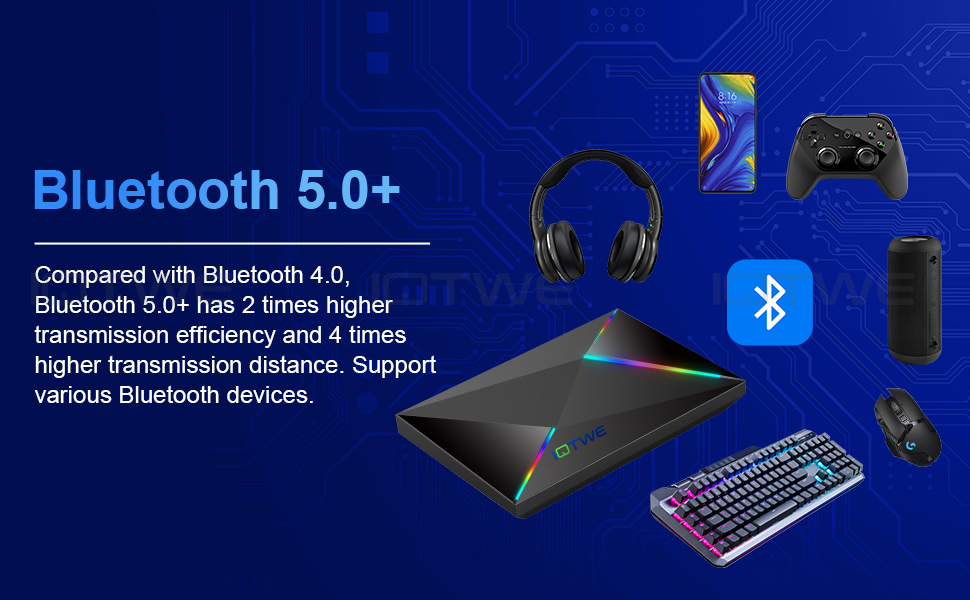
- Bluetooth 5.0+: Connect various Bluetooth devices such as gamepads, headphones, speakers, keyboards, and mice for enhanced control and audio experience. Bluetooth 5.0+ offers 2 times higher transmission efficiency and 4 times higher transmission distance compared to Bluetooth 4.0.
- USB 3.0: Utilize the USB 3.0 port for significantly faster data transfer speeds (up to 5Gbps) compared to USB 2.0, ideal for large files and external storage.
6. Údržba
- Čištění: K čištění vnější strany televizního přijímače používejte měkký, suchý hadřík. Nepoužívejte tekuté čisticí prostředky ani abrazivní materiály.
- Větrání: Ujistěte se, že je televizní přijímač umístěn na dobře větraném místě, aby nedošlo k jeho přehřátí. Neblokujte žádné větrací otvory.
- Aktualizace softwaru: The device supports system upgrades. Periodically check for and install system updates via the 'Settings' menu to ensure optimal performance and access to the latest features and security patches.
- Správa úložiště: Pravidelně mazejte mezipaměť a nepotřebné files to maintain smooth operation, especially if you have a smaller ROM version.
7. Řešení problémů
If you encounter issues with your TV Box, refer to the following common solutions:
- Bez napájení:
- Check if the power adapter is securely connected to the TV Box and the wall outlet.
- Ensure the wall outlet is functioning correctly.
- Žádný obraz/signál na televizoru:
- Ověřte, zda je kabel HDMI bezpečně připojen k televiznímu přijímači i k televizoru.
- Ujistěte se, že je váš televizor nastaven na správný vstupní zdroj HDMI.
- Zkuste jiný kabel HDMI nebo port HDMI na televizoru.
- Problémy s připojením Wi-Fi:
- Zkontrolujte, zda váš router funguje správně.
- Restartujte televizní přijímač a router.
- Ujistěte se, že jste zadali správné heslo Wi-Fi.
- Move the TV Box closer to your router or use an Ethernet cable for a more stable connection.
- Dálkové ovládání nereaguje:
- Vyměňte baterie v dálkovém ovladači.
- Ujistěte se, že mezi dálkovým ovladačem a televizním přijímačem nejsou žádné překážky.
- Buffering or Slow Performance:
- Zkontrolujte si rychlost internetu.
- Zavřete nepotřebné aplikace na pozadí.
- Clear the cache of streaming apps.
- Consider using a wired Ethernet connection for better stability.
8. Uživatelské tipy
- Kompatibilita napájecího adaptéru: The provided power adapter is designed for specific regions. If you are in a different region (e.g., UK), you may need to use a compatible regional plug adapter or a universal power adapter.
- Rozšíření úložiště: For users with 32GB or 64GB ROM models, consider using the Micro SD card slot to expand storage for more apps and media.
- Bluetooth periferie: Connect a Bluetooth keyboard and mouse for easier navigation and typing, especially when browsing or using productivity apps.
9. Záruka a podpora
For any questions or technical assistance, please contact customer support. We aim to provide a reply within 24 hours.


