
1. Úvod
This manual provides essential information for setting up, operating, maintaining, and troubleshooting your Lenovo IdeaCentre AIO 27 All-in-One Desktop PC. Please read this manual thoroughly before using your device to ensure proper functionality and to maximize its lifespan.

Figure 1: Lenovo IdeaCentre AIO 27 All-in-One Desktop PC
2. Obsah balení
Ověřte, zda jsou v balení produktu přítomny všechny položky:
- Lenovo IdeaCentre AIO 27 Desktop PC
- Napájecí adaptér (90W)
- Keyboard (may be wired or wireless, depending on configuration)
- Mouse (may be wired or wireless, depending on configuration)
- Dokumentace (Stručná úvodní příručka, Záruční informace)
3. Konec produktuview
3.1 klíčové komponenty
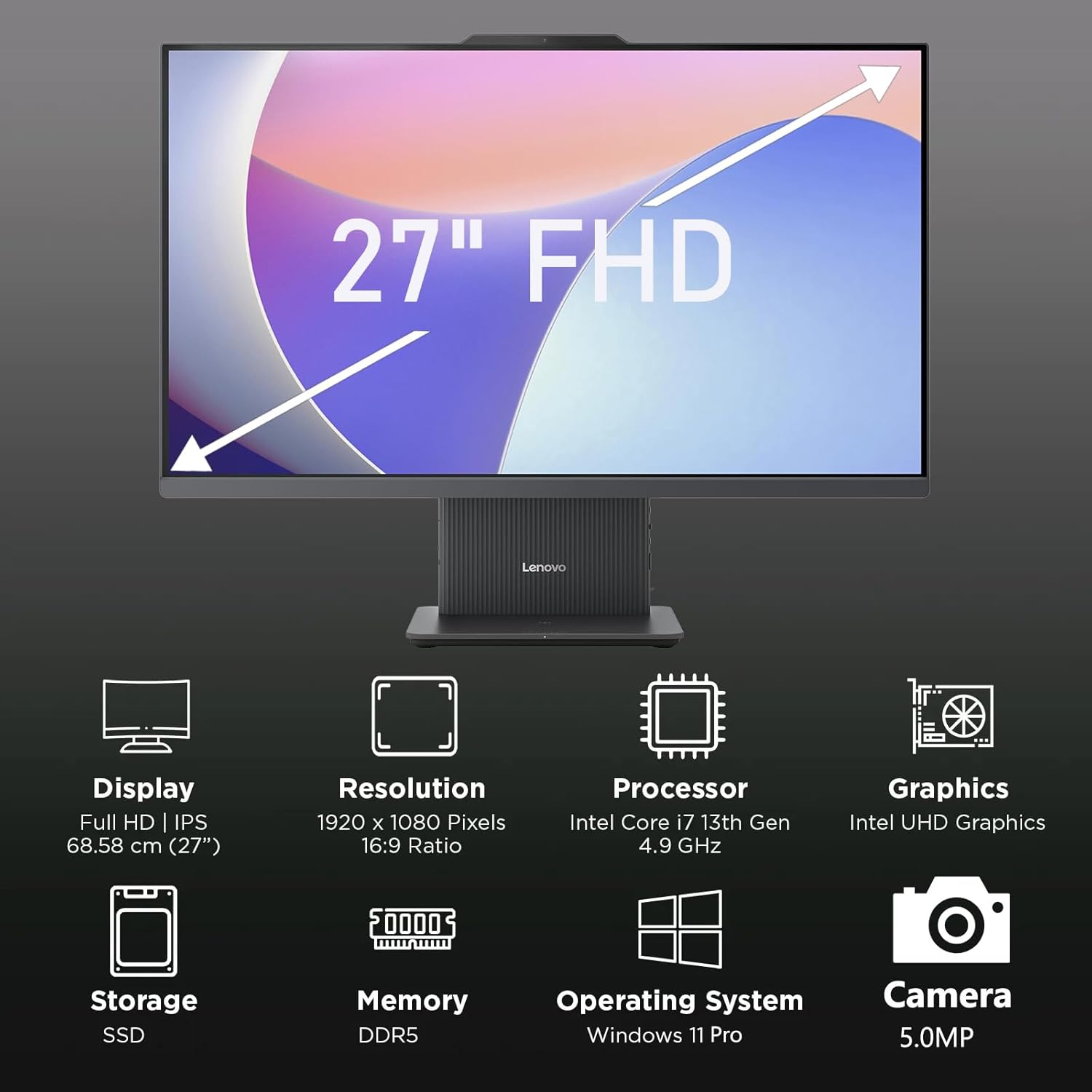
Obrázek 2: Přesview of key features including Display, Resolution, Processor, Graphics, Storage, Memory, Operating System, and Camera.
- Zobrazit: 27-inch Full HD (1920x1080) IPS, 300 nits, anti-glare.
- Webvačka: Integrated 5.0MP webcam with dual microphones.
- Řečníci: Integrated 3W x2 HARMAN speakers.
- Procesor: Intel Core i7-13620H.
- Paměť: DDR5 RAM.
- Skladování: PCIe NVMe SSD.
3.2 Porty a konektory

Figure 3: Detailed diagram of ports and connectors on the Lenovo IdeaCentre AIO 27.
- E-shutter (for websoukromí kamery)
- Tlačítko napájení
- HDMI vstup 1.4
- Napájení DC-in
- USB-A 480Mbps (USB 2.0)
- Ethernet (RJ-45)
- USB-A 480Mbps (USB 2.0)
- USB-A 10 Gb/s (USB 3.2 Gen 2)
- HDMI-out 2.1 TMDS
- USB-C 10Gbps (data transfer only)
- Headphone / microphone combo jack
4. Nastavení
4.1 Rozbalení a umístění
- Carefully remove the AIO PC and all accessories from the packaging.
- Place the AIO PC on a stable, flat surface with adequate ventilation around the device.
4.2 Připojení napájení
- Connect the power adapter cable to the DC-in port (4) on the rear of the AIO PC.
- Zapojte napájecí adaptér do uzemněné elektrické zásuvky.
4.3 Připojení periferních zařízení
- Connect your keyboard and mouse to the available USB-A ports (5, 7, 8) on the rear of the AIO PC.
- If using wired Ethernet, connect the cable to the RJ-45 port (6).
- For external displays, use the HDMI-out port (9). To use the AIO as a display for another device, use the HDMI-in port (3).
4.4 Počáteční spuštění a nastavení systému Windows
- Press the power button (2) to turn on the PC.
- Postupujte podle pokynů na obrazovce a dokončete počáteční nastavení systému Windows 11 Pro, včetně jazyka, regionu, síťového připojení a vytvoření uživatelského účtu.
4.5 Nastavení stojanu

Figure 4: The AIO stand allows for ergonomic tilt adjustment.
The integrated stand allows for tilt adjustment from -5° to 15° to optimize your viewing angle and posture. Gently adjust the display to your preferred position.
5. Ovládání počítače
5.1 Základní obsluha
- Zapnutí/vypnutí: Press the power button (2) to turn on. To shut down, click Start > Power > Shut down in Windows.
- Režim spánku: Press the power button briefly or select Sleep from the Start menu.
5.2 Pomocí Webkamera a zvuk

Figure 5: The 5MP webcam and Harman audio enhance video conferencing.
- Webvačka: The integrated 5.0MP webcam is ideal for video conferencing and online communication. Use the E-shutter (1) to physically block the camera for privacy.
- Mikrofony: Dual microphones provide clear audio input.
- Řečníci: HARMAN speakers deliver high-quality audio output.
5.3 Konektivita
- Wi-Fi 6: Připojte se k bezdrátovým sítím pro vysokorychlostní přístup k internetu.
- Bluetooth 5.2: Pair with Bluetooth-enabled devices such as headphones, speakers, or mobile phones.
- USB porty: Utilize the various USB-A and USB-C ports for connecting external drives, printers, and other peripherals.
5.4 Funkce systému Windows 11 Pro
Your AIO PC comes pre-installed with Windows 11 Pro, offering advanced features for productivity and security:
- BitLocker: For advanced data encryption.
- Vzdálená plocha: Access your PC from another device.
- Připojení k doméně: Integrujte se do firemních sítí.
- Dobrý den ve Windows: Secure and fast login using facial recognition (if IR camera is present) or PIN.
6. Údržba
6.1 Čištění počítače
- Zobrazit: Použijte měkký hadřík, který nepouští vlákna dampvodou nebo neabrazivním čističem obrazovek. Nestříkejte tekutinu přímo na obrazovku.
- Podvozek: Wipe with a soft, dry cloth. Avoid harsh chemicals or abrasive materials.
- Větrání: Ujistěte se, že větrací otvory jsou čisté a bez prachu a překážek, aby nedošlo k přehřátí.
6.2 Aktualizace softwaru
Regularly check for and install Windows updates and driver updates to ensure optimal performance and security. Go to Settings > Windows Update to check for updates.
6.3 Zálohování dat
Pravidelně zálohujte důležitá data na externí disk nebo cloudové úložiště, abyste předešli jejich ztrátě.
7. Řešení problémů
This section addresses common issues you might encounter with your IdeaCentre AIO 27.
| Problém | Možné řešení |
|---|---|
| Počítač se nezapne | Ensure the power adapter is securely connected to both the PC and a working electrical outlet. Test the outlet with another device. |
| Žádný displej na obrazovce | Check power connection. Ensure the PC is powered on. If using HDMI-in, verify the external device is on and correctly connected. |
| Žádné připojení k internetu (Wi-Fi) | Check if Wi-Fi is enabled in Windows settings. Verify your router is working. Reconnect to the Wi-Fi network. |
| Žádný zvuk | Check volume levels in Windows. Ensure speakers are not muted. Verify audio drivers are up to date. |
| Webkamera nefunguje | Ensure the E-shutter (1) is open. Check privacy settings in Windows. Verify webcam drivers are installed and up to date. |
8. Specifikace

Figure 6: Details of the Intel Core i7-13620H processor.

Figure 7: The 27-inch FHD display offers comfortable viewIng.
| Funkce | Specifikace |
|---|---|
| Značka | Lenovo |
| Název modelu | IdeaCentre AIO 27 |
| Operační systém | Windows 11 Pro |
| Procesor | Intel Core i7-13620H (10 jader, 16 vláken, až 4.9 GHz) |
| Grafika | Integrovaná grafika Intel UHD Graphics |
| Zobrazit | 27-inch FHD (1920x1080) IPS, 300 nits, Anti-glare, 99% sRGB |
| Paměť | 32GB DDR5 RAM (5200 MT/s) |
| Skladování | 1TB M.2 PCIe 4.0x4 NVMe SSD |
| Zvuk | High Definition (HD) Audio, Realtek ALC233-CG codec, 3W x2 HARMAN speakers |
| Webvačka | 5.0MP with Dual Microphones |
| Bezdrátové připojení | Wi-Fi 6 (802.11ax 2x2), Bluetooth 5.2 |
| Porty (zadní) | 1x USB-A 10Gbps, 2x USB-A 480Mbps, 1x HDMI-in 1.4, 1x HDMI-out 2.1 TMDS, 1x RJ-45, 1x Power Connector |
| Porty (levé) | 1x USB-C 10Gbps (data transfer only), 1x 3.5mm combo audio jack |
| Bezpečnostní čip | Firmware TPM 2.0 |
| Napájecí adaptér | 90W 89% adapter |
| Rozměry (Š x H x V) | 611.72 x 192 x 473.16 mm (24.08 x 7.55 x 18.62 palce) |
| Hmotnost | Přibližně 7.1 kg (15.65 lb) |
9. Informace o záruce
Your Lenovo IdeaCentre AIO 27 PC comes with a standard manufacturer's warranty. The specific terms and duration of your warranty may vary by region and purchase agreement. Please refer to the warranty documentation included in your product packaging or visit the official Lenovo support webstránky pro podrobné informace.
Typically, the warranty covers defects in materials and workmanship under normal use. It does not cover damage caused by misuse, accidents, unauthorized modifications, or external factors.
10. Podpora a kontaktní informace
For technical support, service, or additional information, please contact Lenovo customer support through the following channels:
- Podpora společnosti Lenovo Webmísto: Návštěva support.lenovo.com pro ovladače, manuály a průvodce řešením problémů.
- Telefonická podpora: Refer to your warranty card or the Lenovo support webmísto pro regionální kontaktní čísla.
- Online chat: Available on the Lenovo support webstránky pro pomoc v reálném čase.
Please have your product's serial number ready when contacting support. The serial number is typically located on a label on the back or bottom of your AIO PC.