
1. Úvod
The Next Cine800S GoogleTV Projector is designed to provide a versatile and immersive home entertainment experience. This manual offers essential information for the safe and efficient setup, operation, and maintenance of your projector. Please read this manual thoroughly before using the device.
2. Bezpečnostní informace
- Napájení: Use only the specified power adapter. Ensure the power cord is not damaged or pinched.
- Větrání: Neblokujte větrací otvory. Kolem projektoru ponechte dostatečný prostor pro správné proudění vzduchu, abyste zabránili přehřátí.
- Umístění: Umístěte projektor na stabilní a rovný povrch. Neumísťujte jej na přímé sluneční světlo, do blízkosti zdrojů tepla nebo do prostředí s vysokou vlhkostí nebo prachem.
- Čištění: Před čištěním odpojte napájení. Použijte měkký, suchý hadřík. Nepoužívejte tekuté ani aerosolové čisticí prostředky.
- Péče o čočky: Avoid touching the projector lens directly. Use a soft, lint-free cloth specifically designed for optical lenses if cleaning is necessary.
- Servis: Nepokoušejte se projektor opravovat sami. Veškerý servis svěřte kvalifikovanému personálu.
3. Konec produktuview
The Next Cine800S is a Full HD LED projector featuring Google TV. Below are key components and features.

Obrázek 3.1: Přední strana view of the Next Cine800S GoogleTV Projector, highlighting its design and key features like 800 ANSI Lumens and Google TV integration.
3.1. Klíčové vlastnosti
- Rozlišení displeje: Full HD 1920x1080, supporting screen sizes from 40 to 200 inches.
- Jas: 800 ANSI lumenů.
- Zpracování videa: Supports 4Kx2K @ 60fps encode/decode.
- Focus & Keystone: Automatic or Manual Focus, Automatic Keystone Correction.
- Operační systém: Google TV with Android 14.
- Streamovací služby: Netflix L1, Prime Video, YouTube, Disney+ with L1 DRM Certification.
- Bezdrátové připojení: Wi-Fi 802.11 a/b/g/n/ac (2.4G & 5G) and Bluetooth 5.0.
- Paměť: 2GB LPDDR4 RAM / 8GB eMMC Storage.
- Zvuk: Integrated 12W (4W) Speaker.
- Optický systém: Dust-Sealed Optical Mechanism.
- Zrcadlení obrazovky: Air Screen and Google Cast for iOS & Android devices.
3.2. Porty a připojení
Identify the various input and output ports on your projector.
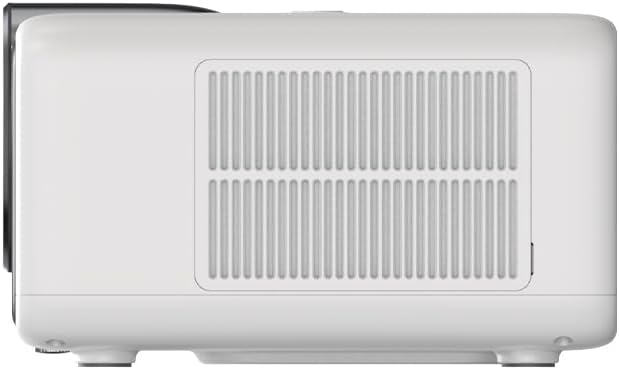
Figure 3.2: Rear panel of the projector, displaying available ports. Note: Actual ports may vary slightly by region or production batch. This model typically includes HDMI, USB, and a 2.5mm Audio Jack.
- HDMI: Connect to external video sources such as Blu-ray players, gaming consoles, or computers.
- USB: Pro připojení paměťových zařízení USB pro přehrávání médií files.
- 2.5mm audio jack: Pro připojení externích audio zařízení, jako jsou sluchátka nebo reproduktory.
4. Nastavení
4.1. Vybalení a první kontrola
- Opatrně vyjměte projektor a veškeré příslušenství z obalu.
- Check for any signs of damage during transit. If damage is found, contact your retailer immediately.
- Ujistěte se, že je přítomno veškeré uvedené příslušenství.
4.2. Projector Placement
Optimal placement is crucial for the best viewzkušenosti.

Obrázek 4.1: Přample of projector placement and adjustable screen sizes (40" to 200").
- Vzdálenost: Position the projector at a suitable distance from the screen or wall to achieve your desired screen size (40 to 200 inches).
- Výška: Place the projector on a stable surface or mount it to project the image at the desired height.
- Montáž: The projector includes a mounting point on its base. Ensure any tripod or mount used is compatible with the projector's screw size and weight. Note that some standard tripod screws may not fit.
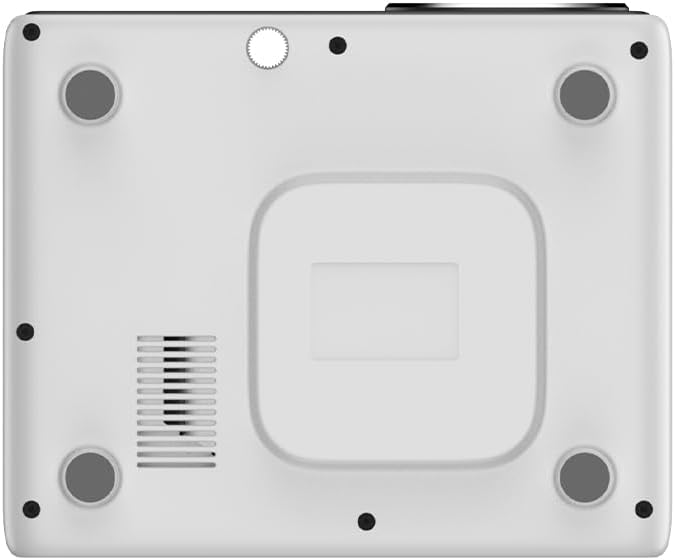
Obrázek 4.2: Spodní část view of the projector, indicating the mounting point and ventilation grilles.
4.3. Připojení napájení
- Připojte napájecí adaptér ke vstupnímu portu projektoru.
- Zapojte napájecí adaptér do vhodné elektrické zásuvky.
- Stisknutím tlačítka napájení na projektoru nebo dálkovém ovladači jej zapněte.
4.4. Počáteční nastavení a síťové připojení
- Upon first power-on, the projector will guide you through the initial Google TV setup process.
- Follow the on-screen instructions to select your language, connect to a Wi-Fi network (2.4G or 5G), and log in with your Google account.
- The projector features automatic focus and keystone correction. If the image is not perfectly clear or rectangular, you can access manual adjustment options in the settings menu.
5. Návod k obsluze
5.1. Navigace v Google TV
The projector runs on Google TV, providing a user-friendly interface for accessing content.

Figure 5.1: The Google TV interface on the Next Cine800S Projector, showing recommended content and installed applications.
- Use the remote control to navigate through menus, select apps, and control playback.
- The home screen provides personalized recommendations and quick access to your favorite streaming services.
5.2. Streamovací aplikace
Access popular streaming platforms directly from your projector.

Figure 5.2: Supported streaming applications and Google Play Store access.
- Pre-installed apps include Netflix, Prime Video, YouTube, and Disney+.
- Stáhněte si další aplikace z Obchodu Google Play.
- Ensure you are logged into your respective service accounts to access content.
5.3. Připojení externích zařízení
- HDMI: Connect your device to an HDMI port. The projector will automatically detect the input or you can manually select it from the input source menu.
- USB: Insert a USB drive into the USB port. The media player application will typically launch automatically, allowing you to browse and play supported media files (JPG, PNG, BMP, JPEG, MP3, M4A, MP2, WAV, FLAC, MP4, MOV, TS, DAT, F4V, 3GP).
5.4. Screen Mirroring
The projector supports Air Screen and Google Cast for mirroring content from your iOS or Android devices.
- Ujistěte se, že vaše mobilní zařízení a projektor jsou připojeny ke stejné síti Wi-Fi.
- On your mobile device, open the screen mirroring function (e.g., 'Screen Cast', 'Smart View', 'AirPlay').
- Vyberte projektor ze seznamu dostupných zařízení.
6. Údržba
Pravidelná údržba zajišťuje optimální výkon a prodlužuje životnost vašeho projektoru.
6.1. Čištění čočky

Figure 6.1: Close-up of the projector lens, which requires careful cleaning.
- Use a soft, lint-free cloth or a lens cleaning brush to gently remove dust from the lens surface.
- For stubborn smudges, use a specialized lens cleaning solution applied to a microfiber cloth, not directly to the lens.
- Avoid abrasive materials or excessive force, which can scratch the lens.
6.2. Cleaning Ventilation Ports
- Periodically check the ventilation grilles for dust accumulation.
- Use a soft brush or a vacuum cleaner with a brush attachment to gently clean the grilles.
- Do větracích otvorů nevkládejte žádné předměty.
6.3. Aktualizace softwaru
- Ujistěte se, že je projektor připojen k internetu.
- Navigate to the system settings to check for and install available software updates. Updates can improve performance and add new features.
7. Řešení problémů
Tato část se zabývá běžnými problémy, se kterými se můžete u projektoru setkat.
| Problém | Možná příčina | Řešení |
|---|---|---|
| Žádná síla | Power cord disconnected, power outlet issue | Zkontrolujte připojení napájecího kabelu. Zkuste jinou zásuvku. |
| Žádný obrázek | Input source not selected, device not connected, lens cap on | Ensure input source is correctly selected. Check HDMI/USB connections. Remove lens cap. |
| Obraz je rozmazaný | Zaostření není upraveno | Adjust focus manually using the projector's focus ring or through the settings menu if automatic focus is not sufficient. |
| Obraz je zkreslený/lichoběžníkový | Keystone not adjusted, projector not perpendicular to screen | The projector has automatic keystone correction. If the image is still distorted, access the manual keystone correction settings to fine-tune the image. |
| Žádný zvuk nebo špatná kvalita zvuku | Volume too low, external audio device not connected, speaker issue | Increase volume. Check external audio connections if used. If internal speaker sound is distorted at low volumes, consider connecting external speakers via the 2.5mm audio jack or Bluetooth. |
| Problémy s připojením Wi-Fi | Incorrect password, router issues, signal interference | Verify Wi-Fi password. Restart router. Ensure projector is within Wi-Fi range. |
| Dálkové ovládání nefunguje | Batteries low/dead, IR sensor blocked | Replace batteries. Ensure no obstructions between remote and projector's IR sensor. |
8. Specifikace
Detailed technical specifications for the Next Cine800S GoogleTV Projector.
| Funkce | Specifikace |
|---|---|
| Model | Cine800S |
| Technologie displeje | LED projektor |
| Nativní rozlišení | Full HD 1920x1080 |
| Jas | 800 ANSI Lumens |
| Velikost projekce | 40" — 200" |
| Dekódování videa | 4Kx2K @ 60fps |
| Soustředit | Automaticky nebo ručně |
| Korekce lichoběžníkového zkreslení | Automatický |
| Operační systém | Google TV, Android 14 |
| DRM Certification | Netflix L1, Prime Video, YouTube, Disney+ L1 |
| Wi-Fi | 802.11 a/b/g/n/ac (2.4G & 5G) |
| Bluetooth | 5.0 |
| BERAN | 2GB LPDDR4 |
| Interní úložiště | 8GB eMMC |
| Výstup reproduktoru | 12 W (4 W) |
| Porty | HDMI, 2.5mm Audio Jack, USB |
| Podporované formáty médií | JPG, PNG, BMP, JPEG, MP3, M4A, MP2, WAV, FLAC, MP4, MOV, TS, DAT, F4V, 3GP, FAT, NTFS |
| Optický mechanismus | Dust-Sealed System |
| Zrcadlení obrazovky | Air Screen, Google Cast (iOS & Android) |
9. Záruka a podpora
For warranty information, please refer to the documentation provided with your purchase or visit the official Next website. For technical support, product inquiries, or service requests, please contact Next customer service through their official channels.
Při kontaktování podpory mějte po ruce účtenku o koupi a sériové číslo produktu.