
Zavedení
Thank you for choosing the CRUA 34-inch Curved Gaming Monitor. This manual provides essential information for setting up, operating, maintaining, and troubleshooting your new monitor. Please read this manual thoroughly before use to ensure optimal performance and to prevent damage.

Obrázek: Přední strana view of the CRUA 34-inch Curved Gaming Monitor.
Obsah balení
Ověřte, zda jsou v balení přítomny všechny níže uvedené položky:
- CRUA 34-inch Curved Gaming Monitor
- Stojan na monitor (základna a krk)
- Napájecí adaptér a kabel
- HDMI kabel
- Kabel DisplayPort (DP)
- Uživatelská příručka
- Montážní šrouby (pro montáž stojanu)
Nastavení
1. Sestavení stojanu
- Opatrně vyjměte monitor z obalu a položte jej na měkký povrch, aby byl chráněn.
- Připevněte krk stojanu k panelu monitoru pomocí dodaných šroubů.
- Připevněte základnu stojanu k krku stojanu.
- Sestavený monitor umístěte na stabilní, rovný povrch.
2. Propojovací kabely
Připojte potřebné kabely k zadním portům monitoru:
- Napájecí kabel: Připojte napájecí adaptér ke vstupu stejnosměrného proudu monitoru a poté do elektrické zásuvky.
- Video vstup: Connect either an HDMI cable (HDMI 2.0) or a DisplayPort cable (DP 1.4) from your computer's graphics card to the corresponding port on the monitor.
- Zvukový výstup: If using external speakers, connect them to the 3.5mm audio output jack.
3. Montáž na stěnu (volitelné)
The monitor supports VESA 100x100mm wall mounts. Remove the stand before attaching a compatible wall mount bracket (not included).

Obrázek: Zadní view of the monitor detailing HDMI, DP, Audio, DC ports, and the 100x100mm VESA wall bracket area.
Návod k obsluze
1. Zapnutí/vypnutí
Stisknutím tlačítka napájení, které se obvykle nachází na spodní nebo zadní straně monitoru, jej zapnete nebo vypnete. Kontrolka napájení se rozsvítí, když je monitor zapnutý.
2. Nabídka na obrazovce (OSD).
Use the control buttons (joystick or individual buttons) located on the monitor to navigate the OSD menu. This menu allows you to adjust various display settings.
3. Úprava nastavení zobrazení
V nabídce OSD můžete upravovat nastavení, jako například:
- Jas/kontrast: Upravte celkovou úroveň jasu a kontrastu.
- Nastavení barev: Jemné doladění teploty barev, gamy a jednotlivých hodnot RGB.
- Vstupní zdroj: Ručně vyberte mezi vstupy HDMI a DisplayPort.
- Obnovovací frekvence: Ensure your system is configured to utilize the monitor's 165Hz refresh rate for smooth visuals.
- AMD FreeSync: Enable or disable FreeSync to synchronize the monitor's refresh rate with your GPU's frame rate, reducing screen tearing and stuttering.
Vlastnosti
The CRUA 34-inch Curved Gaming Monitor is designed to provide an immersive visual experience with high performance and versatile connectivity.
- 34-inch UltraWide WQHD Display: Experience a vast panoramic view with a 3440x1440 resolution and a 21:9 aspect ratio. This provides ample screen space for multitasking, content creation, and immersive gaming.
- Obnovovací frekvence 165 Hz a AMD FreeSync: Enjoy ultra-smooth gameplay and responsive visuals with a high 165Hz refresh rate. AMD FreeSync technology eliminates screen tearing and motion blur by synchronizing the monitor's refresh rate with your graphics card.
- 3800R Ultra-Curved Immersion: The 3800R curvature wraps the screen around your natural field of view, enhancing immersion and providing a more comfortable viewing experience during extended sessions.
- Reprodukce zářivých barev: The VA panel offers 120% sRGB color gamut coverage, 16.7 million display colors, 355 cd/m² brightness, and a 4000:1 contrast ratio, delivering rich, accurate, and vivid visuals.
- Integrated Speakers & Flexible Connectivity: Built-in speakers provide convenient audio without additional hardware. Multiple connectivity options include HDMI 2.0 and DisplayPort 1.4 inputs, ensuring compatibility with various devices.
- Ergonomický design: The stand supports tilt adjustment for comfortable viewing angles. VESA 100x100mm compatibility allows for flexible mounting options in home offices, gaming rooms, or studios.

Image: Visual comparison demonstrating the higher detail of UWQHD (3440x1440) resolution versus FHD (1920x1080).

Image: Depiction of 165Hz refresh rate and the visual difference with AMD FreeSync enabled versus disabled, showing reduced tearing.
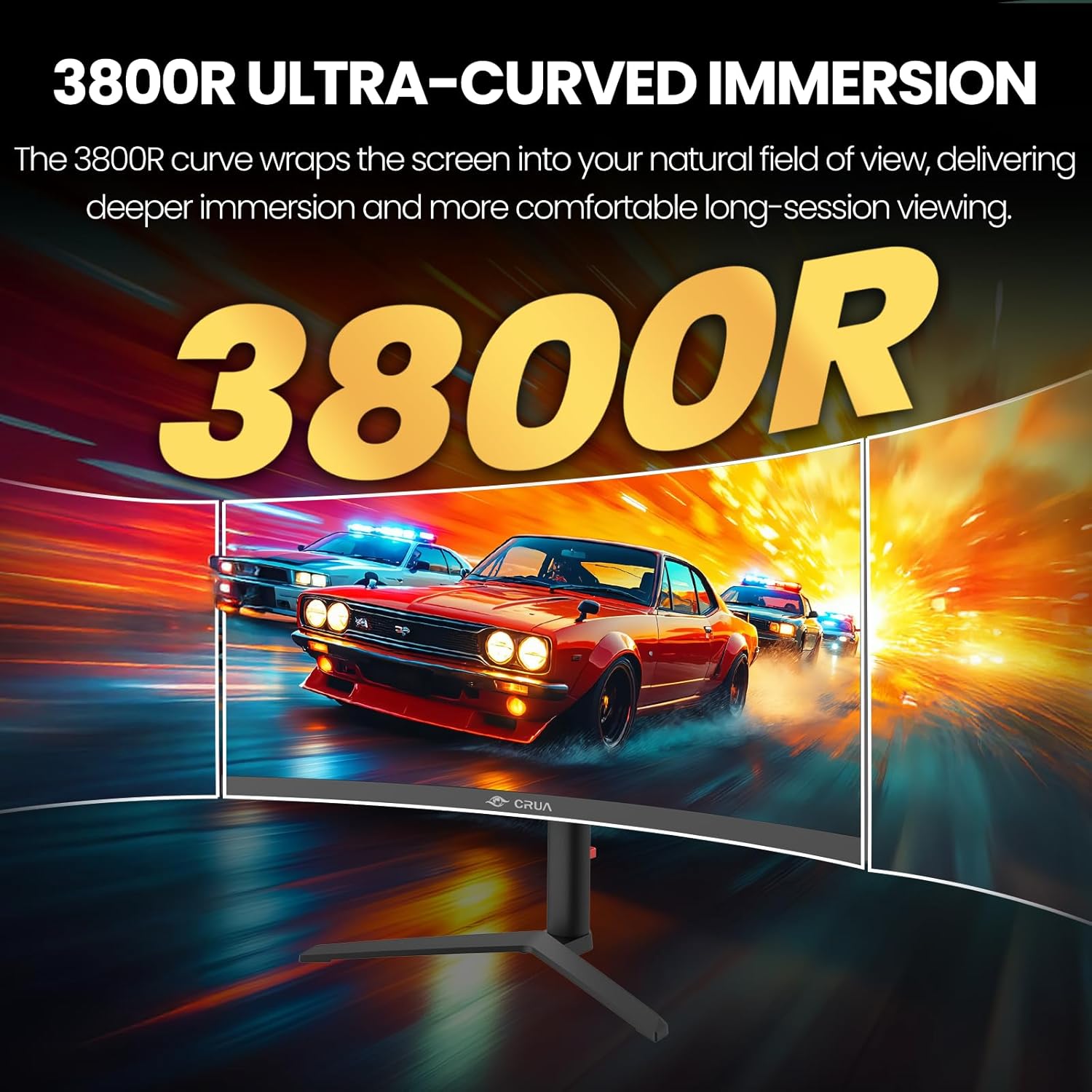
Image: Visual representation of the 3800R ultra-curved screen, demonstrating how it enhances immersion.
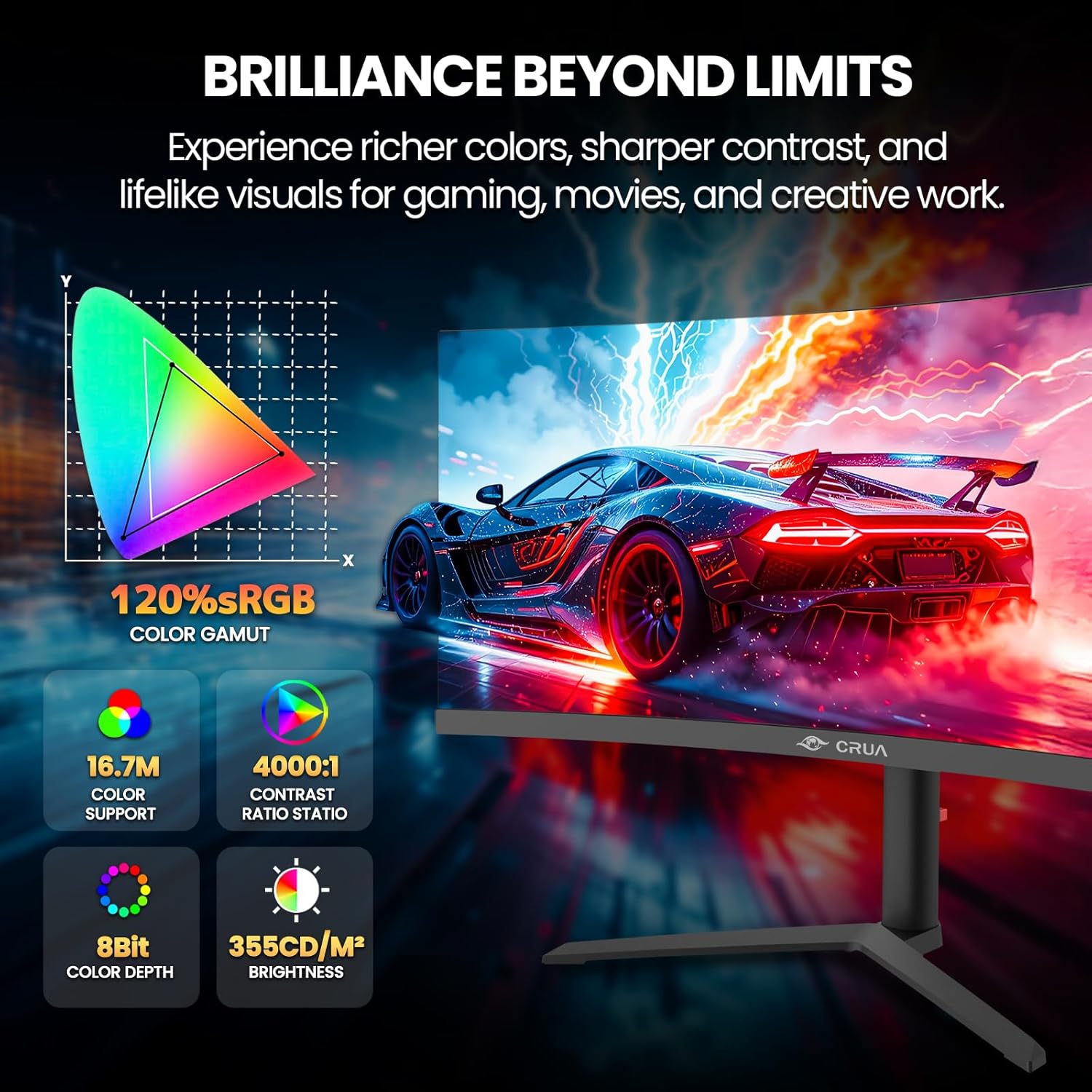
Image: Details on the monitor's color performance, highlighting 120% sRGB, 16.7 million colors, 4000:1 contrast ratio, and 355 cd/m² brightness.
Specifikace
| Funkce | Specifikace |
|---|---|
| Značka | CRUA |
| Číslo modelu | CR340QA |
| Velikost obrazovky | 34 palců |
| Rezoluce | 3440 x 1440 (WQHD ultraširokoúhlý) |
| Poměr stran | 21:9 |
| Zakřivení | 3800R |
| Typ panelu | VA |
| Obnovovací frekvence | 165 Hz |
| Doba odezvy | 1 ms |
| Jas | 355 cd/m² |
| Kontrastní poměr | 4000:1 |
| Barevný gamut | 120% sRGB |
| Viewúhel | 178° (H) / 178° (V) |
| Technologie adaptivní synchronizace | AMD FreeSync |
| Konektivita | 2x HDMI 2.0, 2x DisplayPort 1.4, 1x 3.5mm audio výstup |
| Vestavěné reproduktory | Ano |
| Kompatibilita s montáží VESA | 100 x 100 mm |
| Rozměry (D x Š x V) | 10.2 x 81.3 x 35.6 cm (přibližně) |
| Hmotnost | 20 liber (přibližně) |
Odstraňování problémů
Pokud se s monitorem setkáte s problémy, podívejte se na následující běžné problémy a jejich řešení:
- Bez napájení:
- Ujistěte se, že je napájecí kabel pevně připojen jak k monitoru, tak k funkční elektrické zásuvce.
- Ověřte, zda napájecí adaptér funguje správně.
- Bez signálu:
- Check that the HDMI or DisplayPort cable is firmly connected to both the monitor and your computer.
- Vyberte správný vstupní zdroj pomocí nabídky OSD.
- Ensure your computer's graphics card is properly installed and drivers are up to date.
- Blikající nebo zkreslený obraz:
- Zkontrolujte video kabel, zda není poškozený nebo zda nejsou uvolněné spoje. Pokud je k dispozici, zkuste jiný kabel.
- Upravte nastavení obnovovací frekvence v počítači.
- Disable or enable AMD FreeSync in the OSD menu to see if it resolves the issue.
- Žádný zvuk z vestavěných reproduktorů:
- Ensure the monitor's volume is not muted or set too low in the OSD menu.
- Check your computer's audio output settings to ensure the monitor is selected as the playback device.
Údržba
Proper maintenance helps prolong the life of your monitor:
- Čištění obrazovky: Obrazovku jemně otřete měkkým hadříkem, který nepouští vlákna. Na odolné skvrny použijte čisticí roztok určený pro monitory nanesený na hadřík, nikoli přímo na obrazovku.
- Čištění Casing: K čištění monitoru používejte měkký, suchý hadřík casing. Vyhněte se abrazivním čisticím prostředkům nebo rozpouštědlům.
- Větrání: Abyste zabránili přehřátí, ujistěte se, že ventilační otvory monitoru nejsou zablokované.
- Vypnutí, když se nepoužívá: Turn off the monitor when not in use for extended periods to save energy and extend its lifespan.
Záruka a podpora
CRUA is committed to providing high-quality computer monitors and premium customer service. If you have any questions, concerns, or require assistance with your product, please do not hesitate to contact our support team. We are dedicated to helping our customers and resolving any issues you may encounter.
Please refer to your purchase documentation or the official CRUA webkonkrétní záruční podmínky a kontaktní informace naleznete na webových stránkách.