
1. Přesview
The Zebra TC52 is a wireless Android handheld device designed for efficient 1D, 2D, and QR code barcode scanning. This device offers a familiar Android operating system experience with access to various applications, making it suitable for diverse business environments. It is built for durability and ease of use, providing a reliable solution for data capture tasks.
Klíčové vlastnosti:
- Budget-Friendly & Durable: Designed to balance durability with cost-effectiveness for business applications.
- Versatile Scanning Capabilities: Supports scanning of 2D, 1D, and QR codes, accommodating a broad range of barcode formats.
- Android 14 with Play Store Access: Provides a user-friendly Android experience with access to a wide variety of applications for enhanced functionality.
- Nabíječka v ceně: Comes with a charger to ensure the device remains powered for continuous operation.
2. Komponenty produktu
The Zebra TC52 package includes the following main components:
- Zebra TC52 Handheld Barcode Scanner
- Nabíjecí kabel
- Napájecí adaptér
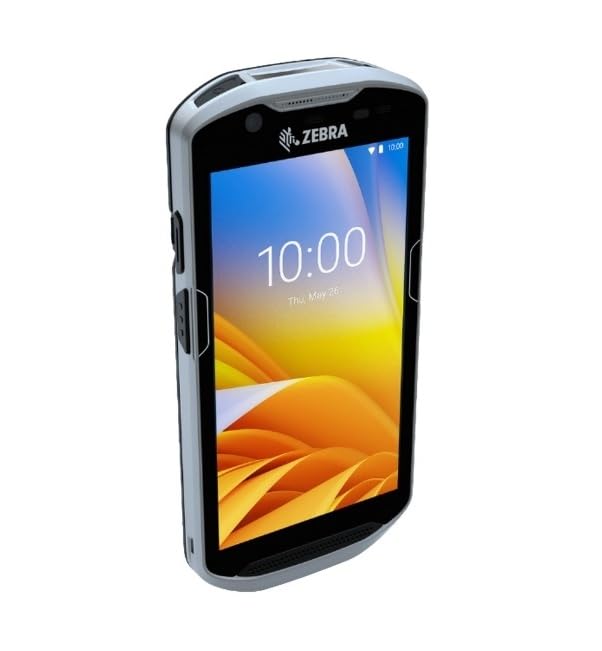
Obrázek 2.1: Přední strana view of the Zebra TC52 handheld barcode scanner, showing the screen and an active scanning beam.

Obrázek 2.2: Spodní část view of the Zebra TC52, highlighting the integrated barcode scanner module.
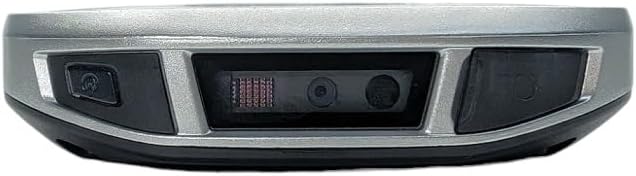
Figure 2.3: The Zebra TC52 handheld barcode scanner shown alongside its charging cable and power adapter.
3. Nastavení
3.1. Počáteční nabíjení
- Connect the charging cable to the USB-C port on the bottom of the TC52 device.
- Zapojte napájecí adaptér do standardní elektrické zásuvky.
- Allow the device to charge completely before first use. The charging indicator light will typically change color or turn off when fully charged.
3.2. Zapnutí/vypnutí
- Zapnutí: Press and hold the Power button (usually located on the side) until the Zebra logo appears on the screen.
- Vypnutí: Stiskněte a podržte tlačítko Napájení, dokud se nezobrazí nabídka vypnutí. Vyberte „Vypnout“ a potvrďte.
3.3. Síťové připojení
- Na domovské obrazovce přejetím prstem shora dolů přejdete na panel Rychlé nastavení.
- Klepnutím na ikonu Wi-Fi povolíte Wi-Fi.
- Klepnutím a podržením ikony Wi-Fi otevřete nastavení Wi-Fi.
- Vyberte požadovanou síť a v případě potřeby zadejte heslo.
4. Návod k obsluze
4.1. Základní navigace
- Domovská obrazovka: Access applications and widgets.
- Zásuvka aplikace: Přejeďte prstem ze spodní části obrazovky nahoru na view všechny nainstalované aplikace.
- Oznámení a rychlé nastavení: Přejetím prstem dolů od horního okraje obrazovky získáte přístup k oznámením a přepínačům rychlého nastavení.
4.2. Skenování čárových kódů
- Otevřete skenovací aplikaci na svém zařízení.
- Namiřte okénko skeneru (umístěné v horní části zařízení) směrem k čárovému kódu.
- Press and hold one of the scan buttons (typically on the sides of the device) to activate the scanning beam.
- Ensure the scanning beam covers the entire barcode. A successful scan is usually indicated by an audible beep and/or a visual confirmation on the screen.
- Uvolněte tlačítko skenování.
Video 4.1: This video demonstrates the basic operation of the Zebra TC52 handheld scanner, including powering on, navigating the Android interface, and using the scanning function.
Video 4.2: Toto video stručně shrnujeview of the Zebra TC52's rugged design and scanning capabilities, showing it in a typical operational environment.
5. Údržba
5.1. Čištění zařízení
- Použijte měkký hadřík, který nepouští vlákna dampVnější povrch zařízení otřete vodou nebo jemným čisticím roztokem.
- For the display, use a screen-specific cleaner and a microfiber cloth to avoid scratches.
- Nepoužívejte abrazivní čisticí prostředky, rozpouštědla ani aerosolové spreje přímo na zařízení.
5.2. Péče o baterie
- Charge the device regularly to maintain optimal battery health.
- Vyhněte se častému úplnému vybíjení baterie.
- Pokud zařízení delší dobu nepoužíváte, skladujte jej na chladném a suchém místě.
5.3. Aktualizace softwaru
Regularly check for and install software updates to ensure optimal performance, security, and access to the latest features. Updates can typically be found in the device's settings under "System" or "About phone."
6. Řešení problémů
6.1. Zařízení se nezapíná
- Ensure the battery is sufficiently charged. Connect the device to the charger and wait a few minutes before attempting to power on again.
- Perform a soft reset by holding down the Power button for 10-15 seconds.
6.2. Barcode Scanner Not Working
- Verify that the scanning application is open and active.
- Check for any obstructions on the scanner window and clean if necessary.
- Ujistěte se, že čárový kód není poškozený nebo špatně vytištěný.
- Restartujte zařízení.
6.3. Connectivity Issues (Wi-Fi)
- Toggle Wi-Fi off and on in the Quick Settings.
- Forget the network and reconnect, ensuring the correct password is entered.
- Restart your Wi-Fi router if other devices are also experiencing connectivity issues.
7. Specifikace
| Funkce | Detail |
|---|---|
| Značka | Zebra (Manufacturer: Symbol) |
| Model | TC52 |
| Schopnost skenování | 2D/1D/QR Code Barcode Scanner |
| Operační systém | Android (Version not specified, but implies modern Android with Play Store access) |
| Konektivita | Bezdrátový |
| Zahrnuté příslušenství | Nabíječka |
| GTIN | 611393754717 |
| ASIN | B0GKB5YQ3F |
8. Záruka a podpora
8.1. Obnovená záruka Amazonu
This product is part of the Amazon Renewed program and is backed by the Amazon Renewed Guarantee. This typically includes a 90-day return policy for refund or replacement if the product does not work as expected.
8.2. Technická podpora
For technical assistance or further inquiries regarding your Zebra TC52 device, please refer to the official Zebra support resources or contact the seller, Tekswamp LLC, for specific support related to your renewed product.