
1. Důležité bezpečnostní informace
Please read all safety instructions before using the printer to ensure safe and proper operation. Keep this manual for future reference.
- Nevystavujte tiskárnu vodě ani nadměrné vlhkosti.
- Avoid extreme temperatures. Operate and store the printer in a cool, dry environment.
- Use only the provided charging cable and approved power adapters.
- Nepokoušejte se tiskárnu rozebírat ani opravovat sami. Požádejte o pomoc zákaznickou podporu.
- Udržujte tiskárnu mimo dosah dětí.
2. Konec produktuview
The Bewinner Portable Pocket Printer is a compact and lightweight thermal label printer designed for on-the-go printing needs. It connects wirelessly to smartphones and tablets via an app, offering a variety of templates for labels, lists, and messages.

The Bewinner Portable Pocket Printer, a compact thermal label printer.
Klíčové vlastnosti:
- Přenosný design: Kompaktní a lehký pro snadné přenášení.
- Bezdrátové připojení: Seamless connection to iOS and Android smartphones via app.
- Rich Functions: One-click printing with various templates for labels, lists, and messages.
- Víceúčelové použití: Ideal for clothing and jewelry labels, price tags, address labels, QR codes, and study aids.
- Safe Printing: Inkless thermal printing technology for clear prints without odors.
3. Obsah balení
Ujistěte se, že v balení jsou přítomny všechny položky:
- 1 x Portable Thermal Printer
- 1 x nabíjecí kabel
- 1 x Uživatelská příručka
4. Nastavení
4.1 Nabíjení tiskárny
Before initial use, fully charge the printer. Connect the provided Type-C charging cable to the printer's charging port and plug the other end into a compatible USB power adapter (not included).
- Kontrolka nabíjení bude ukazovat stav nabíjení.
- Plné nabití obvykle trvá přibližně 2–3 hodiny.
4.2 Instalace termopapíru
The printer uses thermal paper rolls with a size of approximately 57x50mm (2.2x2.0 inches).
- Open the printer's cover by gently pressing the release button or lifting the designated area.
- Vložte roli termopapíru do přihrádky a ujistěte se, že tisková strana papíru směřuje k tiskové hlavě.
- Pull a small portion of the paper out of the printer's exit slot.
- Pevně zavřete kryt tiskárny, dokud nezacvakne na místo.

View of the printer with its cover open, demonstrating the correct way to install the thermal paper roll.
4.3 Instalace aplikace
The Bewinner Portable Pocket Printer operates via the 'Eleph-label' mobile application.
- Hledat the 'Eleph-label' app on your device's app store (e.g., Apple App Store for iOS, Google Play Store for Android).
- Stáhněte a nainstalujte aplikaci.
- Follow the on-screen instructions within the app to complete the setup.
For more information or support regarding the app, you may visit: http://gzhztz.com/en/?case/105.html
5. Návod k obsluze
5.1 Zapnutí/vypnutí
- Zapnutí: Stiskněte a podržte tlačítko napájení, dokud se nerozsvítí kontrolka.
- Vypnutí: Znovu stiskněte a podržte tlačítko napájení, dokud kontrolka nezhasne.
5.2 Připojení k vašemu zařízení
The printer connects to your smartphone or tablet via Bluetooth through the 'Eleph-label' app.
- Ujistěte se, že je tiskárna zapnutá a v dosahu vašeho mobilního zařízení.
- Open the 'Eleph-label' app on your smartphone or tablet.
- Within the app, navigate to the device connection settings.
- Select the Bewinner printer from the list of available Bluetooth devices to establish a connection.

The printer's wireless connectivity with both smartphones and tablets for convenient operation.

The printer connected wirelessly to a smartphone, demonstrating the mobile printing function.
5.3 Tisk štítků
Once connected, you can begin creating and printing labels using the 'Eleph-label' app.
- Open the 'Eleph-label' app and select a template or create a new label design.
- Customize the text, images, and layout as desired. The app offers various material themes and options for different label types.
- Confirm the label content and settings.
- Initiate printing with the one-click print function within the app.
- The printer will automatically print the label. Tear off the printed label along the serrated edge.
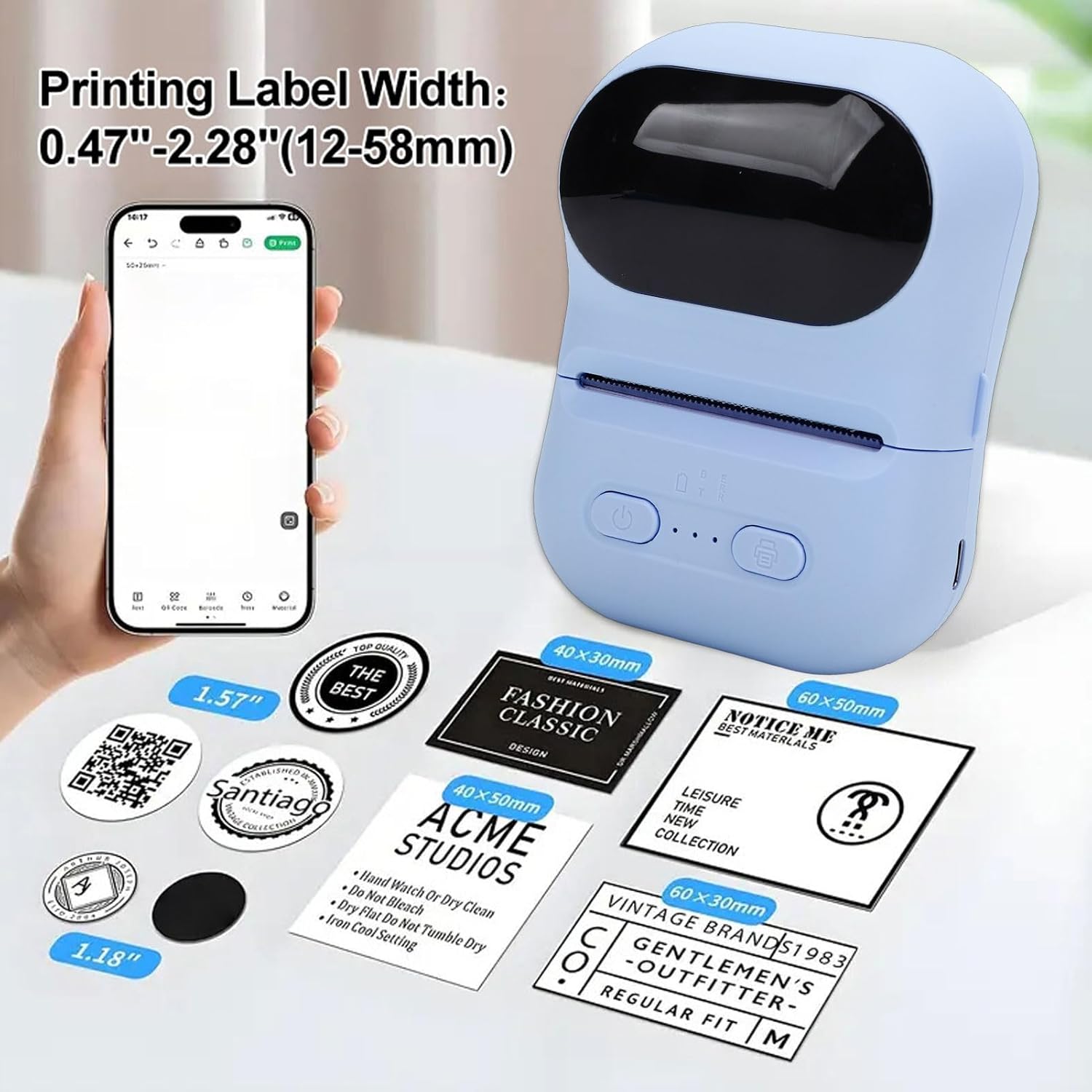
Examples of labels printed by the device, illustrating different widths and designs.

Illustrations of the printer's versatility for small business applications, including price tags, clothing labels, address labels, and QR codes.
6. Údržba
6.1 Čištění tiskové hlavy
Pro zachování kvality tisku pravidelně čistěte tiskovou hlavu.
- Ujistěte se, že je tiskárna vypnutá.
- Otevřete kryt tiskárny.
- Jemně otřete tiskovou hlavu vatovým tamponem, lehceampzakončené isopropylalkoholem.
- Před zavřením krytu a zapnutím tiskárny nechte tiskovou hlavu zcela vyschnout.
6.2 Storing the Printer and Thermal Paper
- Tiskárnu skladujte na chladném a suchém místě mimo dosah přímého slunečního záření a extrémních teplot.
- Keep thermal paper rolls in their original packaging or in a dark, dry place to prevent premature fading or damage.
7. Řešení problémů
Pokud se s tiskárnou setkáte s problémy, podívejte se na následující běžné problémy a jejich řešení:
| Problém | Možná příčina | Řešení |
|---|---|---|
| Tiskárna se nezapne. | Slabá baterie; Tlačítko napájení nebylo správně stisknuto. | Nabijte tiskárnu; Stiskněte a několik sekund podržte tlačítko napájení. |
| Nelze se připojit k aplikaci. | Bluetooth is off; Printer is out of range; App issue. | Ensure Bluetooth is enabled on your device; Move printer closer; Restart the app and printer. |
| Poor print quality or blank prints. | Thermal paper installed incorrectly; Print head dirty; Low battery. | Reinstall paper with printing side facing up; Clean the print head; Charge the printer. |
| Zaseknutý papír. | Paper not aligned; Foreign object in paper path. | Open cover, remove jammed paper carefully, and reinstall correctly; Check for obstructions. |
8. Specifikace
| Funkce | Specifikace |
|---|---|
| Značka | Bewinner |
| Název modelu | Bewinnerwxo0u51g32-13 |
| Způsob tisku | Tepelný tisk |
| Parametr tisku | 200 DPI |
| Typ baterie | Lithium-iontová baterie |
| Kapacita baterie | 1100 XNUMX mAh |
| Nabíjecí rozhraní | Typ C |
| Způsob připojení | Bluetooth (via Eleph-label APP) |
| Velikost papíru | Approx. 57x50mm (2.2x2.0 inches) |
| Rozměry produktu | 5.51"H x 3.94"Š x 2.76"V |
9. Informace o záruce
This product is covered by a manufacturer warranty for 90 days from the date of purchase. Please retain your proof of purchase for warranty claims. The warranty covers defects in materials and workmanship under normal use.
Záruka se nevztahuje na:
- Škody způsobené nehodou, zneužitím, nesprávným použitím, povodní, požárem, zemětřesením nebo jinými vnějšími příčinami.
- Damage caused by operating the product outside the permitted or intended uses described by Bewinner.
- Damage caused by service performed by anyone who is not a representative of Bewinner.
10. Zákaznická podpora
For further assistance, technical support, or warranty inquiries, please contact Bewinner customer service through the retailer where the product was purchased or refer to the official Bewinner webstránky pro kontaktní informace.
Please have your model number (Bewinnerwxo0u51g32-13) and proof of purchase ready when contacting support.