
1. Úvod
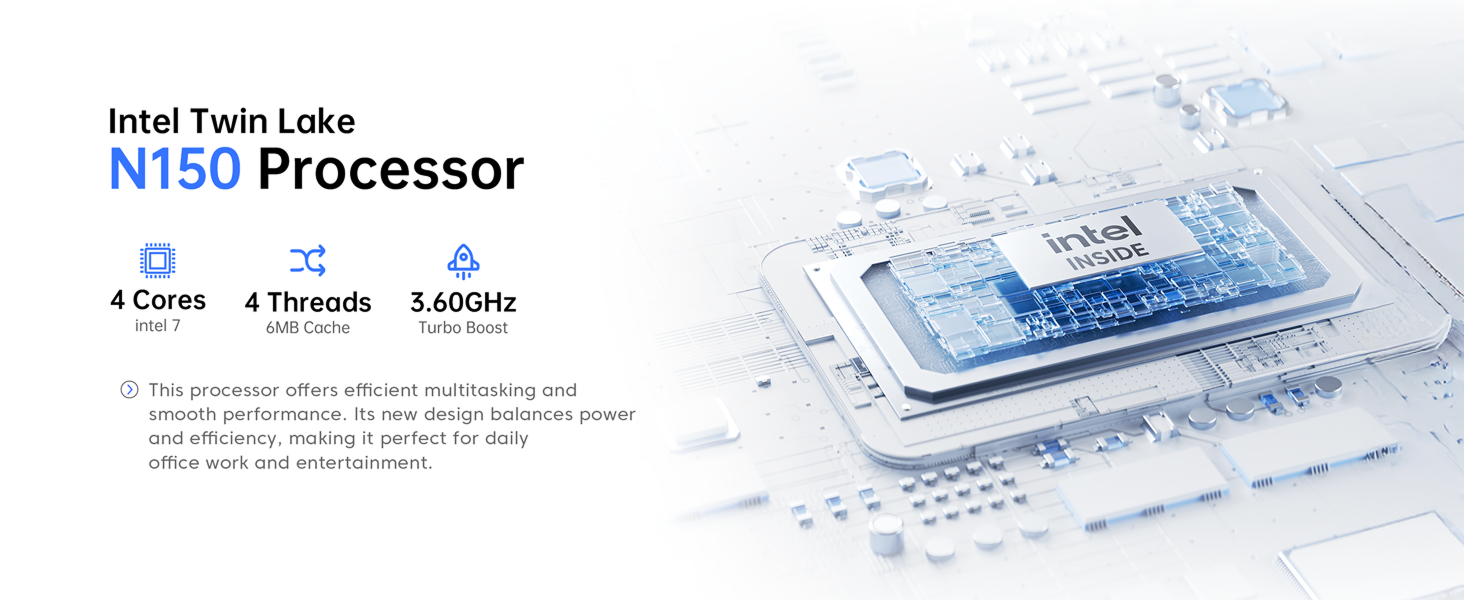
Thank you for choosing the ACEMAGIC V1 Mini PC. This compact and powerful desktop computer is designed for various applications, from office tasks and education to multimedia and light gaming. Featuring an Intel N150 processor, 16GB DDR4 RAM, and a 512GB SSD, it offers efficient performance in a small form factor. This manual provides essential information for setting up, operating, maintaining, and troubleshooting your device.
2. Obsah balení
Zkontrolujte prosím balení, zda neobsahuje následující položky:
- 1 x ACEMAGIC V1 Mini PC
- 1 x napájecí adaptér
- 1 x HDMI kabel
- 1 x držák VESA se šrouby
- 1 x Uživatelská příručka (tento dokument)

Image: Contents of the ACEMAGIC V1 Mini PC package, showing the mini PC unit, power adapter, HDMI cable, VESA mount, and user manual.
3. Konec produktuview
3.1 Přední panel
- Vypínač: Stiskněte pro zapnutí/vypnutí zařízení.
- Kontrolka napájení: Indikuje stav napájení.
- 2x USB 3.2: Connect USB devices such as keyboards, mice, or external storage.
- 3.5mm audio jack: Připojte sluchátka nebo reproduktory.
3.2 Zadní panel
- LAN port: Připojte se k drátové síti pomocí ethernetového kabelu.
- Port HDMI 2.0: Connect to a display device (monitor, TV) for video and audio output.
- Port DP 1.4: Connect to a display device for video and audio output.
- 2x USB 2.0: Připojte zařízení USB.
- Power Interface (DC IN): Připojte napájecí adaptér.

Image: Detailed diagram of the ACEMAGIC V1 Mini PC's front and rear panels, highlighting the power button, USB 3.2 ports, audio jack, LAN port, HDMI 2.0, DP 1.4, USB 2.0 ports, and power input.
4. Pokyny k nastavení
4.1 Počáteční připojení
- Připojení displeje: Connect your monitor or TV to the Mini PC using an HDMI cable or DisplayPort cable. The device supports dual 4K displays via HDMI 2.0 and DP 1.4.
- Připojení periferií: Zapojte USB klávesnici a myš do dostupných USB portů.
- Připojte napájení: Connect the power adapter to the DC IN port on the rear panel of the Mini PC, then plug the adapter into a power outlet.
- Síťové připojení (volitelné): For a wired internet connection, connect an Ethernet cable to the LAN port. For wireless, ensure your WiFi network is available after booting.
4.2 First Boot and Operating System
Press the power button on the front panel. The power light will illuminate. The Mini PC comes with Windows 11 Pro pre-installed. Follow the on-screen instructions to complete the initial Windows setup, including language, region, network, and user account creation.

Image: The ACEMAGIC V1 Mini PC set up on a desk with a monitor, keyboard, and mouse, demonstrating its compact footprint and readiness for use.
4.3 Instalace držáku VESA
The ACEMAGIC V1 Mini PC includes a VESA mount (75x75mm) for discreet installation behind a monitor or on a wall. This allows you to save desk space and create an all-in-one computing experience.
- Attach the VESA mount bracket to the back of your VESA-compatible monitor or to a wall using the provided screws.
- Slide the Mini PC onto the mounted bracket until it clicks securely into place.
- Ensure all cables are connected before securing the Mini PC.
5. Návod k obsluze
5.1 Zapnutí/vypnutí
- Zapnutí: Stiskněte jednou tlačítko napájení.
- Vypnout: V systému Windows klikněte na Start > Napájení > Vypnout. Případně stiskněte a podržte tlačítko napájení po dobu 5 sekund pro vynucení vypnutí (používejte pouze v nezbytných případech).
5.2 Konektivita
- Wi-Fi 6: The Mini PC supports Wi-Fi 6 for fast wireless internet access. Connect via Windows network settings.
- Bluetooth 5.2: Connect Bluetooth-enabled devices such as headphones, speakers, or game controllers. Pair devices through Windows Bluetooth settings.
- Gigabitový Ethernet: For stable and high-speed wired network connections.
5.3 Rozšíření úložiště
The ACEMAGIC V1 Mini PC comes with a 512GB M.2 SSD. It supports expansion up to 2TB. To expand storage, you will need to open the chassis and install a compatible M.2 NVMe PCIe 3.0 SSD or M.2 SATA SSD. Refer to the detailed internal structure diagram for guidance.
Obrázek: Interní view of the ACEMAGIC V1 Mini PC, highlighting the 16GB DDR4 RAM module and the 512GB M.2 SSD, indicating expandability up to 2TB.
6. Údržba
6.1 Chladicí systém
The Mini PC features an aluminum CNC shell and an upgraded axial fan for efficient heat dissipation, keeping temperatures under 45°C during typical 8-hour use. The fan operates quietly, typically below 22dB.

Image: A cutaway diagram illustrating the internal cooling technology and upgraded axial fan of the ACEMAGIC V1 Mini PC, showing air intake and exhaust for efficient heat management.
6.2 Obecná péče
- Keep the device in a clean, dry environment, away from direct sunlight and excessive heat.
- Nezakrývejte větrací otvory, abyste zajistili správné proudění vzduchu.
- Vnější povrch čistěte měkkým, suchým hadříkem. Nepoužívejte tekuté čisticí prostředky.
- Do not attempt to disassemble the device beyond accessible components for upgrades, as this may void the warranty.
7. Řešení problémů
If you encounter issues with your ACEMAGIC V1 Mini PC, please refer to the following common troubleshooting steps:
- Bez napájení:
- Ujistěte se, že je napájecí adaptér bezpečně připojen k Mini PC i k funkční zásuvce.
- Ověřte funkčnost elektrické zásuvky zapojením jiného zařízení.
- Bez displeje:
- Zkontrolujte, zda je kabel HDMI nebo DisplayPort pevně připojen k Mini PC i monitoru.
- Ensure the monitor is powered on and set to the correct input source (HDMI/DP).
- Zkuste jiný kabel displeje nebo monitor, pokud je k dispozici.
- Žádné internetové připojení:
- V případě kabelového připojení se ujistěte, že je ethernetový kabel správně připojen a že váš router funguje.
- For Wi-Fi, check if Wi-Fi is enabled in Windows settings and if you are connected to the correct network with the correct password.
- Restartujte router/modem.
- Pomalý výkon:
- Zavřete nepotřebné aplikace běžící na pozadí.
- Ujistěte se, že je systém Windows aktuální.
- Zkontrolujte, zda neobsahuje malware nebo viry.
- Verify that the cooling vents are not obstructed.
If these steps do not resolve your issue, please contact ACEMAGIC customer support for further assistance.
8. Specifikace
| Funkce | Specifikace |
|---|---|
| Značka | ACEMAGIC |
| Číslo modelu | V1 |
| Operační systém | Windows 11 Pro |
| Model CPU | Intel N150 (Twin Lake) |
| Rychlost CPU | Až 3.6 GHz |
| BERAN | 16 GB DDR4 |
| Skladování | 512GB M.2 SSD (rozšiřitelný až na 2 TB) |
| Grafický koprocesor | Grafika Intel UHD |
| Video výstup | HDMI 2.0, DP 1.4 (Dual 4K@60Hz support) |
| Konektivita | Wi-Fi 6, Bluetooth 5.2, gigabitový ethernet |
| USB porty | 2 3.2 x USB, 2 x USB 2.0 |
| Zvukový výstup | Zvukový konektor 3.5mm |
| Způsob chlazení | Air (Aluminum CNC shell, Axial Fan) |
| Spotřeba energie | 15 wattů (TDP) |
| Rozměry | 3.9 × 3.9 × 1.3 inches (Approx.) |
9. Záruka a podpora
9.1 Informace o záruce
The ACEMAGIC V1 Mini PC comes with a 2-letá záruka from the date of purchase. This warranty covers manufacturing defects and hardware malfunctions under normal use. Please retain your proof of purchase for warranty claims. The warranty does not cover damage caused by misuse, accidents, unauthorized modifications, or improper installation.
9.2 Zákaznická podpora
For technical assistance, warranty claims, or any questions regarding your ACEMAGIC V1 Mini PC, please contact our customer support team. We offer:
- Live Chat (24/7 instant support)
- Dedicated Phone Support
- E-mailová podpora
- Online Help Center (FAQs and guides)
Please visit the official ACEMAGIC website or refer to the contact information provided with your purchase for specific support channels.

Image: Visual representation of ACEMAGIC's customer support services, including icons for live chat, phone support, email support, and a help center.