
Zavedení
This manual provides detailed instructions for the ASHATA Desktop Barcode Scanner (Model B0GGZSVXTN). Please read this manual thoroughly before using the device to ensure proper operation, optimal performance, and longevity of the product. Keep this manual for future reference.
Bezpečnostní informace
- Do not expose the scanner to extreme temperatures, humidity, or direct sunlight.
- Avoid dropping the device from heights greater than 1.5 meters, although it is designed to be drop-proof up to this height.
- Do not attempt to disassemble or modify the scanner. This will void the warranty and may cause damage.
- Pro připojení používejte pouze dodaný kabel USB.
- Keep the scanning window clean to ensure accurate barcode reading.
Konec produktuview
The ASHATA Desktop Barcode Scanner is a high-performance device designed for efficient and accurate scanning of 1D and 2D barcodes. It features a CMOS sensor, auto-recognition capabilities, and voice prompts for successful scans.

Figure 1: ASHATA Desktop Barcode Scanner in use, highlighting its sensitive barcode scanning and convenient checkout features.
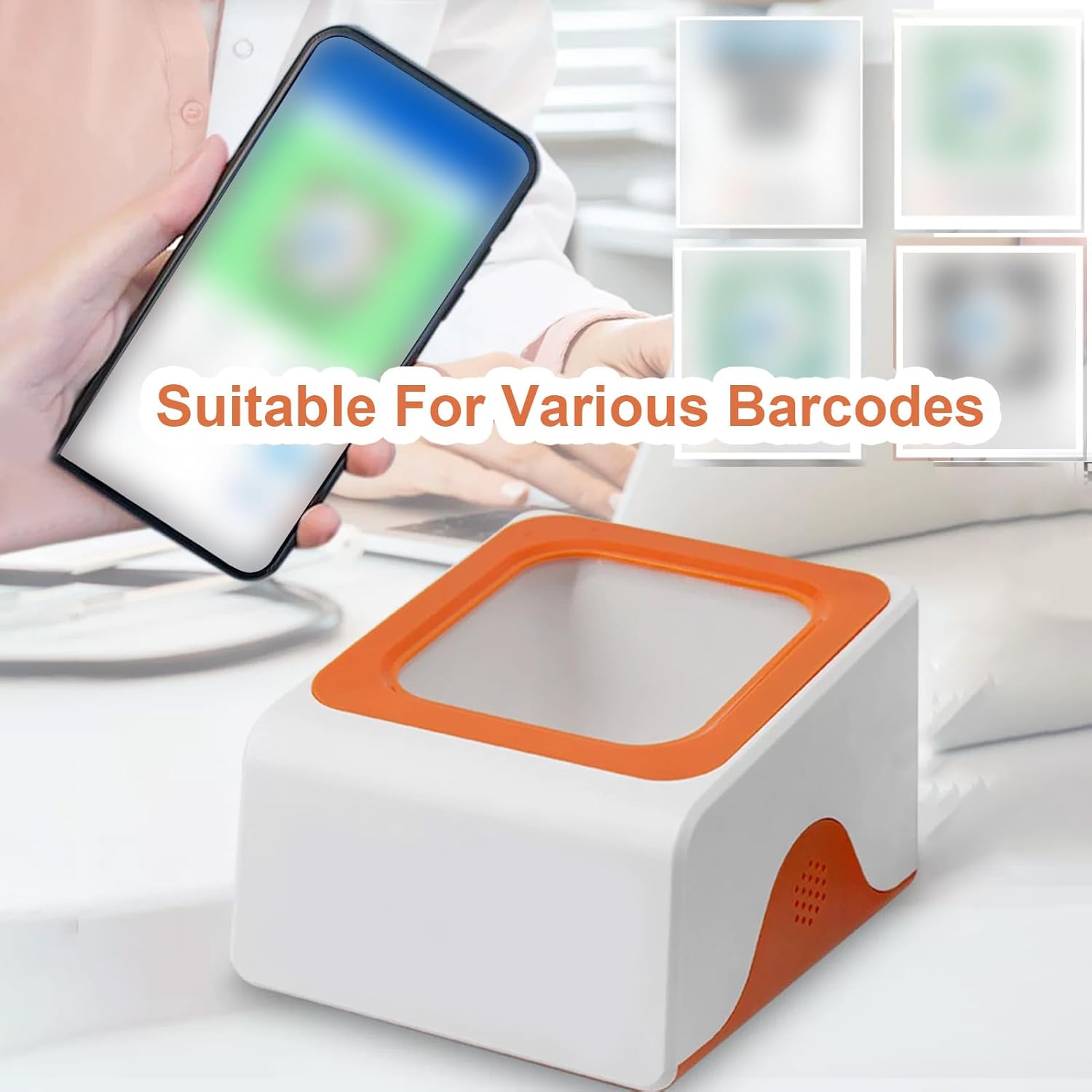
Figure 2: The scanner's ability to read various barcodes, including those on digital displays.

Figure 3: High-Definition Camera details, showing decoding speed and density.

Figure 4: Real-Person Voice Prompts indicating a successful scan.

Figure 5: Stable Structure, Shockproof and Drop-proof design.

Obrázek 6: Rozměry produktu.
Nastavení
Follow these steps to set up your ASHATA Desktop Barcode Scanner:
- Rozbalte zařízení: Opatrně vyjměte skener a veškeré příslušenství z obalu.
- Connect Power/Data Cable: Insert the USB cable into the designated port on the scanner. Connect the other end of the USB cable to an available USB port on your computer or POS system.
- Rozpoznávání systému: Your operating system should automatically detect and install the necessary drivers for the scanner. This may take a few moments.
- Umístění: Place the scanner on a stable, flat surface in a convenient location for scanning. Ensure the scanning window is unobstructed.
- Počáteční test: Open a text editor or a compatible application and scan a known barcode to confirm proper functionality.
Návod k obsluze
The ASHATA Desktop Barcode Scanner is designed for ease of use with its auto-induction feature.
- Automatické skenování: The scanner features an auto-induction mode. Simply place the barcode within the scanning window. The scanner will automatically detect the barcode and initiate the scan.
- Barcode Placement: Position the barcode flat and centered within the scanning window for optimal reading. The large scanning window provides flexibility for various barcode sizes and orientations.
- Hlasová výzva: Upon a successful scan, the device will emit a "Scan Successful" voice prompt, confirming that the barcode has been read.
- Podporované čárové kódy: The scanner supports all universal 1D and 2D barcodes, whether printed on labels, paper, or displayed on mobile/computer screens.
Údržba
To ensure the longevity and optimal performance of your scanner, follow these maintenance guidelines:
- Čištění skenovacího okna: Regularly clean the scanning window with a soft, lint-free cloth. For stubborn smudges, slightly dampen the cloth with water or a mild, non-abrasive cleaner. Do not spray liquids directly onto the scanner.
- Generální úklid: Otřete vnější povrch skeneru suchým nebo lehce navlhčeným hadříkem.amp hadříkem k odstranění prachu a nečistot.
- Skladování: When not in use for extended periods, store the scanner in a clean, dry environment away from direct sunlight and extreme temperatures.
Odstraňování problémů
| Problém | Možná příčina | Řešení |
|---|---|---|
| Skener nereaguje | Loose USB connection; Power issue; Driver not installed. | Check USB cable connection; Try a different USB port; Restart computer; Verify driver installation in device manager. |
| Cannot read barcode | Barcode damaged/unclear; Scanning window dirty; Incorrect barcode placement; Unsupported barcode type. | Ensure barcode is clear and undamaged; Clean scanning window; Adjust barcode position; Confirm barcode type is 1D/2D. |
| Žádná hlasová výzva | Voice prompt feature disabled (if configurable); Internal error. | Ensure scanner is functioning correctly; If problem persists, contact support. |
Specifikace
| Model | B0GGZSVXTN |
| Typ dekódování | CMOS rozlišení 640x480 |
| Světelný zdroj | Bílá LED |
| Barcode Contrast | ≥20 % |
| Rezoluce | ≥4mil/0.1mm |
| Supported Code System | All 1D/2D Universal Barcodes |
| Délka kabelu | 1.5 m / 4.92 stop |
| Velikost produktu | 11 x 9.5 x 6.6 cm / 4.33 x 3.74 x 2.6 palců |
| Hmotnost produktu | 198 g / 6.98 oz |
| Guard Grade | IP42 |
| Drop Proof | 1.5 m |
| Rozhraní | USB/RS232 (Wired Version) |
Záruka a podpora
ASHATA products are manufactured to high quality standards. For warranty information or technical support, please refer to the documentation included with your purchase or contact your retailer. Please have your product model number (B0GGZSVXTN) available when contacting support.