
Zavedení
This manual provides detailed instructions for the EPOMAKER Aula S102 PRO Membrane Gaming Keyboard. This keyboard features tri-mode wireless connectivity (2.4Ghz, Bluetooth, USB), a TFT screen, a multi-function volume knob, and RGB backlighting. Designed for both gaming and office use, it offers a full-size layout with a number pad and a quiet, comfortable typing experience thanks to its creamy silicone structure and adjustable height.
Co je v krabici
- AULA S102 PRO Wireless Keyboard
- Uživatelská příručka
- USB A-to-C Cable
Konec produktuview
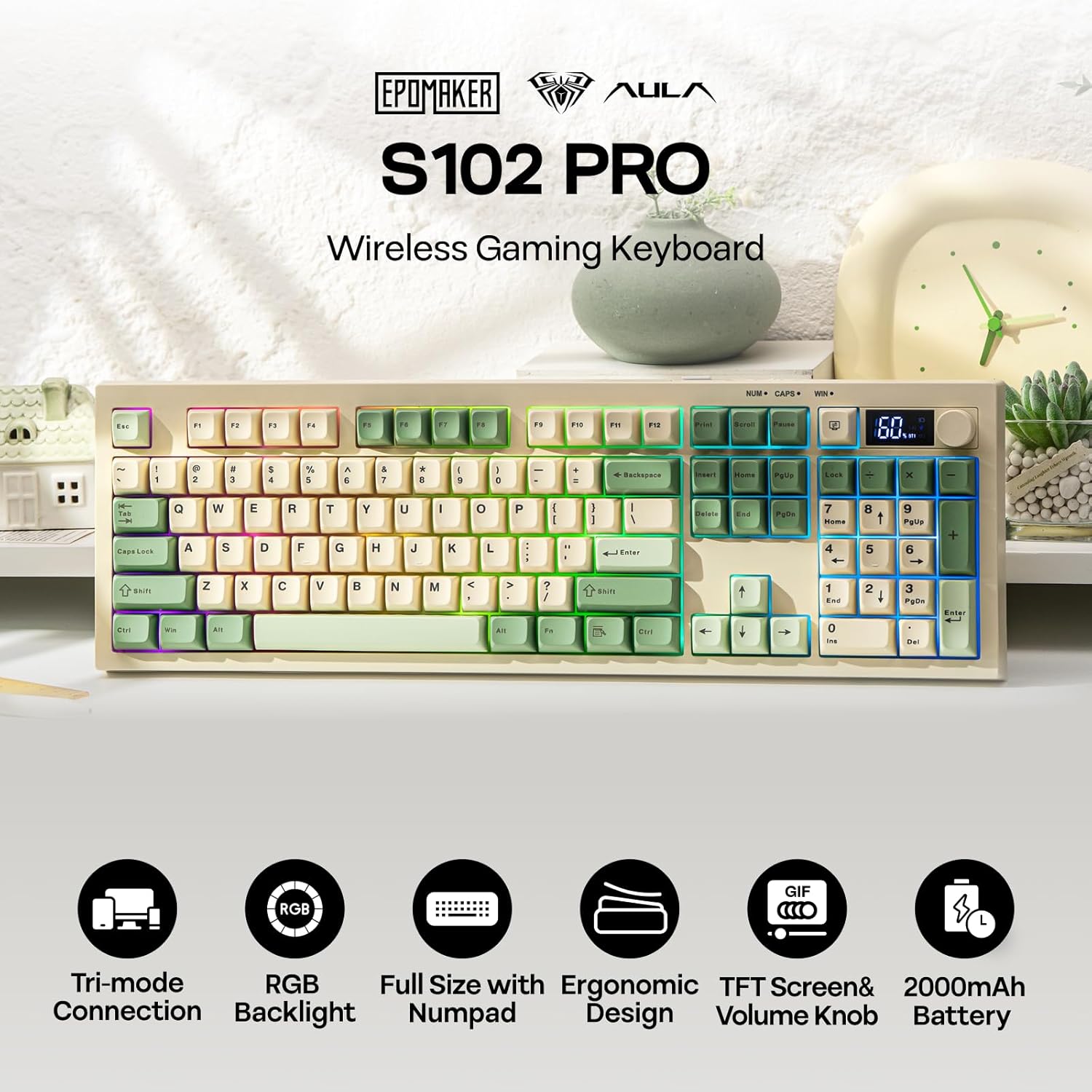
Obrázek 1: Nadview of the EPOMAKER Aula S102 PRO keyboard highlighting its tri-mode connection, RGB backlight, full size with numpad, ergonomic design, TFT screen & volume knob, and 2000mAh battery.

Obrázek 2: Detailní view of keyboard features including fixed key design, TFT screen and knob, 2-stage adjustable kickstand, convenient on/off switch, and ABS keycaps.

Obrázek 3: Illustration of the quiet and creamy membrane structure, emphasizing silent keystrokes for home, office, and co-working spaces.

Obrázek 4: Diagram showing tri-mode connectivity options: Bluetooth (FN+1/2), 2.4GHz (FN+3), and USB Cable (Plug and Play), compatible with Windows (FN+S) and Mac (FN+A).

Obrázek 5: Ukázka obrázkůasing the wireless membrane keyboard with clear tactile feedback, wear-resistant keycaps, and fixed key design.

Obrázek 6: Dynamic RGB backlight features with shortcuts for changing light effect (Fn+Enter), turning on/off backlight (Fn+Backspace), changing light color (Fn+\), and adjusting brightness/speed (Fn+Up/Down arrows).
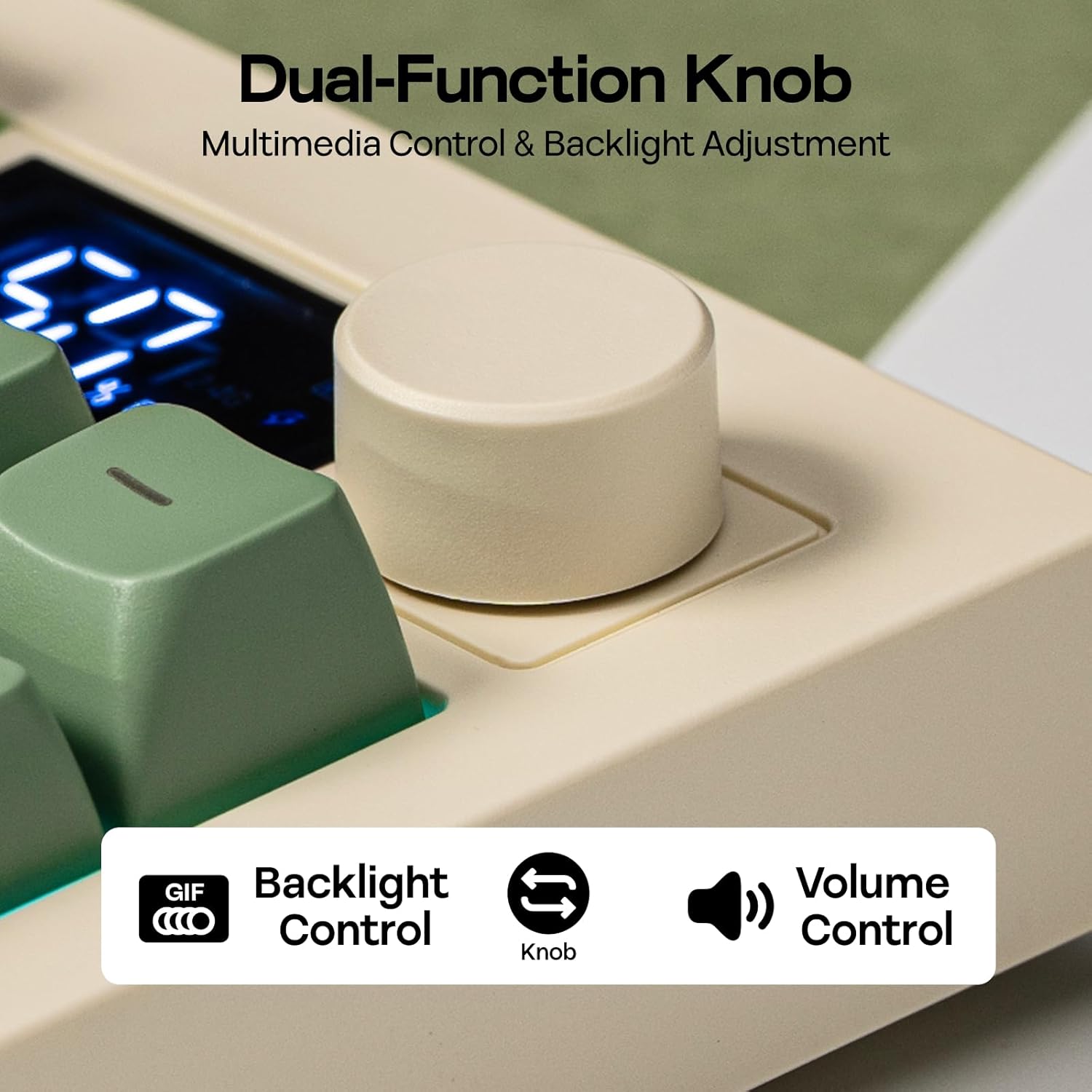
Obrázek 7: Close-up of the dual-function knob for multimedia control and backlight adjustment, indicating backlight control and volume control.

Obrázek 8: Technical specifications including length, width, height, weight, 100% functional compact US layout with 105 keys, and ergonomic height with R1-R4 key profiles.
Nastavení
1. Bezdrátové připojení 2.4G
- Ensure the keyboard's power switch is in the ON position.
- Dlouze stiskněte FN + 3# keys for approximately 3 seconds. The TFT screen will indicate 2.4G pairing mode.
- Vložte 2.4G USB přijímač do volného USB portu v počítači.
- The keyboard will automatically connect. The TFT screen will confirm successful connection.
1 video: Demonstrates how to connect the EPOMAKER Aula S102 PRO keyboard via 2.4G receiver and Bluetooth channels BT1/BT2.
2. Připojení Bluetooth (BT1 / BT2)
- Ensure the keyboard's power switch is in the ON position.
- For BT1, single press FN + 1!. For BT2, single press FN + 2@. The TFT screen will indicate the selected Bluetooth channel.
- To enter pairing mode, long press FN + 1! (nebo FN + 2@) for 3 seconds. The Bluetooth indicator on the TFT screen will flash.
- On your device (PC, Mac, tablet, phone), open Bluetooth settings and search for "AULA-S102Pro".
- Select the keyboard and click "Pair" to connect. The TFT screen will confirm successful connection.
3. Kabelové připojení USB
- Connect the provided USB A-to-C cable from your computer to the keyboard's USB-C port.
- The keyboard will be recognized automatically as a plug-and-play device.
4. Mac/Windows Compatibility
- To switch to Mac mode, press FN + A.
- To switch to Windows mode, press FN + S.
Návod k obsluze
1. Volume Knob Functionality
- Ovládání hlasitosti: Scroll the knob clockwise to increase volume, counter-clockwise to decrease volume.
- Ztlumit/Zapnout: Press the knob to mute or unmute audio.
2. RGB Backlight Adjustment
The keyboard's RGB backlighting can be adjusted using the knob or dedicated function key combinations.
Using the Knob:
- Hold the knob for 5 seconds to switch from volume control to brightness adjustment mode.
- Turn the knob clockwise to decrease backlight brightness.
- Turn the knob counter-clockwise to increase backlight brightness.
- Single tap the knob to cycle through various lighting effects.
Používání klávesových zkratek FN:
- FN + Backspace: Zapnutí/vypnutí podsvícení.
- FN + Enter: Cycle through 15 different RGB lighting effects.
- FN + \: Cycle through lighting colors (Red, Green, Blue, Purple, Yellow, Cyan).
- FN + šipka nahoru: Increase backlight brightness (cycles through 0% → 25% → 50% → 75% → 100%).
- FN + šipka dolů: Decrease backlight brightness (cycles through 100% → 75% → 50% → 25% → 0%).
- FN + šipka doleva: Decrease lighting speed (5 adjustable levels).
- FN + šipka vpravo: Increase lighting speed (5 adjustable levels).
2 video: Demonstrates how to toggle RGB backlights using both the knob and various shortcut key combinations.
3. Herní režim
- FN + W: Activates gaming mode, which converts the ASDW keys into arrow keys for convenient left-hand control during gameplay.
4. TFT obrazovka
- The integrated TFT screen displays essential information such as keyboard connection status (2.4G, BT1, BT2, Wired) and battery percentage.
5. Quiet Typing Demonstration
3 video: A short demonstration showcasing the silent typing sound of the S102 PRO membrane keyboard, highlighting its suitability for quiet environments.
Údržba
- Čištění: K otření povrchu klávesnice použijte měkký, suchý hadřík. Pro důkladnější čištění použijte lehceamp Lze použít hadřík s jemným mýdlem a ujistit se, že se do spínačů ani do vnitřních součástí nedostane žádná tekutina.
- Demontáž krytky kláves: If removing keycaps for cleaning, use a keycap puller to avoid damage. Reinstall carefully, aligning the keycap stems with the switch crosses.
- Péče o baterie: To prolong battery life, avoid fully discharging the keyboard frequently. Charge the keyboard when the battery indicator on the TFT screen is low.
- Skladování: Klávesnici skladujte na chladném a suchém místě mimo dosah přímého slunečního záření a extrémních teplot.
Odstraňování problémů
- Klávesnice nereaguje: Check the connection (USB cable, 2.4G receiver, or Bluetooth pairing). Ensure the keyboard is powered on and charged.
- Lag or disconnections in wireless mode: Ensure the keyboard is within range of the receiver/device. Minimize interference from other wireless devices. Try reconnecting or re-pairing.
- Podsvícení nefunguje: Check if the backlight is turned off (FN + Backspace). Adjust brightness levels (FN + Up/Down Arrow).
- Klíče se neregistrují: Ensure the keyboard is clean and free of debris. If specific keys are affected, contact support.
- TFT obrazovka nezobrazuje: Ensure the keyboard is powered on. If the issue persists, try restarting the keyboard.
For further assistance, please refer to the support section or contact EPOMAKER customer service.
Specifikace
| Funkce | Detail |
|---|---|
| Značka | EPOMAKER |
| Název modelu | S102 PRO |
| Popis klávesnice | Membránová herní klávesnice |
| Technologie připojení | 2.4Ghz, BT, USB Wired |
| Kompatibilní zařízení | Herní konzole, notebook, počítač, tablet |
| Počet klíčů | 105 |
| Rozložení klávesnice | QWERTY |
| Typ přepínače | Lineární |
| Podsvícení klávesnice | RGB |
| Speciální funkce | 2-stage Adjustable Kick-Stand, Backlit, Quiet Gaming Keyboard, Rechargeable, Volume Roller |
| Materiál | Plast |
| Barva | Yellow (as per current product variant) |
| Rozměry (délka) | 40.5 cm |
| Rozměry (šířka) | 14.4 cm |
| Rozměry (výška) | 3.5 cm |
| Hmotnost | 0.82 kg |
Záruka a podpora
The EPOMAKER Aula S102 PRO Membrane Gaming Keyboard comes with a 1 rok záruka od výrobce.
For product support, troubleshooting, or warranty claims, please visit the official EPOMAKER store or contact their customer service directly. You can find more information and contact details by visiting the Obchod EPOMAKER na Amazonu.