
Zavedení
This manual provides comprehensive instructions for the URAO 10.1" Android Tablet, Model X109. It covers initial setup, operation, maintenance, and troubleshooting to ensure optimal performance and user experience. Please read this manual thoroughly before using your tablet and retain it for future reference.
Obsah balení
Po vybalení zkontrolujte, zda jsou všechny níže uvedené položky přítomny a v dobrém stavu:
- URAO 10.1" Android Tablet (Model X109)
- Nabíjecí kabel USB typu C.
- Napájecí adaptér
- Uživatelská příručka (tato příručka)
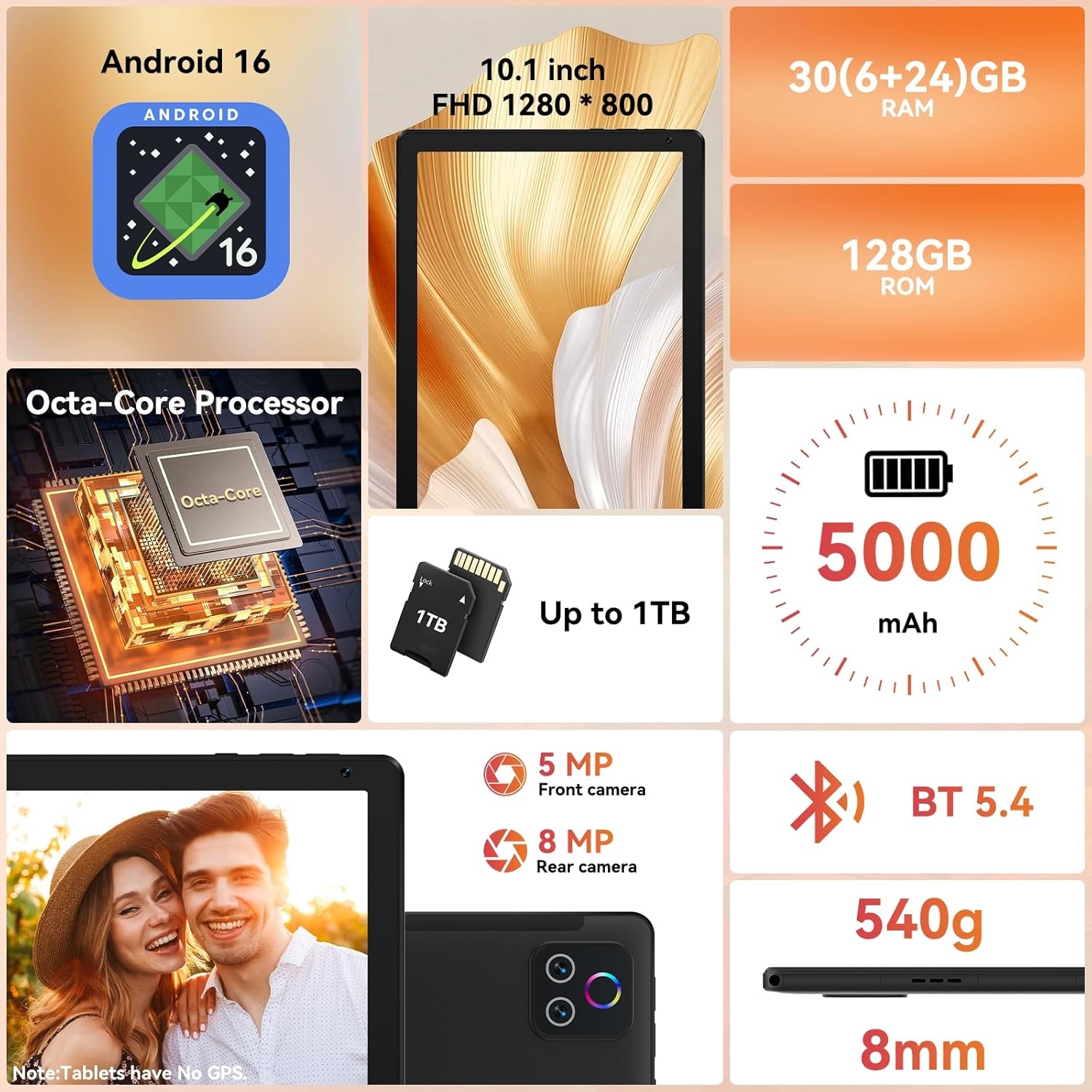
Image: The URAO 10.1" Android Tablet, USB Type-C cable, and power adapter neatly arranged in its packaging.
Nastavení
1. Počáteční nabíjení
Before first use, fully charge the tablet. Connect the USB Type-C cable to the tablet's charging port and the power adapter. Plug the adapter into a wall outlet. The charging indicator will illuminate. A full charge typically takes approximately 1.5 hours.

Image: The URAO tablet connected to a charger via its USB Type-C port, displaying a charging icon on the screen.
2. Zapnutí/vypnutí
- Zapnutí: Press and hold the Power button located on the side of the tablet until the URAO logo appears.
- Vypnutí: Press and hold the Power button until a power menu appears on the screen. Select "Power off".
- Restartovat: V nabídce napájení vyberte „Restartovat“.

Obrázek: Detailní boční pohled view of the URAO tablet, highlighting the power button, volume controls, USB-C port, and Micro SD slot.
3. Průvodce počátečním nastavením
Po prvním zapnutí vás tablet provede procesem počátečního nastavení. Postupujte podle pokynů na obrazovce:
- Vyberte svůj jazyk.
- Připojte se k síti Wi-Fi.
- Set up your Google account (or create a new one).
- Nakonfigurujte datum, čas a další základní nastavení.
Návod k obsluze
1. Navigace v rozhraní systému Android 16
The URAO tablet runs on Android 16, offering an intuitive and secure user experience. Key navigation gestures include:
- Klepněte na: Vyberte položku nebo otevřete aplikaci.
- Výpad: Procházení obrazovek, seznamů nebo obsahu.
- Přiblížení/zvětšení prsty: Zvětšení nebo zmenšení obsahu na obrazovce.
- Dlouhé stisknutí: Přístup k kontextovým nabídkám nebo přesun ikon.
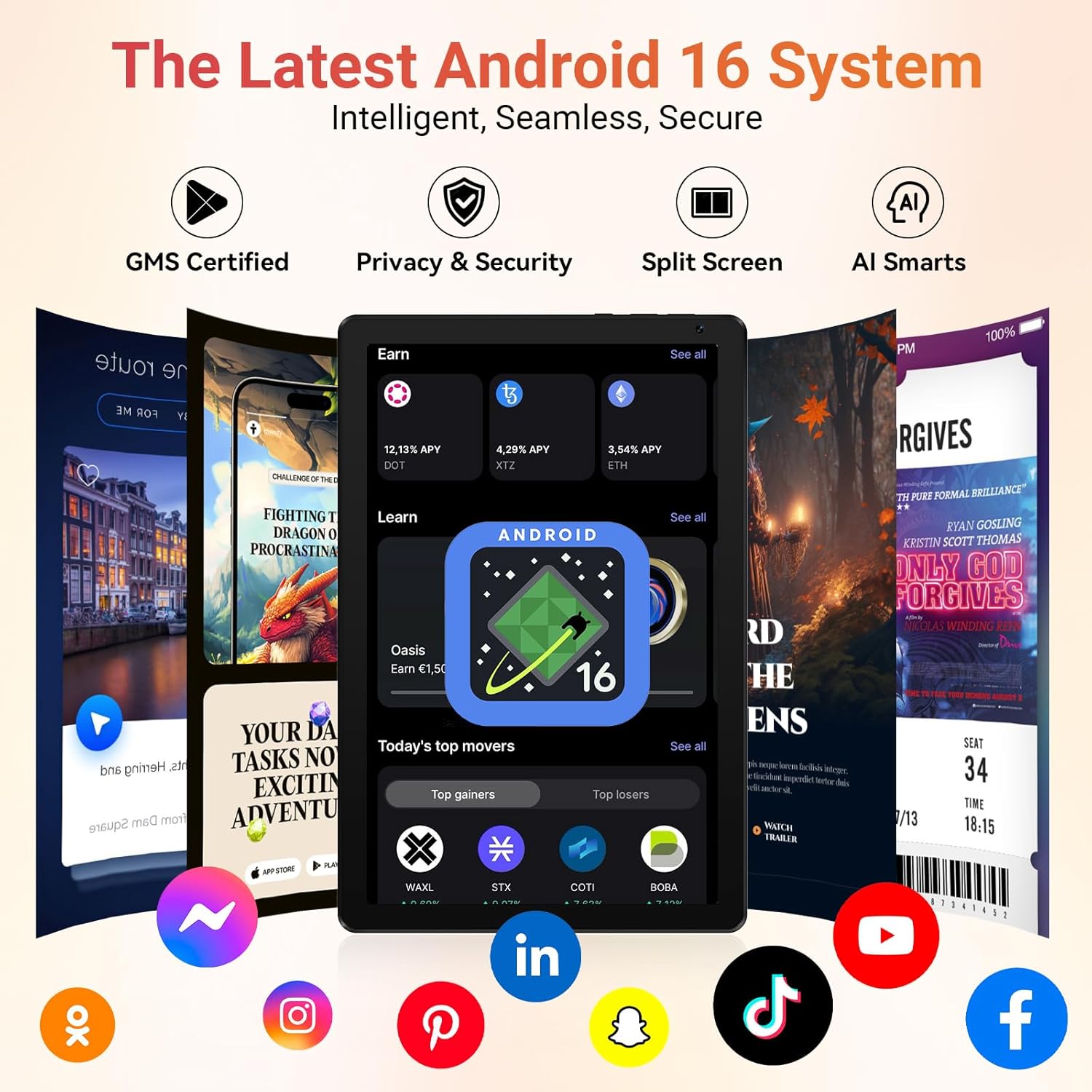
Image: The URAO tablet displaying the Android 16 home screen with various application icons, demonstrating the user interface.
2. Připojení Wi-Fi a Bluetooth
Your tablet supports Wi-Fi 6 and Bluetooth 5.4 for fast and stable connections.
- Wi-Fi: Přejít na Nastavení > Síť a internet > Wi-FiZapněte Wi-Fi a vyberte požadovanou síť. V případě potřeby zadejte heslo.
- Bluetooth: Přejít na Nastavení > Připojená zařízení > BluetoothZapněte Bluetooth a spárujte zařízení s kompatibilními zařízeními.

Image: A URAO tablet screen displaying a video call, with icons for dual-band Wi-Fi and Bluetooth 5.4, indicating seamless connectivity.
3. Použití fotoaparátu
Tablet je vybaven 5MP předním fotoaparátem a 8MP zadním fotoaparátem.
- Otevřete Fotoaparát aplikace
- Klepnutím na tlačítko spouště pořídíte fotografie.
- Přepínejte mezi předním a zadním fotoaparátem pomocí ikony fotoaparátu.
- Use the LED flash for low-light conditions (rear camera only).

Image: The URAO tablet highlighting its 8MP rear camera and 5MP front camera, suitable for video calls and photography.
4. Správa úložiště
The tablet comes with 128GB of internal storage, expandable up to 1TB via a Micro SD card (not included).
- To insert a Micro SD card, locate the Micro SD slot on the side of the tablet and gently push the card in until it clicks.
- Manage storage by going to Nastavení > Úložiště.

Image: The URAO tablet showcasing its 128GB ROM and support for up to 1TB Micro SD card expansion, with various app icons.
5. Odemknutí obličejem
The tablet supports facial recognition for convenient unlocking.
- To set up Face Unlock, go to Nastavení > Zabezpečení a soukromí > Odemknutí obličejem.
- Follow the on-screen instructions to register your facial data.

Image: A woman demonstrating the face unlock feature on the URAO tablet, with a facial recognition graphic overlay.
6. Multitasking na rozdělené obrazovce
Utilize the split-screen feature to run two applications simultaneously.
- Open an app, then swipe up from the bottom of the screen and hold to access recent apps.
- Tap the app icon at the top of the app's card and select "Split screen".
- Choose a second app from the recent apps list or app drawer to fill the other half of the screen.

Image: The URAO tablet displaying multiple applications in split-screen mode, illustrating its multitasking capabilities.
Údržba
1. Péče o baterie
- Vyhněte se extrémním teplotám, protože mohou snížit životnost baterie.
- Pro optimální životnost baterie se vyvarujte častého úplného vybíjení.
- Používejte pouze dodanou nabíječku nebo certifikovanou kompatibilní nabíječku.
2. Čištění tabletu
- K čištění obrazovky a těla tabletu použijte měkký hadřík, který nepouští vlákna.
- Na odolné šmouhy lehce otřeteamphadřík vodou nebo čističem obrazovek.
- Vyhněte se agresivním chemikáliím, abrazivním materiálům nebo nadměrné vlhkosti.
3. Aktualizace softwaru
Pravidelně kontrolujte a instalujte aktualizace softwaru, abyste zajistili, že váš tablet má nejnovější funkce, bezpečnostní záplaty a vylepšení výkonu. Přejděte na Nastavení > Systém > Aktualizace systému.
Odstraňování problémů
| Problém | Řešení |
|---|---|
| Tablet se nezapne. | Ensure the battery is charged. Connect to the charger for at least 30 minutes, then try powering on again. If unresponsive, press and hold the power button for 10-15 seconds to force a restart. |
| Problémy s připojením k Wi-Fi. | Check if Wi-Fi is enabled in settings. Restart your router and the tablet. Ensure you are within range of the Wi-Fi signal. Verify the Wi-Fi password. |
| Aplikace jsou pomalé nebo padají. | Close unused background apps. Clear app cache (Nastavení > Aplikace > [Název aplikace] > Úložiště a mezipaměť > Vymazat mezipaměť). Restart the tablet. Ensure sufficient storage space is available. |
| Baterie se rychle vybíjí. | Reduce screen brightness. Close background apps. Disable Wi-Fi/Bluetooth when not in use. Check battery usage in settings to identify power-hungry apps. |
Specifikace
| Funkce | Detail |
|---|---|
| Model | X109 |
| Operační systém | Android 16 |
| Procesor | 2.0 GHz osmijádrový |
| BERAN | 30 GB (6 GB + 24 GB rozšíření) |
| Interní úložiště (ROM) | 128 GB |
| Rozšiřitelné úložiště | Up to 1TB Micro SD Card (not included) |
| Zobrazit | 10.1-inch HD IPS Touchscreen (1280x800) |
| Zadní kamera | 8 MP |
| Přední kamera | 5 MP |
| Wi-Fi | Wi-Fi 6 (Dual-band 2.4G+5G) |
| Bluetooth | Bluetooth 5.4 |
| Kapacita baterie | 5000 XNUMX mAh |
| Nabíjecí port | USB Type-C |
| Rozměry | Tloušťka 8 mm, hmotnost 540 g |
| Barva | Dřevěné uhlí |

Image: The URAO 10.1" Android Tablet displaying its key features and specifications, including Android 16, 10.1-inch display, Octa-core processor, 30GB RAM, 128GB ROM, 5000mAh battery, and dual cameras.
Záruka a podpora
The URAO tablet comes with a 2-letá záruka výrobce. For warranty claims or technical support, please contact URAO customer service through their official website or the retailer where the product was purchased. Please have your purchase receipt and product model number (X109) ready when contacting support.
Další zdroje a časté dotazy naleznete na URAO Store on Amazon.
Produktové videoview
Pro rychlou představu se podívejte na toto videoview of the URAO 10.1" Android Tablet's features and unboxing experience.
Video: Rozbalení a kompletní informaceview of the URAO 10.1" Android Tablet, demonstrating its physical appearance and key functionalities.