
1. Úvod
This manual provides essential information for setting up, operating, maintaining, and troubleshooting your GMKtec K15 AI Mini PC. The K15 is a compact, high-performance barebone mini computer featuring an Intel Ultra 5 125U processor, designed for a wide range of applications from home entertainment to professional workloads.
Před použitím zařízení si prosím pečlivě přečtěte tento návod k obsluze, abyste zajistili jeho správný provoz a maximalizovali jeho životnost.
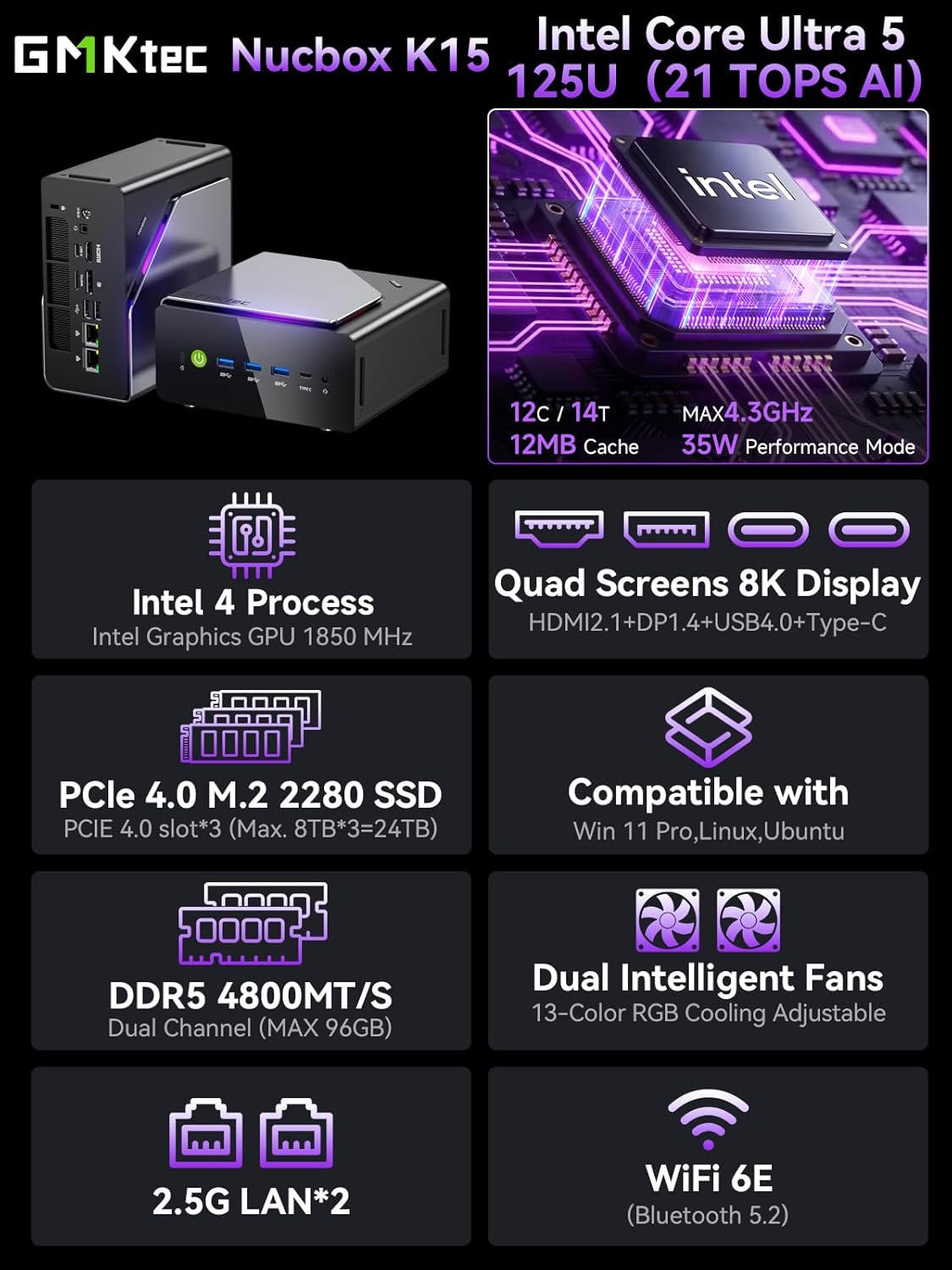
Obrázek 1.1: Konecview of GMKtec K15 Mini PC features, including Intel Ultra 5 125U CPU, 8K display support, PCIe 4.0 SSD, DDR5 RAM, dual intelligent fans, 2.5G LAN, and WiFi 6E.
2. Obsah balení
Ověřte, zda jsou v balení přítomny všechny položky:
- 1 x GMKtec Nucbox K15 Mini PC
- 1 x napájecí adaptér
- 1 x držák VESA se šrouby
- 1 x HDMI kabel
- 1 x Uživatelská příručka (tento dokument)
3. Fyzický overview
Familiarize yourself with the ports and components of your GMKtec K15 Mini PC.

Image 3.1: Detailed diagram showing the front and rear I/O ports of the GMKtec K15 Mini PC.
Přední panel
- Vypínač: Pro zapnutí nebo vypnutí zařízení.
- USB 3.2 Gen2 Ports (x3): Pro připojení vysokorychlostních USB zařízení.
- Full-Function Type-C Port (USB4): Supports data transfer, video output (DP1.4), and power delivery (PD3.0).
- 3.5mm audio jack: Pro sluchátka nebo reproduktory.
- Resetovací tlačítko: For system reset (use a pin).
Zadní panel
- Vstup DC napájení: Připojte přiložený napájecí adaptér.
- Slot zámku Kensington: For security locking.
- 3.5mm audio jack: Pro audio výstup.
- Port USB4: Supports data transfer and video output.
- Port HDMI (2.1): For connecting to a display.
- OCuLink Port: High-speed direct connection for external graphics or 10G NICs.
- DisplayPort (1.4): For connecting to a display.
- Porty USB 2.0 (x2): Pro připojení standardních USB zařízení.
- 2.5G Ethernet Ports (x2): Pro vysokorychlostní kabelové síťové připojení.
- Tlačítko režimu ventilátoru: To adjust fan speed/mode.

Image 3.2: The OCuLink port on the GMKtec K15 Mini PC, designed for high-speed external graphics card connections.
4. Průvodce nastavením
The GMKtec K15 is a barebone system, meaning RAM, SSD, and operating system are not pre-installed. Follow these steps to prepare your Mini PC for first use.
4.1 Installing RAM and SSD
The K15 supports dual-channel DDR5-4800MHz RAM (up to 128GB) and three PCIe 4.0 x4 M.2 2280 SSDs (up to 24TB total storage).
- Vypnout: Ensure the Mini PC is powered off and disconnected from the power adapter.
- Otevřený podvozek: Carefully open the Mini PC chassis. Refer to the specific instructions provided with your device for opening the case.
- Instalace RAM: Locate the DDR5 SO-DIMM slots. Align the RAM module notch with the slot key and insert it firmly at a 45-degree angle. Push down until the clips on both sides lock the module in place.
- Instalace SSD disku: Locate the M.2 2280 PCIe 4.0 x4 slots. Insert the M.2 SSD into the slot at a slight angle, then gently push it down and secure it with the provided screw.
- Zavřít podvozek: Carefully close the Mini PC chassis, ensuring all connections are secure.

Image 4.1: Internal layout of the GMKtec K15 Mini PC, illustrating the locations for DDR5 RAM and three M.2 2280 PCIe 4.0 x4 SSDs.
4.2 Připojení periferních zařízení
- Zobrazit: Connect your monitor(s) to the HDMI, DisplayPort, or USB4 Type-C ports using appropriate cables. The K15 supports up to four displays simultaneously.
- Klávesnice a myš: Připojte klávesnici a myš USB k libovolným dostupným portům USB.
- Síť: For wired internet, connect an Ethernet cable to one of the 2.5G LAN ports. For wireless, ensure your WiFi 6E router is configured.
- Moc: Connect the power adapter to the DC Power Input port on the rear panel, then plug the adapter into a power outlet.
4.3 Instalace operačního systému
Since the K15 is a barebone system, an operating system (OS) is not included. You will need to install your preferred OS (e.g., Windows 11 Pro, Linux, Ubuntu) from a bootable USB drive. Refer to the OS manufacturer's instructions for installation.
5. Provoz
5.1 Zapnutí/vypnutí
- Zapnutí: Stiskněte tlačítko napájení na předním panelu.
- Vypnout: From within your operating system, select the shutdown option. Alternatively, press and hold the power button for 5 seconds to force a shutdown (use only when necessary).
5.2 Konfigurace displeje
The K15 supports up to four simultaneous displays via HDMI 2.1 (8K@60Hz), DisplayPort 1.4 (8K@30Hz), and dual USB4 Type-C ports (DP1.4/PD3.0). Configure your display settings within your operating system to extend, duplicate, or use only one screen.

Image 5.1: A GMKtec K15 Mini PC setup demonstrating connection to multiple 4K/8K displays for enhanced multitasking.
5.3 Síťové připojení
- Kabelové: The dual 2.5GbE LAN ports provide high-speed wired network access.
- Bezdrátový: Integrated Wi-Fi 6E offers fast and stable wireless connectivity. Configure Wi-Fi settings through your operating system.
- Bluetooth: Bluetooth 5.2 allows connection to wireless peripherals such as keyboards, mice, and audio devices.
5.4 AI Processing with NPU
The Intel Ultra 5 125U processor includes a dedicated Neural Processing Unit (NPU) for accelerating AI tasks. This NPU enhances performance for machine learning applications, real-time analytics, and AI-driven creative workloads, reducing CPU load and improving efficiency.

Image 5.2: Visual representation of the K15's Intel AI Boost with Dedicated NPU, highlighting its benefits for AI-enhanced creativity and efficient computing.
6. Údržba
- Čištění: Regularly clean the exterior of the Mini PC with a soft, dry cloth. Use compressed air to clear dust from vents and ports. Ensure the device is powered off before cleaning.
- Aktualizace softwaru: Keep your operating system, drivers, and applications updated to ensure optimal performance and security.
- Větrání: Ensure the Mini PC is placed in a well-ventilated area to prevent overheating. Do not block the air vents.
7. Řešení problémů
If you encounter issues with your GMKtec K15 Mini PC, refer to the following common solutions:
| Problém | Možné řešení |
|---|---|
| Žádné napájení / Zařízení se nezapne | Check power adapter connection. Ensure the power outlet is functional. Press the power button firmly. |
| Žádný výstup na displej | Verify monitor connection and input source. Try a different HDMI/DP cable or port. Ensure RAM and SSD are correctly installed. |
| Pomalý výkon | Check for background processes. Ensure sufficient RAM and SSD space. Update drivers. Monitor system temperature. |
| Problémy s připojením k síti | For wired: Check Ethernet cable and router. For wireless: Verify Wi-Fi password, router status, and signal strength. Update network drivers. |
| Peripheral not recognized | Try a different USB port. Reinstall device drivers. Restart the Mini PC. |
Pokud problém přetrvává, kontaktujte prosím zákaznickou podporu.
8. Specifikace
Detailed technical specifications for the GMKtec K15 AI Mini PC:
| Funkce | Detail |
|---|---|
| Značka | GMKtec |
| Název modelu | K15 |
| Model CPU | Intel Core Ultra 5 125U (12 Cores/14 Threads) |
| Rychlost CPU | Až 4.3 GHz |
| Grafika | Integrated Intel Graphics GPU (Max 1.85GHz) |
| Typ RAM | DDR5 RAM (Dual-channel, 4800 MHz) |
| Maximální kapacita RAM | 128 GB |
| Skladování | 3x M.2 2280 PCIe 4.0 x4 SSD slots (Max 24TB total) |
| Video výstup | HDMI 2.1 (8K@60Hz), DisplayPort 1.4 (8K@30Hz), 2x USB4 Type-C (DP1.4/PD3.0) |
| Síť | 2x 2.5GbE LAN, Wi-Fi 6E, Bluetooth 5.2 |
| USB porty | 3x USB 3.2 Gen2, 2x USB 2.0, 2x USB4 Type-C |
| Jiné porty | OCuLink, 2x 3.5mm Audio Jack, Kensington Lock |
| Operační systém | None (Barebone) |
| Barva | Železná šedá |
9. Informace o záruce
The GMKtec K15 AI Mini PC comes with a 1-letá záruka from the date of purchase. This warranty covers manufacturing defects and hardware malfunctions under normal use. It does not cover damage caused by misuse, accidents, unauthorized modifications, or improper installation of components.
Uschovejte si prosím doklad o koupi pro uplatnění záruky.
10. Zákaznická podpora
For technical assistance, warranty claims, or any questions regarding your GMKtec K15 AI Mini PC, please contact our support team:
- E-mailová podpora: podpora@gmktec.com (K dispozici 24 hodin denně, 7 dní v týdnu)
- Podpora Amazon: For purchases made on Amazon, you can also contact support through your Amazon account. Navigate to "Your Orders" and select "Ask Product Question" for the GMKtec K15.
11. Produktové video
Pro lepší představu se podívejte na toto oficiální videoview of the GMKtec K15 AI Mini PC, highlighting its features and capabilities.
Video 11.1: Oficiální video s produktemasing the GMKtec K15 AI Mini PC Intel Ultra 5 125U with Oculink port and other features.