
1. Nastavení
1.1 Obsah balení
Před montáží se prosím ujistěte, že balení obsahuje všechny komponenty:
- KTC H24F7 24 Inch 240Hz Monitor
- Základna monitoru
- Stojan na monitor
- Napájecí adaptér
- HDMI kabel
- Stručný průvodce (QSG)
1.2 Montážní návod
Při sestavování monitoru postupujte takto:
- Opatrně vyjměte monitor a všechny součásti z obalu.
- Attach the monitor stand to the monitor base. Ensure it clicks securely into place.
- Connect the assembled stand and base to the back of the monitor. The stand is designed for easy snap-in installation.
- Umístěte monitor na stabilní rovný povrch.

1.3 Instalace držáku VESA
The KTC H24F7 monitor supports VESA 100mm x 100mm mounting for alternative stand or wall mount solutions. Ensure you use M4-0.7 x 10mm screws (not included) for secure installation.

1.4 Připojení k zařízením
Připojte počítač nebo jiná zařízení k monitoru pomocí vhodných kabelů.
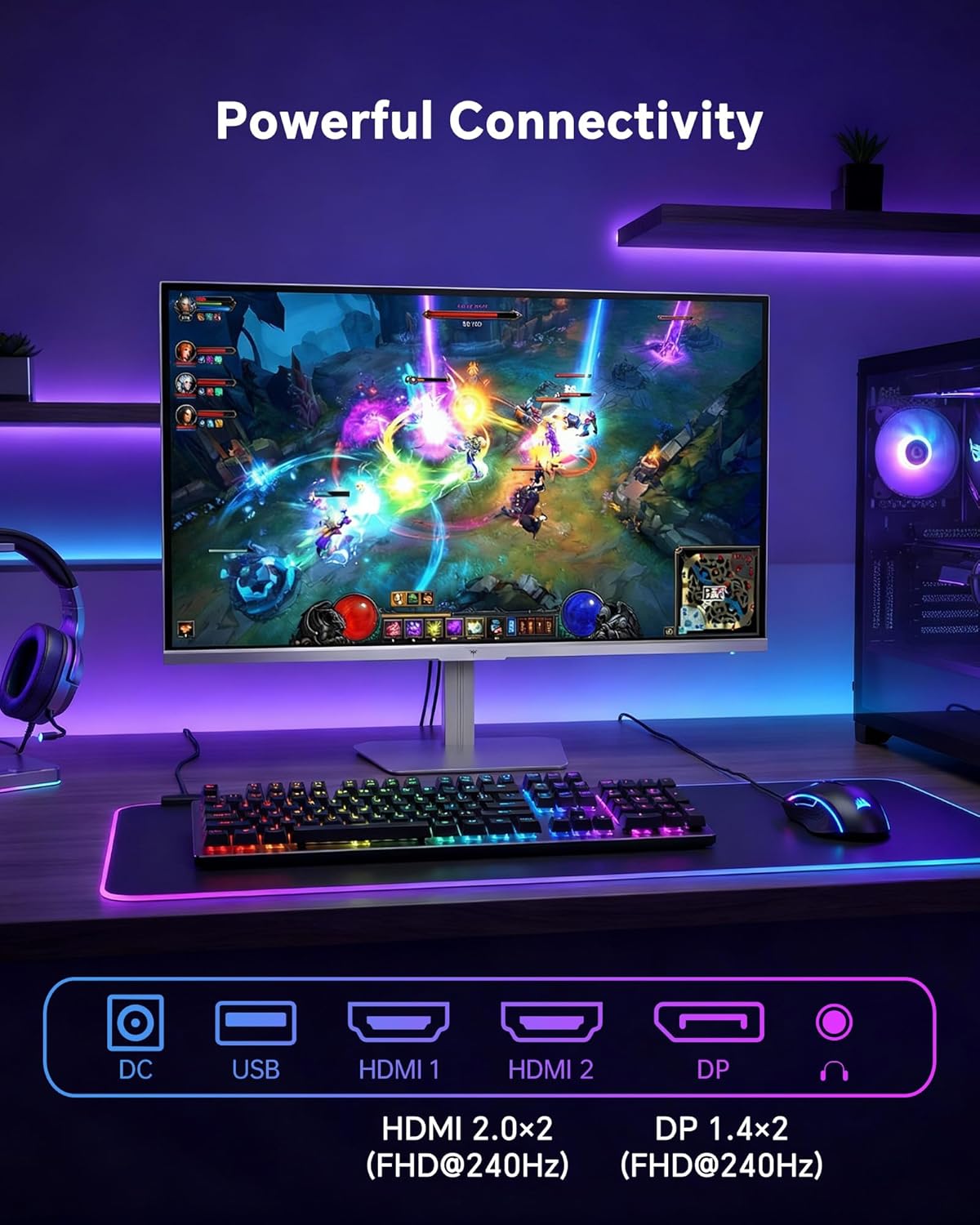
- HDMI: Use an HDMI cable to connect to devices with HDMI output. The monitor has two HDMI 2.0 ports, supporting FHD at 240Hz.
- DisplayPort: Use a DisplayPort cable for devices with DisplayPort output. The monitor has one DisplayPort 1.4, supporting FHD at 240Hz.
- Moc: Connect the power adaptor to the DC input on the monitor and then to a power outlet.
- USB: A USB 2.0 port is available for connecting peripherals.
- Audio výstup: A 3.5mm audio jack is available for connecting headphones or external speakers.
2. Návod k obsluze
2.1 Zapnutí/vypnutí
Stisknutím tlačítka napájení na monitoru jej zapnete nebo vypnete. Kontrolka napájení se rozsvítí, když je monitor aktivní.
2.2 Nabídka na obrazovce (OSD)
The OSD menu allows you to adjust various monitor settings. Use the control buttons (typically located on the back or bottom of the monitor) to navigate the menu and select options. Refer to the Quick Start Guide for specific button functions.
2.3 Nastavení zobrazení
Optimalizujte své viewuživatelský zážitek úpravou následujících nastavení:
- Obnovovací frekvence: The monitor supports a 240Hz refresh rate for smooth motion. Ensure your graphics card settings are configured to utilize this rate.

- Adaptivní synchronizace: This technology synchronizes the monitor's refresh rate with your graphics card's frame rate to eliminate screen tearing and stuttering. Enable Adaptive Sync in the OSD menu and ensure it is also enabled in your graphics card control panel (FreeSync/G-Sync compatible).

- HDR 400: High Dynamic Range 400 provides enhanced contrast and color accuracy, delivering brighter highlights and deeper shadows. Activate HDR in the OSD menu and your operating system display settings for compatible content.

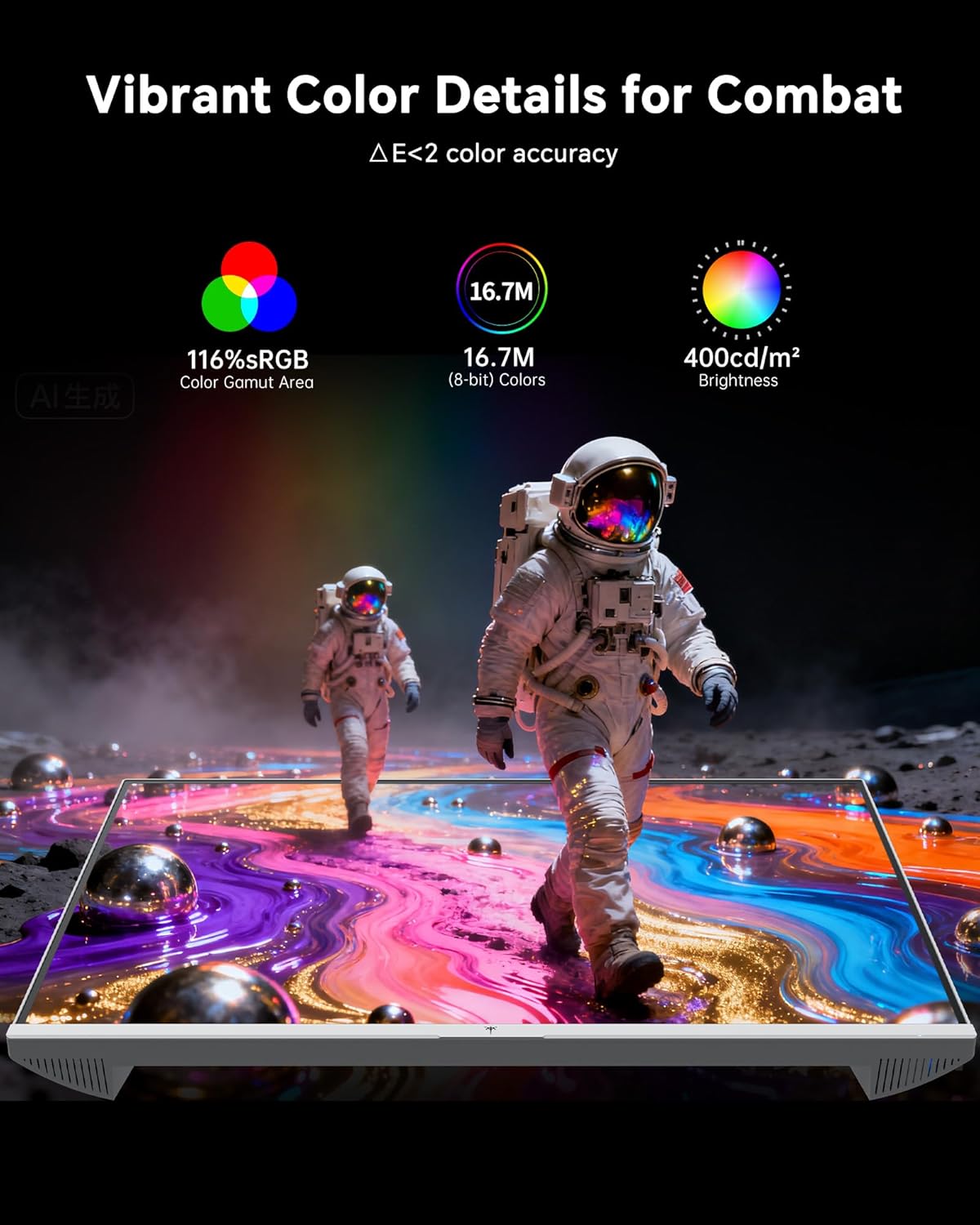
- Nastavení barev: The monitor offers 116% sRGB color gamut and 16.7 million colors. Adjust brightness (up to 400 cd/m²) and color temperature through the OSD menu to suit your preference.
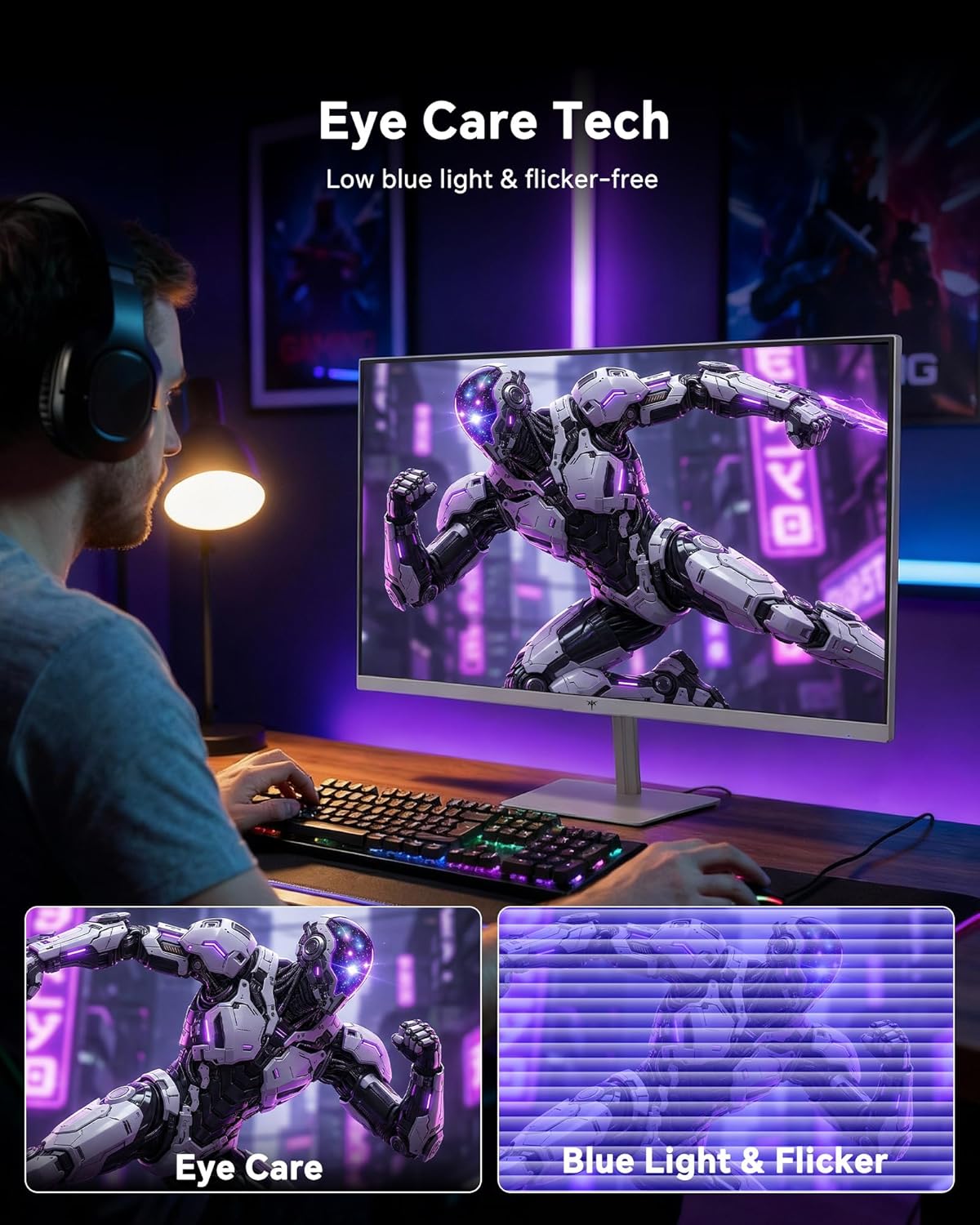
- Technologie péče o oči: The monitor features low blue light and flicker-free technology to reduce eye strain during prolonged use. These settings can typically be adjusted or enabled within the OSD menu.
2.4 Monitor Tilt Adjustment
The monitor supports tilt adjustment from -5° to 15° (±3°). Gently adjust the monitor panel to your desired viewúhel.
3. Údržba
3.1 Čištění monitoru
Čištění obrazovky monitoru a casing:
- Před čištěním vždy vypněte monitor a odpojte napájecí kabel.
- Použijte měkký hadřík, který nepouští vlákna dampvodou nebo jemným, neabrazivním čističem obrazovek.
- Jemně otřete obrazovku, abyste odstranili prach a šmouhy. Nevyvíjejte nadměrný tlak.
- Pro casing, use a dry, soft cloth. Do not use alcohol, ammonia, or abrasive cleaners, as these can damage the surface.
3.2 Obecná péče
- Nepokládejte na monitor ani na jeho kabely těžké předměty.
- Nevystavujte monitor přímému slunečnímu záření, nadměrnému teplu ani extrémnímu chladu.
- Chraňte monitor před tekutinami a vysokou vlhkostí.
- Zajistěte řádné větrání kolem monitoru, aby nedošlo k přehřátí.
4. Řešení problémů
If you encounter issues with your KTC H24F7 monitor, refer to the following common problems and solutions:
| Problém | Možná příčina | Řešení |
|---|---|---|
| Na obrazovce není žádný obraz | Power cable disconnected; Video cable disconnected or loose; Incorrect input source selected; Monitor is off. | Ensure power cable is securely connected and monitor is on. Check video cable connections (HDMI/DisplayPort) at both the monitor and computer. Press the input source button on the monitor to cycle through inputs. |
| Blikání nebo trhání obrazu | Adaptive Sync not enabled; Graphics card driver issues; Faulty video cable. | Enable Adaptive Sync in the OSD menu and your graphics card control panel. Update graphics card drivers. Try a different video cable. If using DisplayPort 1, try DisplayPort 2 or HDMI if available, as some units may experience issues with specific ports. |
| Barvy se zdají být nesprávné nebo vybledlé | Color settings incorrect; HDR not properly configured; Faulty video cable. | Adjust color settings (brightness, contrast, color temperature) in the OSD menu. Ensure HDR is enabled in both the OSD and your operating system for HDR content. Try a different video cable. |
| Monitor nedosahuje 240 Hz | Graphics card limitations; Incorrect display settings in OS; Cable bandwidth limitations. | Ensure your graphics card supports 240Hz at 1080p. Verify display settings in your operating system (e.g., Windows Display Settings or NVIDIA/AMD control panel) are set to 240Hz. Use the provided HDMI cable or a certified DisplayPort 1.4 cable. |
| Stuck or dead pixels | Výrobní vada. | A small number of stuck or dead pixels (typically 1-3) may be considered normal for LCD panels. If the issue is severe or persistent, contact customer support. |
5. Specifikace
| Funkce | Detail |
|---|---|
| Značka | KTC |
| Číslo modelu | H24F7 |
| Velikost obrazovky | 24 palce |
| Rezoluce | FHD 1080p (1920 x 1080 pixelů) |
| Typ panelu | Téměř IPS |
| Obnovovací frekvence | 240 Hz |
| Doba odezvy | 1 milisekunda (MPRT) |
| Poměr stran | 16:9 |
| Jas | 400 kandel na metr čtvereční |
| Kontrastní poměr | 1000:1 |
| Barevný gamut | 116% sRGB |
| Podpora HDR | HDR 400 |
| Adaptivní synchronizace | FreeSync, G-Sync Compatible |
| Konektivita | 2x HDMI 2.0, 1x DisplayPort 1.4, 1x USB 2.0, 1x Audio Out (3.5mm) |
| Funkce péče o zrak | Low Blue Light, Flicker-Free, Anti-Glare Screen |
| Úpravy | Naklonění (-5° až 15°) |
| VESA Mount | Rozměr 100 mm x 100 mm |
| Rozměry (D x Š x V) | 5.39"H x 21.25"Š x 15.74"V |
| Hmotnost položky | 3.2 kg |
| Barva | Bílý |
6. Záruka a podpora
6.1 Informace o záruce
The KTC H24F7 monitor comes with a three-year manufacturer warranty. Tato záruka se vztahuje na vady materiálu a zpracování při běžném používání.
Uschovejte si prosím doklad o koupi pro uplatnění záruky.
6.2 Zákaznická podpora
For technical assistance, warranty claims, or any questions regarding your KTC H24F7 monitor, please contact KTC customer support. KTC aims to provide responsive customer support and typically responds within 12 hours.
You can usually find contact information on the official KTC website or through the retailer where you purchased the product. When contacting support, please have your monitor model number (H24F7) and purchase details ready.