
1. Úvod
Thank you for choosing the FUNYET NY-14 15.6-inch Laptop. This manual provides essential information for setting up, operating, maintaining, and troubleshooting your new device. Please read this manual thoroughly before using the laptop to ensure proper function and longevity.
2. Konec produktuview
The FUNYET NY-14 is a versatile 15.6-inch laptop designed for everyday computing. It features a Full HD IPS display, a 4425Y processor, 16GB of RAM, and a 512GB SSD, offering a balance of performance and portability.

Obrázek 2.1: The FUNYET NY-14 laptop showcasing its 180-degree hinge design, allowing the screen to lay flat for versatile viewing úhly.
Klíčové vlastnosti:
- Zobrazit: 15.6-inch Full HD (1920x1080) IPS screen for clear visuals.
- Procesor: Intel 4425Y processor with 2.4GHz maximum frequency.
- Paměť a úložiště: 16GB DDR4 RAM and 512GB SSD for efficient multitasking and fast data access.
- Baterie: 5000mAh (38Wh) battery for extended usage.
- Operační systém: Předinstalovaný systém Windows 11 Pro.
- Konektivita: Integrated WiFi 5 (802.11ac) and Bluetooth 5.0.
- Porty: Multiple ports including USB 3.0, Mini HDMI, and a 3.5mm audio jack.
- Design: 180-degree hinge for flexible screen positioning and a numeric keypad for enhanced productivity.

Obrázek 2.2: An illustration detailing the laptop's internal components, highlighting the Intel 4425Y processor, WiFi 5, Bluetooth 5.0, 15.6-inch FHD IPS display, 30W front camera, Windows 11 Pro, 512GB SSD support (TF max 128G), and 38Wh battery.

Obrázek 2.3: The 15.6-inch Full HD (1920x1080) IPS display, emphasizing its vibrant colors and wide viewing angles, with a screen-to-body ratio of 93%.

Obrázek 2.4: The laptop's keyboard layout, including a numeric keypad, and indicators for WiFi, front camera, and Bluetooth 5.0. The touchpad area is also highlighted, indicating a 40% increased area for improved navigation.
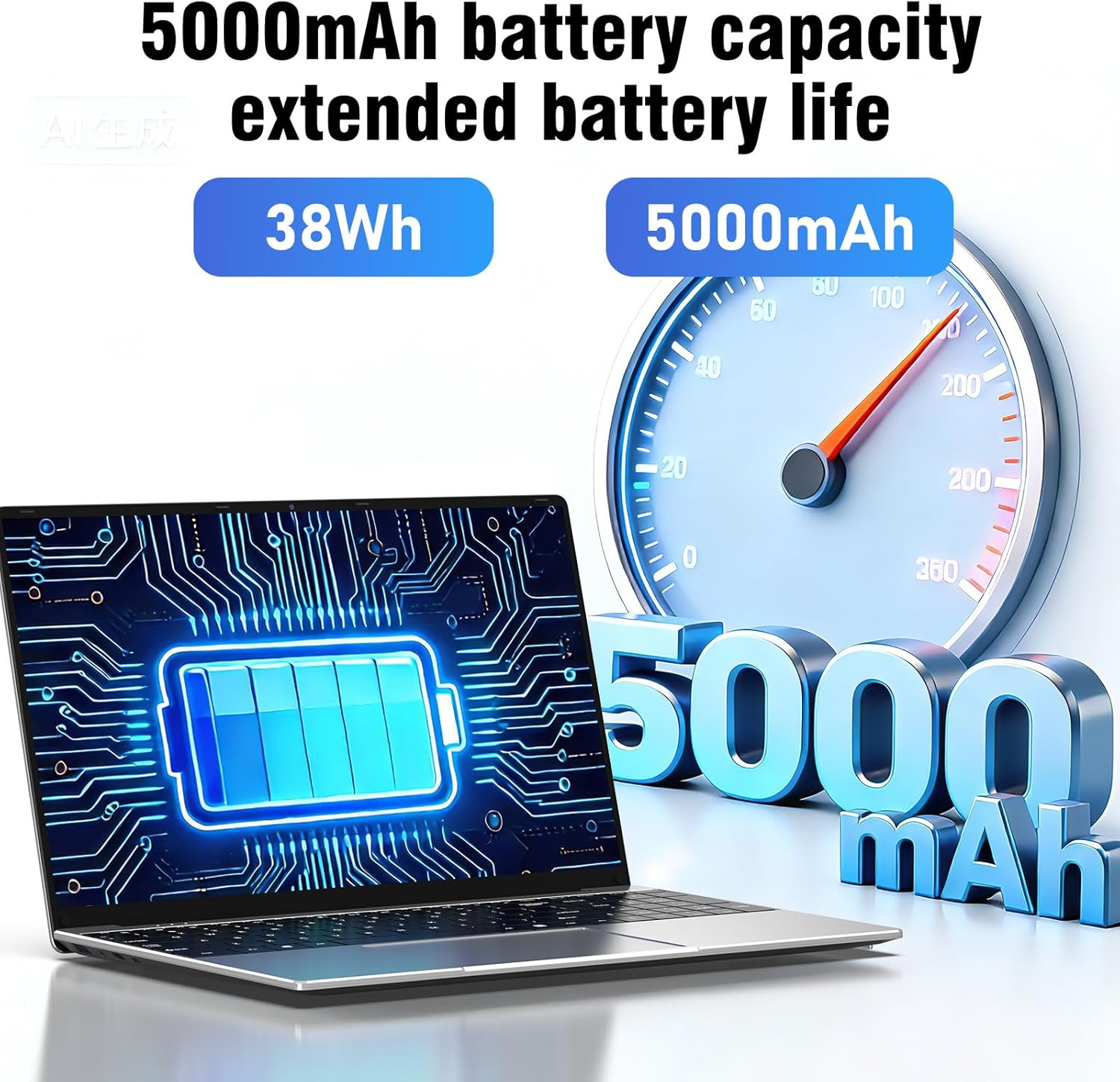
Obrázek 2.5: Visual representation of the laptop's 5000mAh (38Wh) battery capacity, indicating extended battery life for portable use.

Obrázek 2.6: Konecview of the laptop's multiple port designs, including USB 3.0, 12V2A DC Port, Mini HDMI, 3.5mm headphone jack, and TF Card Slot. The dimensions (14.09 x 9.05 x 0.78 inches) and weight (3.30 pounds) are also indicated.
3. Nastavení
3.1 Vybalení
Opatrně vyjměte notebook a veškeré příslušenství z obalu. Ujistěte se, že jsou přítomny následující položky:
- FUNYET NY-14 Laptop
- Napájecí adaptér
- Uživatelská příručka (tento dokument)
3.2 Nabíjení baterie
Before initial use, fully charge the laptop's battery. Connect the power adapter to the DC-in port on the laptop and then plug the adapter into a power outlet. The charging indicator light will illuminate. Once fully charged, the indicator light may change color or turn off, depending on the model.
3.3 Počáteční zapnutí a nastavení systému Windows
- Otevřete víko notebooku.
- Stiskněte tlačítko napájení umístěné na klávesnici.
- The laptop will boot up and guide you through the Windows 11 Pro setup process. Follow the on-screen instructions to select your language, region, connect to a Wi-Fi network, and create a user account.
- It is recommended to connect to the internet during setup to ensure the latest updates are installed.
4. Návod k obsluze
4.1 Zapnutí/vypnutí a režim spánku
- Zapnutí: Stiskněte tlačítko napájení.
- Vypnout: Klikněte na tlačítko Start ve Windows a poté vyberte Napájení > Vypnout.
- Restartovat: Klikněte na tlačítko Start ve Windows a poté vyberte Napájení > Restartovat.
- Spát: Klikněte na tlačítko Start ve Windows a poté vyberte Napájení > Režim spánku nebo zavřete víko notebooku.
4.2 Používání klávesnice a touchpadu
The laptop features a full-size keyboard with a dedicated numeric keypad. The touchpad supports multi-touch gestures for navigation. Refer to Windows settings for customizing touchpad gestures.
4.3 Připojení periferních zařízení
- Zařízení USB: Connect USB devices (e.g., mouse, external hard drive) to the available USB 3.0 ports.
- Externí displej: Use the Mini HDMI port to connect to an external monitor or TV. An appropriate Mini HDMI to HDMI cable (not included) may be required.
- Zvuková zařízení: Plug headphones or external speakers into the 3.5mm audio jack.
- Paměťová karta: Insert a TF card into the TF Card Slot for additional storage (supports up to 128GB).
4.4 Bezdrátové připojení
- Wi-Fi: To connect to a Wi-Fi network, click the Wi-Fi icon in the taskbar, select your desired network, and enter the password if prompted.
- Bluetooth: Chcete-li spárovat zařízení Bluetooth, přejděte do Nastavení systému Windows > Bluetooth a zařízení, zapněte Bluetooth a vyberte možnost „Přidat zařízení“.
4.5 Pomocí Webvačka
The integrated front camera can be used for video calls and conferences. Access it through applications like Camera, Microsoft Teams, or Zoom.
4.6 Úprava nastavení zobrazení
You can adjust screen brightness by using the function keys (Fn + Fx keys, typically F5/F6) or through Windows Settings > System > Display. Resolution can also be changed in Display settings.
4.7 Utilizing the 180° Hinge
The laptop's 180-degree hinge allows the screen to lay completely flat. This feature is useful for sharing content with others around a table or for specific presentation scenarios.
5. Údržba
5.1 Čištění
- Obrazovka: Použijte měkký hadřík, který nepouští vlákna dampvodou nebo čističem obrazovek. Nestříkejte tekutinu přímo na obrazovku.
- Klávesnice a Casing: Použijte měkký, suchý hadřík. Na odolnou špínu použijte lehceamp Lze použít hadřík. Vyhněte se agresivním chemikáliím.
- Porty: Udržujte porty bez prachu a nečistot. V případě potřeby použijte stlačený vzduch, ale dělejte to opatrně.
5.2 Péče o baterii
- Vyhněte se častému úplnému vybíjení baterie.
- Nevystavujte notebook extrémním teplotám.
- Pokud notebook skladujete delší dobu, ujistěte se, že je baterie nabitá na přibližně 50–70 %.
5.3 Aktualizace softwaru
Regularly check for and install Windows updates to ensure your system has the latest security patches and performance improvements. Go to Windows Settings > Windows Update.
5.4 Správa úložiště
Pravidelně uklízejte nepotřebné files and applications to maintain optimal performance. Windows provides tools like Disk Cleanup and Storage Sense (in Settings > System > Storage) to assist with this.
6. Řešení problémů
This section addresses common issues you might encounter with your FUNYET NY-14 laptop.
6.1 Notebook se nezapne
- Ujistěte se, že je napájecí adaptér bezpečně připojen k notebooku i k funkční zásuvce.
- Ověřte funkčnost elektrické zásuvky zapojením jiného zařízení.
- Pokud je baterie zcela vybitá, může trvat několik minut nabíjení, než se notebook zapne.
- Zkuste podržet tlačítko napájení po dobu 10-15 sekund, abyste provedli tvrdý reset.
6.2 Žádné připojení k Wi-Fi
- Check if Wi-Fi is enabled in Windows Settings > Network & internet > Wi-Fi.
- Restartujte router a modem.
- Ujistěte se, že jste v dosahu sítě Wi-Fi.
- Zkuste zapomenout na síť a znovu se připojit.
- Aktualizujte ovladače Wi-Fi pomocí Správce zařízení.
6.3 Pomalý výkon
- Zavřete nepotřebné aplikace běžící na pozadí.
- Zkontrolujte a nainstalujte všechny čekající aktualizace systému Windows.
- Ujistěte se, že vaše úložiště (SSD) není téměř plné.
- Spusťte antivirovou kontrolu a zkontrolujte, zda se neobjevuje malware.
- Consider performing a system restore or reinstalling Windows if issues persist after backing up your data.
6.4 Problémy s obrazovkou (žádné zobrazení, blikání)
- If there is no display, connect an external monitor via Mini HDMI to check if the issue is with the laptop's screen or the graphics output.
- Upravte jas obrazovky.
- Aktualizujte ovladače grafické karty.
- Restartujte notebook.
7. Specifikace
| Funkce | Specifikace |
|---|---|
| Číslo modelu | NY-14 |
| Velikost displeje | 15.6 palců |
| Rozlišení displeje | 1920 x 1080 (Full HD IPS) |
| Procesor | Intel 4425Y (Pentium 4 type, 2.4 GHz, 1 core, 2 threads) |
| BERAN | 16GB DDR4 (2666 MHz) |
| Skladování | 512GB SSD |
| Grafika | Integrovaný |
| Operační systém | Windows 11 Pro |
| Kapacita baterie | 5000 mAh (38 Wh) |
| Wi-Fi | WiFi 5 (802.11ac) |
| Bluetooth | Bluetooth 5.0 |
| USB porty | 2x USB 3.0 |
| Video výstup | Mini HDMI |
| Audio port | 3.5mm jack pro sluchátka |
| Čtečka karet | TF Card Slot (max 128GB) |
| Webvačka | Front Camera (30W, typically 0.3MP) |
| Rozměry (D x Š x V) | 35.7 x 22 x 2 cm (14.09 x 9.05 x 0.78 palce) |
| Hmotnost | 2.4 kg (3.30 lb) |
| Speciální funkce | 180° Hinge, Numeric Keypad, HD Audio |
8. Záruka a podpora
For warranty information and technical support, please refer to the warranty card included with your product or visit the official FUNYET website. If you encounter issues not covered in this manual, please contact FUNYET customer service for assistance.