
1. Úvod
This manual provides essential information for setting up, operating, and maintaining your ASUS TUF Gaming A18 laptop. Please read this manual thoroughly before using your device to ensure proper function and longevity.
2. Obsah balení
Ověřte, zda jsou v balení přítomny všechny položky:
- Herní notebook ASUS TUF A18
- AC adaptér
- Napájecí kabel
- Uživatelská příručka (tento dokument)
3. Konec produktuview
Familiarize yourself with the main components and ports of your ASUS TUF Gaming A18 laptop.

Obrázek 1: Přední strana view of the ASUS TUF Gaming A18 laptop with the screen open, showcasing the keyboard and display.

Obrázek 2: Úhlové view of the ASUS TUF Gaming A18 laptop, highlighting the screen and keyboard layout.
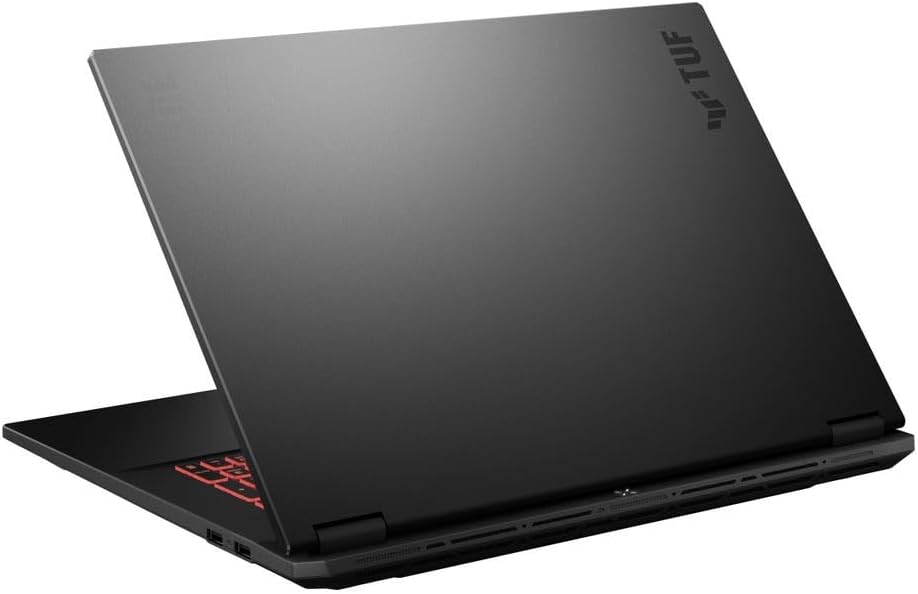
Obrázek 3: Zadní view of the ASUS TUF Gaming A18 laptop with the lid closed, showing the chassis design.
Porty a konektory

Figure 4: Left side of the laptop showing the power input, Ethernet port, HDMI, USB-C ports, and audio jack.

Figure 5: Right side of the laptop showing additional USB-A ports.
- USB Type-C (DisplayPort support): 1 port
- USB 3.2 Gen 2 Type-C (Power Delivery / DisplayPort / G-Sync / 10Gbps support): 1 port
- USB 3.2 Gen 2 Type-A (10Gbps support): 2 porty
- USB 2.0 typu A: 1 port
- HDMI V2.1: 1 port
- RJ-45 LAN: 1 port
- Kombinovaný konektor pro sluchátka/mikrofon: 1 port
4. Průvodce nastavením
4.1 Počáteční zapnutí
- Připojte AC adaptér: Plug the AC adapter into the laptop's power input port and then into a power outlet. Ensure the power indicator light illuminates.
- Otevřete displej: Carefully lift the laptop display to your desired viewúhel.
- Zapnutí: Press the power button, typically located above the keyboard or on the side. The power indicator will light up, and the system will begin to boot.
- Počáteční nastavení Windows: Postupujte podle pokynů na obrazovce a dokončete nastavení systému Windows 11 Home, včetně výběru jazyka, síťového připojení a vytvoření uživatelského účtu.
4.2 Připojení periferních zařízení
K notebooku můžete připojit různá externí zařízení:
- Externí displeje: Use the HDMI 2.1 port or a USB Type-C port with DisplayPort support to connect external monitors.
- Zařízení USB: Connect mice, keyboards, external storage, or other USB accessories to the available USB-A or USB-C ports.
- Internetové připojení: For a wired internet connection, plug an Ethernet cable into the RJ-45 LAN port. For wireless, connect via Wi-Fi 6E through Windows settings.
- Zvuková zařízení: Připojte sluchátka nebo externí reproduktory ke kombinovanému konektoru pro sluchátka/mikrofon.
5. Návod k obsluze
5.1 Klávesnice a touchpad
- Podsvícená klávesnice: The laptop features a Fullsize Single-Zone RGB Backlit Keyboard. Adjust brightness and effects through the ASUS Armoury Crate software or dedicated function keys.
- Numerická klávesnice: Pro efektivní zadávání dat použijte integrovanou numerickou klávesnici.
- Touchpad: Přesný touchpad podporuje pro navigaci vícedotyková gesta. Pro přizpůsobení se podívejte do nastavení systému Windows.
5.2 Funkce displeje
- Obnovovací frekvence 144Hz: The 18-inch WUXGA (1920x1200) display operates at a 144Hz refresh rate for smooth visuals, especially in gaming.
- G-Sync Support: NVIDIA G-Sync technology synchronizes the display's refresh rate with the GPU's frame rate to eliminate screen tearing and minimize stuttering. Ensure G-Sync is enabled in NVIDIA Control Panel for compatible applications.
- Antireflexní vrstva: The display features an anti-glare coating to reduce reflections and improve visibility in various lighting conditions.
5.3 Řízení spotřeby
- Životnost baterie: The laptop is equipped with a 90 Wh Lithium-Ion Battery, providing up to 6 hours of average usage.
- Nabíjení: Always use the provided 240 W AC Adapter for optimal charging and performance.
- Režimy napájení: Adjust power settings in Windows or through ASUS Armoury Crate to optimize performance or battery life.
6. Údržba a péče
- Čištění displeje: Použijte měkký hadřík bez žmolků, speciálně určený pro elektroniku. Dampen it slightly with water or a screen cleaner solution. Avoid harsh chemicals.
- Čištění klávesnice a šasi: Use a soft brush or compressed air to remove dust and debris. Wipe surfaces with a slightly damp, měkký hadřík.
- Péče o baterie: To prolong battery life, avoid frequently discharging the battery completely. Store the laptop in a cool, dry place if not used for extended periods.
- Větrání: Ujistěte se, že ventilační otvory notebooku nejsou zakryty, aby nedošlo k jeho přehřátí. Používejte notebook na tvrdém a rovném povrchu.
- Aktualizace softwaru: Regularly update your operating system, drivers, and ASUS software to ensure optimal performance and security.
7. Řešení problémů
7.1 Běžné problémy a řešení
| Problém | Možná příčina | Řešení |
|---|---|---|
| Notebook se nezapne | Žádné napájení, vybitá baterie, vadný adaptér | Ensure AC adapter is securely connected and power outlet is functional. Charge the battery for at least 30 minutes before attempting to power on again. |
| Displej je prázdný nebo černý | Režim spánku, připojený externí displej, problém s ovladačem displeje | Stisknutím libovolné klávesy nebo pohybem myši probuďte zařízení z režimu spánku. Odpojte externí displeje. Zkuste stisknout Fn + F7 (or equivalent display toggle key) to cycle display outputs. Restart the laptop. |
| Problémy s připojením Wi-Fi | Wi-Fi disabled, router issue, driver issue | Ujistěte se, že je v nastavení systému Windows povolena Wi-Fi. Restartujte router. Aktualizujte ovladače Wi-Fi. |
| Pomalý výkon | Too many applications running, low disk space, overheating | Close unnecessary applications. Free up disk space. Ensure proper ventilation and clean vents. Check for malware. |
For more advanced troubleshooting or persistent issues, please contact ASUS customer support.
8. Specifikace
| Funkce | Detail |
|---|---|
| Značka | ASUS |
| Název modelu | TUF Gaming A18 |
| Číslo modelu | FAUM |
| Velikost obrazovky | 18 palce |
| Rezoluce | 1920 1200 x (WUXGA) |
| Obnovovací frekvence | 144 Hz |
| Technologie displeje | IPS, Anti-Glare Coating, G-Sync |
| Model CPU | AMD Ryzen 7 260 (8 Cores, 16 Threads, up to 5.1 GHz) |
| Grafický koprocesor | NVIDIA GeForce RTX 5060 (8 GB GDDR7 Dedicated) |
| Velikost nainstalované paměti RAM | 64 GB paměti DDR5 SDRAM (5600 MHz) |
| Velikost pevného disku | 8TB NVMe M.2 SSD |
| Operační systém | Windows 11 Home |
| Bezdrátové připojení | Realtek Wi-Fi 6E (802.11ax), Bluetooth 5.3 |
| Porty | 1x USB Type-C (DisplayPort), 1x USB 3.2 Gen 2 Type-C (PD/DP/G-Sync/10Gbps), 2x USB 3.2 Gen 2 Type-A, 1x USB 2.0 Type-A, 1x HDMI V2.1, 1x RJ-45 LAN, 1x Headphone/Microphone Combo Jack |
| Klávesnice | Plnohodnotná jednozónová RGB podsvícená klávesnice s numerickou klávesnicí |
| Webvačka | 1080p + IR Camera |
| Baterie | 90 Wh Lithium-Ion, up to 6 hours average usage |
| AC adaptér | 240 W |
| Rozměry (D x Š x V) | 15.71 cm x 11.14 cm x 1.05 cm |
| Hmotnost | 5.73 liber |
| Barva | Jaeger Gray |
| UPC | 757129107980 |
| ASIN | B0G6Y6SRPR |
9. Záruka a podpora
Your ASUS TUF Gaming A18 laptop comes with a manufacturer's warranty. For detailed warranty terms and conditions, please refer to the warranty card included in your product packaging or visit the official ASUS support webmísto.
For technical support, driver downloads, and frequently asked questions, please visit the official ASUS support webmísto: www.asus.com/support