
1. Úvod
Thank you for choosing the ELECROW 5-inch IPS Touch Screen Monitor. This compact display offers a high-definition visual experience with responsive touch functionality, designed for a wide range of applications including single-board computers and mini PCs. This manual provides essential information for the proper installation, operation, and care of your device.

The ELECROW 5-inch IPS Touch Screen Monitor, a versatile display solution.
Mezi klíčové vlastnosti patří:
- HD Display Experience: 5-inch IPS capacitive touchscreen with a 1024 x 600 resolution, 178° viewing angle, and support for up to 1080P signal input.
- Responzivní dotyk: Supports 5-point multi-touch on Windows and single-touch on Raspberry Pi/Jetson Nano.
- Snadné Plug-and-Play: No additional drivers required for most compatible systems.
- Profesionální funkce: Features a headphone jack for audio output and a built-in OSD menu for display adjustments.
2. Co je v krabici
Ověřte prosím, zda jsou ve vašem balení obsaženy všechny níže uvedené položky:
- 1x 5palcový dotykový monitor
- 1x HD Cable (1m)
- 1x USB-A to USB-C Cable (1m)
- 1x Micro-HD Adapter (for Raspberry Pi 4B & 5)
- 4x Hexagonal Copper Standoff Kit (M2.5)
- 2x Pro Stand
- 1x Šroubovák
- 1x User Manual (Quick Start Guide)
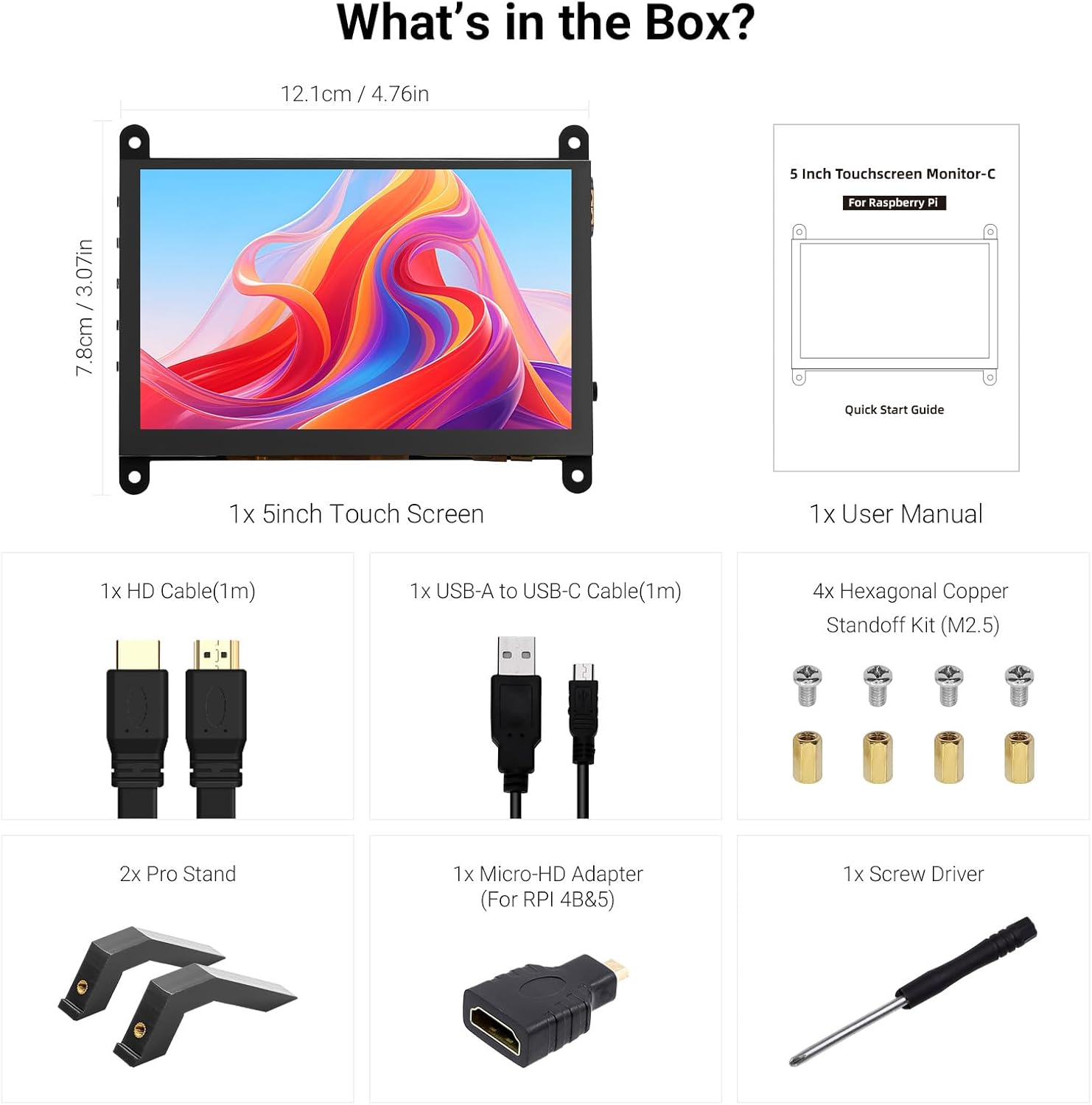
Všechny komponenty jsou součástí balení produktu.
3. Konec produktuview
Familiarize yourself with the ports and buttons on your ELECROW 5-inch Touch Screen Monitor:

Detailní view portů a ovládacích tlačítek monitoru.
- HD Input Port: Pro vstup video signálu.
- Port USB-C: For power supply and touch signal transmission.
- 3.5mm konektor pro sluchátka: Pro audio výstup.
- Tlačítko nabídky: Přístup k nabídce na obrazovce (OSD).
- Left/Up Button: Navigates left or up in the OSD menu.
- Right/Down Button: Navigates right or down in the OSD menu.
- Tlačítko návratu: Exits a menu or returns to the previous option.
- Vypínač: Zapíná a vypíná displej.
- 20P-FPC-0.5mm Display Port: For flexible cable expansion in embedded systems.
4. Pokyny k nastavení
Follow these steps to connect your ELECROW 5-inch Touch Screen Monitor to a compatible device:
4.1 Připojení k Raspberry Pi
- Connect HD Cable: Use the provided HD cable to connect the monitor's HD Input Port to the HDMI port on your Raspberry Pi. If using Raspberry Pi 4B or 5, use the included Micro-HD adapter.
- Připojte kabel USB: Connect the USB-C port on the monitor to a USB-A port on your Raspberry Pi using the provided USB-A to USB-C cable. This supplies power to the monitor and enables touch functionality.
- Zapnutí: Power up your Raspberry Pi. The display should automatically detect the signal and power on.
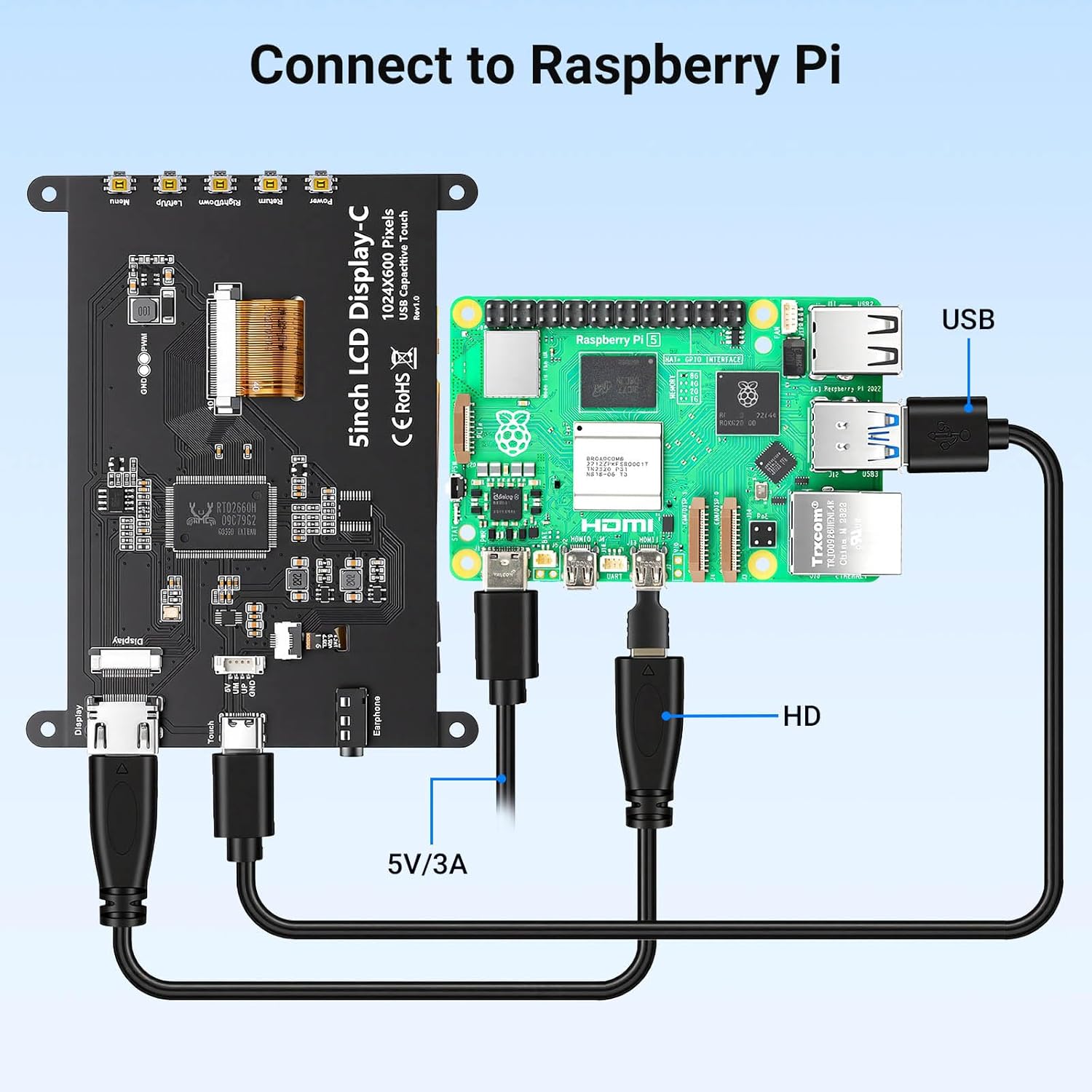
Connection diagram for Raspberry Pi.
4.2 Connecting to Windows PC/Laptop
- Connect HD Cable: Use the provided HD cable to connect the monitor's HD Input Port to the HDMI port on your PC/laptop.
- Připojte kabel USB: Connect the USB-C port on the monitor to a USB-A port on your PC/laptop using the provided USB-A to USB-C cable. This provides power and enables touch functionality.
- Zapnutí: Power on your PC/laptop. The display should be recognized automatically. No additional drivers are typically required for Windows 7/8/10/11.
5. Návod k obsluze
5.1 Základní obsluha
- Zapnutí/vypnutí: Press the Power Button (8) to turn the display on or off.
- Dotyková funkce: The monitor features a capacitive touchscreen. On Windows systems, it supports 5-point multi-touch. On Raspberry Pi (Raspbian, Ubuntu, Kali, Retropie) and Jetson Nano, it supports single-touch operation.

Responsive touch experience for various devices.
5.2 Navigace v nabídce OSD
The On-Screen Display (OSD) menu allows you to adjust various display settings:
- Stiskněte tlačítko Menu Button (4) otevřete nabídku OSD.
- Použijte Left/Up Button (5) a Right/Down Button (6) pro navigaci v možnostech nabídky.
- Stiskněte tlačítko Menu Button (4) znovu pro výběr možnosti nebo potvrzení nastavení.
- Stiskněte tlačítko Tlačítko pro návrat (7) to exit the current menu or return to the previous level.
Common adjustable settings include Brightness, Contrast, and other display parameters.
5.3 Audio výstup
Connect headphones or external speakers to the 3.5mm Headphone Jack (3) for audio output from the connected device.
6. Kompatibilita
The ELECROW 5-inch Touch Screen Monitor offers broad compatibility with various operating systems and hardware platforms:
- Operační systémy: Raspbian, Ubuntu, Kali, Retropie, Windows 7/8/10/11, Windows 10 IoT.
- Kompatibilní zařízení: Raspberry Pi 5, Raspberry Pi 4, Raspberry Pi 3 B+, BB Black, Banana Pi, Jetson Nano, PS4, Xbox.

Broad compatibility with popular operating systems and devices.
7. Specifikace
| Funkce | Detail |
|---|---|
| Značka | ELECROW |
| Číslo modelu | DLH04950B |
| Velikost obrazovky | 5 palce |
| Rezoluce | 1024 x 600 pixelů |
| Typ zobrazení | IPS |
| Viewúhel | 178 stupňů |
| Jas | 410 cd/m² |
| Obnovovací frekvence | 60 Hz |
| Doba odezvy | 2 milisekund |
| Konektivita | HDMI, USB typu C |
| svtage | 5 voltů |
| Rozměry (Š x V) | 12.1 cm x 7.8 cm (4.76 palce x 3.07 palce) |
| Další funkce | Portable, Touchscreen, Headphone Jack, OSD Menu |

Visual representation of key display specifications.
8. Údržba
Proper care and maintenance will ensure the longevity and optimal performance of your monitor:
- Čištění obrazovky: Použijte měkký hadřík, který nepouští vlákna dampened with water or a screen-cleaning solution. Avoid harsh chemicals, abrasive materials, or excessive moisture.
- Generální úklid: Wipe the exterior of the monitor with a dry, soft cloth.
- Skladování: Pokud monitor delší dobu nepoužíváte, skladujte jej na chladném a suchém místě mimo dosah přímého slunečního záření a extrémních teplot.
- Zacházení: Avoid dropping the monitor or subjecting it to strong impacts. Do not apply excessive pressure to the screen.
- Větrání: Ensure the monitor has adequate ventilation to prevent overheating. Do not block any vents.
9. Řešení problémů
If you encounter issues with your ELECROW 5-inch Touch Screen Monitor, refer to the following common problems and solutions:
9.1 Žádný displej / Černá obrazovka
- Zkontrolujte připojení: Ensure the HD cable is securely connected to both the monitor and the source device.
- Napájení: Verify that the USB-C cable is properly connected and providing sufficient power (5V). Try a different USB port or power adapter if available.
- Zdrojové zařízení: Confirm that your source device (e.g., Raspberry Pi, PC) is powered on and outputting a video signal.
- Nastavení rozlišení: Ensure the output resolution of your source device is compatible with the monitor (1024x600 or a resolution that can be scaled).
9.2 Touch Function Not Working
- USB připojení: The USB-C cable is essential for touch functionality. Ensure it is connected to both the monitor and the source device.
- Podpora operačního systému: Verify that your operating system supports touch input and that necessary drivers (if any, though usually plug-and-play) are installed. For Raspberry Pi, ensure the OS is configured for touch.
- Rekalibrace: Some operating systems may require touch screen calibration. Refer to your OS documentation for instructions.
9.3 Image Quality Issues (Flickering, Distorted Colors)
- Integrita kabelu: Try a different HD cable to rule out a faulty cable.
- Zdrojový signál: Test the monitor with a different source device to determine if the issue is with the monitor or the source.
- Nastavení OSD: Adjust brightness, contrast, and other color settings via the OSD menu.
10. Záruka a podpora
10.1 Informace o záruce
This ELECROW 5-inch Touch Screen Monitor comes with a 1 roky záruka výrobce. This warranty covers defects in materials and workmanship under normal use. It does not cover damage caused by misuse, accident, modification, or unauthorized repair.
10.2 Technická podpora
For technical assistance, troubleshooting beyond this manual, or warranty claims, please contact ELECROW customer support through their official website or the platform where you purchased the product. Please have your model number (DLH04950B) and purchase details ready when contacting support.