
1. Úvod
This manual provides detailed instructions for the setup, operation, and maintenance of your Akko TAC75 HE 8K RGB Magnetic Gaming Keyboard. Please read this manual thoroughly before using the product to ensure optimal performance and longevity.
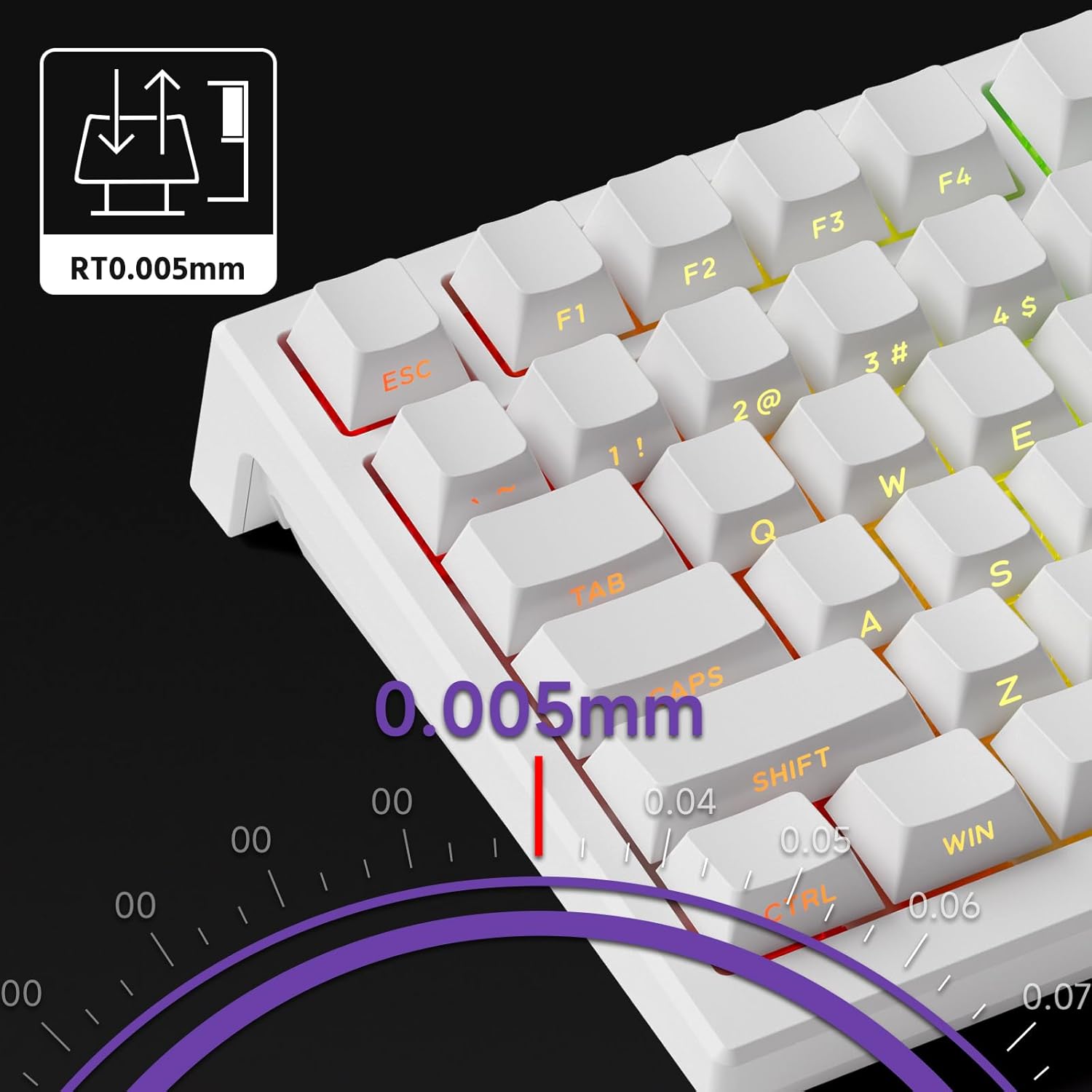
Image 1.1: Akko TAC75 HE 8K RGB Magnetic Gaming Keyboard. This image displays the full keyboard from a top-down perspective, showcasing its 75% layout and RGB lighting.
2. Obsah balení
Ověřte, zda jsou v balení přítomny všechny položky:
- Akko TAC75 HE 8K RGB Magnetic Gaming Keyboard
- Kabel USB typu C
- Uživatelská příručka (tento dokument)
- Keycap Puller (may vary by region)
- Switch Puller (may vary by region)
3. Nastavení
3.1 Připojení klávesnice
- Unpack the keyboard and USB Type-C cable from the box.
- Connect the USB Type-C end of the cable to the port on the back of the keyboard.
- Připojte standardní konec kabelu USB-A k volnému portu USB v počítači.
- Klávesnice bude automaticky rozpoznána vaším operačním systémem.

Image 3.1: Keyboard with integrated cable routing channels. This image highlights the cable management grooves on the underside of the keyboard, allowing for organized cable placement.
3.2 Software Installation (Akko Driver)
For full customization and advanced features, download and install the Akko Driver software. The software allows you to configure key bindings, RGB lighting, actuation points, and other magnetic switch settings.
- Visit the official Akko webmísto: https://web.akkogear.com/
- Navigate to the "Driver" or "Software" section.
- Stáhněte si příslušný ovladač pro váš operační systém.
- Dokončete instalaci podle pokynů na obrazovce.
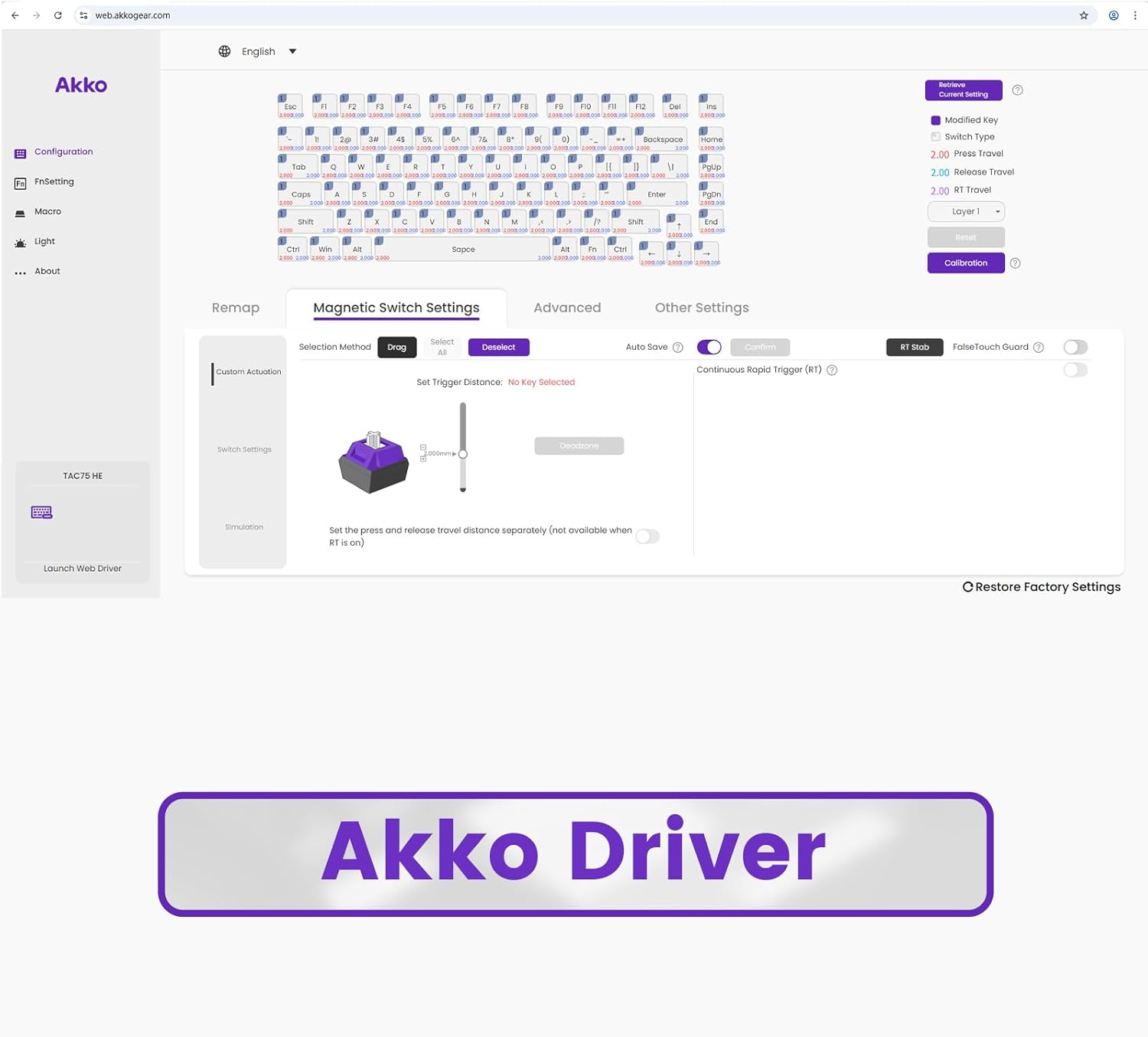
Image 3.2: Screenshot of the Akko Driver software interface. This image shows the web-based driver with options for configuration, remapping, magnetic switch settings, and advanced settings.
4. Návod k obsluze
4.1 Základní funkce klávesnice
The Akko TAC75 HE functions as a standard 75% ANSI layout keyboard. All standard keys operate as expected. Function keys (F1-F12) are accessible via the Fn kombinace kláves.
4.2 Vlastnosti magnetického spínače
Your keyboard is equipped with advanced magnetic switches, offering features like adjustable actuation, Rapid Trigger, SOCD, and DKS.
4.2.1 Adjustable Actuation
The actuation distance of each key can be precisely adjusted in increments of 0.005mm using the Akko Driver software. This allows you to customize the key sensitivity to your preference, from light touches to deeper presses.

Image 4.1: Graphic illustrating 0.005mm adjustable actuation. This image shows a close-up of keyboard keys with a diagram indicating the precise 0.005mm actuation adjustment capability.
4.2.2 Rychlé spouštění (RT)
Rapid Trigger allows keys to actuate and reset based on movement rather than a fixed point. This means a key can register a new press as soon as it begins to move upwards, and reset as soon as it begins to move downwards, enabling faster repeated inputs. Configure RT settings via the Akko Driver.
4.2.3 Dynamic Key Strokes (DKS) / Mod Tap
DKS, also known as Mod Tap, allows a single key to perform different actions based on how it is pressed. For example, a quick tap might register one key, while holding it down registers another. This feature can be configured through the Akko Driver software.
4.2.4 Simultaneous Opposing Cardinal Directions (SOCD)
SOCD cleaning is a feature primarily used in gaming to prevent conflicting directional inputs. For instance, if both 'left' and 'right' are pressed simultaneously, SOCD cleaning can prioritize one direction or cancel both, depending on the configured mode. This is configurable within the Akko Driver.
4.3 Ovládání RGB osvětlení
The Akko TAC75 HE features customizable RGB backlighting. Lighting effects, colors, and brightness can be adjusted using the Akko Driver software. Some basic lighting modes might be accessible via Fn key combinations (refer to the software for specific key combinations).

Image 4.3: Akko TAC75 HE keyboard displaying vibrant RGB lighting. This image showcases the keyboard's customizable backlighting across its keys.
4.4 High Performance Features
The keyboard boasts an 8000Hz polling rate and 16000Hz scan rate, minimizing input latency and ensuring rapid response times for competitive gaming.

Image 4.4: Graphic indicating 8K Polling Rate and 16K Universal Scan. This image highlights the high-performance specifications of the keyboard, emphasizing its low latency capabilities.
5. Údržba
5.1 Čištění klávesnice
Pro zachování vzhledu a funkčnosti klávesnice:
- Před čištěním odpojte klávesnici od počítače.
- Použijte měkký hadřík, který nepouští vlákna dampKlávesy a pouzdro otřete vodou nebo jemným čisticím roztokem.
- Pro odstranění prachu a nečistot mezi klávesami použijte stlačený vzduch.
- Vyhněte se používání agresivních chemikálií, abraziv nebo rozpouštědel.
5.2 Demontáž a výměna krytky kláves
The keyboard features durable PBT Double-shot keycaps. If you need to remove or replace keycaps:
- Use a keycap puller to gently remove keycaps. Pull straight up to avoid damaging the switch stem.
- When replacing, align the keycap with the switch stem and press down gently until it clicks into place.

Image 5.1: Diagram showing Cherry Profile keycap heights. This image illustrates the varying heights of keycaps across different rows, characteristic of the Cherry profile.
6. Řešení problémů
6.1 Klávesnice nereaguje
- Ujistěte se, že je kabel USB typu C bezpečně připojen ke klávesnici i k počítači.
- Zkuste připojit klávesnici k jinému USB portu na počítači.
- Otestujte klávesnici na jiném počítači, abyste vyloučili problémy specifické pro systém.
- Restartujte počítač.
6.2 RGB osvětlení nefunguje
- Check the Akko Driver software to ensure RGB lighting is enabled and configured correctly.
- Ujistěte se, že není spuštěn žádný konfliktní software, který by mohl rušit ovládání RGB.
- Try resetting the keyboard to factory defaults via the Akko Driver software.
6.3 Software Not Detecting Keyboard
- Ensure the Akko Driver software is the latest version. Re-download from https://web.akkogear.com/ v případě potřeby.
- Dočasně deaktivujte veškerý antivirový software nebo firewall, který by mohl blokovat ovladač.
- Ensure the keyboard is directly connected to the computer and not through a USB hub.
7. Specifikace
| Funkce | Detail |
|---|---|
| Model | Akko TAC75 HE |
| Spínače | Akko Glare Linear Magnetic Switches |
| Aktivace | Magnetic, Adjustable (0.005mm increments) |
| Rozložení | 75% ANSI |
| Míra hlasování | 8000 Hz |
| Rychlost skenování | 16000 Hz |
| Konektivita | USB typu C (kabelový) |
| Klíčenky | PBT Double-shot, Side-printed Shine-through |
| Osvětlení | RGB |
| Materiál pouzdra | ABS plast |
| Délka kabelu | 1.5 m |
| Rozměry (cca) | 330 x 76 x 135 mm |
| Hmotnost (přibližně) | 700 g |
| Kompatibilní zařízení | Počítač, herní konzole |
| Speciální funkce | Hall Effect, SOCD, Rapid Trigger, DKS Mod Tap, Adjustable Height |
8. Záruka a podpora
8.1 Informace o záruce
The Akko TAC75 HE 8K RGB Magnetic Gaming Keyboard comes with a Záruka 12 měsíců from the date of purchase, covering manufacturing defects. Please retain your proof of purchase for warranty claims. The warranty does not cover damage caused by misuse, accidents, unauthorized modifications, or normal wear and tear.
8.2 Zákaznická podpora
For technical assistance, warranty claims, or further inquiries, please contact Akko customer support through their official webmísto:
Často kladené otázky a další zdroje naleznete také na jejich stránkách podpory.