
1. Úvod
This manual provides essential information for setting up, operating, maintaining, and troubleshooting your CHUWI Hi10 X2 2-in-1 Laptop Tablet. Please read it thoroughly before using your device.
Co je v krabici
- Tablet Hi10 X2
- Magnetická klávesnice
- Pouzdro se stojánkem
- Sada nabíječky
- Uživatelská příručka (tento dokument)

Image 1.1: CHUWI Hi10 X2 Tablet with Magnetic Keyboard and Case.
2. Nastavení
2.1 Počáteční nabíjení
Before first use, fully charge your CHUWI Hi10 X2 tablet using the provided charger set. Connect the charger to the Type-C port on the tablet and plug it into a power outlet. The charging indicator light will illuminate.
2.2 Attaching the Magnetic Keyboard and Case
Align the tablet with the magnetic connectors on the keyboard. The magnets will secure the tablet in place. The case with stand can be adjusted to your preferred viewúhel.
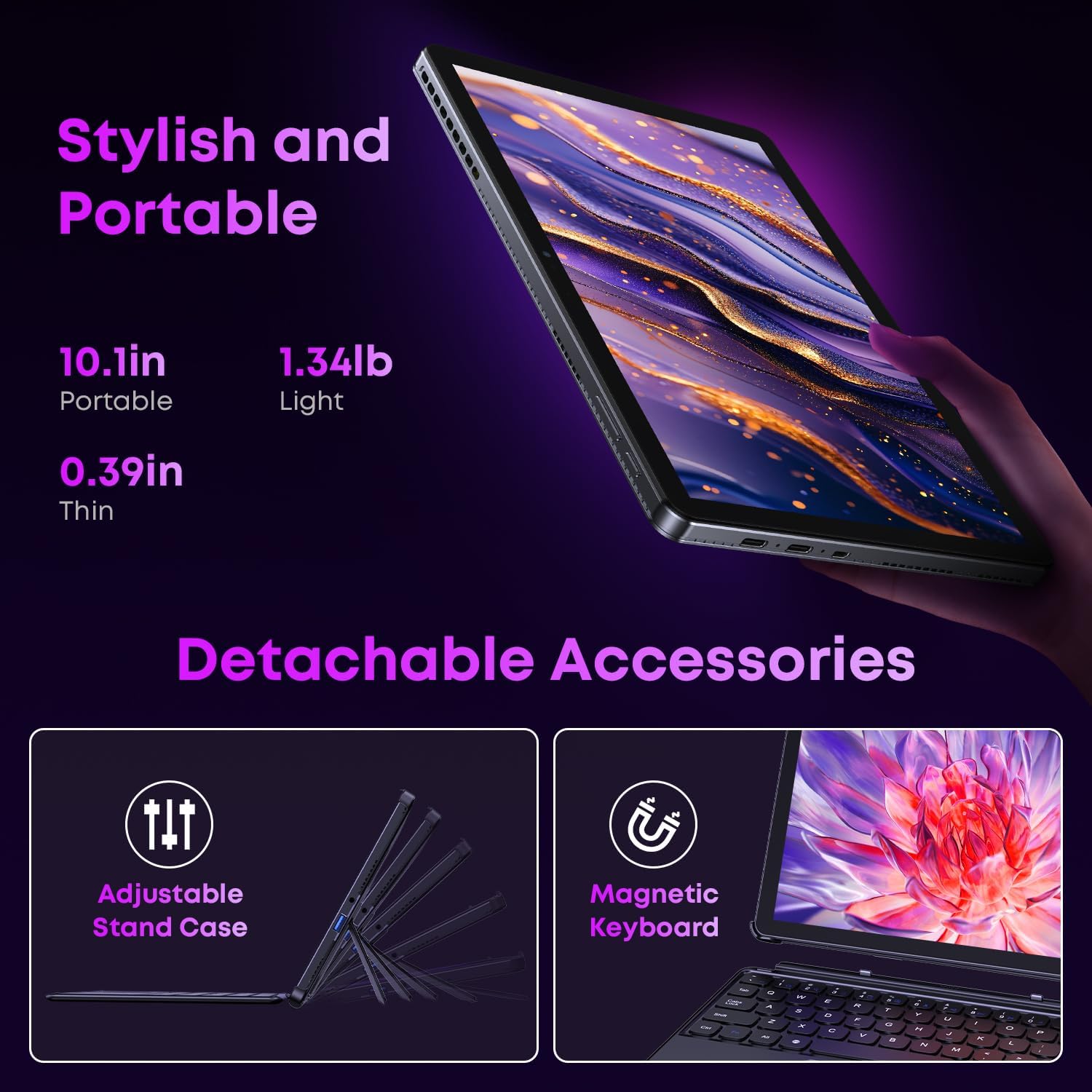
Image 2.1: Detachable accessories including the magnetic keyboard and adjustable stand case.
2.3 First Boot-Up and Windows Activation
Press and hold the power button until the screen turns on. Follow the on-screen instructions to complete the initial Windows 11 setup. If your Windows system arrives unactivated, please send the serial number (located on the back of the device) to CHUWI support via Amazon for your activation key.
2.4 Připojení k Wi-Fi
During setup, you will be prompted to connect to a Wi-Fi network. Select your network and enter the password. The device supports Wi-Fi 6 for fast and stable connections.
3. Návod k obsluze
3.1 Zapnutí/vypnutí a režim spánku
- Zapnutí: Stiskněte a podržte tlačítko napájení, dokud se obrazovka nerozsvítí.
- Vypnout: From the Windows Start menu, select Power > Shut down.
- Režim spánku: Briefly press the power button to enter or exit sleep mode.
3.2 Používání dotykové obrazovky
The 10.1-inch HD touchscreen supports 10-point multi-touch gestures. Use taps, swipes, and pinches for navigation and interaction with applications.

Image 3.1: The 10.1-inch HD touchscreen display.
3.3 Laptop and Tablet Modes
The magnetic keyboard allows for seamless switching between laptop and tablet modes. Attach the keyboard for typing and productivity, or detach it for a pure tablet experience.
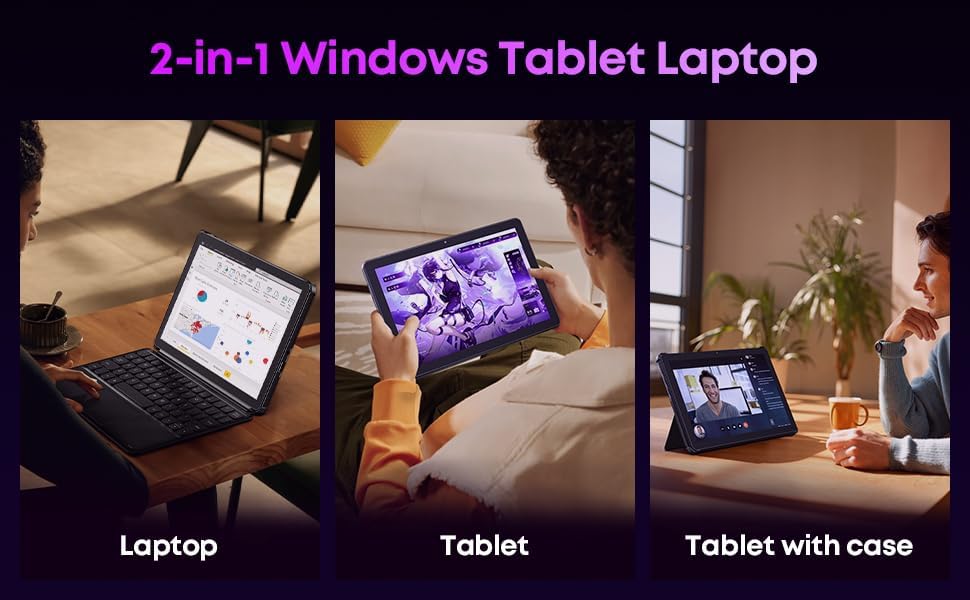
Image 3.2: Usage scenarios demonstrating laptop, tablet, and tablet with case modes.
3.4 Konektivita
- USB porty: The tablet features a full-featured Type-C port and a USB 3.2 Gen1 port for data transfer and connecting peripherals.
- Micro HDMI: Connect to external monitors or TVs using the Micro HDMI port for extended display options, supporting up to 4K video output.
- Bluetooth 5.3: Pair with wireless headphones, mice, and other Bluetooth accessories.
- Wi-Fi 6: Enjoy high-speed internet connectivity for streaming and browsing.
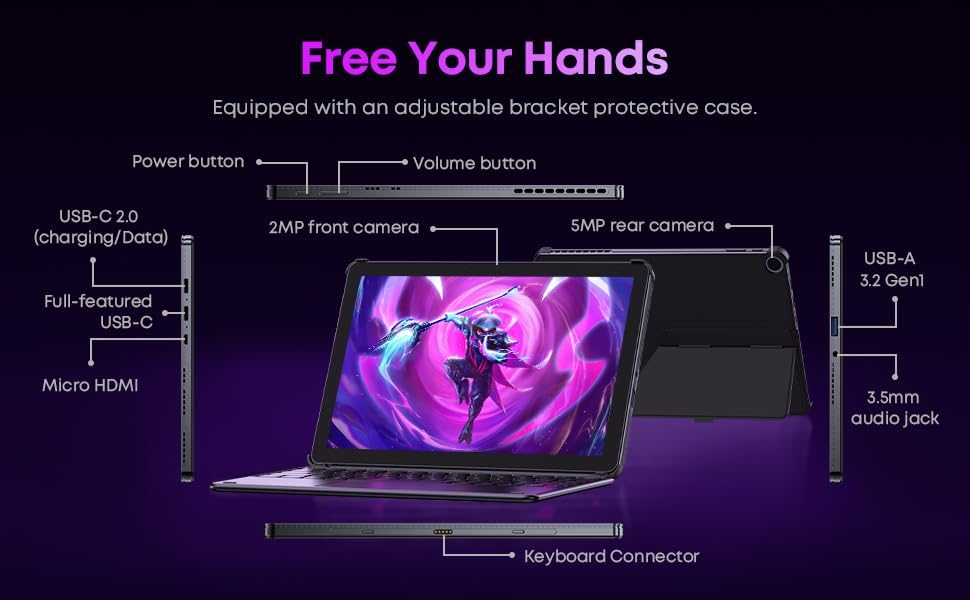
Obrázek 3.3: Detailní view of the tablet's ports and connectors.
3.5 Použití kamery
The tablet is equipped with a 5MP autofocus rear camera for capturing photos and videos, and a 2MP front camera for video calls and selfies.

Image 3.4: Camera and wireless connectivity features.
3.6 Processor and Storage
Powered by a 10th Gen Intel Core i3 processor (up to 3.9GHz) and 8GB RAM, the tablet handles multitasking efficiently. The 256GB SSD provides ample storage and fast access to your files.

Image 3.5: Intel 10th Gen Core i3 Processor details.
3.7 Konec produktuview Video
Video 3.6: Overview of the CHUWI Hi10 X2 2-in-1 Laptop Tablet, highlighting its features and functionality.
4. Údržba
4.1 Čištění zařízení
K čištění obrazovky a těla tabletu použijte měkký hadřík, který nepouští vlákna. V případě odolných šmouh je lehceampOmyjte hadřík vodou nebo roztokem na čištění obrazovky. Nepoužívejte agresivní chemikálie ani abrazivní materiály.
4.2 Péče o baterii
To prolong battery life, avoid exposing the tablet to extreme temperatures. It is recommended to keep the battery charge between 20% and 80% for optimal longevity. Avoid fully discharging the battery frequently.
4.3 Aktualizace softwaru
Pravidelně kontrolujte a instalujte aktualizace systému Windows, abyste zajistili, že váš systém má nejnovější bezpečnostní záplaty a vylepšení výkonu. Přejděte do Nastavení > Windows Update.
4.4 Správa úložiště
Pravidelně znovuview a smažte nepotřebné files and applications to free up storage space on the 256GB SSD. This helps maintain optimal device performance.
5. Řešení problémů
5.1 Zařízení se nezapíná
- Ensure the device is fully charged. Connect the charger and wait a few minutes before attempting to power on.
- Stiskněte a podržte tlačítko napájení po dobu 10–15 sekund pro provedení tvrdého resetu.
5.2 Problémy s připojením k Wi-Fi
- Restartujte Wi-Fi router a tablet.
- Zkontrolujte, zda se ostatní zařízení mohou připojit ke stejné síti Wi-Fi.
- Zapomeňte na síť v nastavení Windows a znovu se připojte.
5.3 Obrazovka nereaguje na dotyk
- Restartujte tablet.
- Ujistěte se, že je obrazovka čistá a bez nečistot.
5.4 Keyboard Not Working
- Ensure the tablet is correctly aligned and securely connected to the magnetic keyboard.
- Restartujte tablet.
Pro další pomoc se prosím podívejte do sekce Podpora.
6. Specifikace
| Funkce | Specifikace |
|---|---|
| Značka | CHUWI |
| Název modelu | Hi10 X2 |
| Procesor | Intel Core i3 (10th Gen, up to 3.9 GHz) |
| Operační systém | Windows 11 Home |
| BERAN | 8 GB |
| Skladování | 256 GB SSD |
| Velikost obrazovky | 10.1 palce |
| Rozlišení displeje | 1280x800 pixelů |
| Konektivita | Wi-Fi 6, Bluetooth 5.3 |
| Porty | Full-featured Type-C, USB 3.2 Gen 1, Micro HDMI, 3.5mm Audio Jack |
| Kamery | 5MP Autofocus Rear, 2MP Front |
| Hmotnost | 1.3 libry (přibližně 0.59 kg) |
| Rozměry (D x Š x T) | 9.6 cm x 6.49 cm x 0.39 cm |
| Kapacita baterie | 3400 XNUMX mAh |
7. Informace o záruce
The CHUWI Hi10 X2 2-in-1 Laptop Tablet comes with a 1letá omezená zárukaTato záruka se vztahuje na výrobní vady a poruchy při běžném používání. Uschovejte si prosím doklad o koupi pro případ uplatnění záruky.
For detailed warranty terms and conditions, please refer to the official CHUWI webwebu nebo kontaktujte zákaznickou podporu.
8. Podpora
If you encounter any issues not covered in the Troubleshooting section, or require assistance with Windows activation, please contact CHUWI customer support. You can typically find support contact information on the official CHUWI website or through your purchase platform (e.g., Amazon seller messaging).
When contacting support, please have your device's serial number and proof of purchase readily available.