
1. Úvod
This manual provides essential information for setting up, operating, and maintaining your Plimpton Kids Tablet 10 Inch, Model Kids 20. This device is designed to offer a secure and engaging digital experience for children, featuring the Android 15 operating system, an octa-core processor, and integrated Google Kids Space.
2. Co je v krabici
- 1 x PlimPad Kids Android 15 Tablet
- 1 x USB adaptér
- 1 x USB nabíjecí kabel
- Uživatelská příručka

3. Vlastnosti produktu
- Pokročilý výkon: Equipped with an enhanced Android 15 system, a 2.0GHz 8-core processor, 4GB RAM, and 64GB storage (expandable to 1TB).
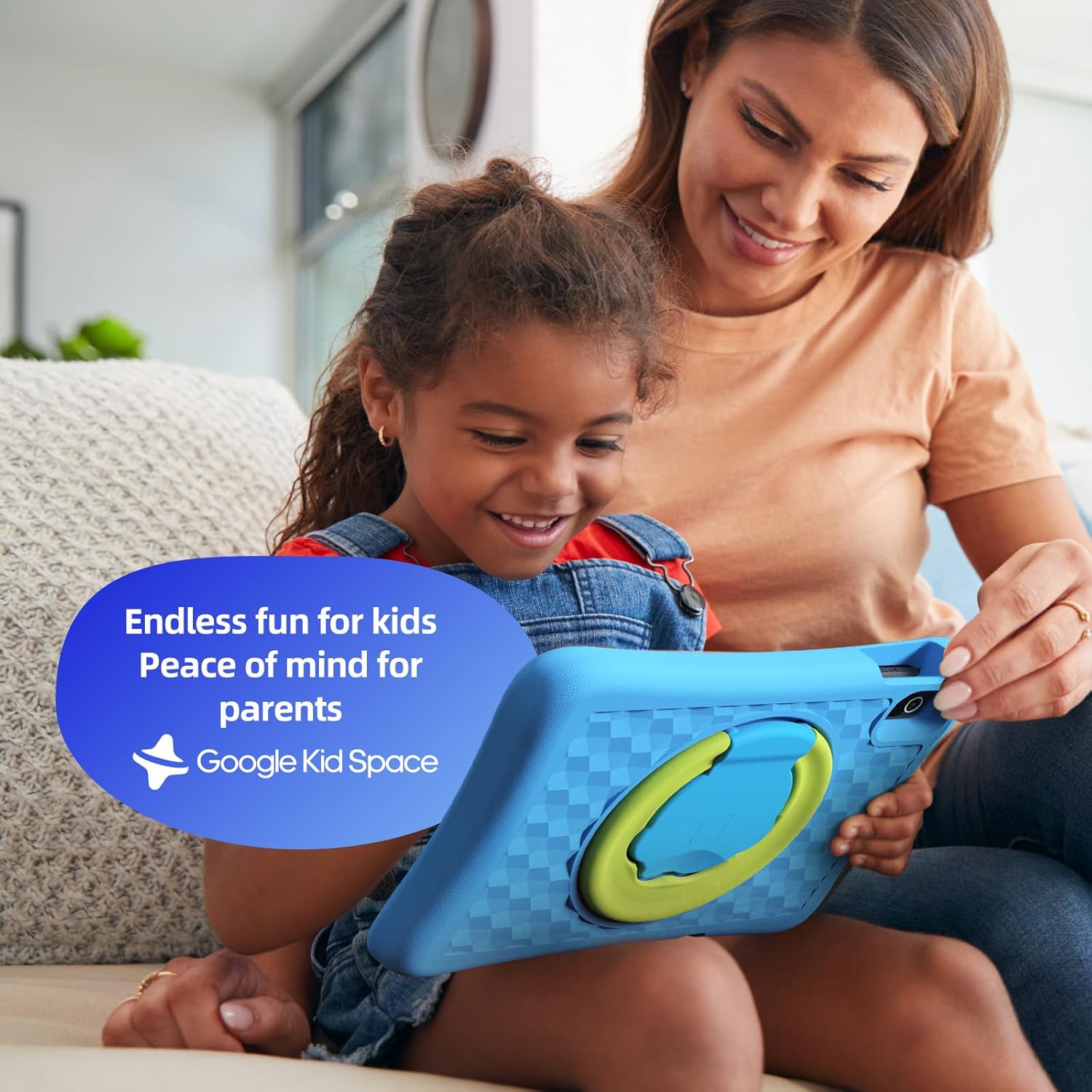
- Google Kids Space & Parental Control: Pre-installed with Google Kids Space and educator-endorsed apps. User-friendly parental controls allow content filtering, educational targets, and time restrictions.
- Eye Protection Display: 10.1" HD IPS glass screen (1280 x 800 resolution) with low blue light technology and automatic brightness adjustment to reduce eye fatigue.
- Odolný design: Rugged, anti-drop EVA protective case, odorless and resistant to deformation, with a 360° rotatable bracket.
- Optimized Battery: Upgraded power system for extended daily use, leveraging Android 15's efficiency for smarter power management.

4. Nastavení
4.1 Počáteční zapnutí
- Stiskněte a podržte tlačítko napájení na boku tabletu, dokud se obrazovka nerozsvítí.
- Postupujte podle pokynů na obrazovce a vyberte preferovaný jazyk a region.
4.2 Wi-Fi připojení
- From the initial setup screen or Settings menu, select 'Wi-Fi'.
- Vyberte ze seznamu svou domácí Wi-Fi síť.
- Enter your Wi-Fi password and tap 'Connect'.
4.3 Nastavení účtu Google
- Sign in with an existing Google account or create a new one. This account will be used for parental controls and app downloads.
- Follow the instructions to link your child's profile to your Google Family Link account for parental management.
4.4 Google Kids Space Configuration
- Once your Google account is set up, the tablet will guide you through configuring Google Kids Space.
- Select your child's age and interests to personalize content recommendations.
- Review and adjust parental control settings within Google Kids Space or via the Google Family Link app on your own device.
5. Ovládání tabletu
5.1 Navigating Google Kids Space
Google Kids Space provides a child-friendly interface with curated content. Children can navigate through different categories like 'Play', 'Read', and 'Watch' to discover apps, books, and videos tailored to their age and interests.
5.2 Parental Controls with Google Family Link
Manage your child's digital experience remotely using the Google Family Link app on your smartphone. This allows you to:
- Set daily screen time limits.
- Approve or block apps from the Google Play Store.
- Track app usage and activity.
- Set device bedtime.
- Manage content restrictions for websites and searches.

5.3 Spotřeba médií
The tablet supports various media types:
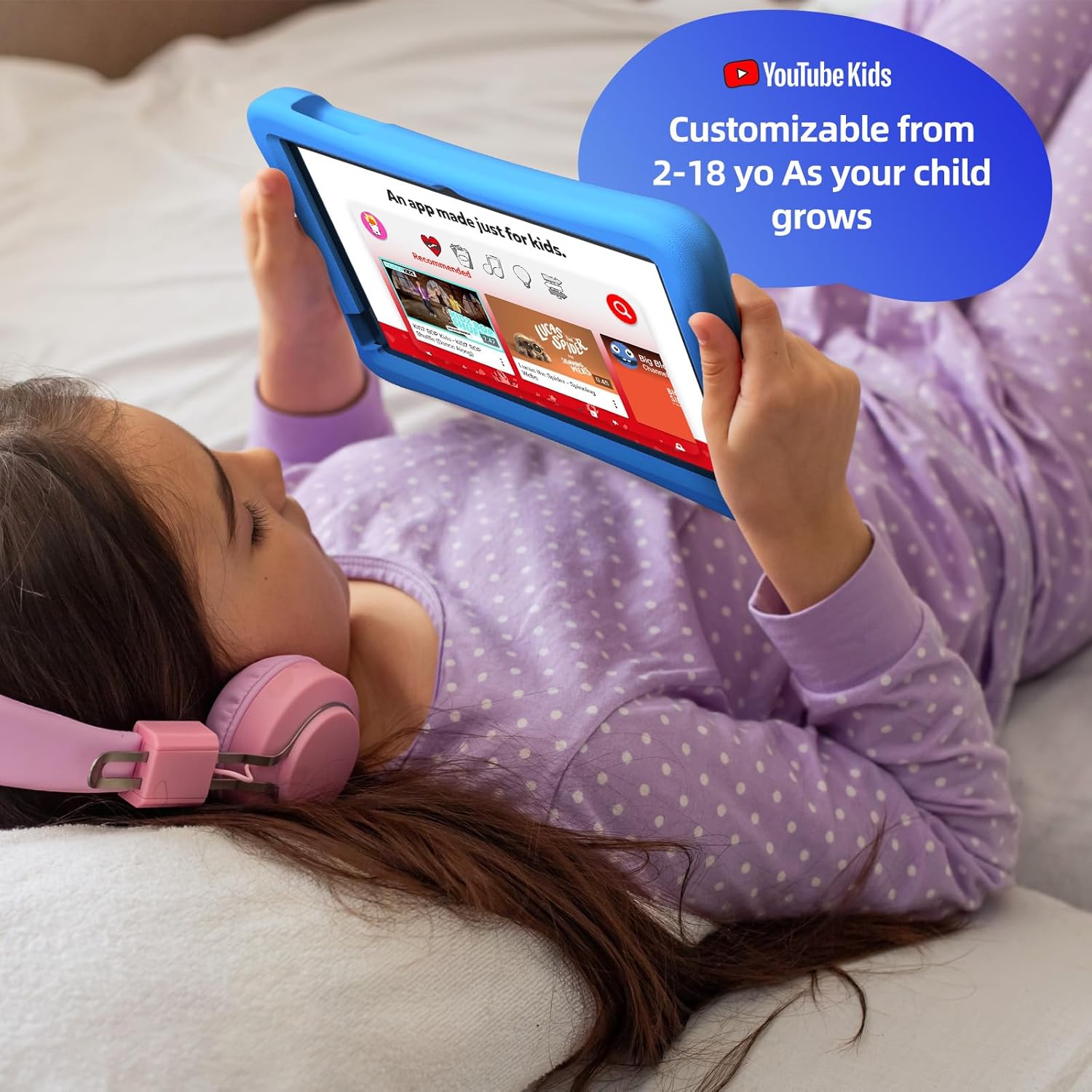
- videa: Access YouTube Kids for age-appropriate video content. Parental controls can further refine available videos.
- knihy: Explore a library of digital books within Google Kids Space, promoting reading and literacy.
- Hry: A wide selection of educational and entertaining games are available, with new content regularly updated.

6. Údržba
6.1 Péče o baterii
- Před prvním použitím tablet plně nabijte.
- Abyste prodloužili životnost baterie, vyhněte se jejímu pravidelnému úplnému vybíjení.
- Use only the provided USB Adaptor and Charge Cable.
6.2 Čištění
- Turn off the tablet before cleaning.
- Use a soft, lint-free cloth to wipe the screen and exterior.
- Vyhněte se používání agresivních chemikálií nebo abrazivních materiálů.
6.3 Aktualizace softwaru
Ensure the tablet's software is up-to-date for optimal performance and security. Connect to Wi-Fi and check for updates periodically in the Settings menu.
7. Řešení problémů
7.1 Tablet se nezapíná
- Ujistěte se, že je baterie nabitá. Připojte tablet k nabíječce a před opětovným zapnutím počkejte několik minut.
- Stiskněte a podržte tlačítko napájení po dobu 10–15 sekund pro provedení tvrdého resetu.
7.2 Pomalý výkon
- Zavřete nepoužívané aplikace běžící na pozadí.
- Vymažte data mezipaměti často používaných aplikací v Nastavení > Aplikace.
- Zajistěte dostatek úložného prostoru. Odstraňte nepotřebné files nebo aplikacemi.
7.3 Problémy s připojením k Wi-Fi
- Restartujte Wi-Fi router a tablet.
- Zapomeňte na síť v nastavení Wi-Fi a znovu se připojte.
- Ujistěte se, že je tablet v dosahu signálu Wi-Fi.
8. Specifikace
| Funkce | Specifikace |
|---|---|
| Velikost zobrazení na stojící obrazovce | 10.1 palce |
| Rozlišení obrazovky | 1280 x 800 pixelů |
| Procesor | 2 GHz osmijádrový procesor |
| Operační systém | Android 15 |
| Velikost paměti Flash | 64 GB |
| BERAN | 4 GB |
| Rozšiřitelné úložiště | Up to 1 TB (SD card not included) |
| Průměrná životnost baterie | 8 hodiny |
| Hmotnost položky | 1.76 libry |
| Rozměry produktu | 10.86 x 7.83 x 1.22 palce |
| Barva | Modrý |
9. Záruka a podpora
The Plimpton Kids Tablet comes with a 2-letá zárukaNavíc, a 30-day worry-free return and replacement policy is provided. For any questions or concerns, please contact Plimpton customer support. Our team is dedicated to resolving any issues you may encounter.
For detailed support, refer to the customer support card included in your product packaging or visit the official Plimpton webmísto.