
1. Úvod
This manual provides essential information for setting up, operating, and maintaining your HP OmniDesk Slim Desktop PC, Model S03-0006. This desktop PC is designed for daily tasks, offering an Intel Core i3-14100 processor, ample memory, and various connectivity options for productivity and entertainment.
2. Obsah balení
Ověřte, zda jsou v balení přítomny všechny položky:
- HP S03-000 OmniDesk Slim Desktop PC
- Napájení
- USB Black Wired Keyboard (if included with specific bundle)
- USB Wired Mouse (if included with specific bundle)
Poznámka: Další příslušenství se může prodávat samostatně.
3. Konec produktuview
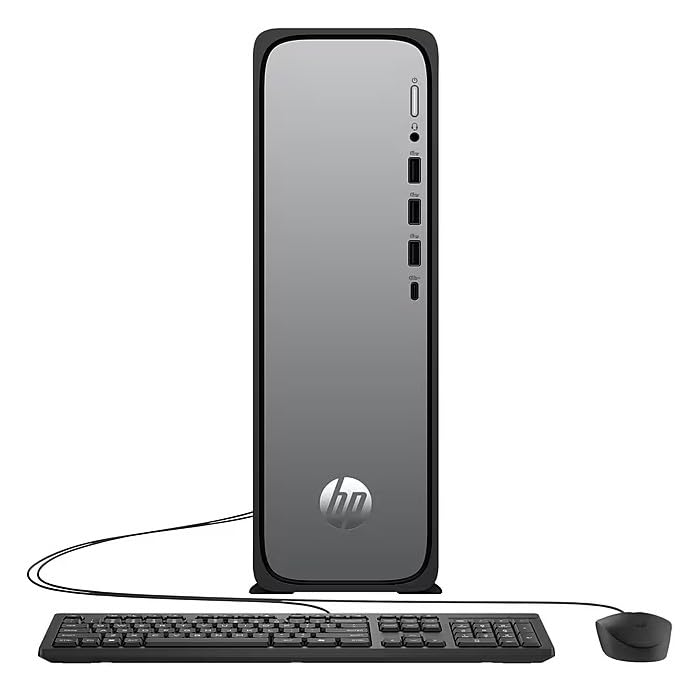
The HP OmniDesk Slim Desktop PC features a compact design with essential components for efficient computing.

Obrázek 3.1: HP OmniDesk Slim Desktop PC showcasing jeho štíhlý profesionálfile, Intel Core i3-14100 processor, 8GB DDR5 RAM, 256GB SSD, Intel UHD Graphics 710, Wi-Fi 6, Bluetooth 5.4, Windows 11, and dual display support.
3.1. Porty a konektory
Familiarize yourself with the various ports on your desktop PC for connecting peripherals and displays.
Obrázek 3.2: Front and rear port layout of the HP OmniDesk Slim Desktop PC. Front ports include a headphone/microphone combo jack, USB Type-A 5Gbps ports, and a USB Type-C 10Gbps port. Additional ports (typically rear) include 4 USB 2.0 Type-A, 1 RJ-45 (Ethernet), 1 HDMI Out, and 1 DisplayPort 1.4.
- Přední porty:
- Kombinace sluchátek/mikrofonu
- USB Type-A 5Gbps signaling rate (3 ports)
- USB Type-C 10Gbps signaling rate (1 port)
- Zadní porty:
- USB 2.0 Type-A (4 ports)
- RJ-45 (Ethernet)
- HDMI 1.4b (1 port)
- DisplayPort 1.4a (1 port)
4. Průvodce nastavením
Chcete-li nastavit stolní počítač HP OmniDesk Slim, postupujte podle těchto kroků:
- Připojení monitoru: Connect your monitor to the PC using an HDMI or DisplayPort cable. Ensure the cable is securely plugged into both the PC and the monitor.
- Připojení periferií: Plug in your USB keyboard and mouse into the available USB ports on the PC.
- Připojte napájení: Connect the power supply cable to the PC's power input, then plug the other end into a wall outlet or surge protector.
- Zapnutí: Press the power button on the front of the PC. The system will boot up, and you will see the Windows 11 setup screen.
- Počáteční nastavení Windows: Postupujte podle pokynů na obrazovce a dokončete nastavení systému Windows 11, včetně jazyka, regionu, síťového připojení a vytvoření uživatelského účtu.
5. Návod k obsluze
5.1. Základní obsluha
- Zapnutí/vypnutí: Press the power button to turn on the PC. To shut down, click the Start button, then Power > Shut down.
- Restartovat: Klikněte na tlačítko Start a poté na Napájení > Restartovat.
- Režim spánku: Klikněte na tlačítko Start a poté na Napájení > Spánek.
5.2. Připojení k síti
Your PC supports both wired (Ethernet) and wireless (Wi-Fi) network connections.
- Kabelové připojení: Connect an Ethernet cable from your router or modem to the RJ-45 port on the back of the PC.
- Bezdrátové připojení (Wi-Fi 6):
- Klikněte na ikonu Wi-Fi na hlavním panelu.
- Vyberte ze seznamu požadovanou síť Wi-Fi.
- Pokud se zobrazí výzva, zadejte bezpečnostní klíč sítě (heslo) a poté klikněte na tlačítko Připojit.
5.3. Podpora dvou displejů
To extend your desktop to a second monitor:
- Connect the second monitor to an available video output port (HDMI or DisplayPort) on your PC.
- Klikněte pravým tlačítkem myši na plochu a vyberte Nastavení displeje.
- Under "Multiple displays," select how you want the displays to behave (e.g., Extend these displays, Duplicate these displays).
6. Údržba
- Aktualizace softwaru: Pravidelně kontrolujte a instalujte aktualizace systému Windows, abyste zajistili stabilitu a zabezpečení systému. Přejděte na Nastavení > Aktualizace systému Windows.
- Aktualizace ovladačů: Keep your device drivers updated. HP Support Assistant (MyHP) can help manage these updates.
- Čištění: Use a soft, dry cloth to clean the exterior of the PC. Avoid liquid cleaners directly on components. Ensure ventilation openings are clear of dust.
- Záložní data: Důležité pravidelně zálohovat filena externí disk nebo do cloudového úložiště, aby se zabránilo ztrátě dat.
7. Řešení problémů
| Problém | Možné řešení |
|---|---|
| Počítač se nezapne. |
|
| Žádné zobrazení na monitoru. |
|
| Žádné připojení k internetu. |
|
| Peripherals (keyboard/mouse) not working. |
|
8. Specifikace
| Název modelu | HP OmniDesk Desktop HP S03-000 PC |
| Číslo modelu | OmniDesk Slim S03-0006 |
| Procesor | Intel Core i3-14100 (3.5 GHz, 6 MB Cache) |
| Grafika | Grafická karta Intel UHD 710 (integrovaná) |
| BERAN | 8 GB DDR5 (4800 MT/s), Max 64 GB |
| Skladování | 256 GB SSD (Solid State Drive) |
| Operační systém | Windows 11 Home |
| Konektivita | Realtek Wi-Fi 6 (2x2), Bluetooth 5.4, Gigabit Ethernet (RJ-45) |
| Porty |
|
| Rozměry (V x Š x H) | 11.61 x 3.94 x 11.97 palce |
| Hmotnost | 8.38 libry |
| Certifikace | ENERGY STAR certified, EPEAT Gold with Climate+ |
9. Záruka a podpora
9.1. Informace o záruce
This HP OmniDesk Slim Desktop PC comes with a 90denní omezená zárukaKonkrétní podmínky naleznete v záruční dokumentaci dodané s vaším produktem.
9.2. Technická podpora
Pro technickou pomoc, stažení ovladačů nebo další informace navštivte oficiální stránky podpory HP. website. You can also utilize the pre-installed MyHP application for device customization, optimization, and access to helpful messages and settings.
Always provide your product model number (S03-0006) and serial number when contacting support.