
Zavedení
This manual provides comprehensive instructions for the setup, operation, maintenance, and troubleshooting of your KNAON Portable Thermal Printer. This device offers convenient wireless and USB printing capabilities, designed for efficiency and portability. Please read this manual thoroughly before using the printer to ensure optimal performance and longevity.
Průvodce nastavením
1. Obsah balení
Ověřte, zda jsou v balení přítomny všechny položky:
- KNAON Portable Thermal Printer
- 3 Rolls of A4 Thermal Paper
- 4 Rolls of A4 Thermal Paper
- USB kabel
- Uživatelská příručka (tento dokument)
2. Vkládání termopapíru
The printer is designed to work exclusively with thermal paper. Standard paper is not compatible.
- Otevřete kryt přihrádky na papír.
- Insert the A4 thermal paper roll or folded sheets into the compartment, ensuring the printable side faces the print head.
- Zavřete bezpečně kryt.
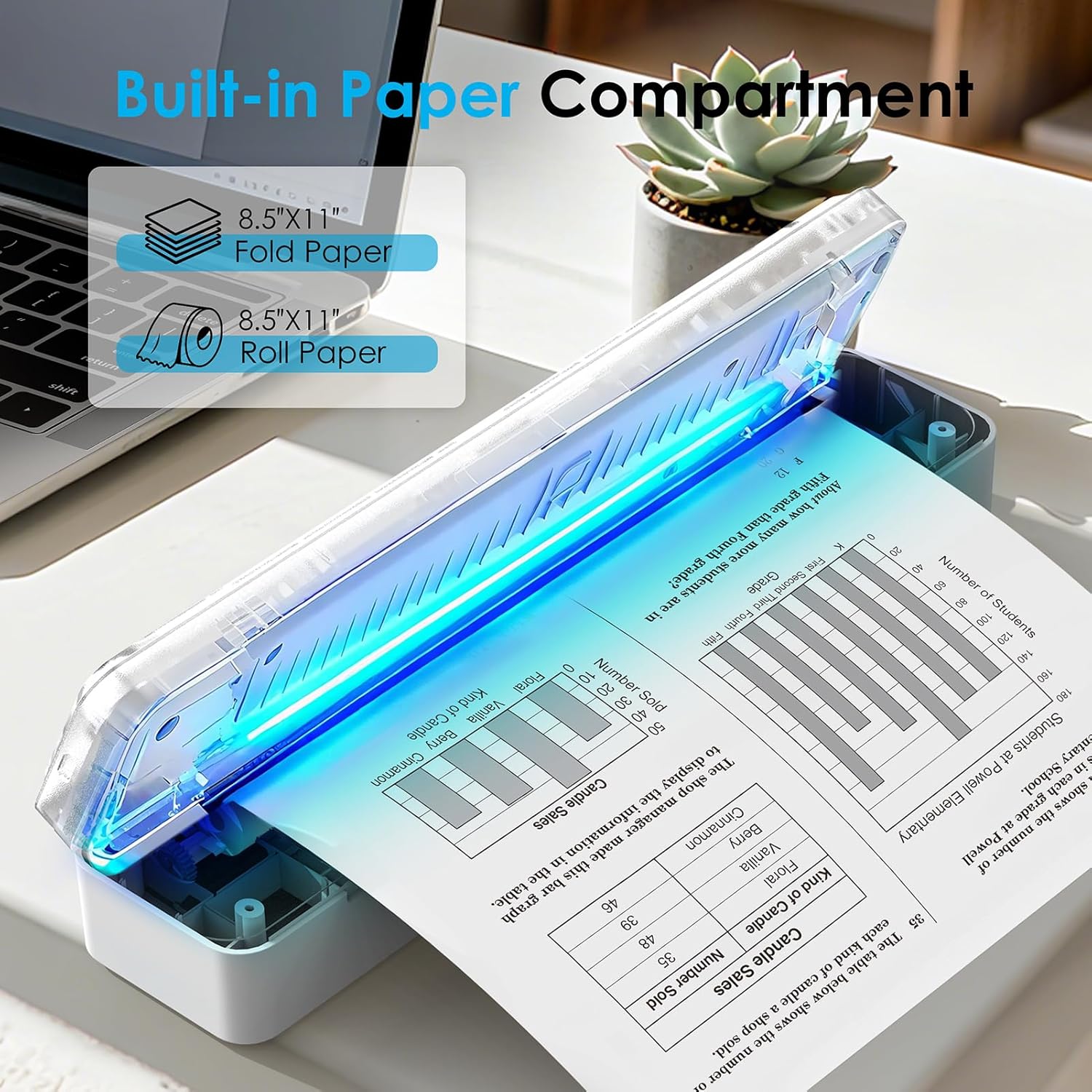
Image: The KNAON Portable Thermal Printer with its built-in paper compartment open, showing how to load 8.5"x11" fold paper or roll paper.
3. Zapnutí a nabíjení
- Pro zapnutí stiskněte a podržte tlačítko napájení, dokud se nerozsvítí kontrolka.
- Connect the printer to a power source using the provided USB cable for charging. The indicator light will show charging status.
4. Počáteční připojení
Bluetooth Connection (iOS/Android)
- Download the 'FlashToy' app from the Apple App Store or Google Play Store.
- Ujistěte se, že je na vašem mobilním zařízení povoleno Bluetooth.
- Open the 'FlashToy' app and follow the in-app instructions to connect to your printer. Direct Bluetooth pairing through device settings is not supported; connection must be made via the app.

Image: A smartphone displaying the 'FlashToy' app interface for easy mobile printing, connected to the KNAON Portable Thermal Printer.
USB Connection (Windows/macOS)
- For Windows (7 and above) and macOS, you must download and install the appropriate printer driver. Refer to the Sekce podpory for driver download information.
- Připojte tiskárnu k počítači pomocí dodaného kabelu USB.
- After driver installation, the printer will be recognized by your operating system.

Image: The KNAON Portable Thermal Printer connected to a laptop via a USB cable, demonstrating versatile connectivity options.
Návod k obsluze
1. Printing via Bluetooth (FlashToy App)
- Ensure your printer is powered on and connected to the 'FlashToy' app.
- Within the app, select the document or image you wish to print.
- Adjust print settings (e.g., paper size, orientation) as needed.
- Spusťte příkaz k tisku z aplikace.
2. Printing via USB (Windows/macOS)
- Ensure your printer is connected to your computer via USB and the drivers are installed.
- Open the document or image on your computer using your preferred application.
- V nabídce aplikace vyberte možnost „Tisk“ (např. File > Tisk).
- Choose the KNAON Portable Thermal Printer from the list of available printers.
- Adjust print settings as required and confirm the print job.
3. Podporováno File Formáty
The printer supports various file formats for printing, including:
- Word documents (.doc, .docx)
- Excel spreadsheets (.xls, .xlsx)
- PowerPoint presentations (.ppt, .pptx)
- Web stránky
- Text files (.txt)
- Obraz files (e.g., .jpg, .png)
Image: An illustration showing the KNAON Portable Thermal Printer's compatibility with multiple file formats, including Word, Excel, PowerPoint, Web Page, TXT, and Picture files.
Údržba
1. Čištění tiskárny
- Ensure the printer is powered off and disconnected from any power source before cleaning.
- Použijte měkký hadřík, který nepouští vlákna dampened with water or isopropyl alcohol to gently wipe the exterior of the printer.
- To clean the print head, use a specialized thermal printer cleaning pen or a cotton swab lightly dampened with isopropyl alcohol. Wipe the print head gently and allow it to dry completely before use.
- Avoid using abrasive cleaners or solvents that could damage the printer's surface or internal components.
2. Thermal Paper Handling and Storage
- Store thermal paper in a cool, dry place away from direct sunlight, heat, and humidity to preserve its print quality and longevity.
- Avoid touching the thermal coating of the paper excessively, as oils from your skin can affect print quality.
- Only use thermal paper specifically designed for thermal printers.

Image: A package of KNAON US Letter 8.5" x 11" thermal paper rolls, indicating the type of paper required for the printer.
3. Péče o baterie
- For optimal battery life, charge the printer regularly and avoid completely draining the battery frequently.
- If storing the printer for an extended period, charge it to approximately 50% capacity and store it in a cool, dry place. Recharge every few months to prevent deep discharge.
Odstraňování problémů
Běžné problémy a řešení:
- Tiskárna se nezapíná: Ensure the printer is charged. Connect it to a power source using the USB cable and try again.
- Nelze se připojit přes Bluetooth:
- Ověřte, zda je na vašem mobilním zařízení povoleno rozhraní Bluetooth.
- Ensure you are connecting through the 'FlashToy' app, not directly via device Bluetooth settings.
- Restartujte tiskárnu i mobilní zařízení.
- Počítač (USB) nerozpoznál tiskárnu:
- Verify that the correct printer drivers for Windows or macOS are installed.
- Zkuste jiný port USB nebo kabel.
- Restartujte počítač a tiskárnu.
- Poor print quality or blank pages:
- Ensure you are using thermal paper and it is loaded correctly with the printable side facing the print head.
- Vyčistěte tiskovou hlavu podle pokynů v části Údržba.
- Check if the thermal paper is old or improperly stored.
- Zaseknutý papír: Power off the printer, carefully open the paper compartment, and gently remove any jammed paper. Ensure paper is loaded correctly and not wrinkled.
Pokud narazíte na problémy, které zde nejsou uvedeny, podívejte se prosím na Sekce podpory pro další pomoc.
Specifikace
| Značka | KNAON |
| Číslo modelu | B0G2XBJX2T |
| Technologie připojení | Bluetooth, USB |
| Technologie tisku | Tepelný |
| Tiskový výstup | Monochromatický (černobílý) |
| Maximální velikost média | A4 (US Letter) |
| Tisková média | Thermal Paper Only |
| Maximální vstupní kapacita listu | 200 |
| Maximum Copy Resolution | 203 dpi |
| Rozměry | Přibližně 12 x 2.17 x 1.65 palce |
| Zahrnuté komponenty | Printer, 7 Rolls A4 Thermal Paper (3+4), USB Cable |
Informace o záruce
The KNAON Portable Thermal Printer comes with a omezená záruka. For specific terms and conditions, please refer to the warranty card included in your product packaging or contact KNAON customer support.
Zákaznická podpora
For further assistance, including driver downloads, additional instructional guides, and troubleshooting videos, please visit the official KNAON support webnebo kontaktujte náš tým zákaznických služeb.
- Official KNAON Store: Visit KNAON Store on Amazon
- Stažení ovladačů: Available on the KNAON support webweb (URL not provided in source data, user should search for "KNAON printer drivers").
- Troubleshooting Videos: Available on the KNAON support website or official channels.
KNAON is committed to providing a seamless user experience and rigorous quality testing for all products.