
Zavedení
This manual provides detailed instructions for the Philips SPK7858 Wireless Optical Mouse. Designed for ergonomic comfort and versatile performance, this mouse features multi-connection options, adjustable DPI settings, and a rechargeable battery, making it suitable for everyday use, office tasks, and gaming. Please read this manual thoroughly to ensure proper setup and operation.
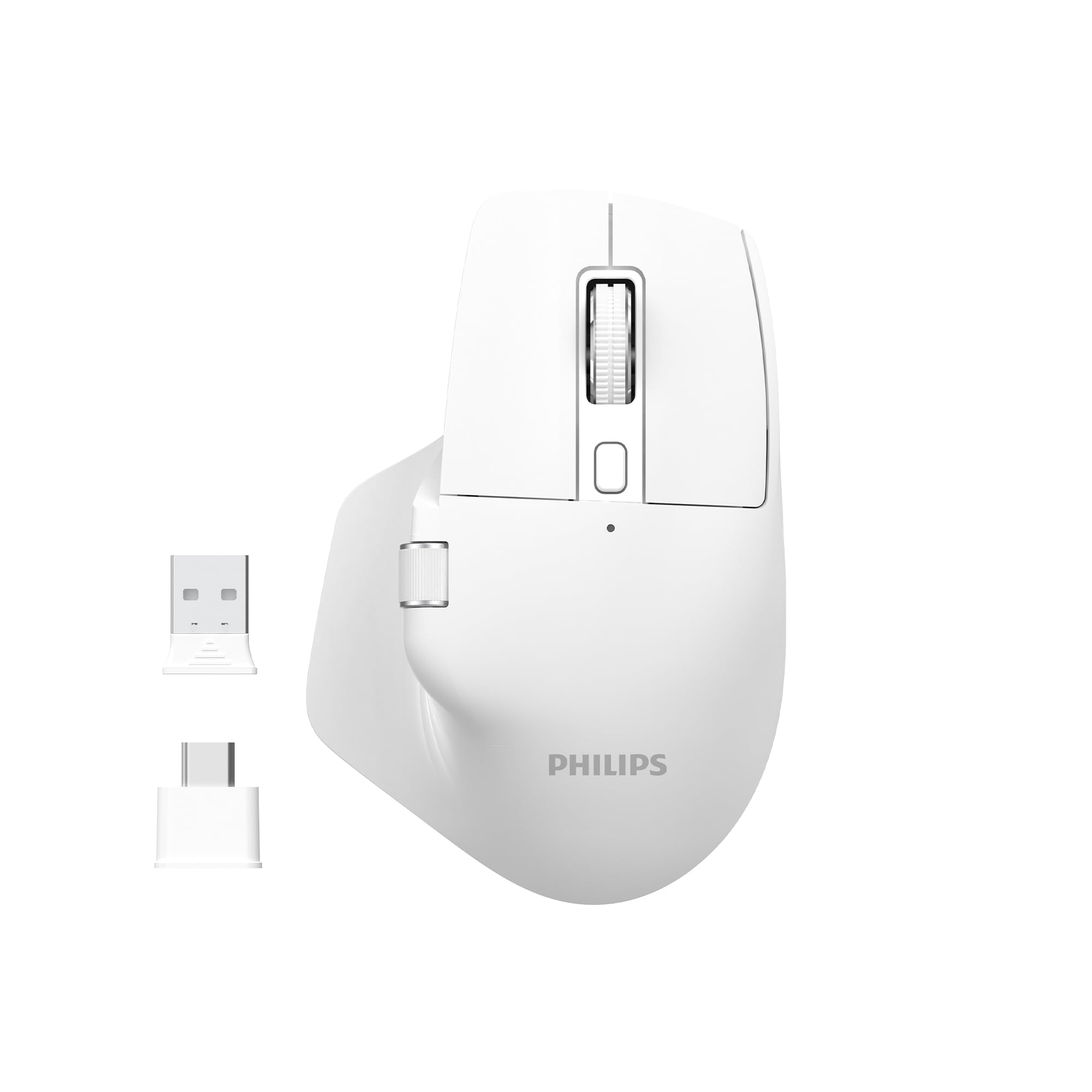
Image: The Philips SPK7858 Wireless Optical Mouse in white, shown with its USB receiver and Type-C adapter.
Nastavení
1. Obsah balení
Než začnete, ujistěte se, že balení obsahuje všechny položky:
- Philips SPK7858 Wireless Optical Mouse
- USB přijímač
- Adaptér USB typu C.
- Nabíjecí kabel (typ C)
- Uživatelská příručka (tento dokument)
2. Nabíjení myši
The mouse comes with a built-in rechargeable battery. For first-time use, it is recommended to fully charge the mouse.
- Vyhledejte nabíjecí port typu C na přední straně myši.
- Připojte dodaný nabíjecí kabel k myši a ke zdroji napájení USB (např. k portu USB počítače, k adaptéru USB do zásuvky).
- Rozsvítí se kontrolka nabíjení. Po úplném nabití může kontrolka změnit barvu nebo zhasnout.

Obrázek: Boční view of the Philips SPK7858 mouse, highlighting the Type-C charging port.
3. Připojení myši
The mouse connects wirelessly via a 2.4GHz USB receiver.
- Vyjměte USB přijímač z úložného prostoru na spodní straně myši.
- Plug the USB receiver directly into an available USB-A port on your computer. If your computer only has Type-C ports, use the provided Type-C adapter.
- Zapněte myš pomocí vypínače umístěného na spodní straně.
- Váš počítač by měl automaticky detekovat a nainstalovat potřebné ovladače. Myš je připravena k použití.

Image: Underside of the Philips SPK7858 mouse, illustrating the USB dongle storage area and the optical sensor.
Ovládání myši
Funkce tlačítek
The Philips SPK7858 mouse features 7 programmable buttons for enhanced control and efficiency.
- Levé tlačítko myši: Standardní funkce primárního kliknutí.
- Kliknutí pravým tlačítkem: Standardní funkce sekundárního kliknutí.
- Rolovací kolečko: Scrolls vertically. Can also be pressed for middle-click functionality.
- Tlačítko pro nastavení DPI: Cykluje mezi nastaveními citlivosti DPI.
- Tlačítko vpřed: Naviguje vpřed web prohlížeče popř file průzkumníci.
- Tlačítko zpět: Naviguje zpět web prohlížeče popř file průzkumníci.
- Boční rolovací kolečko: Provides horizontal scrolling functionality.

Obrázek: Přední strana view of the Philips SPK7858 mouse, detailing the main scroll wheel, DPI button, and side buttons.
Úprava DPI
Adjust the mouse sensitivity (DPI) to match your preference or task requirements. The SPK7858 offers 5 adjustable DPI levels.
- Press the DPI adjustment button (located behind the main scroll wheel) to cycle through the available DPI settings.
- Each press will switch to the next DPI level: 800, 1600, 2400, 3200, and 4000 DPI.
- Select the DPI setting that provides the most comfortable and precise cursor movement for your current activity.

Image: A visual representation of the five adjustable DPI levels (800, 1600, 2400, 3200, 4000) available on the Philips SPK7858 mouse.
Univerzální kompatibilita
The Philips SPK7858 mouse is designed for broad compatibility across various operating systems, ensuring seamless integration with your devices.

Image: Icons representing universal compatibility with Windows, Apple (macOS), Chrome OS, Linux, and Android operating systems.
Údržba
Čištění
To maintain optimal performance and appearance, clean your mouse regularly.
- K otření povrchu myši použijte měkký, suchý hadřík, který nepouští vlákna.
- Pro odolnou špínu lehceampOtřete hadřík vodou nebo jemným čisticím roztokem. Vyhněte se agresivním chemikáliím.
- Do not allow liquids to enter the mouse body.
- Clean the optical sensor on the underside periodically with a cotton swab to ensure accurate tracking.
Péče o baterie
The mouse features a rechargeable battery designed for long service life.
- Myš nabijte, když indikátor baterie ukazuje nízký stav nabití.
- Abyste prodloužili životnost baterie, vyhněte se častému úplnému vybíjení.
- If storing the mouse for an extended period, charge it to about 50% before storage and recharge every few months.
Odstraňování problémů
Myš nereaguje
- Zkontrolujte napájení: Ujistěte se, že je myš zapnutá a má dostatečně nabitou baterii. V případě potřeby ji dobijte.
- Zkontrolujte připojení: Ověřte, zda je USB přijímač bezpečně zapojený do funkčního USB portu v počítači. Zkuste jiný USB port.
- Opravit: Turn off the mouse, unplug the receiver, then plug the receiver back in and turn on the mouse.
- Rušení: Move the mouse closer to the receiver or away from other wireless devices that might cause interference.
Inaccurate Tracking or Cursor Jumps
- Čistit senzor: Vyčistěte optický senzor na spodní straně myši.
- Povrch: Ensure you are using the mouse on a suitable surface. Highly reflective, transparent, or uneven surfaces may affect tracking performance. A mouse pad is recommended.
- Nastavení DPI: Pokud je kurzor příliš citlivý, upravte nastavení DPI na nižší hodnotu.
Tlačítka nefungují
- Zkontrolujte baterii: Low battery can sometimes affect button responsiveness.
- Konflikt softwaru: If using custom button assignments, check your operating system's mouse settings or any third-party software for conflicts.
Specifikace
| Funkce | Detail |
|---|---|
| Značka | Philips |
| Název modelu | SPK7858 |
| Technologie připojení | Bezdrátový (USB přijímač) |
| Technologie detekce pohybu | Optický |
| Úrovně DPI | 800, 1600, 2400, 3200, 4000 |
| Počet tlačítek | 7 |
| Speciální funkce | Ergonomic Design, Rechargeable Battery |
| Barva | Bílý |
| Hmotnost položky | Cca. 99 g (včetně baterie) |
| Baterie | 1 nestandardní baterie (součástí balení, dobíjecí) |
| Obsah krabice | Myš |

Image: Diagram illustrating the dimensions of the Philips SPK7858 mouse: Height 12.3cm, Width 8.27cm, Depth 4.48cm, and approximate weight of 99g (including battery).
Informace o záruce
Philips products are manufactured to the highest standards and undergo rigorous quality checks. For detailed warranty information, including terms, conditions, and duration, please refer to the warranty card included with your product or visit the official Philips webwebu. Uschovejte si účtenku jako doklad o koupi.
Zákaznická podpora
If you encounter any issues or have questions not covered in this manual, please contact Philips customer support. You can find contact details, FAQs, and additional resources on the official Philips support webmísto.
Online podpora: Návštěva www.philips.com/support